My external hard drive suddenly stopped mounting on my Mac, and I’ve already tried different cables, ports, and restarting with no luck. Disk Utility sees it sometimes, but I can’t access my files, and I really need help figuring out what to do next before I lose important data.
I hit this often enough on Macs that I stopped treating an unmounted drive like a dead drive. Some of the ugliest cases I’ve seen were file system messes, nothing more. The disk showed up in Disk Utility, the LED kept blinking like normal, and the enclosure sounded fine. macOS still refused to mount it.
Before I touch repairs, I rule out the dumb stuff first.
Swap the cable. Plug the drive straight into the Mac, skip the hub, and try a different USB or Thunderbolt port.
Check Finder settings and make sure external disks aren’t hidden. If the drive shows in Disk Utility and the size looks close to what you expect, I take that as a decent sign. Your Mac still sees the hardware.
Then comes the part people skip. If the files matter, stop trying to 'fix' the drive first. Get the data off it.
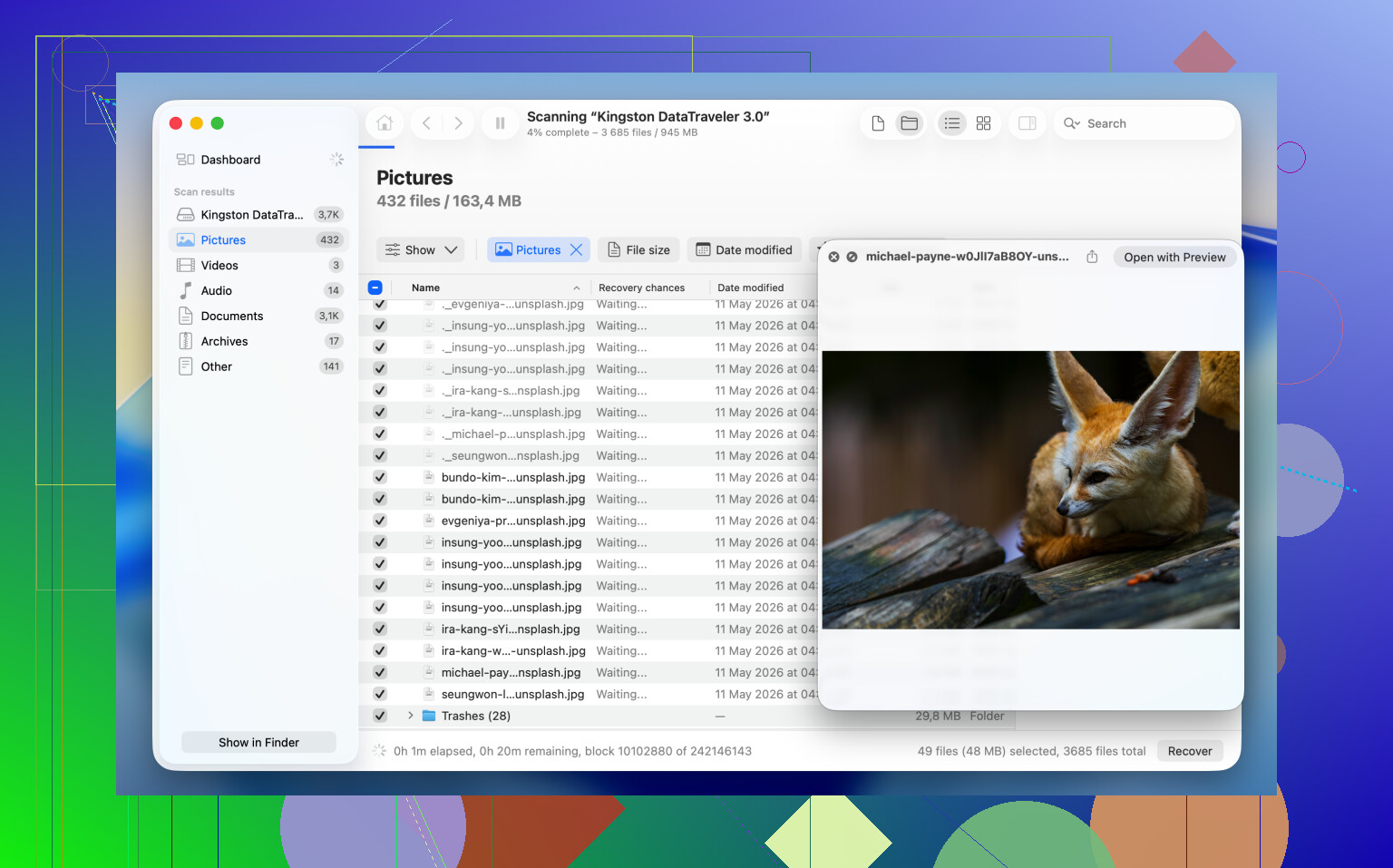
What worked best for me on unmounted volumes was Disk Drill. It talks to the storage device directly, so I’ve had it pull files from drives macOS would not mount at all.
If your stuff matters, this is the order I’d use:
1. Install and open Disk Drill.
2. Find the unmounted drive in the device list.
3. If the drive looks unstable, make a Byte-to-byte Backup first.
4. Scan the drive itself, or scan the backup image.
5. Go through the files it finds.
6. Preview the important ones and make sure they open.
7. Recover them to a different disk.
Once the files live somewhere safe, you’ve got room to experiment without sweating every click.
If you don’t care about the old contents and only want the drive usable again, formatting is usually the quickest route.
Reformat the Drive
Formatting rebuilds the file system. It wipes the old contents, so this is not a recovery step, but I’ve seen it fix mounting issues fast.
1. Open Disk Utility.
2. Click View > Show All Devices.
3. Pick the physical disk, not the volume nested under it.
4. Click Erase.
5. Type a name.
6. Choose APFS if the drive stays in the Mac world.
7. Choose exFAT if you need it to work with both macOS and Windows.
8. Click Erase and wait.
9. Unplug the drive, then plug it back in.
If it mounts fine after this, I’d put my money on file system corruption, not failed hardware.
If you want to take a shot at repair before wiping it, there are a few things worth trying. I’ve had mixed results. Minor corruption, sure. Heavier damage, less so.
Method 1: Run First Aid on the Physical Disk
Sometimes the problem sits higher up in the partition map, not inside the volume itself.
1. Open Disk Utility.
2. Click View > Show All Devices.
3. Select the physical disk at the top of the list.
4. Click First Aid.
5. Confirm the repair.
6. Let it finish.
7. Try mounting the disk again.
When the damage is small, this is enough.
Method 2: Kill a Hung fsck Process
I’ve seen macOS get stuck in the background while checking a file system, and the drive sat there unmounted the whole time. Annoying one, easy to miss.
1. Open Terminal.
2. Run: sudo pkill -f fsck
3. Press Return.
4. Enter your admin password if macOS asks.
5. Wait a few seconds.
6. See if the drive mounts on its own.
This does not repair the drive. It stops a stuck background check that might be blocking the mount.
Method 3: Mount It Manually in Terminal
Disk Utility fails in weird ways sometimes. I’ve had Terminal mount a volume when the GUI would only shrug.
1. Open Terminal.
2. Run diskutil list
3. Find the disk identifier, something like disk4s1.
4. Run diskutil mount /dev/disk4s1
5. Swap in your own identifier.
6. Press Return.
7. Read the error output if it fails.
If the command works, the volume mounts right away. If it doesn’t, Terminal usually gives you a more useful clue than Disk Utility does.
Last thing. All of this assumes the drive hardware is still okay. If it never appears in Disk Utility, shows the wrong capacity, clicks, drops connection over and over, or won’t power up, you’re likely past a mount issue and into hardware failure. At that point, software repair attempts tend to waste time, and sometimes make recovery harder. I learned that one the hard way.
13 Likes
If Disk Utility sees the drive off and on, I would not jump straight to “dead drive.” I slightly disagree with @mikeappsreviewer on one thing, I would check the drive’s SMART status before running too many repair attempts. In Disk Utility, select the physical disk and look for SMART Status. If it says Failing or Not Supported through a flaky USB bridge, treat the drive like it’s on borrowed time.
A few things worth doing that were not covered:
-
Check system logs.
Open Console, then plug the drive in and search for diskmanagementd, I/O, or mount errors. If you see repeated I/O errors, timeouts, or “invalid node structure,” that points to hardware trouble or file system damage. -
Try Safe Mode.
Boot your Mac in Safe Mode, then connect the drive. I’ve seen third-party kernel extensions, antivirus junk, and old NTFS drivers block mounts. Safe Mode strips a lot of that out. -
Test from another Mac.
This matters. If it fails on two Macs, your odds shift hard toward the drive or enclosure. -
If the enclosure is removable, pull the bare drive out and use another SATA to USB adapter. Bad enclosures fake people out all the time.
-
Run this in Terminal:
diskutil info /dev/diskX
You want to see if macOS reports a valid partition map and file system. Wrong size, missing scheme, or unreadable media is bad news.
If the files matter, I’d still use Disk Drill first and recover to another disk before more poking around. After that, erase and re-test the drive. If it drops offline again, retire it. Drives do not get more trustworthy after this stuff starts happning.
For extra reading, this thread has more clear tips on fixing an external hard drive that won’t mount on Mac, more ways to fix an external drive that will not mount on Mac.
If Disk Utility sees it only sometimes, I’d be a little less optimistic than @mikeappsreviewer on the “probably just filesystem” angle. Intermittent visibility often screams enclosure, power delivery, or the drive’s USB bridge board being flaky, not just corruption. @nachtdromer was right to bring up SMART and logs.
One thing I’d add: check System Information instead of just Disk Utility. Apple menu > About This Mac > System Report > USB or Thunderbolt. If the drive appears there consistently with the correct vendor/product info, but not as a mountable volume, macOS is at least seeing the hardware layer. If it vanishes there too, that’s more low-level.
Also try this in Terminal:
log show --last 10m | grep -i 'disk arbitration'
That can show mount refusals that Disk Utility hides behind useless wording. If you see repeated ejects, resets, or arbitration failures, I’d stop messing with repairs.
Another thing people skip: powered connection. Some portable drives borderline fail when a Mac port gives weak power. Using a powered USB dock, or a Y-cable if it’s an older drive, can randomly make the difference. Sounds dumb, but I’ve seen it.
If the data matters, I would avoid repeated mount attempts because every spin-up can be the one that tips it over. At that point I’d go recovery-first with Disk Drill, ideally imaging the drive before digging through files.
And if you want a solid walkthrough, this is a decent video guide for fixing an external hard drive that won’t mount on Mac.
Short version:
- seen in System Information = better sign
- seen only sometimes = possible hardware/enclosure issue
- repeated I/O errors = stop poking it
- need files = recover first, fix later
If you post what Disk Utility says for the partition map/file system, that’ll narrow it down prety fast.
I’d add one angle the others only touched indirectly: ownership and encryption.
Sometimes the drive is technically fine, but macOS refuses to mount it cleanly because:
- it was last used on another Mac with different permissions
- it’s a FileVault or APFS-encrypted volume that is not auto-unlocking
- it has a dirty NTFS/exFAT state from being unplugged from Windows
A couple of checks that are worth doing:
diskutil list
diskutil apfs list
sudo gpt -r show /dev/diskX
Why these? Because Disk Utility can be vague. If gpt shows a broken or weird partition table, that points to map corruption, not just a bad mount. If diskutil apfs list sees a container but no mounted volume, that’s a different problem than a dead disk.
I slightly disagree with the “run more repair tools first” instinct. If the drive is appearing and disappearing, I’d do the minimum possible before deciding whether the priority is recovery or diagnosis. Repeated retries can make a marginal drive worse.
Also check whether the volume is simply marked unmountable by the OS:
diskutil verifyDisk /dev/diskX
diskutil verifyVolume /dev/diskXsY
Verify first, repair later.
On Disk Drill:
Pros: good at seeing files on volumes macOS won’t mount, byte-to-byte backup is useful, simpler than a lot of recovery tools.
Cons: not magic, scans can take forever, recovery preview is not the same as guaranteed intact files, and the good stuff is paid.
So my order would be:
- Confirm partition scheme and APFS/container state in Terminal
- Verify, don’t repair yet
- If data matters, use Disk Drill or image the drive first
- Only then consider erase/rebuild
@nachdromer, @waldgeist, and @mikeappsreviewer already covered cables, SMART, logs, and enclosure issues pretty well. What’s missing is whether the volume is structurally present but blocked by permissions, encryption, or a broken partition map. That distinction matters a lot.