I’m thinking about resetting my iPhone to fix a problem, but I’m worried about losing music, movies, and photos that were synced from my computer. I need help understanding what happens to synced media after a reset and whether I can get it back without losing everything.
I ran into the same mess after iOS 17, and the part which annoyed me most was how little Apple shows you. “Synced Media” balloons in storage, you tap around, and there’s almost no useful breakdown.
What changed with iOS 17
Before iOS 17, Apple tended to file media under the app bucket, Music, Books, and so on. After the update, stuff copied from a Mac or PC through Finder or old iTunes sync started showing up as “Synced Media” instead. Stuff pulled from Apple’s own services usually stays under the app name.
So if you copied albums from your computer years ago, or synced movies once and forgot about them, iOS now labels those files differently. Same phone storage, different label.
Why people think storage is being counted twice
This part threw me off too. You might see a huge Music section and a huge Synced Media section and assume iOS duplicated the files. From what I saw, it’s often the same library being reported in two buckets. The reporting looks wrong, or at least sloppy. Your free space still drops either way, and your phone still chokes when storage gets tight.
Where to look
Open Settings > General > iPhone Storage.
You’ll see the storage bar at the top. “Synced Media” often appears there, but tapping it usually gets you nowhere. No clear file list. No easy delete screen. It’s a black box.
The files in there are often:
- Music synced from a computer
- Movies or TV episodes copied manually
- Books or audiobooks synced outside Apple’s store
- Old photo albums moved over from a desktop years back
How I removed it without using a computer
Apple seems to want you to reconnect the phone to the same Mac or PC and remove the synced content there. If you don’t have a computer nearby, I had luck with a dumb little workaround.
What I did:
- Reinstall Apple Music
- Reinstall Apple Books if needed
- Open the apps and look for downloaded or local files
- Delete anything stored on the device
- Remove the apps again if you don’t use them
For me, this flushed out the ghost data tied to Synced Media. It felt janky, and I wasn’t sure it would work, but the storage dropped after I did it. If your phone still holds onto old synced files, this is worth trying first.
About factory reset
If you erase the phone, Synced Media goes with it.
Those files do not usually come back from a normal iCloud backup, because they were originally copied from your computer, not stored as part of your cloud backup set. They return only if you sync them again from a Mac or PC later.
What low storage did to my phone
Mine got bad once this junk crossed 100GB. Camera took a few seconds to open. Apps froze on launch. Typing lagged. Photos took forever to save.
I used to blame iOS updates for all of it. In my case, storage pressure was the bigger issue. iPhones need free space for temp files, caching, and routine system tasks. When you fill the drive to the edge, stuff starts breaking in small ugly ways.
The part I missed at first
Synced Media was not my only problem. It was the loud one. My photo library was the quiet one, and it was worse.
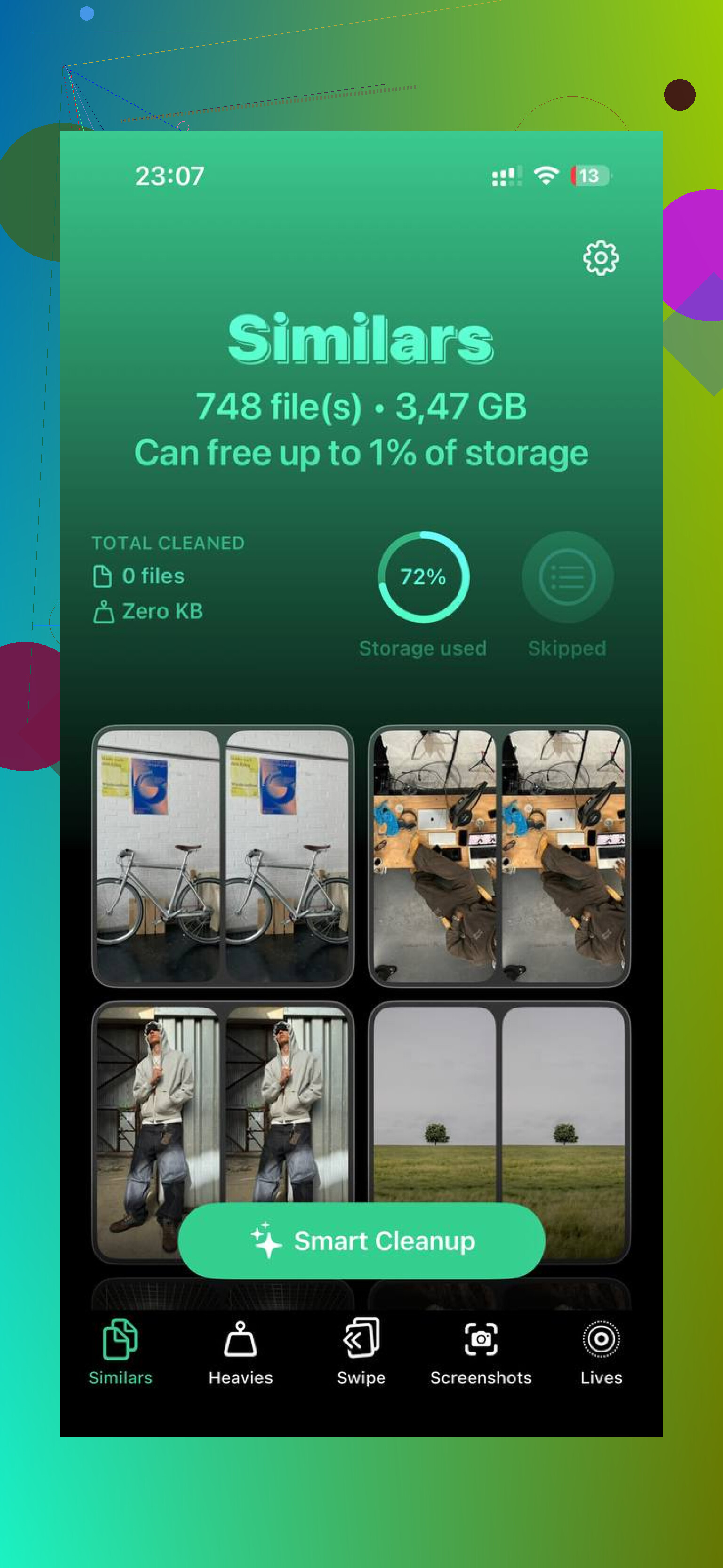
I found piles of old screenshots, duplicate photos, and giant videos sitting there doing nothing. While cleaning up, I ended up trying Clever Cleaner because I wanted file sizes up front instead of blindly deleting stuff.
What helped me there:
- It showed the size of screenshots and videos, file by file
- The “Heavies” section made large clips easy to spot
- The “Similars” view grouped near-duplicate photos
- It handled sorting on the device, so my photos weren’t being shipped off somewhere
I’m usually suspicious of cleanup apps, so I didn’t expect much. Still, I cleared around 30GB from photos and videos faster than I would’ve by hand.
What worked in the end
For me, the fix was two parts:
- Remove the hidden synced junk through the Music and Books app trick
- Cut down the photo library, especially videos and duplicate shots
After both, the phone stopped dragging. Launch times improved, camera opened normally again, and storage warnings went away.
If your iPhone is full and “Synced Media” looks stuck, start with the manual delete route. If the phone still feels cramped after, check your gallery next. Mine was a bigger mess than I thought, lol.
2 Likes
If you reset your iPhone with Erase All Content and Settings, synced media gets wiped off the phone. That includes music, movies, TV shows, and photo albums synced from a Mac or PC through Finder or old iTunes.
The key part, it does not come back from iCloud backup in most cases. iCloud backs up data, settings, app stuff, camera roll items, and some local files. It does not restore computer-synced media the same way. If those songs or videos came from your computer, you need to sync them again after the reset.
Small correction to @mikeappsreviewer, I would not count on app reinstall tricks before a reset if your goal is to keep media. For cleanup, sure, sometimes it helps. For preserving files, no. Your source copy matters more than anything. If the original library still exists on your Mac or PC, you’re fine. If it doesn’t, don’t erase the phone yet. That part is easy to miss.
Quick breakdown:
- Factory reset deletes synced media from the device.
- iCloud backup usually won’t restore it.
- Finder or iTunes sync from your computer puts it back.
- Apple Music purchases and Photos in iCloud are different, those re-download after sign-in.
- Old manually synced photo albums also disappear until you sync again.
Before resetting, check where your media lives:
- Music app, was it synced from computer or from Apple Music
- TV app or Videos, same idea
- Photos, synced albums from computer are not the same as iCloud Photos
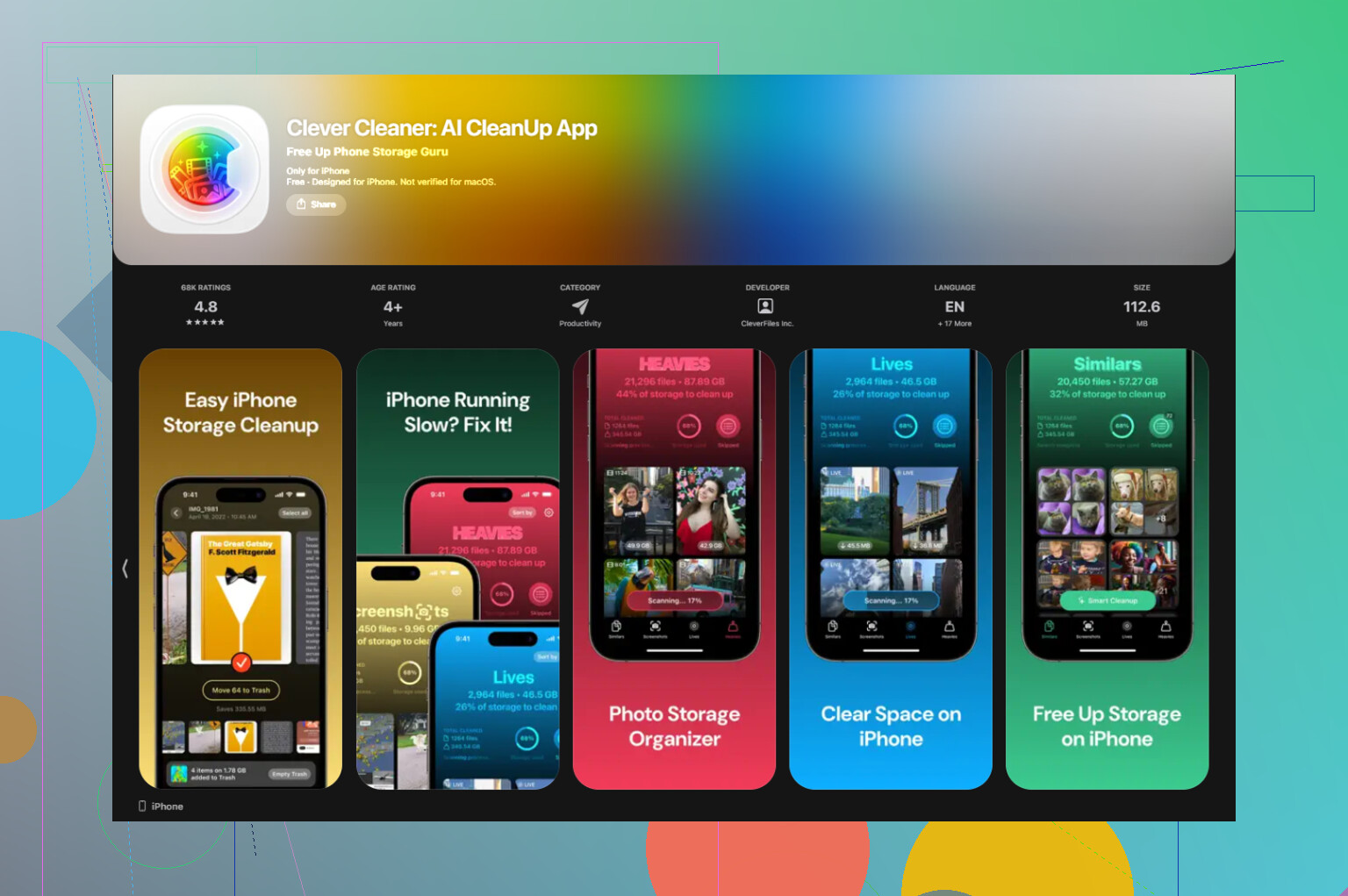
If storage is the issue, a reset is kind of the nuclear optoin. Sometimes useful, not always needed. If your main storage hog is photos and videos you shot on the phone, a cleaner tool like Clever Cleaner helps more because you target the junk first. If you want user feedback on it, this page sums up Clever Cleaner app reviews for iPhone storage cleanup in a way that’s easier to scan.
Short version, reset = synced media gone from the phone. It stays safe only if the original files still sit on your computer or in a cloud service. If you’re not 100 percnt sure, back up first, then reset.
Resetting the iPhone wipes the device. Full stop. So yes, synced media from a Mac or PC gets erased too.
The part I’d add to what @mikeappsreviewer and @andarilhonoturno said: not all “photos” are equal on iPhone. Photos you took with the phone and backed up to iCloud Photos are one thing. Old albums synced from Finder/iTunes are another thing entirely. Those synced albums are basically read-only copies on the phone, and after a reset they do not magically come back unless you sync them again from the computer.
Also, I slightly disagree with the idea that a reset is always the obvious fix for weird storage. Sometimes it helps, sure, but sometimes you just nuke the phone and then spend hours putting stuff back while the original bug is still there. Been there, regreted that.
What I’d check before erasing:
- Do you still have the original music/movies/photos on your Mac or PC?
- Were any songs added manually from old iTunes libraries?
- Are your photos in iCloud Photos, or were they synced as albums from a computer?
- Are movies home videos or ripped files that exist nowhere else?
If the answer to any of those is “uhhh maybe not,” do not reset yet.
One more thing people miss: encrypted computer backups can save more account data and settings than iCloud backups, but they still are not a substitute for the original synced media library. Backup is not the same as sync. Apple loves making that distinction as clear as mud.
If storage is your real problem, I’d clean first and reset second. Clever Cleaner is actually useful for hunting giant videos, dupes, and screenshot junk without manually digging forever. I also found this full-week hands-on Clever Cleaner review for iPhone storage cleanup if you want a clearer idea of how it handles big libraries.
Short version:
- Reset deletes synced media from the phone
- iCloud backup usually won’t restore computer-synced media
- You need the original Mac/PC library to sync it back
- If you don’t have the source files anymore, reseting could mean losing that media for real
That’s the part that bites ppl later.
Resetting wipes the phone, so synced media is gone from the device too. On that, @andarilhonoturno, @vrijheidsvogel, and @mikeappsreviewer are basically right.
Where I slightly disagree is the panic level around it. Losing it from the phone is not the same as losing it forever. If that media was originally synced from a Mac or PC, the real question is whether the source library still exists there. If yes, a reset is annoying, not catastrophic.
One useful thing to check before erasing: Settings > your name > iCloud and also the apps themselves. Purchased movies, Apple Music tracks, and iCloud Photos behave very differently from old manual sync content. People lump all of it together as “my stuff,” but iPhone absolutely does not.
My rule:
- If it came from Apple’s cloud, it usually comes back
- If it came from your computer, you usually have to put it back manually
- If you don’t know where it came from, stop and verify first
Also, if your goal is just fixing storage weirdness, I would try a normal restart, update, and storage cleanup before factory reset. A reset is often overkill.
If your actual problem is space, Clever Cleaner can help sort the junk that really matters like duplicate photos and giant videos.
Pros:
- fast for photo/video cleanup
- easier than hunting manually
- useful for big libraries
Cons:
- won’t restore synced media
- not much help for music/movies synced from computer
- cleanup apps in general can be a little hit or miss
So the short answer: reset deletes synced media from the iPhone, and only the original source or cloud service brings it back.