After every iPhone update, I notice my temporary files or system data gets bigger and takes up more storage. I’m trying to figure out if this is normal iPhone behavior or if something is wrong with iOS storage management. I need help understanding why it keeps happening and what I can do to clear temporary files and free up space.
I’ve had the same thing happen. You restart the iPhone, check Storage again, and that big 'System Data' chunk sits there like nothing changed. Annoying, but there’s a reason.
Why a restart barely helps
A reboot clears memory and stops stuck background stuff. It does not wipe app caches. iPhone stores those files on disk, not in the short-term memory a restart flushes out. Safari keeps site data. Spotify hangs onto music bits and album art. TikTok stores video fragments. Messages keeps media and previews. iOS treats all of this like useful carry-over data, so it leaves it alone until storage gets tight enough to force cleanup.
Why the junk comes back fast
This part feels dumb, but it’s normal. The second you open apps and start scrolling, streaming, or browsing, they start stacking cache again. Every feed refresh, every page load, every clip you watch adds more. You clear it once, then it starts rebuilding right away. So the point isn’t to stop it forever. You’re trying to keep it from ballooning into a problem.
Why System Data often grows after updates
iOS updates are messy under the hood. The phone downloads install packages first, then unpacks them, then leaves behind logs and leftover pieces if cleanup isn’t perfect. Most of it goes away on its own. Some of it doesn’t, at least not right away. I’ve seen storage look worse right after an update more than once. Restarting after the update helps a bit, but not every time.
Does offloading apps clear temporary files?
Only halfway. Offloading removes the app itself, so you get some space back, but your Documents and Data stay put. In a lot of apps, cache lives in there too. So if your goal is a full reset of an app’s local junk, offloading won’t do it. Deleting the app and installing it again is the cleaner fix.
If you cleared caches and the phone still feels slow
This is where I wasted time. Browser cleanup helps. App cleanup helps. But on most iPhones, the photo library is the bigger storage hog. Duplicate shots, burst photos, random screenshots, old screen recordings, huge 4K clips, all of it piles up quietly. When free space gets too low, iOS doesn’t have enough breathing room for background tasks, indexing, and temp operations. The lag sticks around even after you clear browser junk.
Stuff worth doing first:
- Go to Settings > Apps > Safari, then tap Clear History and Website Data
- Open Files, go to Browse > On My iPhone > Downloads, then delete old files you forgot about
- Go to Settings > Messages > Keep Messages, then switch it from Forever to 1 Year or 30 Days
When manual cleanup still doesn’t get you there
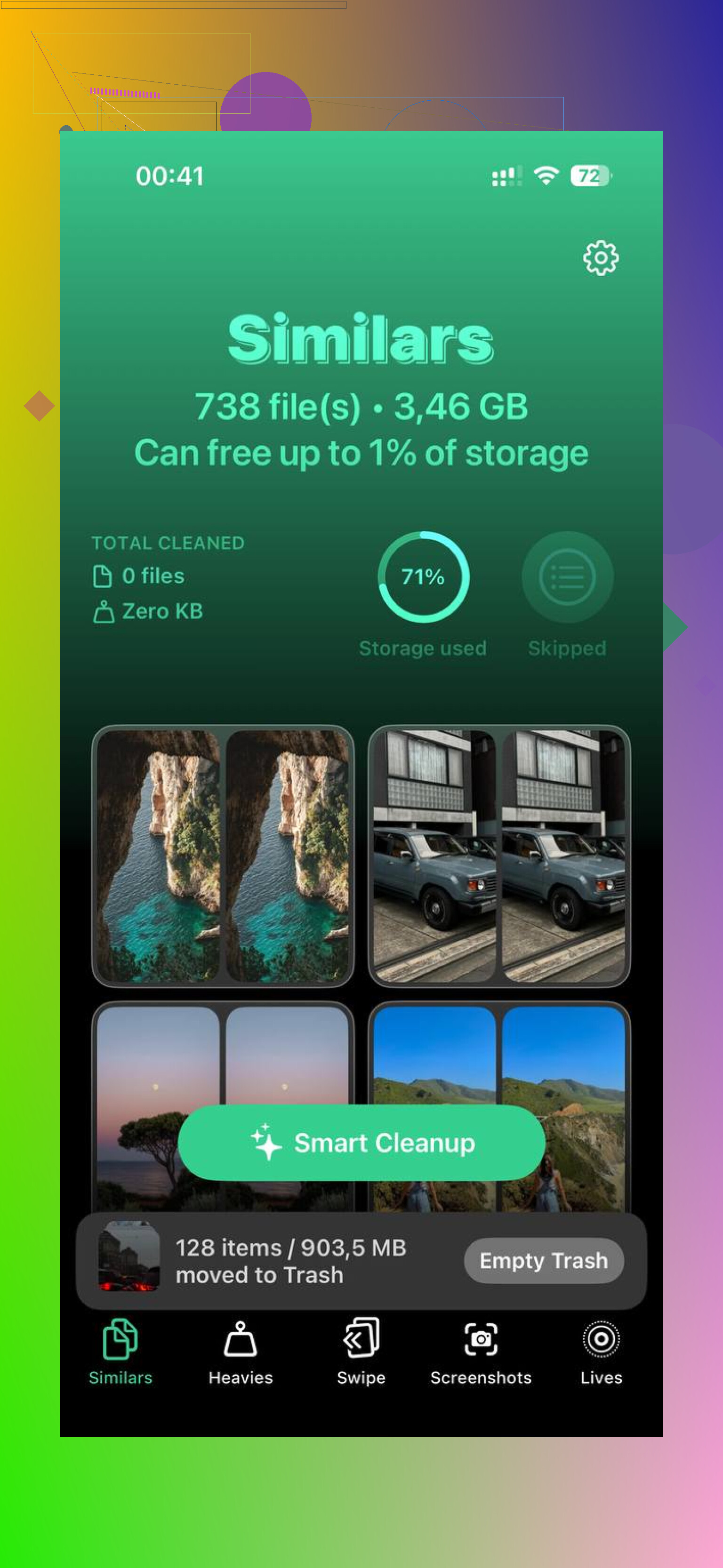
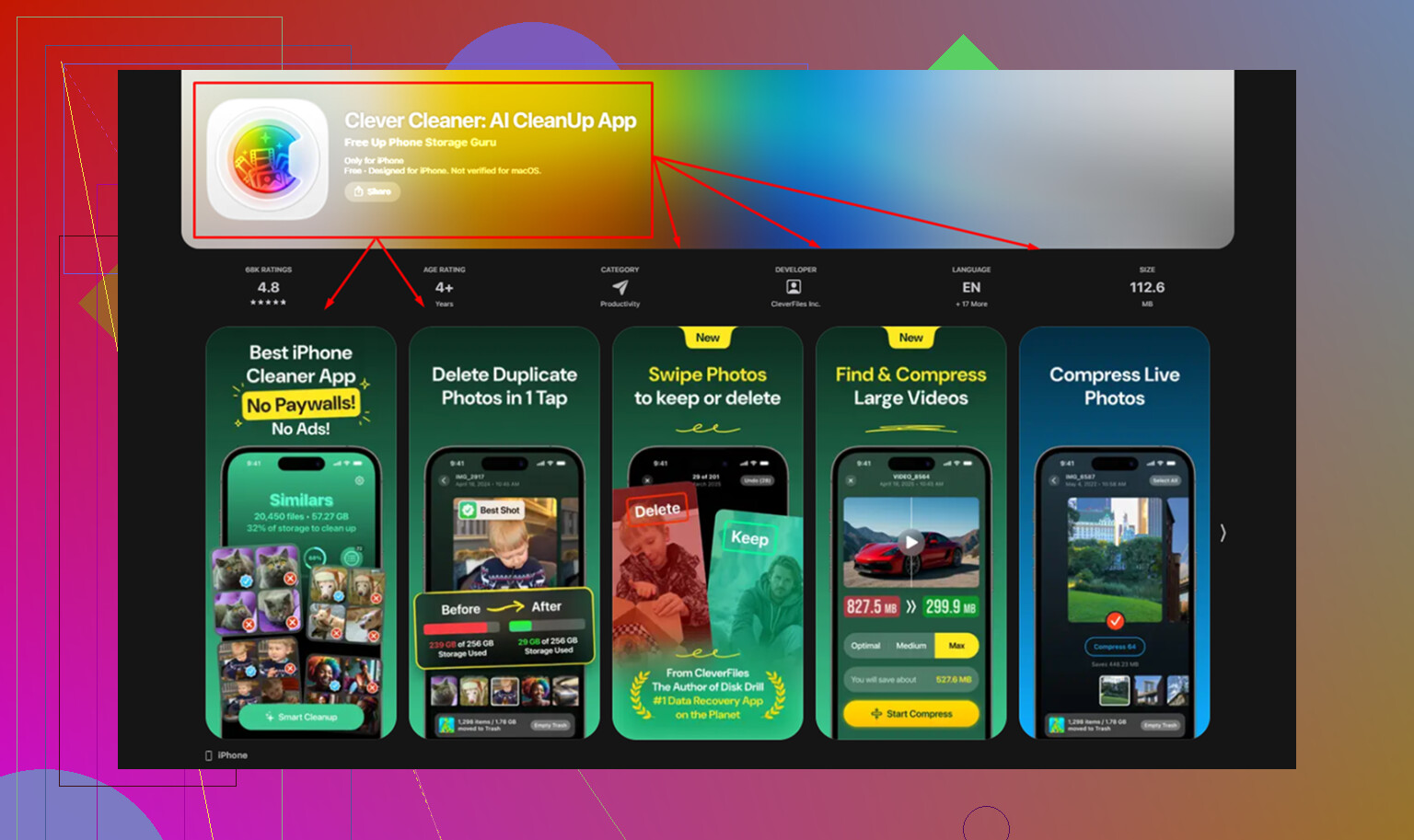
The missing piece for me was the photo library. Manual cleanup doesn’t do much when most of your storage is tied up in photos and videos. Clever Cleaner goes after that part.
What stood out to me was the sorting. The Heavies section puts the biggest files up front with sizes shown, so you’re not digging through years of stuff trying to guess what ate your storage. The Similars section groups near-duplicate photos, not only exact copies, which helps with burst shots and those five attempts at the same pic where you only need one. From what I saw, it processes on-device.
After I cleared a bunch of repeated photos and oversized videos, the phone felt normal again. Less stutter, less delay. One thing people forget, I did too the first time, open Photos and empty Recently Deleted. If you skip that, the deleted files still sit there for 30 days and keep using storage.
7 Likes
Yes, some growth after an iPhone update is normal. I would only worry if it stays huge for days or keeps climbing with no drop.
What happens after an update:
- iOS reindexes Photos, Messages, Spotlight, and mail.
- It rebuilds caches.
- It keeps update logs and rollback data for a while.
- It checks files in iCloud again.
I disagree a bit with @mikeappsreviewer on one point. Restarting is not useless. It does not wipe storage caches, true, but it sometimes kicks off delayed cleanup jobs after an update. I’ve seen System Data drop a few GB overnight after a reboot plus charging on Wi-Fi.
What I’d do first:
- Wait 24 to 72 hours after the update.
- Keep the phone plugged in overnight.
- Check Settings, General, iPhone Storage once a day, not every hour.
- Make sure free space stays above 10 percent. iOS behaves worse when storage is packed.
If it does not shrink, look for the less obvious stuff:
- Failed update file in iPhone Storage.
- Downloaded offline media in TV, Music, Netflix, YouTube.
- Mail attachments synced from large inboxes.
- Voice memos and podcast downloads.
If your storage is still cramped, Clever Cleaner is worth a look for photo and video cleanup. That helps more than chasing System Data on many phones. Also, this quick iPhone storage cleanup video is a fast watch.
If System Data stays absurd, like 20 GB to 50 GB for a week, backup and reinstall iOS. That’s usuallly the fix when cleanup jobs get stuck.
Yes, mostly normal. What I’d push back on a little is the idea that every big System Data spike means “junk.” Sometimes it’s active working space, not abandoned trash.
After updates, iPhones do a lot of behind-the-scenes stuff that doesn’t always show cleanly in Storage:
- filesystem checks
- photo library database updates
- app asset revalidation
- security cache rebuilds
- background model downloads for newer iOS features
So the storage graph can look worse before it looks better. Apple is kinda bad at explaining this, which is why it feels sketchy.
Where I agree with @mikeappsreviewer and @sternenwanderer is this: if it stays inflated for days and never drops, then yeah, something is probly stuck.
What I’d check that they didn’t really dig into:
- Settings > Privacy & Security > Analytics & Improvements > Analytics Data
If you see tons of repeated panic/full logs, that can bloat things. - Mail app accounts with huge synced attachments
- WhatsApp/Telegram internal storage, which often does not show up clearly
- shared iPhone Storage recommendations that appear only after a few mins on that screen
Also, sometimes the Storage page itself lags behind reality. I’ve seen it misreport for hours.
If your phone is otherwise fine, give it a few days. If space is still wrecked, then target your actual biggest categories first. Honestly that’s why apps like Clever Cleaner help more than obsessing over “System Data,” because huge photo/video libraries are usualy the real problem.
If you want a clean walkthrough for iPhone storage cleanup, this is solid: step by step iPhone storage cleanup guide.
My rule: normal if it rises after update, not normal if it keeps climbing a week later.
Mostly normal, but I’d disagree a little with the “just wait it out” camp. Sometimes System Data growth after an update is not cleanup lag, it is iOS reserving working space for snapshots, indexing, and app optimization. That reserved space can look scary in Storage even when nothing is actually wrong.
My rule is simpler than what @sternenwanderer, @suenodelbosque, and @mikeappsreviewer suggested: watch behavior, not only the number. If battery, heat, and performance are normal, a temporary spike is rarely worth chasing. If the phone stays warm, drains fast, or throws low-storage warnings days later, then start digging.
One thing I’d add that they did not stress much: check app-specific storage inside the apps themselves. Instagram, Telegram, WhatsApp, and some podcast apps can hold gigabytes that iPhone Storage labels poorly. Also, APFS snapshots after updates can temporarily inflate “system” usage, and that is not something a reboot or cache clear really fixes.
If you need to free space anyway, focus on big personal media first. That is where Clever Cleaner can help.
Pros of Clever Cleaner:
- fast way to spot heavy photos and videos
- useful for duplicates and similar shots
- easier than hunting manually
Cons:
- it will not truly fix broken iOS System Data
- you still need to review before deleting
- less useful if your storage problem is mostly app data, not media
So yes, some growth is normal. Not normal if it keeps rising for a week with no settling.