I accidentally deleted important files from my hard drive while cleaning up folders, and now I’m not sure if file recovery is still possible or if I should just reinstall everything and start over. I need advice on the safest way to recover deleted hard drive files without making things worse.
I’ve been there, and yeah, it feels awful. Losing files hits fast. The good part is this, with a hard drive, recovery is often still on the table if you stop doing damage right now.
First move, stop using the drive. Right away. Don’t copy files to it. Don’t install anything on it. Don’t keep booting into it if it’s your main disk. When a file gets deleted, the data usually stays in place for a while. The system only marks the space as available. Once new data lands there, your old file gets chewed up piece by piece. I learned this the dumb way years ago.
If the missing stuff was on a second internal drive or an external drive, unplug it and leave it alone until you’re ready to scan it from another computer. If it was on your OS drive, use a USB boot setup or another machine if you have one. The goal is simple, fewer writes, better odds.
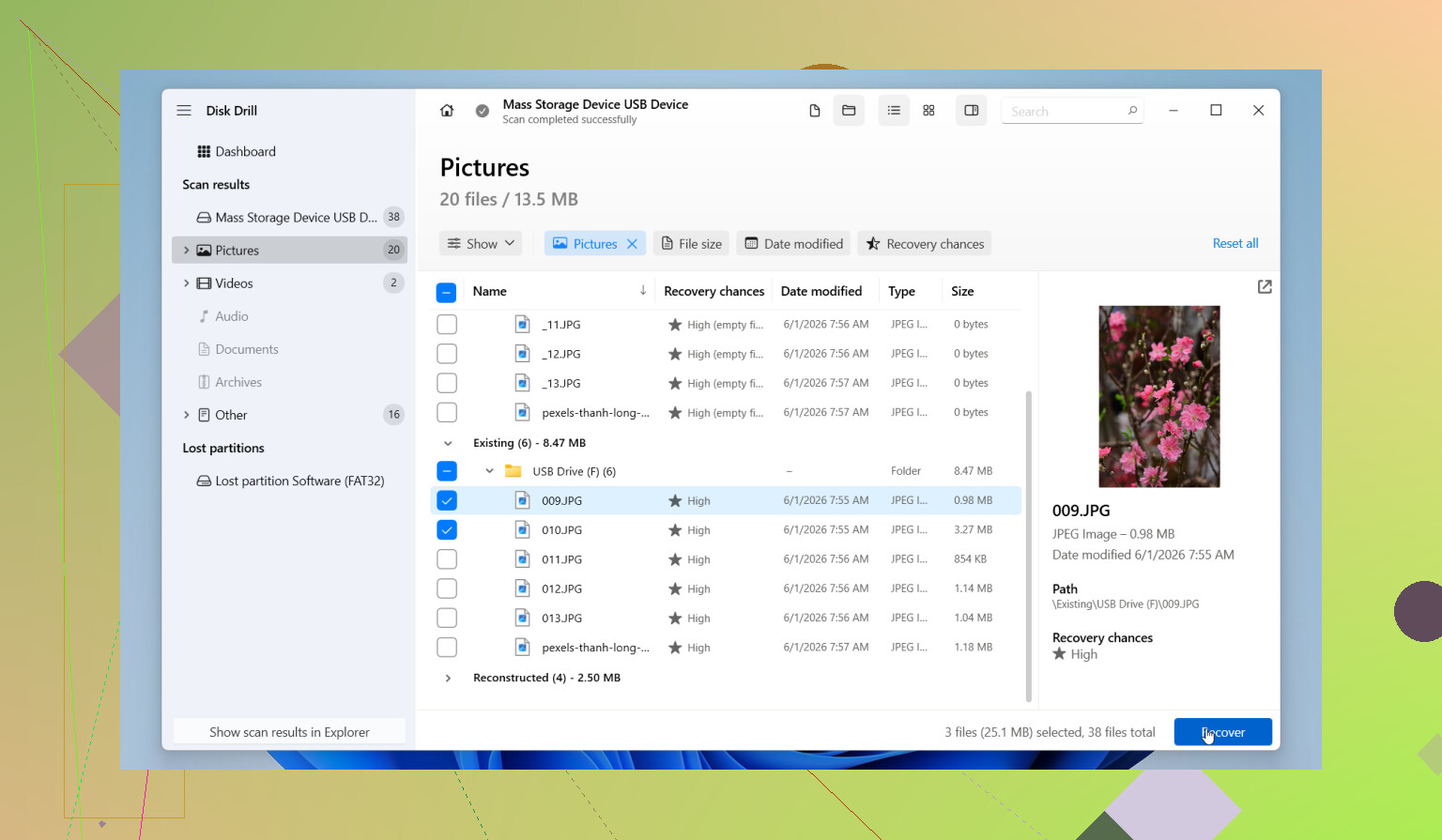
What I’d do next is install Disk Drill, but put it on a different drive from the one with the deleted files. People miss this step all the time and end up overwriting the same data they’re trying to save.
The part I like most is the byte-for-byte backup image option. Make the image first if the drive still responds нормально, err, if it still behaves. Then scan the copy instead of hammering the original disk. It also shows file previews, which saves time because you can check what’s recoverable before restoring anything. The free version lets you scan and preview, so you don’t have to commit before seeing the results.
Stuff worth keeping in mind:
- Hard drives usually give you a better shot than SSDs. Still, don’t relax. Some newer HDD setups support TRIM too, so time matters more than people think.
- If you hear clicking, grinding, or repeated spin-up noises, stop. Shut it down. Software won’t fix hardware failure. At that point, a recovery lab is the safer path.
- Do one proper deep scan. Repeating scans over and over doesn’t magically pull out extra files. It only adds wear, and on a weak drive, tht’s a bad bet.
If Disk Drill doesn’t get it done, I’d try other tools before giving up. Recuva is easy and quick for simpler cases. DiskGenius helps more when partitions or file systems got messed up. Data Rescue tends to be a decent pick on Mac. I’ve had the smoothest runs with Disk Drill, though, mostly because the previewing and imaging are built in and easy to find.
Move fast. Keep the drive untouched as much as possible. If the disk is healthy, your odds are still decent.

15 Likes
Don’t reinstall yet. If the drive still works, file recovery should be your first move. Starting over helps your system, it does nothing for your deleted docs or photos.
I agree with @mikeappsreviewer on one big point, stop writing to the drive. I disagree a bit on jumping straight into deep scans, though. First check simple places. Recycle Bin. Cloud sync trash in OneDrive, Google Drive, Dropbox. Windows File History. Mac Time Machine. NAS snapshots if you used them. Those options are faster and safer than a full recovery pass.
If those are empty, use Disk Drill on another drive and recover files to a different disk. If your hard drive is old-school HDD, recovery odds are often decent. If it’s an SSD, odds drop fast because of TRIM. That part sucks, but it’s true.
Reinstall only after recovery attempts are done. Reinstalling writes tons of data and hurts your chances.
This is a solid guide for recovering permanently deleted files, with steps people follow on both PC and Mac. watch this deleted file recovery walkthrough
Short version:
- Stop using the drive.
- Check backups and sync trash.
- Scan with Disk Drill from another drive.
- Save recovered files somewhere else.
- Reinstall later, not now.
If the drive starts clicking, stop imediately. That turns into a lab job, not a software fix.

Don’t reinstall. That’s the one move that almost guarantees you make recovery harder.
I mostly agree with @mikeappsreviewer and @chasseurdetoiles, but I’d push one extra point harder: figure out what kind of delete happened before doing anything fancy. If you just removed files from normal folders, that’s very different from formatting, resetting Windows, or deleting a whole partition. The answer changes a lot depending on that.
A few things people forget:
- Check whether the files were actually moved, not deleted. Windows Search can still find them by file type or name fragment.
- Look in app-specific recent files lists. Word, Excel, Photoshop, Premiere, whatever. Sometimes the file path is still there and leads you to a temp or autosave copy.
- Check hidden temp folders and autosave locations before a full recovery run. You’d be suprised how often “deleted” stuff is sitting there.
- If this was an SSD, be realistic. Recovery can still work sometimes, but HDD recovery odds are usually way better.
If you do scan, Disk Drill is a sensible pick, especially because it’s easy to sort by file type and preview results fast. I just wouldn’t jump straight to “scan everything blindly” if there’s a chance the files still exist in temp storage or autosave folders.
Also, “start over” only makes sense if the files don’t matter anymore. Reinstalling fixes system mess. It does not undelete anything. Two totally diff problems.
If you want a practical example, here’s a external hard drive data recovery success story that’s easy to follow.
So yeah, recover first, reinstall later if needed. If the drive is making weird noises, stop messing with it ASAP.
I’d split this into two separate questions: recover files, and fix the system. They are not the same job.
I slightly disagree with the “deep scan ASAP” angle. If the files were deleted recently and the file system is healthy, sometimes a quick undelete or checking app autosaves gets cleaner filenames and folder structure than a giant raw scan. Deep scans are great, but they’re also the blunt instrument.
What matters most is this:
- If it was an HDD, your chances are usually decent.
- If it was an SSD, chances can fall off a cliff fast.
- If it was the system drive, every reboot and install hurts recovery odds.
One thing not mentioned enough by @chasseurdetoiles, @espritlibre, and @mikeappsreviewer: check whether the deleted files were inside a library synced by an app with version history. Not just cloud trash. Some apps keep older revisions even after local deletion.
About Disk Drill specifically:
Pros:
- easy previewing
- good for sorting by type
- imaging feature is genuinely useful
- beginner-friendly interface
Cons:
- can be slow on large drives
- deep scans may return lots of messy, renamed files
- best features are not really “lightweight”
- on SSDs, no software can magically beat TRIM
So no, don’t start over yet. Reinstalling is only worth discussing after recovery attempts are finished. If you need a tool, Disk Drill is a reasonable first pick, but I’d use it carefully and recover to another disk only. If the drive starts making physical noise, stop and consider a lab.