My Outlook PST file got corrupted after a system crash, and I do not have a backup copy. I need to recover important emails, contacts, and attachments for work, but Outlook will not open the file. I’m looking for the best way to repair or recover a damaged PST file without losing more data.
I had this happen once with an Outlook PST, and the first reaction was bad. It looked like the whole mailbox had vanished. A missing PST does not always mean the data is gone for good, though. In a lot of cases the file was deleted, hidden, or replaced, and you still have a shot at getting it back.
First thing, stop using the PC for normal stuff. No random downloads, no browser tabs, no app installs if you can avoid them. When Windows deletes a file, it often marks the space as free instead of wiping it on the spot. If you keep working on the machine, you raise the odds of overwriting the PST. I learned this the hard way years ago. Less activity gives you better recovery odds.
Start with the obvious stuff
Open the Recycle Bin and search for the PST there. If you deleted it with the normal Delete key, you might get lucky and restore it in a few seconds. If you used Shift+Delete, skip this part. It will not be sitting in the bin.
Then check any synced storage tied to the folder. OneDrive, Dropbox, Google Drive, whatever you use. Open the service in your browser and look through deleted files and version history. I have seen a local file disappear while the cloud copy was still sitting there untouched.
Try Windows previous versions
This one gets ignored a lot, but it has saved people.
Go to the folder where the Outlook file used to live. Common path:
C:\Users\YourName\Documents\Outlook Files
Right-click the folder, pick “Restore previous versions,” and see if Windows has an older snapshot. If it does, open a version from before the file went missing and copy the PST out to a safe place. Do not restore over your current folder right away. Copy first. Safer.
If it is gone from Windows, use recovery software
If the Recycle Bin is empty, cloud storage has nothing, and previous versions show nothing useful, then Windows treats the file as deleted. At that point I would move to file recovery.
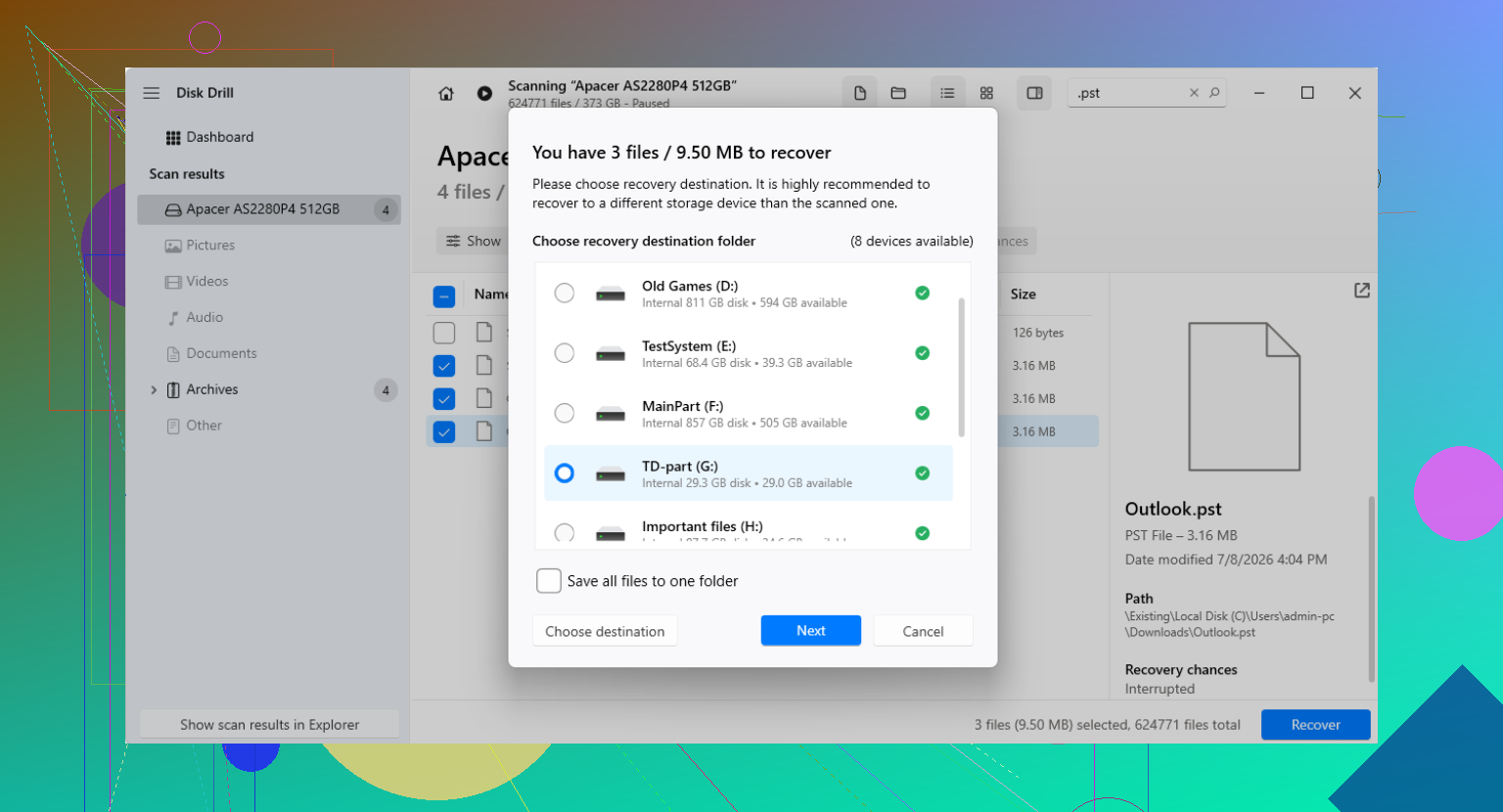
Disk Drill gets used a lot for jobs like this because it scans the drive for deleted files, including PST files you no longer see in File Explorer.
A few practical rules here, because this is where people trip up:
Install it somewhere other than the drive you are trying to recover from, if you have another drive available.
Scan the system drive first, usually C:.
Search for *.pst or filter by PST results.
Do not grab the first match and call it done. Check the file size.
I would trust a large PST more than a tiny one. Outlook often makes a fresh empty data file after the original goes missing, and those blank replacements are small. Your real mailbox file might be hundreds of MB, sometimes multiple GB. Size matters here.
When you recover it, save the output somewhere else. External drive is best. Desktop is fine if you have no other option, though not ideal if the Desktop sits on the same drive. clunky setup, I know.
Watch for Outlook making a fake-looking replacement
This part confuses people. Outlook fails to find the original PST, then quietly creates a new empty one. Outlook opens, the profile looks alive, but all your old folders are gone. It feels like corruption, but often it is a blank replacement file.
After you recover the old PST, do not overwrite random files yet. Open it manually in Outlook:
File > Open & Export > Open Outlook Data File
Select the recovered PST from wherever you saved it. If the recovery worked, your old folder tree should show up in the Outlook sidebar. Check mail, contacts, archive folders, all of it. Once you know the contents look right, go into Account Settings and switch the recovered PST to the default data file if needed.
If the account used IMAP, your mail might still be on the server
If this was an IMAP account, your synced mailbox mail often still exists on the mail server. Re-adding the account usually makes Outlook build a new OST and pull mail back down.
Still, do not count on IMAP for everything. Local archive folders, personal folders, some rules, and mail you kept only on the PC may have lived inside the deleted PST. Those items do not magically come back from the server. I have seen people get their inbox back and still lose years of local archive mail. So check what kind of data was stored there.
After recovery, back it up somewhere sane
Once the PST is back, put it somewhere your backup system covers. External drive, file history, cloud backup, anything reliable. Even a scheduled reminder to copy it out beats doing nothing. Outlook does a poor job of warning you how exposed a PST file is.
One more thing. If the recovered PST is large, take that as a decent sign, but still open it in Outlook and verify the contents before deleting or replacing anything else. I would not trust file size alone.
If the PST is corrupted, I would not start with file undelete first like @mikeappsreviewer focused on. Different problem. If Outlook still sees the file but refuses to open it, try repair before recovery.
Run ScanPST.exe, the Inbox Repair Tool from Microsoft. Typical paths:
C:\Program Files\Microsoft Office\root\Office16
C:\Program Files (x86)\Microsoft Office\root\Office16\
Point it at the broken PST. Run it more than once if errors keep dropping. I’ve seen a 4 GB PST open after 2 or 3 passes. Not elegant, but it works somtimes.
If ScanPST fails or strips out folders, move to a PST-aware recovery tool. Disk Drill is fine for finding missing PST files, but for corruption inside an existing PST, a dedicated Outlook repair app tends to do better because it rebuilds mailbox structure, contacts, and attachments instead of only recovering the raw file.
Also check if Outlook made temp or autosaved copies here:
C:\Users\YourName\AppData\Local\Microsoft\Outlook
C:\Users\YourName\AppData\Local\Temp
Search for .pst and .tmp files modified around the crash time. Sort by size. A healthy work PST is often hundreds of MB or more. Tiny files are usuallly junk.
If this is for work mail on Exchange or Microsoft 365, export server-side data first from Outlook Web App. Mail, contacts, and calendar items might still exist there even if your local PST is toast.
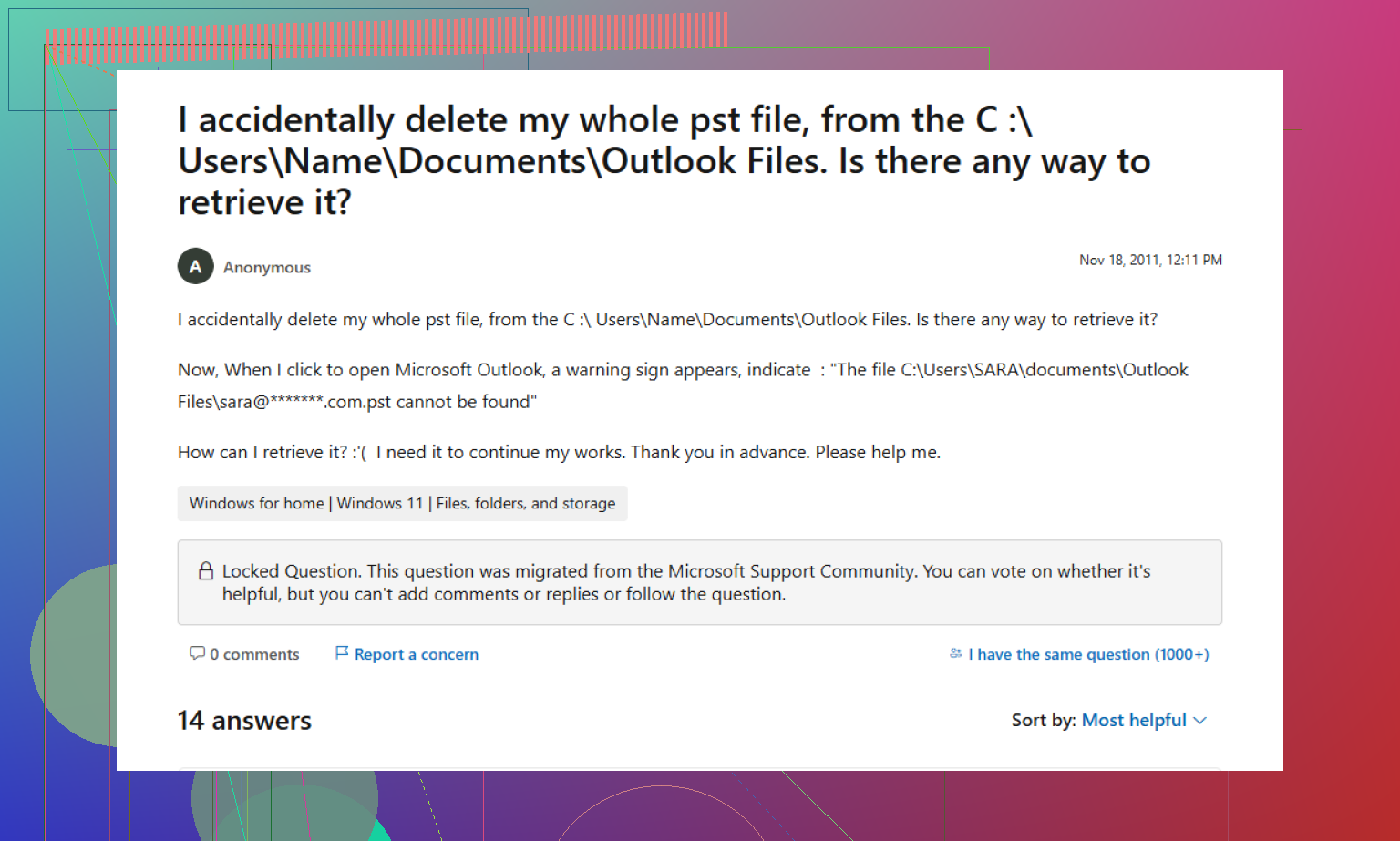
For more Outlook PST recovery ideas and Microsoft user fixes, see Microsoft forum tips for deleted or damaged Outlook PST files.
If the PST is corrupted after a crash, I’d actually split this into 2 separate jobs: stabilize the file and extract the data. @mikeappsreviewer leaned more toward deleted-file recovery, and @nachtschatten was right to push repair first, but I would add one thing they both kinda skipped: make a copy or disk image before testing fixes. Seriously. Don’t keep hammering the only damaged PST.
What I’d do:
- Copy the PST to another drive first. Work only on the copy.
- Check the drive health with SMART if the crash may have involved disk errors. If the drive is failing, software repair attempts can make things worse real fast.
- If Outlook won’t open the PST, try importing it into a new Outlook profile instead of attaching it to the broken one. Sometimes the profile is the problem, not just the file.
- If the PST opens partly, use Outlook’s File > Open & Export > Import/Export to pull out whatever still reads. Grab contacts and calendar first. Mail can wait.
- If the PST is too damaged, use a recovery tool that can both locate and help recover Outlook data. Disk Drill is useful if the crash also caused file loss, missing PSTs, or weird zero-byte replacements. For actual internal PST corruption, it’s more of a recovery layer than a magic Outlook fixer, so don’t expect miracles.
Also, for work mail, check whether the “missing” items were ever in a local archive PST or if they actually lived on Exchange/Microsoft 365. Big differnce. If they were server-side, the mailbox may still be there even if the local file is toast.
For picking the right tool, this guide on how to choose the best software for PST recovery is worth a look.
Short version: yes, Outlook PST recovery without backup is possible, but if the file is physically damaged or the drive is failing, stop expermenting and preserve the source first.

One angle missing from @nachtschatten, @cazadordeestrellas, and @mikeappsreviewer: try opening the PST in a different Outlook build or even a different Windows PC before doing heavy repair. I’ve seen a PST fail in one profile/machine and mount read-only on another, which was enough to drag out mail and contacts.
Also, if this PST was password-protected, corruption can make Outlook throw misleading errors. Test with the exact password first before assuming the structure is dead.
About Disk Drill:
Pros: good at finding vanished PSTs, old versions, and crash-created duplicates; simple preview workflow.
Cons: not really a deep PST structure rebuilder, so for internal corruption it may recover the file but not make it usable.
One thing I slightly disagree with from the general “repair repeatedly” approach: too many writes to the same damaged original is risky. Work from a copy only. If the PST is critical and larger than 10 GB, I’d prioritize extracting whatever opens over trying to make the whole file perfect.