I burned way too much time on this exact mess, so here’s the short version without the Apple-style fog.
The quick answers first.
Yes, Optimize iPhone Storage works the same on iPad. It’s tied to each device, not your whole account. So you can leave optimization on for your phone, then keep full originals on an iPad or Mac if those still have room.
And no, it does not delete your photos in the normal sense. It keeps the full-resolution original in iCloud, then leaves a smaller local copy on the phone. When you open the photo, the phone pulls down the full version again. If your connection is bad, you’ll notice.
Where this falls apart is iCloud storage. If iCloud is full, optimization stops being useful. The phone needs space in iCloud for the original files before it swaps local copies for smaller ones. No room in iCloud, no cleanup on the phone. I hit this exact wall once while trying to install an iOS update, and turning on Optimize Storage did almost nothing.
What I saw on my end was ugly. The phone got slow first. Then camera launch lag. Then random app crashes. iPhones do not handle near-full storage well. iOS needs spare room for temp files, updates, caching, all the background junk you never see. When free space gets too low, the whole thing starts acting busted.
I tried fixing it by hand. Bad idea. Apple’s tools leave too much work for you.
A few things it does poorly:
- It keeps all your duplicate-ish photos, even if they’re near identical
- It doesn’t surface the biggest videos in a useful way
- It leaves screenshot piles untouched
- It makes it weirdly hard to spot what is eating space fastest
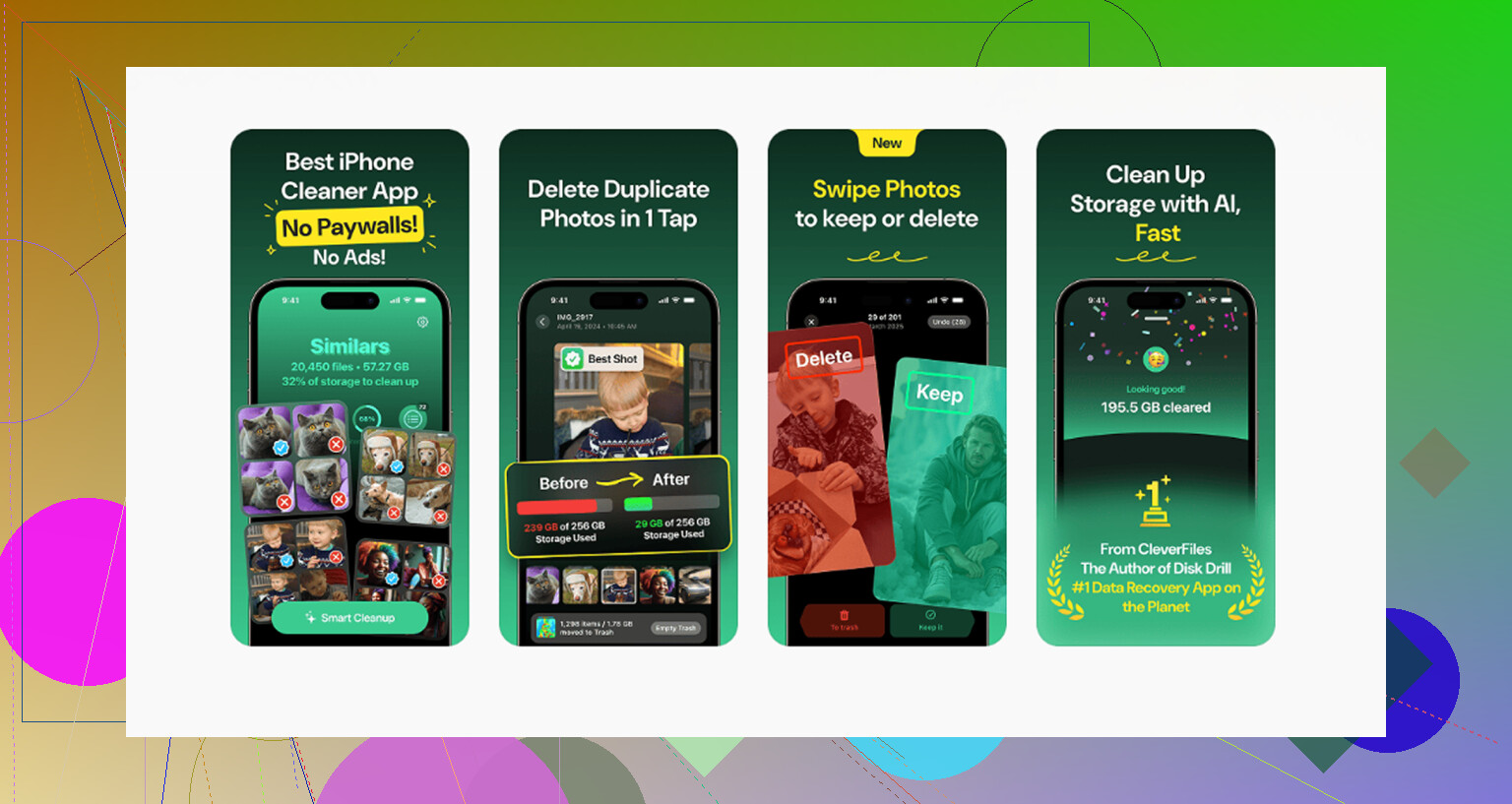
What ended up helping me was Clever Cleaner.
I’m usually suspicious of cleaner apps because most of them are junky, stuffed with ads, or locked behind subscriptions after two taps. This one felt different when I tested it. No ads. No paywall ambush. I used it for the dumbest kind of storage leak, huge forgotten media files.
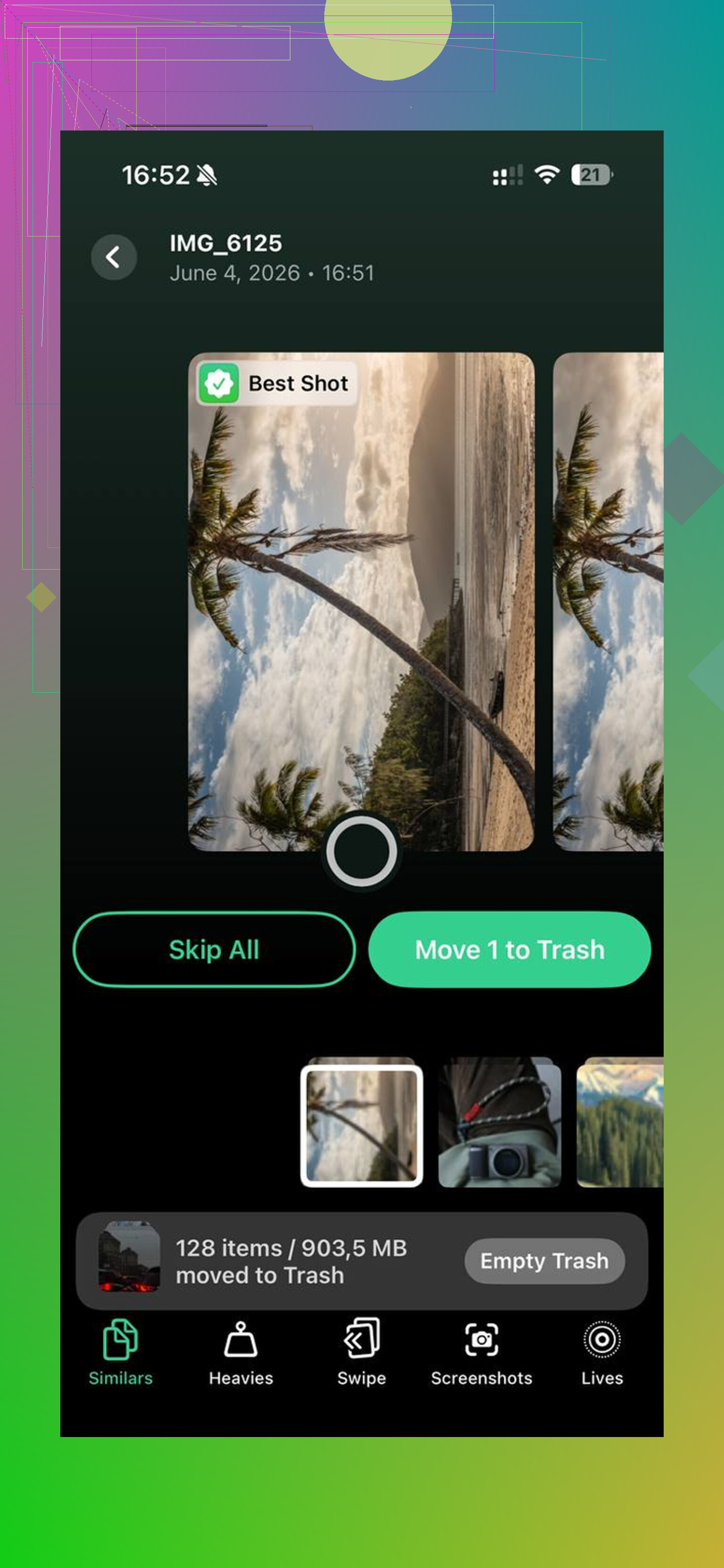
The part I liked most was the Heavies section. It sorts media by file size, which Photos still doesn’t do in a clean way. I found an old 4K screen recording sitting there at around 4 GB. I had zero memory of making it. Deleted that one file, and the phone calmed down fast. Less lag, less hanging.
The Similars section helped too. It grouped those burst-like near-duplicates from normal photo spam, ten shots of the same receipt, five blurry dog pics, three of the same parking sign. It picked a best shot, then I checked and removed the rest. Saved more space than I expected tbh.
One detail I appreciated, it shows screenshot sizes directly. Sounds minor. It isn’t. When you’ve got hundreds of screenshots, seeing exact space numbers makes cleanup less random.
I also looked into the privacy side before using it. From what I saw, processing happens on-device. My stuff wasn’t being sent off to some random server farm. For me, that mattered.
If your goal is clearing room for an iOS update, I’d do this in order:
-
Look for giant files first
Use something like Clever Cleaner and check the biggest videos and screen recordings. One file might fix the problem. -
Wipe screenshots
Most of mine were junk after a few days anyway. Delivery confirmations, Wi-Fi passwords, memes I forgot about, all of it. -
Offload old apps
Go to Settings > General > iPhone Storage. If you haven’t opened an app in months, offload it. The app goes, your app data stays. -
Empty Recently Deleted
This one trips people up. Deleted photos still sit there for 30 days. If you do not clear that folder, you do not get the storage back yet.
After you remove the real junk, iCloud sometimes has enough breathing room again for optimization to start working the way it should.
If the phone feels laggy and weird, I’d look at free storage before anything else. In my case, a few GB made the difference between ‘this thing is dying’ and ‘ok nvm, it’s fine.’
Optimize iPhone Storage only shifts the problem. It saves space on your phone by putting full originals in iCloud. So if iCloud is near full, you need to trim iCloud first, not the phone first.
I agree with part of what @mikeappsreviewer said, but I would not start with random photo deletion unless you know your backup plan. Start with audit, then move stuff.
Do this.
-
Check what is using iCloud.
Settings, tap your name, iCloud, Manage Account Storage.
Look at the top items. Usually Photos, device backups, Messages, and app data. -
Cut old backups first.
If you have backups from old iPhones or iPads, delete those.
A single old backup is often 5 GB to 20 GB.
Before deleting, confirm the device is gone or backed up elsewhere. -
Shrink your current backup.
Open your current iPhone backup in iCloud settings.
Turn off apps you do not need in backup.
Examples, social apps, food delivery apps, streaming apps.
Those apps re-download data after install anyway.
This step saves space without touching photos. -
Decide where your photo library should live.
If Photos is 80 percent of your iCloud use, you have 3 choices.
Pay for more iCloud.
Move photos out of iCloud to a Mac, PC, or external drive.
Use another cloud service for archive storage.
If your library is big, paying $0.99 or $2.99 per month is often less hassle than micromanaging 30,000 photos. Not fun, but true.
-
If you want to free iCloud without losing photos, export first.
Use a Mac Photos library, Image Capture, Windows Photos import, or iCloud for Windows.
Verify files opened from the new location before deleting anything from iCloud Photos.
Do not skip this. Ive seen ppl think a sync was a backup. It isnt. -
Clean the library with a purpose.
This is where Clever Cleaner fits fine. I would use it to review duplicates, big videos, and junk screenshots before paying for more storage or exporting stuff forever. Different goal than what @mikeappsreviewer focused on. Less about iPhone lag, more about reducing what syncs into iCloud in the first place. -
Watch your Messages.
If Messages in iCloud is large, set message retention to 1 year or 30 days if you do not need old threads.
Videos in message threads eat space fast. -
Check Mail and app folders in iCloud Drive.
Large attachments and app files sit there for years. Easy to miss, easy to fix.
This is worth a look too if you want a quick visual on cleaning storage:
see Clever Cleaner free up iPhone storage fast
Short version.
Delete old backups first.
Reduce current backup size second.
Then decide if photos belong in iCloud long term.
If they do, buy more storage.
If they dont, export them first, then remove them from iCloud. Thats the safe path.
What Optimize iPhone Storage actually did was move the pressure point. Your phone saves space locally, but iCloud becomes the warehouse. So if iCloud is almost full, the feature kinda hits a wall.
I agree with parts of what @mikeappsreviewer and @cazadordeestrellas said, but I would not rush to delete backups or photos first unless you know exactly what is still needed. Apple makes “sync” look like “backup,” and that’s where ppl get burned.
What I’d do instead:
-
Turn off junk syncing before deleting anything
Settings > Apple ID > iCloud. Look at what apps are using iCloud. A lot of apps store crap there that you do not care about. -
Check Messages photos/videos
Sometimes Messages is the sneaky storage hog, not Photos. Big video attachments pile up forever. -
Review Shared Library / Shared Albums
These can make it feel like your photo footprint is bigger than expected. -
If Photos is the main issue, decide one thing first:
Is iCloud Photos your permanent library, or just a temporary holding tank?
If permanent, buying more iCloud is honestly the least annoying fix.
If not, move originals to a computer/external drive first, then trim iCloud.
Also, before deleting media manually, I’d use Clever Cleaner to spot giant videos, duplicate shots, and screenshot clutter. That helps reduce what ends up syncing to iCloud in the first place. And if you want another real-user thread on it, this is worth a skim: see how Reddit users cleaned up iPhone storage with Clever Cleaner
One more thing people forget: if you use Family Sharing, check whether you’re filling shared iCloud storage. That changes the math a lot. Apple’s storage setup is simple right up until it isn’t lol.
I’m with @cazadordeestrellas on one key point: Optimize iPhone Storage is not a backup strategy, it’s just storage juggling. But I slightly disagree with the “delete backups first” reflex. Sometimes backups are the only copy of app data people actually care about.
What I’d do is this:
First, check whether iCloud Photos and iPhone Backup are both storing the same stuff. If your photos are already syncing in iCloud Photos, they are generally not also needed inside the device backup. That means your real win is often reducing backup overlap, not mass-deleting photos.
Second, look at app-specific iCloud data nobody remembers exists:
- Notes with scans
- Voice Memos
- GarageBand projects
- WhatsApp/iMessage attachments
- Files app folders synced to iCloud Drive
Those categories sneak up on people more than expected.
Third, if you need to keep iCloud Photos but reduce bloat, clean the library before exporting or upgrading storage. That’s where Clever Cleaner is actually useful. Pros: easy duplicate review, good for large videos/screenshots, simple interface. Cons: you still need to verify what it suggests, it won’t magically solve backup bloat, and some people may prefer doing everything manually in Photos.
I think @yozora was right to question blind deletion, and @mikeappsreviewer was right that giant videos are low-hanging fruit. My twist is: audit overlap first. A lot of people are paying for storage twice in different iCloud buckets. If after that Photos still dominates, either archive externally or just pay for the next tier and stop babysitting it.