My older iPad still runs most apps normally, but Safari has suddenly become very slow. Pages take a long time to load, scrolling lags, and sometimes tabs freeze, while other apps and streaming seem fine. I need help figuring out what could be causing Safari to slow down on an old iPad and what settings or fixes might improve it.
Yeah, I ran into the same mess on an older iPad. Safari would stall, app switching would hang, and the whole thing felt worn out overnight. Mine wasn’t dead, though. It was clogged up and doing too much in the background.
You don’t need to jump straight to a new Pro. I’d start with the boring fixes first, because on my iPad those made the biggest difference.
Start with the obvious stuff
Do a full restart first. I know, sounds dumb. I skipped it for too long and the iPad kept freezing anyway. After a restart, some of the random hangs eased up. It clears memory and kills stuck background processes.
Then check Settings > General > Software Update. Even small iPadOS updates sometimes fix odd Safari slowdowns, touch lag, or background bugs. I’ve seen one minor update smooth things out more than expected.
Stuff I turned off right away
- Background App Refresh
Go to Settings > General > Background App Refresh and shut it off. This one mattered most for me. With it on, apps keep pulling data in the background while you’re trying to do something else. On older hardware, you feel it.
- Reduce Motion and Reduce Transparency
Go to Settings > Accessibility > Motion and enable Reduce Motion.
Then go to Display & Text Size and turn on Reduce Transparency.
This cuts down animations and blur effects. It looks plainer, sure, but my iPad felt less sticky after I changed both. If your device is old, flashy UI effects are not your friend.
Safari cleanup helped more than I expected
Go to Settings > Safari and tap Clear History and Website Data. Safari cache gets bloated over time, and mine had turned into a dumpster. Pages stopped hanging as much after I cleared it.
Also, close tabs. Not kidding. If you’ve got 80 tabs open because “I’ll read it later,” your iPad is paying for it now.
The part nobody checks soon enough, storage
This was the main problem on mine. Once storage got close to full, the freezes got worse. Touch input would stop for a few seconds, then come back. I checked iPad Storage and saw I was sitting near the limit.
Apple says you should keep free space available, but on older iPads I’ve had better luck leaving around 10 to 15% open. When storage gets packed, the system has less room for temp files and cleanup tasks. Then stuff starts choking.
What ate my space was the usual junk. Big videos, duplicate burst shots, screenshots I forgot about, and System Data creeping upward.
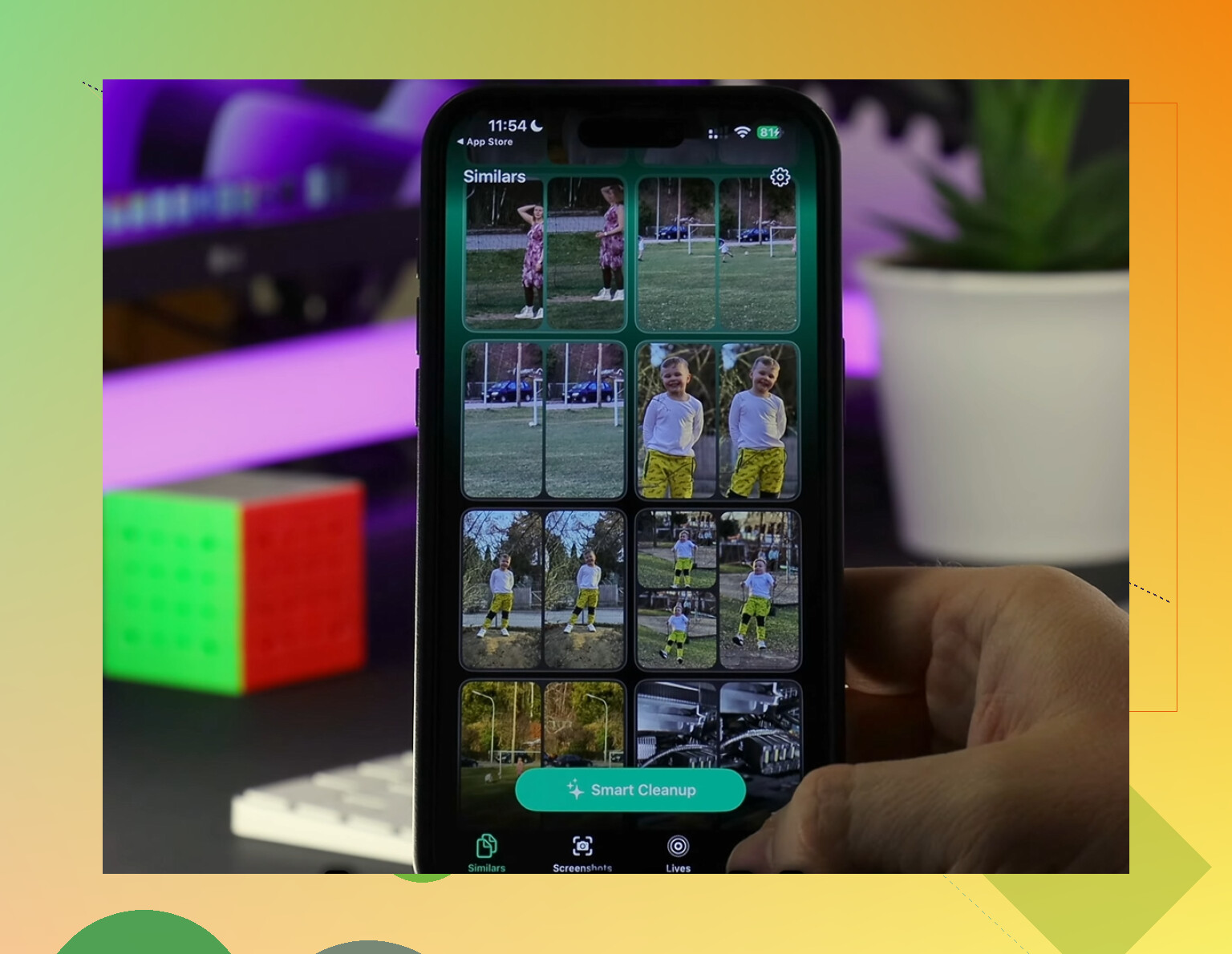
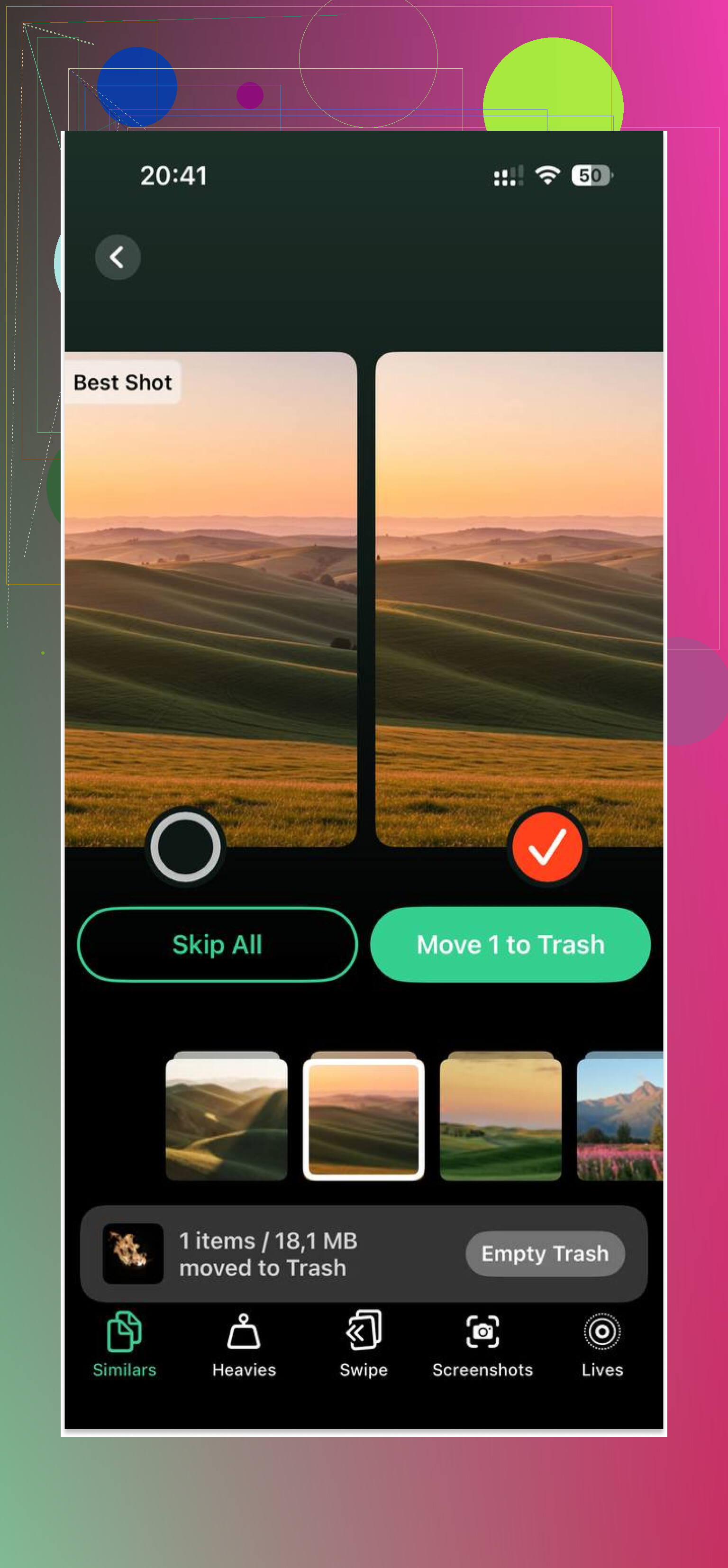
I tried deleting things by hand first. Huge waste of time, tbh. Sorting thousands of photos on an iPad screen gets old fast. I ended up using Clever Cleaner, mostly because I needed a faster way to find the worst offenders.
What helped me there was the “Heavies” section. It sorted media by size, so I found the giant videos first and cleared a few GB fast. The “Similars” section grouped near-duplicate photos and random screenshots, which saved me from scrolling forever. I also liked that it processes things on-device instead of shipping your photo library off somewhere else.
After I cleared around 5GB, the freezing dropped off hard. Not magic, still an old iPad, but it went from annoying to usable.
One more setting worth changing
If you use the built-in Mail app and your inbox is huge, switch Fetch from Push to Manual. Mail indexing and constant checking can drag older devices down. I changed mine and noticed fewer background slowdowns.
If you go through all of this and it still feels bad, I’d start looking at the battery. When the battery is worn out, iPadOS sometimes cuts performance to keep the device stable. Still, I’d check storage and those settings first. On my side, tha'ts where the fix was.
3 Likes
Safari being slow while other apps feel normal usually points to Safari-specific junk, not a dying iPad.
I agree with some of what @mikeappsreviewer said, but I would not blame Background App Refresh first. If streaming apps run fine, your CPU and Wi-Fi are probably OK. Safari has its own problem set.
What I’d check:
-
Content blockers.
If you installed ad blockers, VPN filters, or “safe browsing” apps, disable them for a bit. Old iPads choke on heavy page filtering. I’ve seen one blocker add 5 to 10 seconds per page on an iPad Air 2. -
Experimental Safari features.
Settings, Safari, Advanced, Experimental Features. If anything got toggled, reset them to defaults. A weird WebKit flag can make scrolling awful. -
Website data corruption.
Not repeating the cache-clear step, but if one or two sites are worse than others, delete data for those sites only in Advanced, Website Data. Sometimes one bad cookie jar trashes performance. -
DNS and network privacy tools.
Private Relay, custom DNS, VPN, antivirus-style web shields. Turn them off for a test. Safari uses more web lookups than most apps, so it shows the slowdown first. -
Tab Groups and pinned tabs.
Older iPads hate bloated tab sessions. Even if the tabs are “closed,” synced Safari state across iPhone, Mac, and iPad gets messy. Turn off Safari sync in iCloud for a few mins, test, then turn it back on. -
JavaScript-heavy sites.
A lot of modern pages are pigs. News sites, shopping sites, Reddit in browser, all full of scripts. Request Desktop Site makes it worse. Turn that off if enabled.
Also check free storage, yeah. Safari writes temp files while rendering pages. If your iPad is low on space, browser peformance gets wonky before video apps do. If cleaning storage is a pain, Clever Cleaner is one option. This review covers it well: best free iPhone storage cleanup app review. Handy if your photo library is the thing clogging up the device.
Fast test:
Open the same site in Safari private tab, then normal tab.
If private is faster, your saved site data or extensions are the issue.
If all browsers on the iPad are slow, then it’s WebKit system-wide. If only Safari is bad, sync, blockers, and site data are the first places I’d look. Kinda annoyng, but fixable most of the time.
Safari-only slowdowns on an older iPad usually mean WebKit is getting stuck, not that the whole device is cooked. I mostly agree with @mikeappsreviewer and @nachtdromer, but I’d also look at one thing people miss: Safari process limits on older RAM-starved iPads.
What happens is Safari keeps individual tabs, previews, reader data, and page history in memory differently than video apps do. So Netflix feels fine, but one bloated website can make Safari act ancient.
A few things I’d check that haven’t really been covered yet:
- Turn off “Preload Top Hit” in Safari settings. It can make old devices do extra work before you even open the page.
- Disable page zoom/custom website settings for problem sites. Per-site settings sometimes get weird and cause jank.
- Check if the lag happens only after the iPad wakes from sleep. If yes, it can be a memory leak issue. Force-close Safari, then reopen before assuming bigger problems.
- Test with Reader View on a bad page. If Reader is smooth but the normal page lags, the site itself is overloaded with garbage scripts and ads.
- Change search engine temporarily. Sounds dumb, but I had one old iPad where Safari suggestions/search felt delayed until I switched and switched back.
Also, heat matters. If the iPad gets warm, Safari rendering and scrolling can feel extra bad on aging hardware. Not always obvious.
If storage is tight, then yeah, that absolutely feeds into it. That’s where something like Clever Cleaner can help if your photos/videos are the stuff hogging space. I’d use it more for finding giant files fast than for expecting miracles. This quick clip explains the app pretty clearly: see how Clever Cleaner frees up iPhone and iPad storage fast.
My bet: either Safari has bad site data/sync baggage, or your old iPad is hitting RAM limits on modern websites. Sad but true, the web got heavier while the iPad stayed the same.