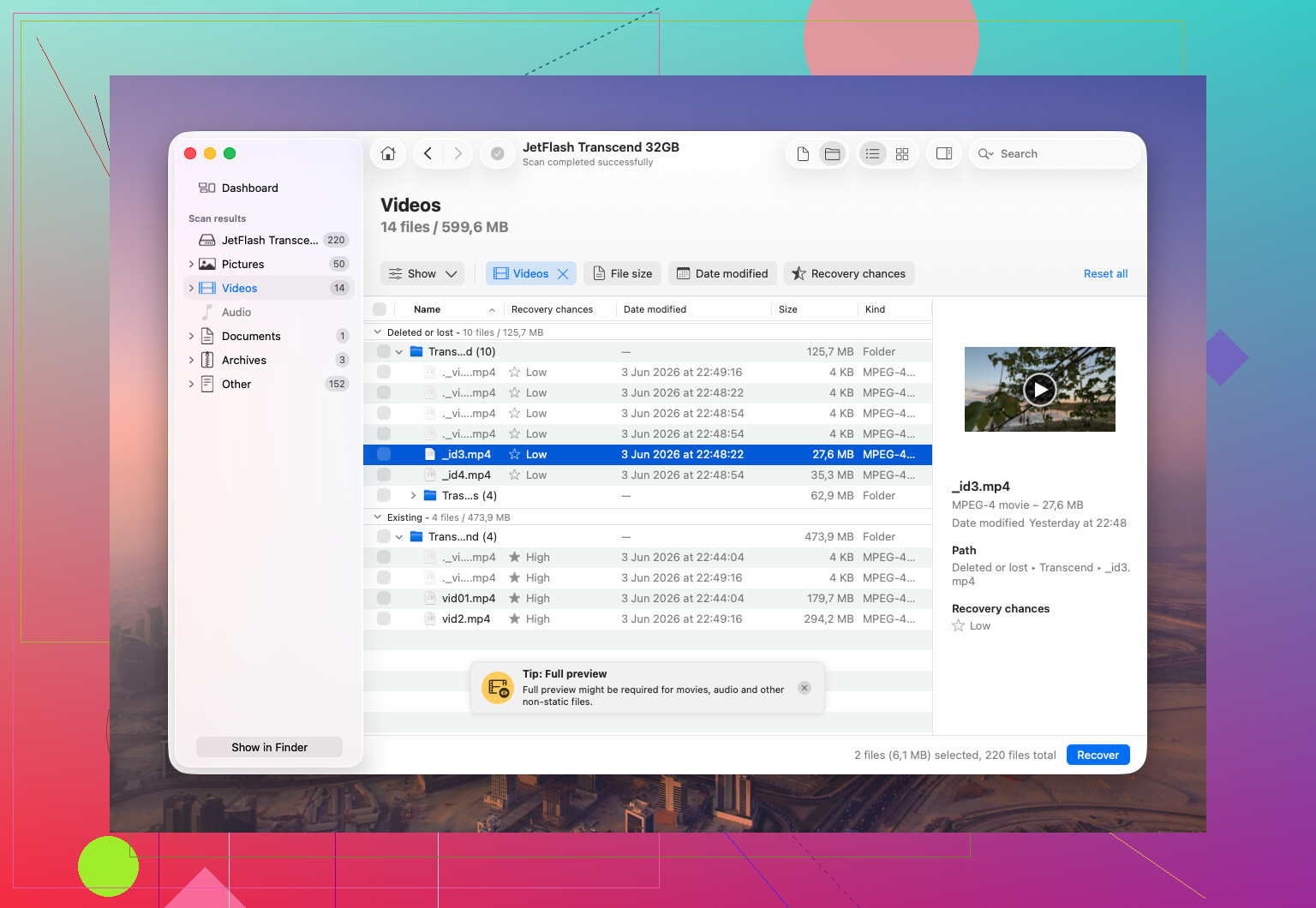
I accidentally deleted important videos from my SD card before backing them up, and now I’m trying to figure out the best recovery tool to use. If you’ve successfully recovered deleted SD card videos, which software worked for you and what should I avoid?
Deleted video from an SD card, what I’d do first
I’ve lost footage often enough to skip the pep talk. The short version is this: recovery usually works if you stop touching the card fast enough.
When a camera deletes a video, it often does not wipe the data right away. It marks the space as free. Your old clip sits there until new recordings land on top of it. So yes, there’s still a shot, but it shrinks every time you use the card again.
First move
Stop using the SD card now.
No new clips. No photos. No format. If Windows throws a message asking to fix or format the card, leave it alone. Every write to the card eats into your odds.
If the card still shows up on your computer
If your PC or Mac detects the card, even as RAW, or Windows says it needs formatting, I’d start with Disk Drill.
Why this one first? I’ve seen normal recovery scans pull back broken video chunks, files with the right name but zero playback, or half a clip with the rest missing. Camera footage is messy on storage cards. A lot of devices split video into fragments all over the card. That includes action cams, drones, dashcams, and regular cameras too.
Disk Drill has an Advanced Camera Recovery mode built for this mess. It tries to piece those fragments back into a usable video instead of dumping random scraps into a folder. For footage from GoPro, DJI, Sony, Canon, Nikon, Fujifilm, Insta360, and similar gear, this matters more than people think.
Steps I’d follow
- Download Disk Drill from the official CleverFiles site. Pick Windows or macOS.
- Install it and open it.
- Plug the SD card in through a card reader. I’ve had fewer weird connection issues doing it this way.
- In Disk Drill, find the SD card in the device list.
- Click “Search for lost data.”
- When it asks for a method, choose Advanced Camera Recovery.
- Let the scan run. Small cards finish quickly. Big or unhealthy cards drag on for a while.
- Hit “Review found items” in the top right if you want to look through results before the scan fully ends.
- Use filters to cut down the junk. File type, size, date, all of it helps.
- Preview the videos. Don’t skip this. A recovered file name means nothing if the clip won’t open.
- Select what you want and click “Recover.”
- Save the recovered files somewhere else, your internal drive or another external disk.
- Do not write them back to the same SD card.
- Open the recovered files after the process ends and check them in your normal media player.
Small detail people miss
On Windows, Disk Drill recovers up to 100 MB free. On Mac, you’re able to scan and preview first, then decide if you want to pay for recovery.
After recovery, your files show up in File Explorer on Windows or Finder on macOS like normal.
If the footage matters a lot
Before scanning, I’d think about making a full image of the card first.
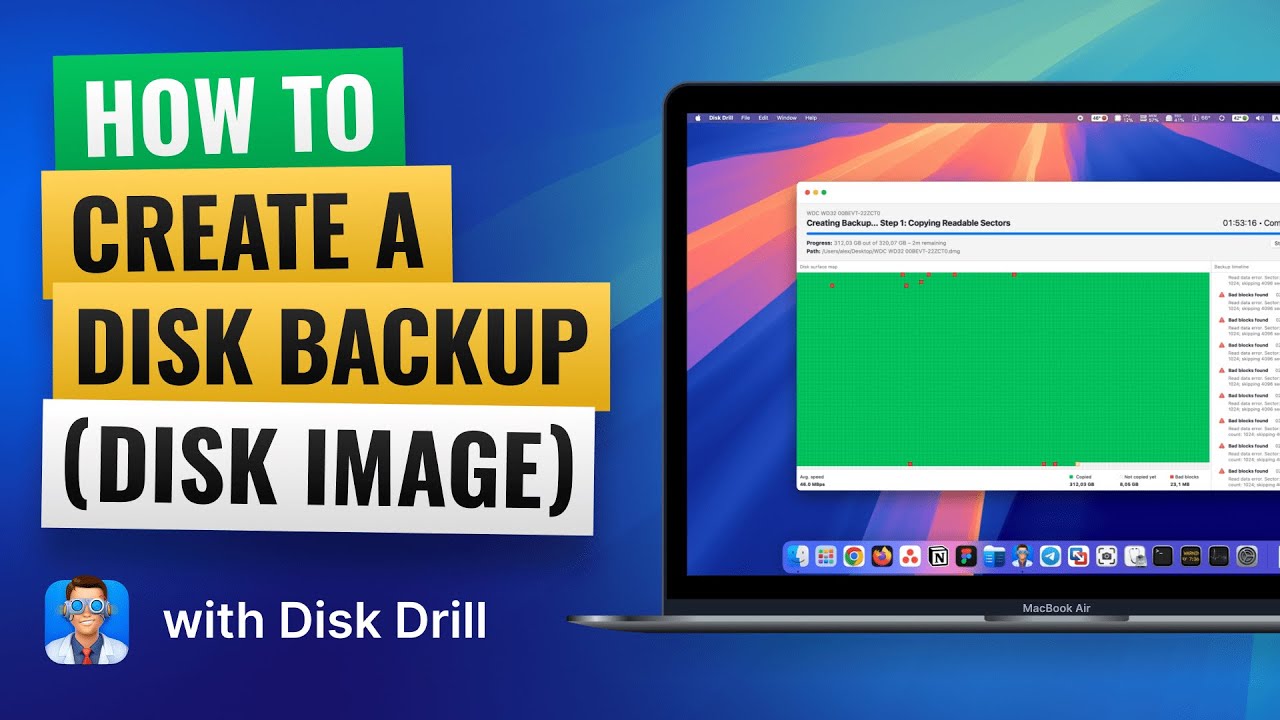
That means a byte-for-byte copy of the SD card. You work from the copy, not the original. I’ve seen people make one bad click, rerun a tool the wrong way, or bump a flaky card into a worse state. An image gives you a safer starting point.
When I’d stop and send it to a pro
Software is fine for a lot of cases, but I would not mess around if any of these show up:
- The SD card is cracked, bent, soaked, or otherwise physically damaged.
- Your computer does not detect it at all.
- It keeps disconnecting during scans.
- It gets hot fast after you plug it in.
- The camera reports media errors or hardware faults.
- The footage has serious legal, work, or personal value.
At that point, poking it with recovery software over and over starts feeling dumb.
My rule of thumb
If Disk Drill still sees the card and the card isn’t physically damaged, software recovery is worth trying first. Timing matters more than people want to hear. The less you use the card after deletion, the better your odds.
If the card still mounts, I’d test PhotoRec before I spend money. It’s ugly, but it pulls raw video data well, esp if the file system got messed up. Downside, filenames and folders are often toast. You get a pile of clips and sort it yourself.
If you want something easier, Disk Drill is a fair pick. @mikeappsreviewer already covered the camera-focused side, so I won’t repeat it. I do disagree a bit on starting there every time. For simple delete cases, Recuva or PhotoRec sometimes gets enough back without much fuss. For fragmented 4K footage, Disk Drill tends to do better from what I’ve seen.
My order would be:
- Stop using the card. Totaly.
- Try a read-only image first if the footage matters.
- Run PhotoRec.
- If results are messy or clips are broken, run Disk Drill.
- Save recovered files to your PC, never back to the SD card.
One more thing, if your camera shot MP4 or MOV, preview every file before you celebrate. I’ve recovered “good” files before that were corrupt as hell.
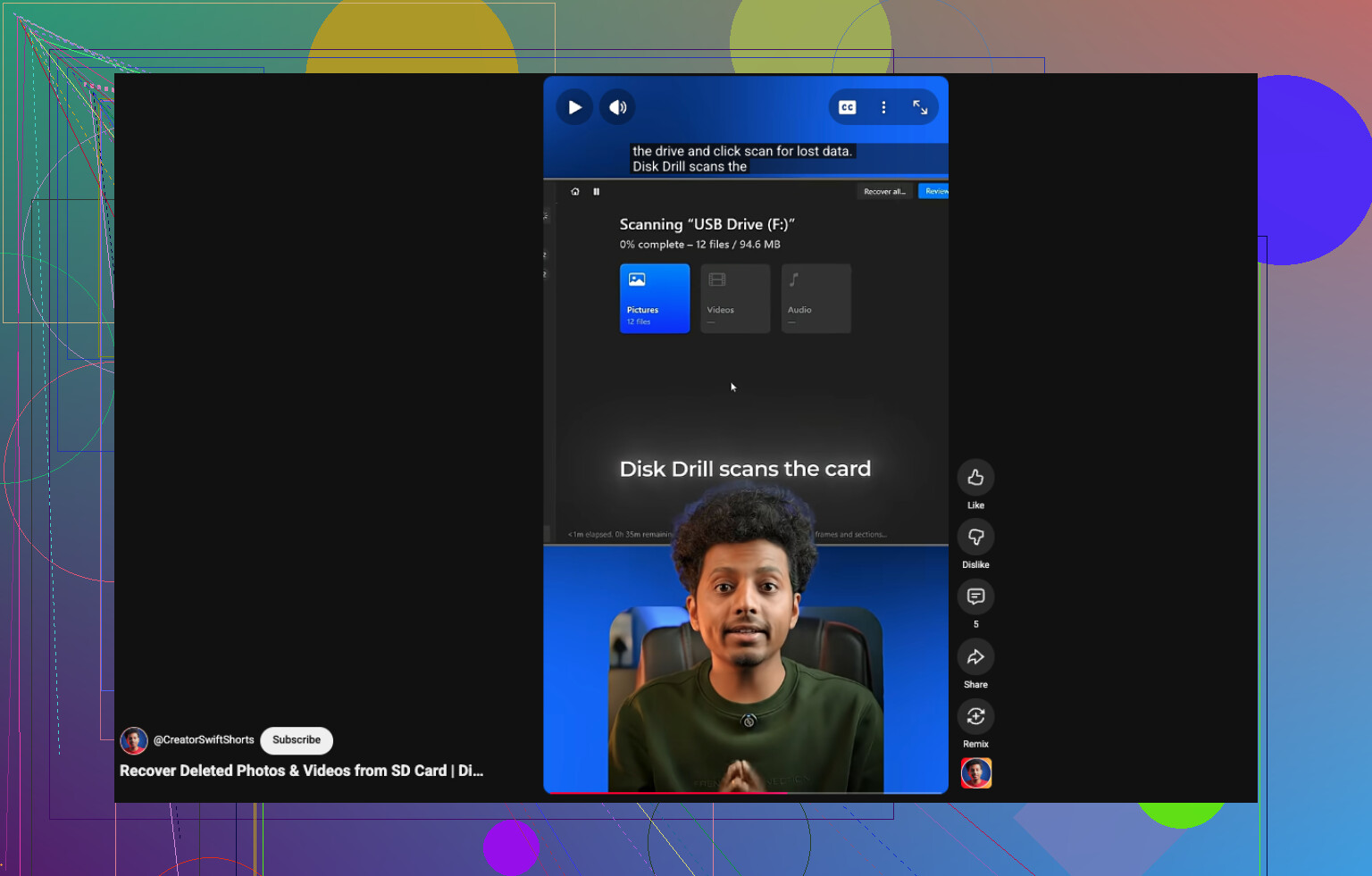
Also, this quick guide on recovering deleted SD card videos is worth a look:
watch this fast SD card video recovery tip
I’d add one thing neither @mikeappsreviewer nor @yozora really leaned on enough: check whether your camera uses exFAT and records very large clips. In that case, some “easy” recovery apps find the file entry but not the whole video chain, so the file looks recovered but won’t play past a few seconds. That’s why I usually judge a tool by playable previews, not by how many filenames it spits out.
If you want the least headache, Disk Drill is still one of the better options for SD card video recovery because it handles media cards better than a lot of the cheap stuff. I would also try R-Studio if Disk Drill misses parts of the footage. It’s less beginner-friendly, kinda nerdy tbh, but sometimes better when the card’s file system is partially trashed.
One thing I sorta disagree with: jumping straight to Recuva for video isn’t always worth it. Fine for simple photos, less impressive for fragmented camera footage.
Also, if the deleted videos are super important, clone the SD card first with something like USB Image Tool or ddrescue, then scan the clone. That saved my butt once after a flaky card reader started dropping connection mid-scan.
And if you want more real-world opinions, this is a decent thread on recovering deleted home videos from an SD card.
Main thing: do not record anything else on that card. Seriously. Even one “test video” can screw you.