My external hard drive suddenly shows missing or unallocated space, and I can’t access an important partition with personal files on it. I’m trying to figure out the safest way to recover the lost partition without making things worse. What steps should I take first, and are there reliable partition recovery tools that actually work?
I did this to myself once in Disk Management. Deleted the wrong partition, stared at the screen for a second, then stopped touching the drive. If you did the same thing, hold off on panic. A deleted partition often means Windows removed the partition table entry. The data is often still sitting there until something writes over it.
First move, stop using the drive.
Do not make a new partition. Do not format the unallocated space. Do not copy files onto it. Those three mistakes tend to do the damage recovery tools struggle with later.
Before you do anything else, check Disk Management. I’d look for two things:
- If the partition still shows up and only lost its drive letter, assign a letter and see if it comes back.
- If the area shows as Unallocated, the partition entry was likely removed.
The order I’d stick to is this:
- Stop all writes to the drive.
- Pull off the files you care about.
- Open a sample of the recovered files and confirm they work.
- Then either rebuild the old partition with TestDisk or make a fresh one in Disk Management.
- If you made a new partition, copy the recovered files back after.
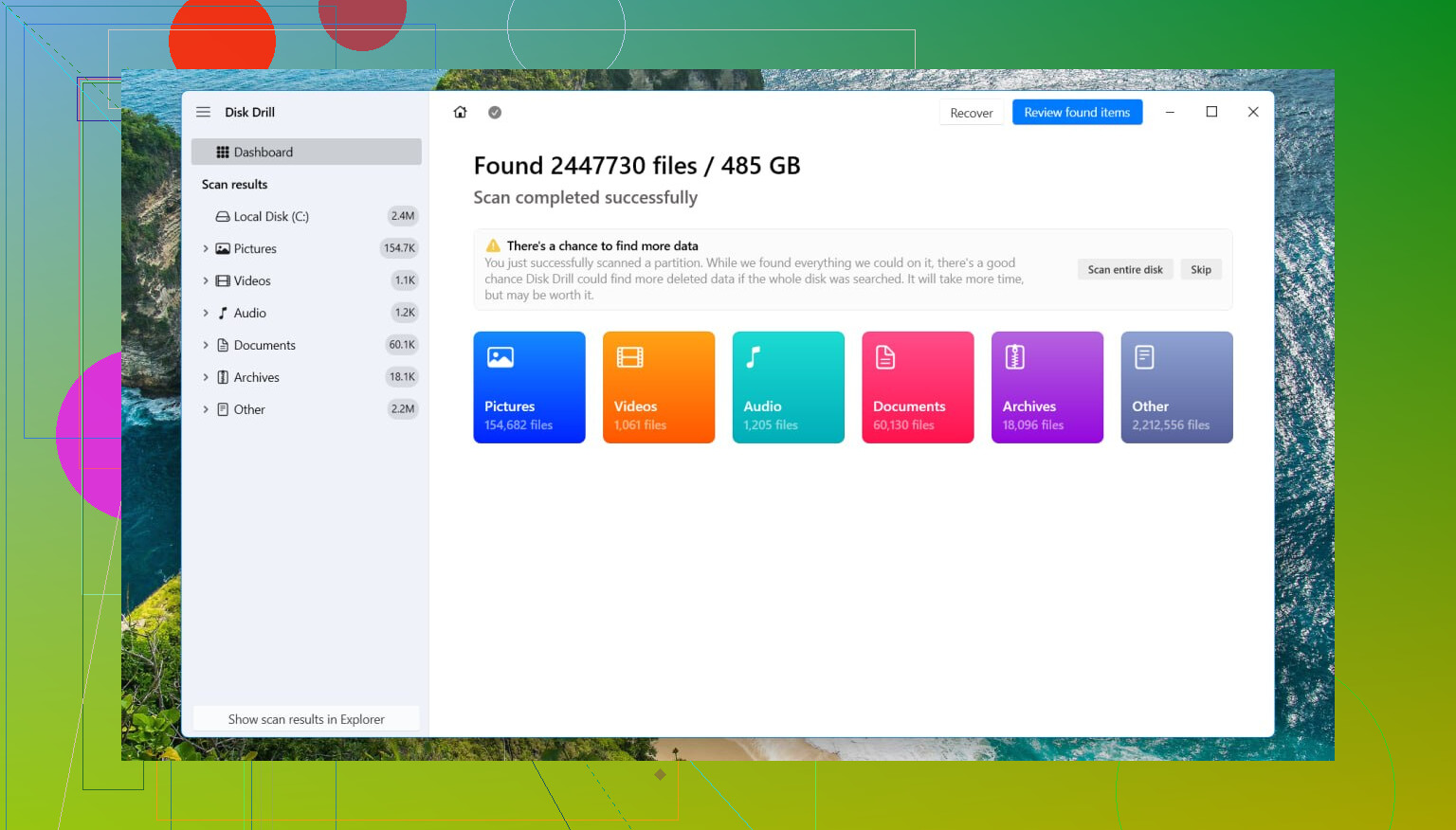
For file recovery, I had decent luck with Disk Drill. What I liked was simple. It spotted deleted partitions, not only loose files, and it often kept folder names and structure instead of dumping everything into a mess.
I ran through this on Windows 11. On older Windows versions, the flow is close enough that you should recognize it right away.
How I’d recover the files with Disk Drill
- Install Disk Drill onto a different drive. Not the damaged one.
- Open it and pick the physical disk where the deleted partition used to live.
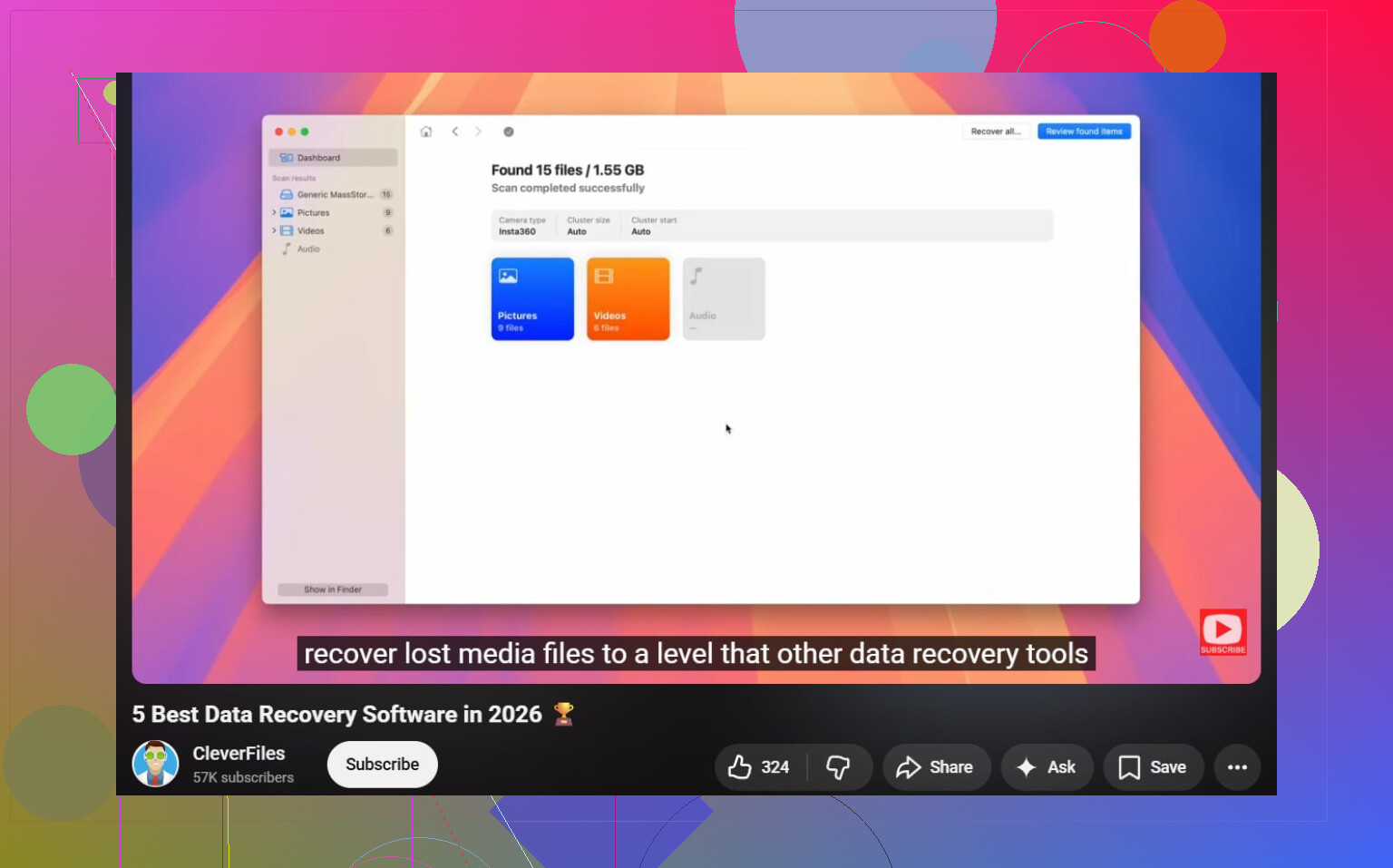
- Click Search for Lost Data. On an external drive, it might ask which recovery mode to use. I’d pick Universal Scan almost every time. If the lost files are videos from a camera or drone, use Advanced Camera Recovery instead.
- Let the scan finish. If it finds the deleted partition, open it and browse through it.
- Preview some files first. I’d test photos, docs, maybe one video, not only filenames.
- Select what you want, then hit Recover.
- Save the recovered data to another drive. Never back onto the original drive.
After your important files are safe, you’ve got two practical paths.
Option 1, bring back the old partition with TestDisk
If you want the partition itself back instead of only the files, TestDisk is usually the tool people reach for because it’s free and it works often enough to be worth trying.
- Download TestDisk, extract it, and run testdisk_win.
- When it asks about logging, choose Create.
- Select the physical disk where the deleted partition was.
- Accept the partition table type it detects.
- Choose Analyse, then run Quick Search.
- If it finds nothing useful, run Deeper Search.
- When the missing partition appears, highlight it and choose Write.
- Confirm, then restart the PC.
If nothing overwrote the partition table entry area, this sometimes restores the partition in one shot, same files, same structure, same drive behaving like nothing happened. I’ve seen it work. I’ve also seen it not, so I’d still recover files first.
Option 2, make a new partition and move on
If your goal is only to get the drive usable again after recovery, this is the simpler route.
- Open Disk Management.
- Right-click the Unallocated space and choose New Simple Volume.
- Go through the wizard, assign a drive letter, and pick a file system. Most people use NTFS.
- Leave Quick Format on, then finish.
Afterward, copy your recovered files onto the new partition.
One more thing, and this part matters. If the drive is an SSD, move fast. TRIM can wipe deleted blocks in the background, which makes recovery drop off hard. If it’s a regular hard drive, your odds are usually better, as long as you keep new writes off it. Learned this one the bad way, lol.
12 Likes
Start with diagnosis, not recovery.
If the partition vanished out of nowhere, I would not assume it was only a deleted entry. Sometimes the partition table gets corrupted because the USB bridge, cable, enclosure, or the drive itself is failing. That changes what you should do first.
My first move would be this.
- Try a different USB cable and port.
- If the drive has external power, check that too.
- Read SMART health with CrystalDiskInfo or smartctl.
- If SMART shows reallocated sectors, pending sectors, I/O errors, or the drive disconnects during reads, stop and clone it first.
This is where I differ a bit from @mikeappsreviewer. File recovery first is fine on a healthy disk. On a flaky disk, repeated scans are rough on the hardware. In that case, make an image or clone of the whole drive to another disk, then work from the clone. ddrescue is the usual pick for bad drives because it skips damaged areas and retries later. Slow, but safer.
A decent triage rule:
If the drive is healthy, scan it.
If the drive is unstable, clone it.
After that, use a partition-aware tool. Disk Drill is a solid option because it often shows lost partitions and lets you preview files before recovery. I like previewing 10 to 20 files from differrent folders before saving anything. If previews fail across the board, the file system damage is deeper than a missing partition entry.
Also check whether the disk is GPT or MBR. If a 4 TB external drive got initialized as MBR by mistake at some point, Windows will only map part of it. I have seen ppl think a partition was lost when the issue was wrong partition style.
One more thing. If this is only personal files and no backups exist, the safest path is:
clone or image first, recover files second, rebuild partition last.
For general research, this roundup is decent: best data recovery software for 2026.
Do not format. Do not run chkdsk on the damaged volume. That one burns people all the time.
If the partition just disappeared, I’d add one check before doing any recovery pass: compare what Windows sees vs what the drive firmware reports.
Open an admin Command Prompt and run:
diskpart
list disk
If the drive size looks wrong there, like a 4 TB drive suddenly showing 746 GB or something weird, that can point to enclosure/adapter translation issues, not just a lost partition. In that case I would actually avoid writing a new partition table at all until you test the drive in another enclosure, another PC, or directly via SATA if possible. People skip this and end up “fixing” the wrong problem.
I mostly agree with @mikeappsreviewer and @boswandelaar on not writing to the disk, but I’m a little less eager to rebuild the partition early even with TestDisk. If the external bridge is lying about sector size or the disk is intermittently dropping, writing the partition back can make things messier real fast.
My order would be:
- Verify the reported disk size is correct.
- Check Device Manager and Event Viewer for disk resets or I/O errors.
- If the drive clicks, disconnects, or freezes reads, image it first.
- If the hardware looks stable, then scan for files or the old partition.
Also, if this is an exFAT drive, be extra careful with any “repair” option from Windows. exFAT repairs can go sideways fast in my experiance.
For actual recovery, Disk Drill is fine because it can detect lost partitions and let you preview files before saving them elsewhere. That preview step matters more than ppl think. A file list means nothing if the files won’t open.
If you want a plain-English guide, this covers how to recover a deleted partition and restore your files safely.
Big one: don’t run chkdsk yet. That tool is for fixing a mounted filesystem, not for mystery unallocated space.
I’d start one layer lower than recovery software: check whether the partition is only hidden by a bad disk signature / offline state / letter conflict. In Disk Management, if the disk shows Offline or the volume exists but has no mount point, fixing that is zero-risk compared with scans or partition writes.
Where I slightly disagree with @mikeappsreviewer and a bit with @boswandelaar and @reveurdenuit is this: I would not rush into TestDisk just because the space says unallocated. If the enclosure is translating sectors wrong, writing a found partition back can lock in the wrong geometry.
My order:
- Check disk size in BIOS or another machine if possible.
- In Disk Management, check Offline/Foreign/No letter first.
- In Device Manager, uninstall the USB mass storage entry, reconnect, and see if enumeration changes.
- If the volume ever appears RAW, capture the first and last few MB with a sector tool before experimenting.
- Only then decide between partition recovery and file recovery.
If the drive is stable and you mainly care about files, Disk Drill is a reasonable middle-ground tool.
Pros for Disk Drill:
- good lost partition detection
- easy previews
- usually better for non-experts than command-line tools
Cons:
- not the cheapest option
- deep scans can take ages
- on badly damaged drives, it is not a substitute for imaging first
If the files are truly irreplaceable and the drive makes new noises, skip DIY and go to a lab. That’s the real fork in the road.