My iPad suddenly started lagging whenever I use video apps like YouTube, Netflix, and streaming sites. Videos buffer, the app freezes, and everything feels slow even after restarting. I need help figuring out what could be causing the slowdown and how to fix it so I can stream normally again.
If your iPad feels sluggish while streaming, even though the battery says 100 percent, I’d look at a few boring but important things before changing random settings.
Full battery does not mean full speed
I learned this the annoying way. Charge level and battery condition are separate. You can have a full charge and still be dealing with an old battery that struggles under load.
Open Settings, then Battery, then Battery Health. Look at maximum capacity. Once it drops under 80 percent, iPadOS starts protecting itself from shutdowns by reducing performance. So yeah, the battery icon looks fine, but the device still drags.
Also check Low Power Mode. If the battery icon is yellow, the iPad is being held back on purpose. Turn it off if you want normal speed back.
Why video apps are the first place you notice it
I kept seeing people blame the device when the problem was the connection. A weak Wi-Fi signal looks a lot like lag. The app pauses, quality drops, taps feel delayed, and it seems like the iPad is choking when it’s the stream buffering. Try another network and see if the issue follows.
The other big one is storage. This is where things get ugly fast. On iPadOS 16 and newer, the system leans on something called Virtual Memory Swap. It uses storage like extra memory during heavier work, including video playback. If your storage is packed, there’s no room left for it to breathe, and video apps start stuttering first.
Low storage slows the whole device, not only media apps
Once you get past around 80 percent used storage, the slowdown spreads. Typing gets delayed. App switching feels sticky. Background tasks take longer. iPadOS needs free space for temp files, cache, and swap activity. If you squeeze all of it out, performance falls off in a pretty obvious way.

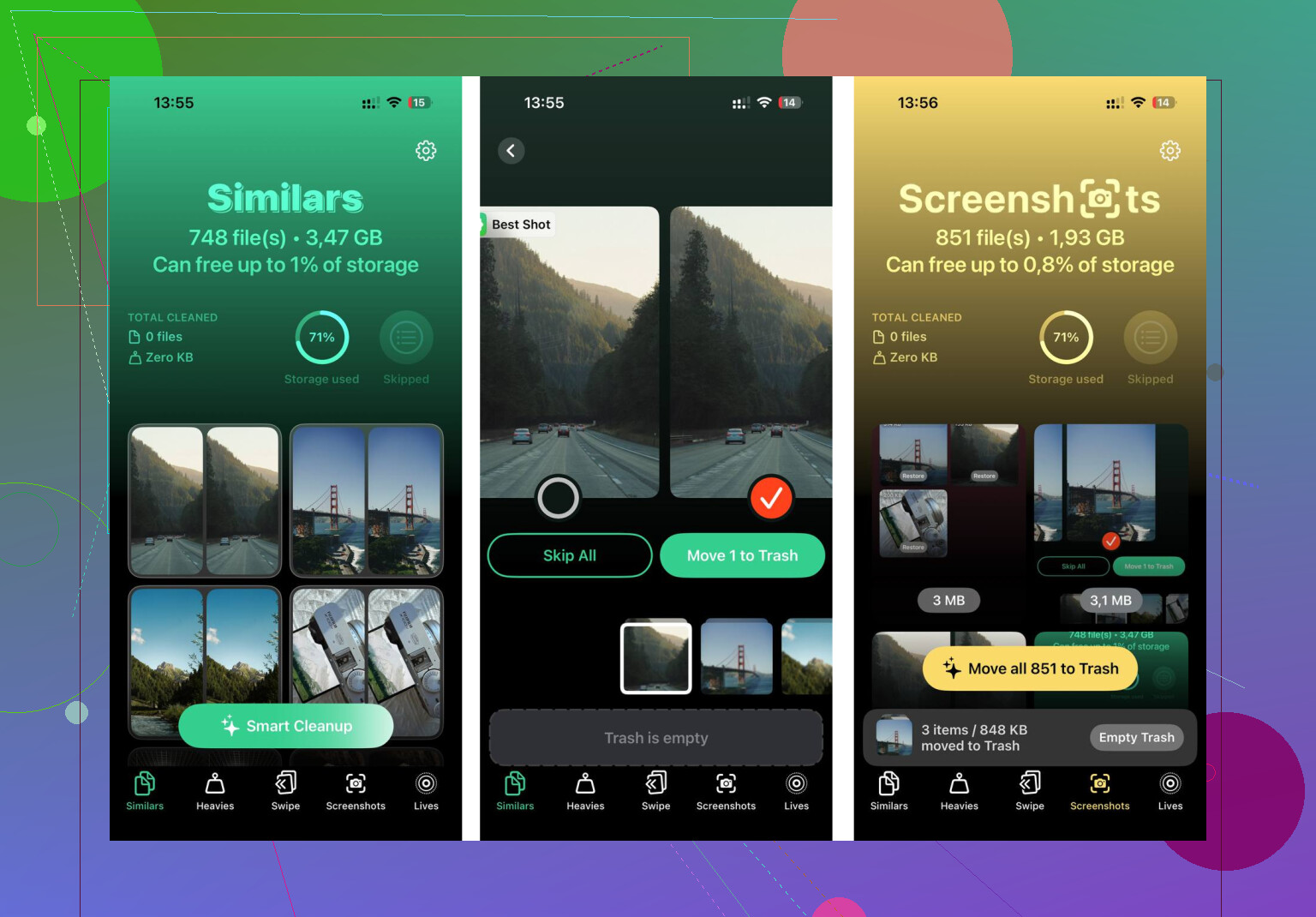
- I checked the Heavies tab first. Biggest files show up at the top with exact sizes. Old videos and screen recordings were sitting there like bricks.
- Then I went into the Similars tab. It groups near-duplicate photos and picks a best shot, which saved me from sorting through burst junk one by one. Not perfct, but close enough.
- The Screenshots tab helped more than I expected. Every image shows its file size, and once you see screenshots eating gigabytes, deleting them gets easy.
- Everything stays on the device. Nothing gets sent off somewhere else.
After I cleared about 10GB, the difference was not subtle. Video apps behaved better, and the whole iPad felt less clogged.
Stuff I changed without resetting anything
- Background App Refresh. Go to Settings, General, Background App Refresh. I turned it off for most apps. If you leave dozens of apps polling in the background, the iPad keeps doing little chores all day.
- Restart the iPad. Old advice, still works. A reboot clears temporary memory and kills stuck background processes. I do it about once a week when mine starts feeling off.
- Safari cache. Go to Settings, Safari, Clear History and Website Data. Safari gets slow on its own when too much browsing data piles up.
- Reduce Motion. Go to Settings, Accessibility, Motion, then switch on Reduce Motion. The lighter animations felt smoother on an older iPad, at least to me.
About updates
I wouldn’t avoid iPadOS updates only because of slowdown stories. A lot of updates include bug fixes and performance work. What does trip people up is the first day after a major update. The iPad spends hours reindexing files and handling background cleanup, and during that window it feels slower than normal. I’d give it 24 hours before deciding the update caused damage.
I’d check heat first. People skip it. iPads throttle when they get hot, and video apps push the screen, Wi-Fi, and decoder at the same time. If the back feels warm, take the case off, lower brightness, and test again. I’ve seen YouTube lag like crazy from temp throttling alone.
Also look at one app vs all apps. If Netflix is bad but downloaded videos in Photos play fine, the issue points more to network, DNS, VPN, ad blocker, or the app itself. If local video stutters too, it points more to the iPad.
A few things I’d test.
- Turn off VPN, Private Relay, and ad blockers for a bit. Those mess with streaming more often than people admit.
- Force close the video app, then offload and reinstall it. Corrupt app cache is a thing.
- Test 2.4 GHz Wi-Fi vs 5 GHz. 5 GHz is faster, but weaker through walls.
- Check Screen Time limits and content filters. Weird one, but I’ve seen it cause hangs.
- Open Settings, Accessibility, Per-App Settings, and remove odd settings tied to video apps.
I don’t fully agree with @mikeappsreviewer on battery being a top suspect unless your iPad is older and gets hot or dies fast. For sudden lag, app cache, network tools, or thermal throttling hit first in my expereince.
If storage is tight, Clever Cleaner is worth a look for clearing junk fast. Also this Clever Cleaner review for freeing up iPad storage and fixing lag is easier to follow than most.
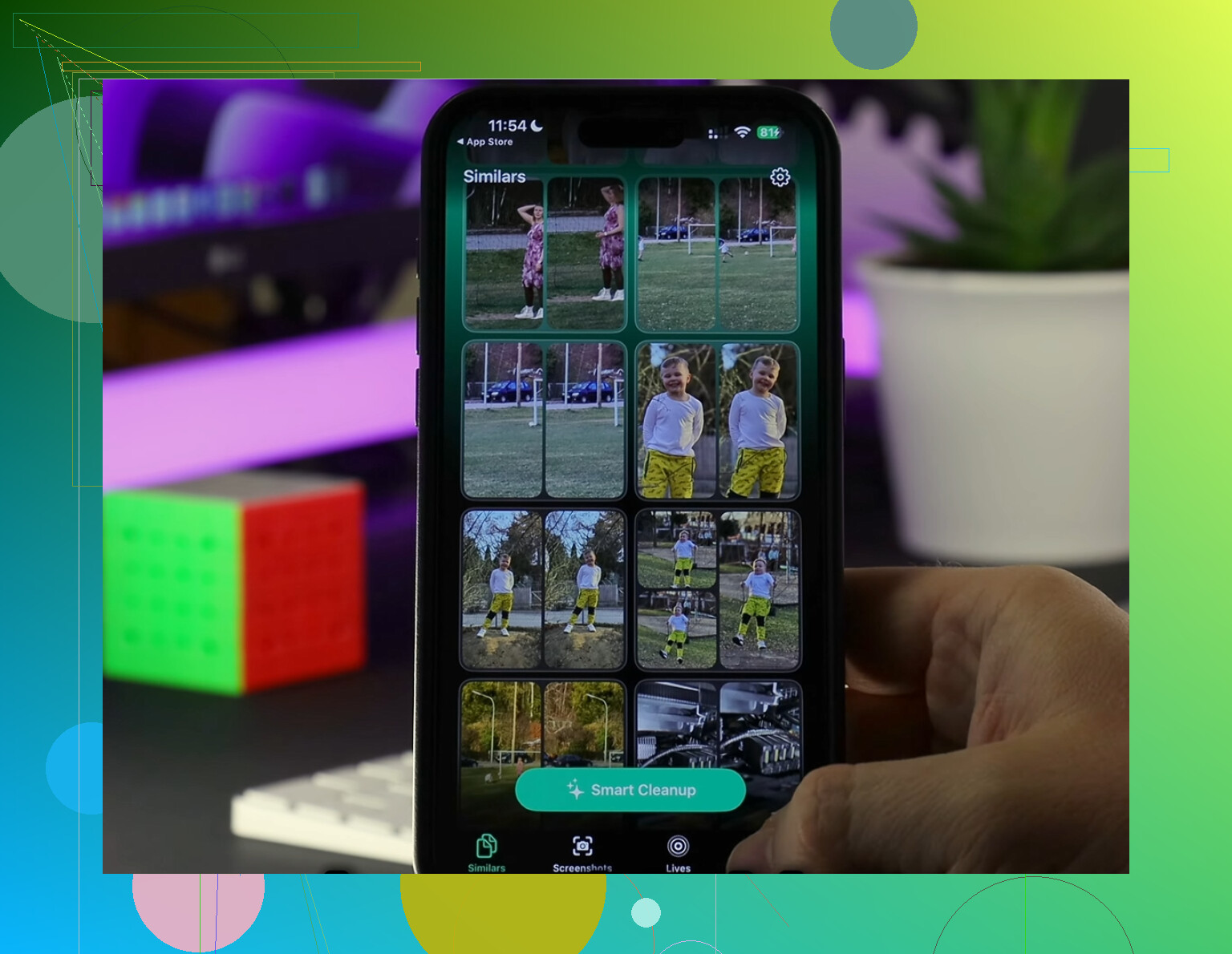
If it got slow suddenly, I’d also consider stuff that @mikeappsreviewer and @hoshikuzu didn’t really put at the top: a bad iPadOS/app decode bug or Safari website junk from streaming sites.
A few extra checks:
- Test downloaded/offline video inside Netflix or a local file in Files/Photos. If offline playback is smooth but streaming is awful, that’s not really raw iPad performance.
- Try another browser. Safari can get weird with some video players. If a streaming site lags in Safari but not Chrome, that narrows it down fast.
- Disable PiP and autoplay stuff for testing. Sounds minor, but I’ve had YouTube act dumb with extra background behavior.
- Check available RAM pressure indirectly: if opening Control Center or app switching stutters too, it’s more system-wide than just video buffering.
- Reset network settings if every video app buffers on solid Wi-Fi. Annoying, but it fixes some bizarre network corruption issues.
I kinda disagree with battery being a main suspect unless the iPad is older or acting hot/draining fast. Sudden lag usually screams software, storage pressure, or network weirdness to me.
If storage is crowded, Clever Cleaner is worth using to clear out junk and duplicates fast so iPadOS has breathing room again. Also found this thread useful for people cleaning up Apple devices without getting buried in ads: free iPhone cleaner discussion for clearing storage and reducing lag.
If you post your iPad model + iPadOS version, ppl can prob narrow it down way faster.
One angle I don’t see emphasized enough by @hoshikuzu, @cacadordeestrelas, and @mikeappsreviewer is audio/output routing. iPads can get weirdly laggy in video apps if they’re constantly trying to handshake with AirPlay, Bluetooth earbuds, a speaker, or a TV. I’ve seen YouTube freeze, scrubber lag, and Netflix hang just because the iPad kept switching audio targets in the background.
Try this:
- Turn Bluetooth off completely and test
- Make sure AirPlay is not trying to connect to a TV/HomePod
- In the video app, force audio back to iPad speakers
- If you use Safari streaming sites, close extra tabs with video ads or popups
Another thing: check Date & Time is set to automatic. Sounds stupid, but DRM-heavy apps can misbehave if system time is off.
I also wouldn’t fully buy the “battery first” theory unless the iPad is older. Sudden slowdown in only video apps often smells more like app conflict, audio routing, or DRM/network negotiation than raw battery condition.
If storage is packed, Clever Cleaner can help clear space quickly.
Pros: easy cleanup, good for large files/duplicates, helps free working space.
Cons: not a magic fix if the real issue is Wi-Fi, heat, or iPadOS bugs, and you still need to review what it wants to remove.
If local downloaded videos also stutter, then I’d start suspecting hardware age or iPadOS-level issues.
Try resetting only the network settings. This is simpler than reinstalling apps or clearing storage. It often fixes broken Wi-Fi profiles, DNS errors, and streaming stalls.
Open Settings, General, Transfer or Reset iPad, Reset, Reset Network Settings. Your photos and apps stay untouched. You’ll need to re-enter Wi-Fi passwords.
After restarting, test one 1080p YouTube video for five minutes. If it plays smoothly, the old network setup caused the issue. If lag remains, test your phone’s hotspot. This seperates an iPad fault from a router problem fast.
Don’t expect one clean culprit here. When lag hits several video apps at once, it’s usually two smaller things stacking, not one big failure, so you fix a bit at a time and watch what actually changes.
The word that stands out to me is ‘suddenly.’ That points away from battery and away from storage creeping up slowly. @cacadordeestrelas and @waldgeist already said battery is a weak first suspect and I’m with them on that. Storage and battery degrade gradually. They don’t flip a switch overnight. Something that changes fast is more like an app update, a bad iPadOS point release, a router that started acting up, or a background download hammering your bandwidth.
That last one gets skipped a lot. Open Settings, check if anything is mid-download or if iCloud Photos is syncing a big backlog. An iPad quietly pulling gigabytes in the background will make every stream stutter while the network looks ‘fine’ on a speed test taken a second later.
The other angle nobody hit: what quality the apps are actually feeding you. YouTube and Netflix guess your connection and bump resolution up and down. On a flaky signal they get stuck constantly renegotiating, which feels exactly like the iPad choking. Force YouTube to a fixed 720p or 1080p for a test instead of Auto. If locking the resolution smooths it out, your problem is the connection deciding it can do 4K when it can’t, not the hardware.
@spriteking’s network reset idea is the right instinct, but I’d treat it as a later step, not a first one. You lose all your saved Wi-Fi passwords for something that might not be the cause. Before nuking network settings, just test one hotspot from your phone. Two minutes, nothing lost, and it tells you whether the router or the iPad is the problem.
On the cleaner tool that keeps coming up, Clever Cleaner is fine for clearing space if you’re genuinely near full, and the fact that it’s free with no ads is why people keep pointing at it. Just don’t expect free space to fix a network or thermal issue. If your storage is sitting at 40 percent used, cleaning it does nothing for buffering. Use it when the storage number is actually the problem, not as a reflex.
If I had to pick an order: lock streaming resolution, test on your phone hotspot, kill Bluetooth and AirPlay like @waldgeist said, then reboot. Most ‘sudden’ video lag falls out by the second or third step.