I accidentally deleted important photos from my SD card while moving files to my computer, and now they’re gone from both places. These pictures are really important, and I need help figuring out if there’s a safe way to recover deleted photos from an SD card before anything gets overwritten.
I’d check the easy stuff first before touching recovery software. More than once, I thought photos were gone off an SD card, then found copies sitting in sync apps or some old import folder.
Look through any service tied to the phone, camera, or computer. Google Photos, iCloud Photos, OneDrive, Dropbox, Amazon Photos, whatever was signed in at the time. Also open the trash or recently deleted area in each one. A lot of those services keep deleted images around for 30 to 60 days.
If the card came out of a camera, poke around the camera itself too. Some models save part of the media to internal storage. I also ran into a bad card reader once, which made the SD card look dead when it wasn’t. Swapping readers or trying a second computer is worth five minutes of your time.
If none of those checks turn anything up, stop using the SD card right away. Don’t shoot more photos on it. Don’t copy files onto it. Deleted pictures often stay on the card until something new lands in the same blocks. Once overwritten, you’re done.
I’d start with Disk Drill. I used it on DSLR cards, microSD cards from Android phones, drone cards, and a couple cards which suddenly showed up as RAW or unreadable. It’s easier to work through than some of the older recovery tools, and it does more than a simple undelete pass.
The part I found useful is its deeper scan. Some tools only do well when the file system still has decent records left. When the card was formatted, corrupted, or the partition got messed up, those tools fall apart fast. Disk Drill still has a shot because it looks for file signatures too, not only the directory info.
What I’d do:
- Take the SD card out of the device now.
- Plug it into a computer with a proper USB card reader.
- Install and open Disk Drill.
- Pick the SD card from the drive list.
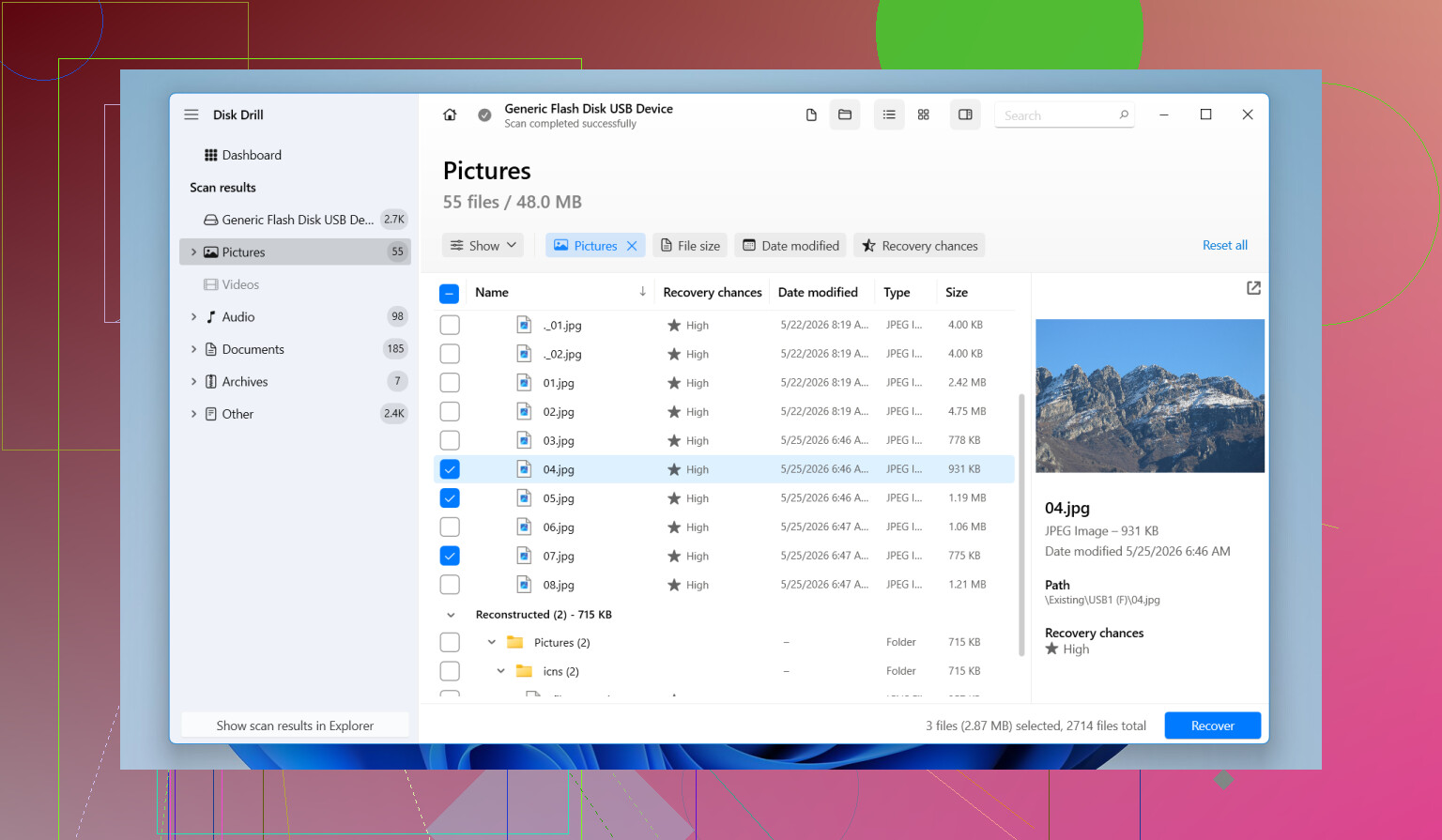
- Hit Search for lost data and choose the scan mode.
- Let the scan finish fully. Quick scans miss stuff. Deep scans take longer but often pull up more.
- Filter by Pictures, or search by extension like JPG, PNG, CR2, NEF, ARW, or DNG.
- Preview files before restoring them.
- Recover to a different drive. Do not write anything back to the SD card.
The preview part matters more than people think. If a photo opens cleanly in preview, your odds are usually decent. If previews are broken or half gray, recovery gets shakier.
For camera cards, this tool tends to do better than plain undelete apps. GoPro footage, drone media, dash cam files, mirrorless camera images, stuff like that often gets saved in chunks. Some software trips over fragmented media and gives you junk output. I’ve had fewer bad recoveries here than with the old freeware options.
The free version is useful for a first pass because you can scan and preview before deciding what to do next. I like doing that first so I know whether the card still has anything worth chasing.
A few other checks are worth doing too:
- Look through older backups in Windows File History or Time Machine.
- Check your computer for auto-imported folders from the camera or phone.
- Try another card reader or a different USB port.
- If the card drops connection, gets painfully slow, or keeps appearing and disappearing in Disk Management, stop pushing it and look at a pro recovery service.
Once there’s physical damage, software gets a lot less dependable. Repeated scans on a failing card sometimes make a bad situation worse. If the card is unstable, I wouldn’t keep hammering it.
2 Likes
Stop using the SD card now. No new photos. No file copies. No format attempt.
I agree with @mikeappsreviewer on checking cloud and import folders first, but I would add one thing before a long scan. Make a byte-for-byte image of the card if your PC still reads it. Recovery from the image is safer than hammering the card over and over. On Linux or Mac, dd or ddrescue works. On Windows, USB Image Tool or similar works fine. If the card starts dropping out, this step matters a lot.
Then scan the image, or the card if you have no other option, with Disk Drill. I like it for photo recovery because it sorts results by file type and previews cleanly. That saves time when you need JPG, RAW, CR2, NEF, ARW, DNG, or MP4 mixed together. Recover to your computer drive, not back to the card. Sounds obvious, people still mess this up.
One small disagreement. I would not keep retrying random readers and ports if the card is unstable. A few checks, sure. After thta, stop. Failing flash media gets worse fast.
If Disk Drill finds files with proper size and working preview, your odds are decent. If names and folders are gone but images preview, take those and sort later. If nothing previews and the card capacity shows wrong, you’re moving into pro lab territory.
Also, if you want more camera-focused discussion, this thread is useful, photo recovery tips for deleted SD card pictures.
I’d do one thing a little differently than @mikeappsreviewer and @cacadordeestrelas: before chasing software too hard, check whether the “move” failed on the computer side, not the card side. Windows Explorer and some photo import tools can look like they finished, then stash files in a temp/import cache or fail mid-transfer. Search the computer by file type and date taken, not just filename. Also check hidden folders.
If the SD card still mounts, don’t browse around on it too much. Some systems love to “fix” things automatically, which is not always your freind here. If you can, flip the card’s lock switch first. Not perfect, but it can prevent accidental writes.
I partly disagree with trying too many adapters/readers if the card is acting weird. One extra test, sure. Ten retries, nope. That’s how people turn “recoverable” into “why is the card totally dead now.”
If software is needed, Disk Drill is a solid pick for SD card photo recovery because it handles common image formats well and lets you preview what’s actually recoverable before restoring. I’d recover only the must-save files first, then sort the rest later. Priorities matter when the card is sketchy.
One more thing people skip: if the recovered photos open but look scrambled, the files may be fragmented, not necessarily gone forever. That’s where software results can vary a lot.
Also, this is worth a quick watch if you want a simple overview: quick SD card photo recovery tips.
Main rule: do not save anything back to that SD card. Not even once.