My iPhone storage keeps filling up with cache, temporary files, and other junk even after I delete apps and photos. What’s the safest way to clear junk files and free up storage permanently without losing important data?
Start with Settings > General > iPhone Storage and wait for it to finish calculating. That will show you where the space is actually going. If Photos is taking up 40 or 50 GB, clearing a small Safari cache isn't going to make much difference.
On iPhones, “junk files” usually means duplicate photos, large videos, forgotten downloads, message attachments, and app caches. It generally isn't a pile of hidden system files you can remove with a Windows-style cleanup tool.
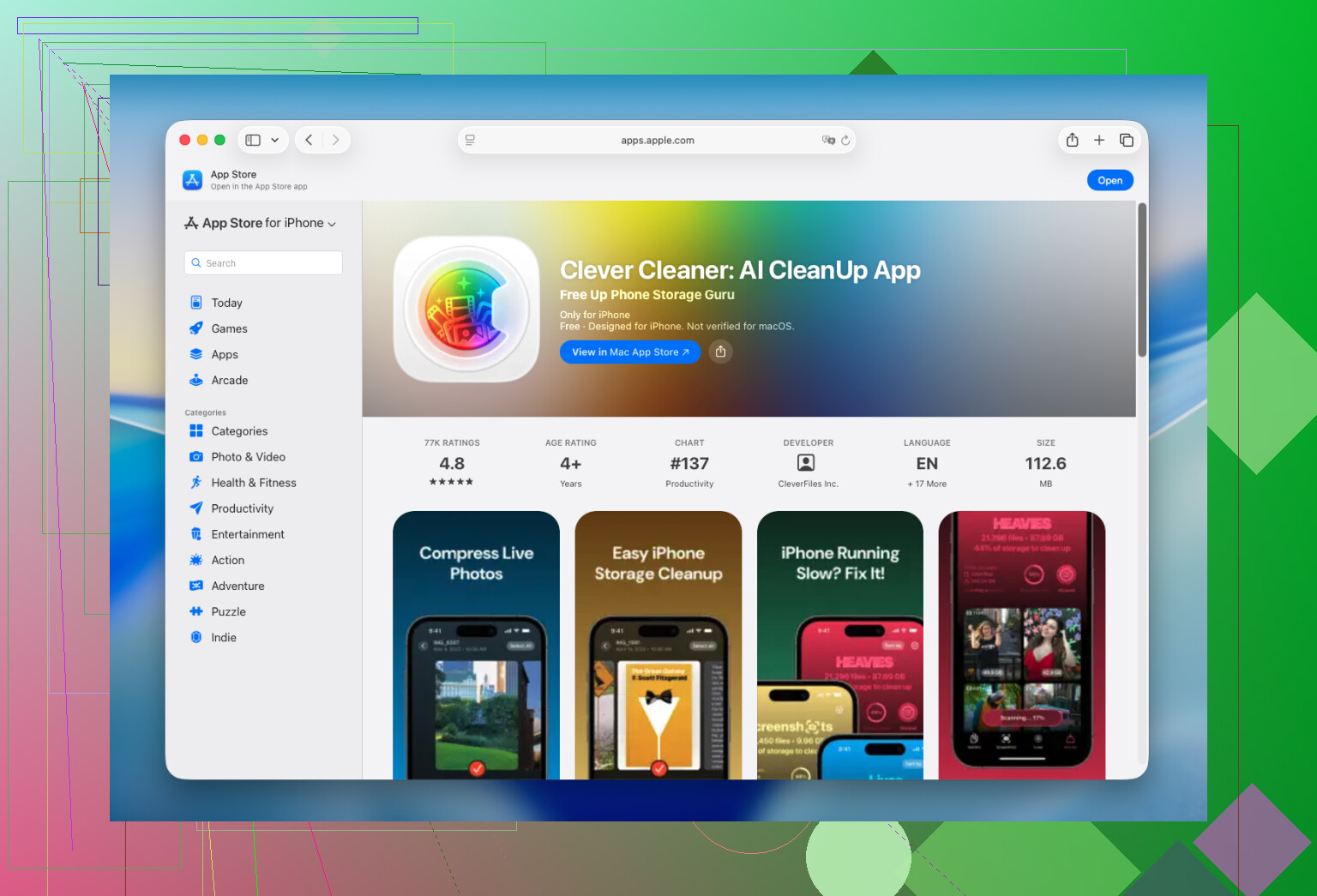
Photos are usually the biggest target. After cleaning up my own phone and helping my parents with theirs, I gave up on manually sorting through thousands of pictures. I use Clever Cleaner to find duplicate and similar photos. It also groups screenshots, Live Photos, and large videos separately.
The Smart Cleanup option is useful when you only want to clear the obvious clutter. If I have more time, I use Swipe mode and check the photos individually. That tends to catch blurry shots and accidental screenshots I would otherwise never notice. The analysis happens directly on the device, there are no ads, and the free version is enough for routine cleanup.
After dealing with the photo library, I usually check these:
- Apps I haven't used in months. I delete them or offload them if I want to keep their data.
- Offline downloads in Netflix, Spotify, YouTube, and other streaming apps.
- The Downloads folder in the Files app.
- Large video attachments in old Messages conversations. You can remove the attachments without deleting the entire chat.
- Apps such as Telegram that include their own cache-clearing option in Settings.
Also check the Recently Deleted album after removing photos. I once deleted hundreds of pictures and wondered why my available storage barely changed. They were still sitting there. Emptying that album freed several gigabytes immediately.
There isn't really a way to remove every “junk file” once and never deal with storage again. App Store cleaners can't access hidden iOS caches or system files because Apple restricts that access. iOS handles most system cleanup on its own, so the useful part is managing the photos, downloads, attachments, and app data you control.
Doing this for 15 or 20 minutes each month is much easier than waiting for the “iPhone Storage Almost Full” warning. Since I started checking regularly, I haven't had to rush around deleting things before recording a video, installing an update, or downloading another app.
Deleting and reinstalling an app can wipe drafts, offline files, saved game data, or anything else that was never synced, so I would not use that as the first cleanup method.
The safer approach is to make a verified backup, then clear storage from inside the apps that created it. Browsers, podcast apps, streaming services, social apps, and messengers often have their own download or cache controls. If an app lacks those controls, offloading it is less risky than deleting it because iOS keeps its documents and data. Tools such as Clever Cleaner can help sort your photo library, but they cannot reach app caches or hidden iOS files.
If “System Data” stays unusually large after a restart and normal cleanup, avoid random cleaner apps claiming they can erase it. The last-resort fix is a full backup followed by erasing and restoring the phone, but only after confirming the backup is usable and important accounts are synced. Even then, storage cleanup is maintenance rather than permanent. Caches will return as you keep using the phone.
Do not delete photos while iCloud Photos is enabled unless you are prepared for those deletions to sync to your other Apple devices. Sync is not the same as having a separate backup. Export anything irreplaceable to a computer or external drive before doing a large cleanup.
If photos are the main problem, turning on Optimize iPhone Storage is often safer than mass deletion. The phone keeps smaller local versions and downloads the originals when needed. Duplicate-finding tools such as Clever Cleaner can still be useful, but review the selections rather than approving thousands of “similar” shots at once.
For app storage, offloading may not recover as much space as expected because it preserves Documents & Data. If a particular app has grown huge, clear downloads inside that app first. Delete and reinstall only after checking that its drafts, files, logins, and progress are actually synced. There is no permanent cleanup switch. The realistic fix is to leave some free space and prevent offline media and attachments from quietly piling up again.
If the storage comes back within a day or two, the problem is probably an app rebuilding its cache rather than leftover junk that was never removed. Take a screenshot of the iPhone Storage page, use the phone normally for a couple of days, then compare it. That usually exposes the real offender faster than repeatedly running cleaner apps.
I agree with @cosmiccache that reinstalling should be a last resort, but offloading is not always much of a fix either. It removes the app while keeping its data, so an app with several gigabytes of saved media may still occupy nearly the same space. Clear podcast episodes, maps, music, video downloads, and messenger media from inside the app first. Be careful with browser cleanup because deleting website data can sign you out and remove locally stored sessions.
The closest thing to a permanent fix is changing what accumulates. Set Messages to keep conversations for a limited period if you do not need a lifetime archive, disable automatic media downloads in chat apps, and stop streaming apps from downloading over Wi-Fi without asking. If Messages in iCloud is enabled, remember that deleting conversations or attachments can sync across your Apple devices.
Finally, do not panic over the System Data figure after every cleanup. The storage screen can take time to recalculate, and caches naturally return. Restart the phone, leave it charging with some free space, and check again later. A full erase and restore can shrink abnormal System Data, but that is far too much risk and effort unless it stays huge after the normal cleanup steps.
The word ‘permanently’ is the trap here. iOS is designed to fill unused space with caches and preloaded content on purpose, so an empty phone is not the goal state Apple built for. Chasing zero junk means fighting the operating system, and you lose.
@real_panda already nailed the most useful test: screenshot the Storage page, use the phone for a couple days, then look again. If a specific app balloons back, that app is your problem, not some mysterious pile of leftovers. Everything else in this thread is downstream of that one check.
Where I’d push back a little is the confidence around offloading. Offloading only helps when the app’s bulk is the app binary itself, which is rare. Most bloated apps are bloated because of downloaded media and account data, and offloading keeps all of that. So you free almost nothing and then have to redownload the app anyway. Clearing content from inside the app first, like @virtualspark9308 and @cosmiccache said, is the part that actually moves the needle.
On the photo side, Clever Cleaner is fine for surfacing duplicates and the giant videos you forgot about, but treat it as a sorting aid and not a magic broom. The bigger win for most people is just turning on Optimize iPhone Storage and then actually emptying Recently Deleted, since photos sit there for 30 days quietly holding space. People run a cleaner, feel productive, and never realize the deleted stuff is still on the device.
One thing nobody mentioned: the Storage bar itself lies for a while after big changes. It caches its own estimate and can take an hour or a reboot to recalculate. I’ve seen people delete a chunk of stuff, see no change, panic, and start deleting more. Give it time before you assume nothing worked. Beyond that, the honest answer is you don’t remove junk once and be done. You just stop feeding it, mainly by killing auto downloads in messaging and streaming apps.