I accidentally deleted important photos and video files from my SD card while moving them to my Mac, and now I can’t find them anywhere. I really need help with SD card file recovery on Mac because these files are personal and not backed up. What’s the safest way to recover deleted files from an SD card on a Mac without causing more data loss?
I’ve gone through this on a Mac a few times, and the recovery route depends on what the SD card did wrong.
If you deleted files by mistake, your odds are usually decent. A quick format is often still recoverable too, since it tends to wipe the file map instead of the file data right away. Things get ugly after a full format and then more use of the card. New photos and videos start writing over the old sectors, and once that happens, some files are gone for good. Hardware failure is a different mess. If the card keeps dropping connection, runs hot, won’t mount, or shows up with read errors, software often won’t get you far.
The biggest screw-up I keep seeing is people using the card after the loss. I did this once with a 32GB card from an old Sony, took maybe 20 more shots, and some of the missing RAW files came back half-broken. If you want any chance at recovery, stop using the card right away.
On Mac, I’d start with Disk Drill. I’ve tried a few others over time, including UFS Explorer and R-Studio. Those are solid, but Disk Drill felt easier to work with when I wanted results fast and didn’t feel like fighting the UI for an hour. It still does a good job on tougher cases, at least from what I saw.
What I usually do looks like this:
- Put the SD card into your Mac with a reader
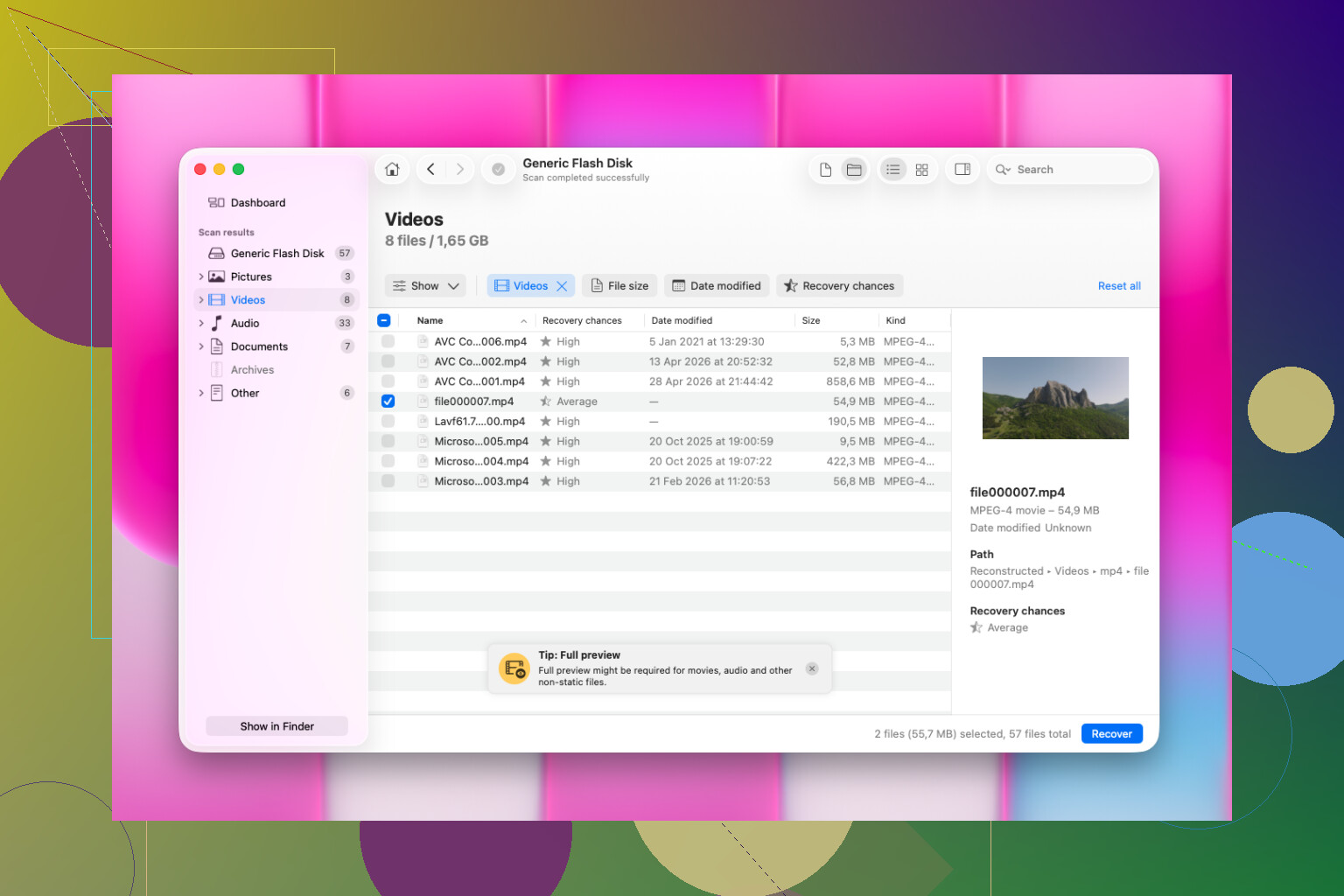
- Launch Disk Drill and pick the SD card from the list
- Start a full scan
- Wait it out and let the scan finish
- Preview what it found
- Recover files somewhere else, not back onto the SD card
One part I liked more than expected was the preview feature. It handles a lot of camera file types out of the box, including RAW formats and video files split up in weird ways. Some lighter recovery apps choke on those. Preview is a good gut check. If a photo opens cleanly or a video plays and scrubs without freakng out, your recovered copy usually has a decent shot of being usable.
I also wouldn’t dump 5,000 files out in one pass. Pick a small batch first. Open the images, check the resolution, scrub through the clips, look for corruption. I did this with a card from a drone once, and it saved me from wasting half a day exporting junk files. Test first, then recover the rest if those look good.
3 Likes
Stop using the SD card. Eject it. Do not copy anything else to it, do not format it, do not even preview stuff from the card if Finder starts acting weird. Deleted files often stay there until new data overwrites them.
I agree with part of what @mikeappsreviewer said, but I’d add one thing first. Before any recovery scan, make an image of the SD card if the card is unstable. On Mac, Disk Utility or a recovery app with backup imaging helps. Scanning a failing card over and over is how people lose the last readable sectors.
If the files were deleted during a move to your Mac, check the Mac side too:
- Trash
- Photos app, Recently Deleted
- Finder search by file extension, JPG, CR3, MP4, MOV
- Spotlight search for the file names
- Any cloud sync folder you use
If they are not there, use Disk Drill on the SD card. I like it for Mac because it reads exFAT, FAT32, SDXC cards, and most common photo and video formats without much setup. R-Studio is stronger for edge cases, in my opinon, but slower to sort through for a simple accidental delete.
Important part, recover to your Mac’s internal drive or an external SSD. Never back to the same SD card. If you see file names missing and only “reconstructed” results, that usually means the file system records got damaged, but photos and videos still have a shot.
If the card mounts read-only or throws I/O errors, skip random fixes from blogs. Clone first, then scan the clone.
For more solid SD card recovery software picks, this thread is worth reading:
best SD card recovery software for SanDisk and Mac users
One more thing, if FileVault on your Mac is on, that does not affect files deleted from the SD card. People mix this up a lot. The card’s file system matters more here.

First thing, don’t trust the word “moved.” On macOS, a move from SD card to Mac is often just copy + delete, and if anything interrupted it, the files may be on both sides partially, or on neither in a usable state. So I’d actually check one thing the others didn’t really stress: your destination folder’s hidden temp leftovers.
Try this on your Mac in Terminal if you know roughly where the files were copied:
mdfind 'kMDItemFSName == '*.jpg' || kMDItemFSName == '*.mp4' || kMDItemFSName == '*.mov''
Also check:
find ~/Pictures ~/Movies ~/Downloads -type f \( -iname '*.jpg' -o -iname '*.jpeg' -o -iname '*.png' -o -iname '*.mov' -o -iname '*.mp4' \) 2>/dev/null
Sometimes Finder loses track, Spotlight indexing lags, or files land in a diff folder than you expected. Annoying, but it happens.
I slightly disagree with the “scan immediately no matter what” vibe. If the card is healthy and important enough, making a byte-for-byte image first is the safer play. Then recover from the image, not the card. Less risk, less regret.
If you do need recovery software, Disk Drill for Mac SD card recovery is still a practical choice, same as @mikeappsreviewer and @suenodelbosque mentioned, mostly because it’s easy to sort photos/video previews without going full forensic goblin mode. But if your videos are super important, verify recovered clips all the way through, not just the first 3 seconds. Broken headers love to fake being “fine.”
Also, if the SD card is from a camera, put it back in the camera and see if the camera itself can still see thumbnails. Weirdly, cameras sometimes read media Finder acts dumb about. Not always, but worth 30 secnds.
And for broader Mac recovery tool comparisons, this thread is pretty relevant:
best Mac file recovery software advice from Reddit users
Big rule is still the same: recover to another drive, not back to the SD card. If the card starts disconnecting, stop messing with it becuase that turns a recoverable problem into a hardware problem fast.
One angle I’d add that @suenodelbosque, @viajeroceleste, and @mikeappsreviewer only touched lightly: check whether the files were actually deleted by macOS but are still sitting in the SD card’s hidden .Trashes folder. That happens more often than people think when deleting from removable media on a Mac.
If you’re comfortable with Terminal:
ls -la /Volumes
Find your SD card name, then:
ls -la /Volumes/YourCardName/.Trashes
If you see a user-ID folder inside, inspect it:
ls -la /Volumes/YourCardName/.Trashes/501
Sometimes the photos/videos are just there and can be copied off directly to your Mac, no recovery scan needed.
I’ll mildly disagree with the “put it back in the camera” suggestion unless the card seems perfectly healthy. Some cameras write thumbnail/cache data the moment they mount the card, and on a nearly full card that is not my favorite gamble.
If .Trashes is empty and the card is stable, then yes, Disk Drill is a sensible Mac option.
Disk Drill pros
- Easy preview for photos and videos
- Good support for common SD card file systems
- Friendly interface, less forensic-tool headache
- Can recover to another drive without much setup
Disk Drill cons
- Deep scans can return lots of renamed/reconstructed files
- Not the cheapest route
- On badly damaged cards, specialist tools can expose more low-level control
If the SD card shows weird capacity, wrong folder structure, or asks to initialize, stop trying “repairs.” At that point, image first or hand it to a pro. Recovery is about preserving the current state, not fixing the card.