My iPhone Photos app keeps freezing whenever I try to delete a large batch of screenshots, so I can’t free up storage or clean up my library. I’ve tried selecting multiple screenshots at once, but the app locks up before they’re removed. Looking for help with ways to delete screenshots on iPhone without the Photos app freezing.
I hit this wall on my iPhone a while back. First you ignore the storage alert. Then the phone stops saving photos, and you figure out the real problem was screenshots piling up the whole time.
On recent iPhones, one screenshot is often around 2MB to 4MB at full screen size. If you grab 10 a day, you end up past 1GB in a month from stuff you barely remember taking.
Why Photos gets annoying fast
The built-in Photos app is fine for small cleanup jobs. Once your library gets bloated, it starts fighting you.
Two things stood out for me:
-
Bulk delete tends to choke the app
If you try selecting everything and deleting it all in one shot, Photos often hangs or freezes. On a phone with low free space, it seems to struggle with processing all the metadata at once. -
It hides the one detail you need
You don’t see file sizes in the grid. A tiny screenshot of a text message looks the same as a huge HDR screen capture. So you end up guessing.
If you want to stick with Apple’s app, this is the method I used without crashing it:
- Open Photos
- Go to Albums
- Scroll to Media Types
- Tap Screenshots
- Hit Select in the top right
- Tap one image, then drag across and downward to select a bunch at once
- Delete in chunks of 100 to 200, not your whole archive
- Open Recently Deleted under Utilities
- Tap Select, then Delete All
A lot of people miss step 9. I did too, the first time.
Stuff you delete from the main library does not free space right away. It sits in Recently Deleted for 30 days and still counts against your storage until you empty it. If your storage number isn’t changing, this is often why.
What worked better for me
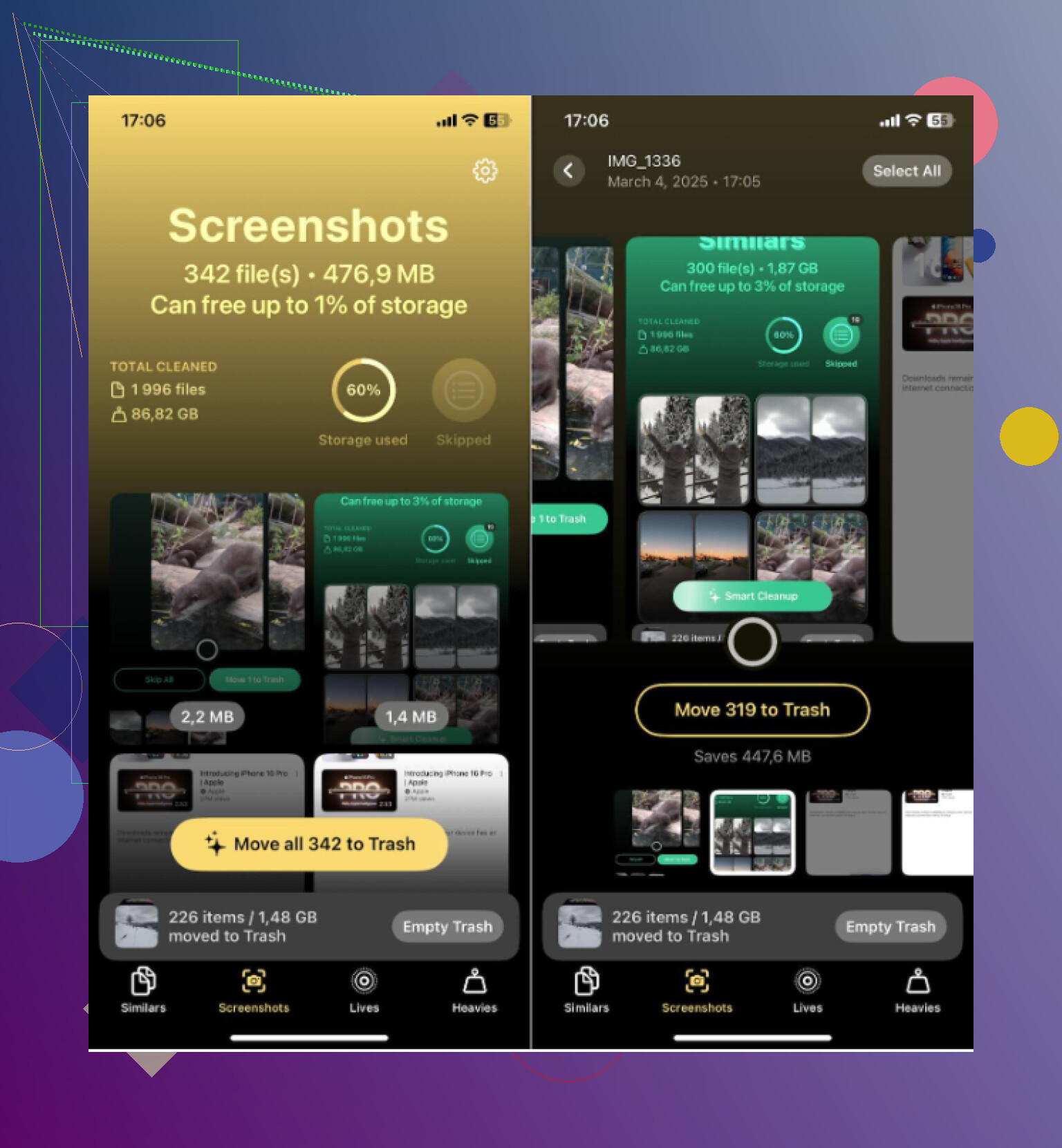
After dealing with Photos for longer than I should’ve, I switched to Clever Cleaner.
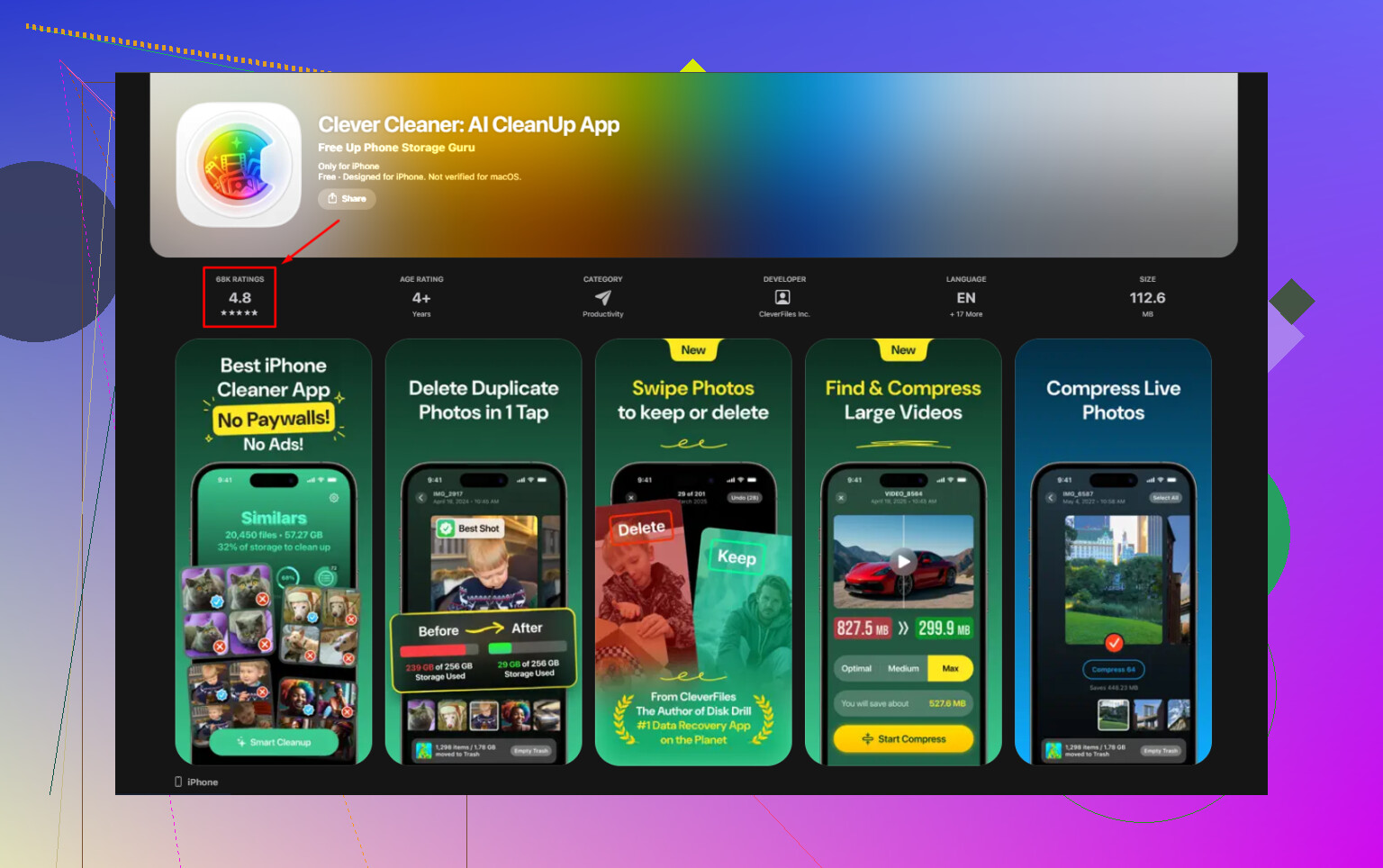
Most iPhone cleaner apps I tried felt shady. You scan your library, get a big dramatic result screen, then hit a paywall the second you try to remove anything. This one didn’t do that. No ads, no subscription screen, no fee hidden three taps in. Kinda rare, tbh.
The parts I found useful:
-
Screenshots tab shows file sizes on each thumbnail
This saved time right away. You see if a file is 400KB or 5MB before deleting anything. -
Heavies tab puts the worst offenders first
It sorts your media from largest to smallest, including screenshots, videos, and photos. So if your storage is bleeding out because of a few giant files, you see them fast. -
Similars catches near-duplicates
Apple Photos catches exact duplicates. This goes further. If you took five almost-identical pictures trying to get one clear shot, or saved the same screen three times with tiny differences, it groups them together. You keep one and dump the rest. -
Processing stays on the phone
No cloud upload step. Nothing leaves the device. If your screenshots include bank info, login codes, messages, or receipts, that matters.
For me, the useful combo was Heavies plus Similars. I wasn’t only deleting random screenshots. I was cutting the files taking the most space and wiping out duplicate clutter in the same pass.
One habit that stops this mess later
This part helped more than I expected.
When you take a screenshot, tap the preview in the bottom-left corner. Edit it if needed. Then tap Done and pick Copy and Delete.
That copies the image to your clipboard so you can paste it into a text, note, or email, but it never stays in your photo library.
I use this for one-off stuff like:
- verification codes
- order confirmations
- shipping updates
- temporary reference images
If you only need it for a minute, saving it to Photos is how the mess starts.
After I did a full cleanup and cleared Recently Deleted, the phone felt less clogged up. Storage finally dropped, camera saved shots again, and I stopped getting those warnings every other day. If your screenshot folder has gotten out of hand, start there first.
15 Likes
Stop trying to delete them from the main Photos grid when your storage is already choking. That app hates low free space.
I agree with part of what @mikeappsreviewer said, but I don’t love doing huge swipe-select batches even in the Screenshots album. On a near-full iPhone, 100 to 200 deletes is still enough to freeze for some people.
What worked better for me:
- Restart the iPhone first.
- Turn off Low Power Mode.
- Open Settings, General, iPhone Storage.
- Wait for storage categories to finish loading.
- Delete 20 to 50 screenshots at a time, then pause for 10 seconds.
- Force close Photos every few batches.
- Empty Recently Deleted after each round, not at the end.
Also check if iCloud Photos is syncing. If it is stuck, deletion gets weird and slooow. Pause sync for a bit, clean up, then resume.
If Photos still locks up, use Clever Cleaner. It handles screenshot cleanup better than Apple’s app when the library is bloated, and you see file sizes first, which helps.
If you want a quick visual guide, this iPhone screenshot cleanup guide is easier to follow than poking around menus blind.
One more thing. Free up 2GB to 5GB any other way first, delete a video, offload an app, clear Safari downloads. iOS gets less crashy once it has breathing room.
Don’t start in Photos at all if it’s already freezing. That app is the symptom, not the fix.
I partly disagree with @mikeappsreviewer on batch size. Even 100 can be too much on a nearly full phone. @sternenwanderer is closer there. What helped me was changing the order of attack:
- Go to Settings, Camera, Preserve Settings and make sure nothing weird is forcing extra processing.
- Turn OFF iCloud Photos temporarily if it’s actively syncing.
- Use Files, Messages, or Downloads to remove a few big items first so iOS has some working room.
- Then delete screenshots in tiny waves, like 15 to 25.
- Leave Photos open for a minute after each delete so it can “catch up.”
Also, if your screenshots are backed up anywhere else, use Image Capture on a Mac or Windows Photos import, then mass-delete from the computer. Weirdly, deleting over USB can be less crashy than on-device.
If you want a cleaner interface for this mess, Clever Cleaner is worth a look. It’s less annoying for screenshot cleanup than the stock app. Also this review is pretty useful if you want the details: see why Clever Cleaner is a truly free iPhone cleanup app
One more thing people forget: if your phone is hot, wait. Photos gets extra janky when the device is throttling. Kinda dumb, but yep, that was real on mine too.