I imported photos from my Mac to my iPhone, but now I can’t delete them directly from the Photos app. I don’t have a USB cable available, so I’m looking for a wireless way to remove synced or imported photos from my iPhone without connecting it to my Mac.
I’ve run into this same mess before, and the confusing part is usually iCloud Photos. Apple treats a synced photo library differently from a normal backup. If iCloud Photos is turned on, your iPhone, Mac, and iCloud library are all tied together. So yes, deleting a photo from the iPhone also deletes it from iCloud and from any other device using that same synced library.
That’s also why the “Delete items after import” option may not show up in Photos on the Mac. Apple doesn’t want you thinking you’re only clearing the phone when you’re actually changing the shared iCloud library.
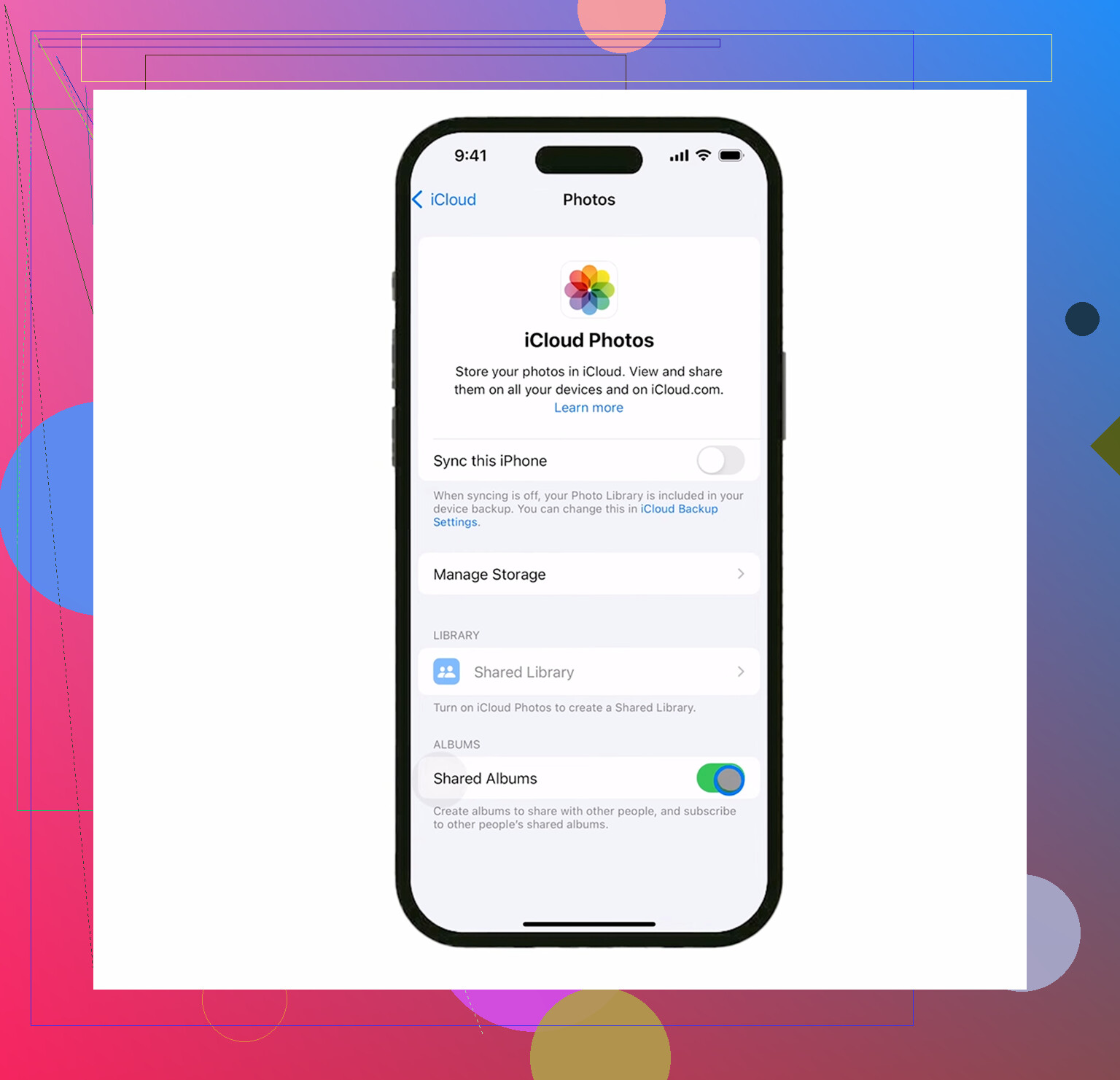
If your goal is “keep everything on the Mac, remove it from the iPhone,” turn off iCloud Photos on the iPhone first:
Settings > Photos > iCloud Photos
After that, the phone is no longer acting like part of the same synced photo library, so deleting from the phone should not remove the copies already stored on the Mac. Just make sure the import really finished before you start deleting.
For bulk deleting from a Mac, I’d skip the Photos app and use Image Capture. It’s already on macOS, and it’s much more direct for this kind of job. Plug in the iPhone, open Image Capture, pick the phone from the sidebar, press Command+A to select everything, then use the red delete button at the bottom. It doesn’t get as tangled up in the Photos/iCloud behavior.
If you don’t want to plug the phone back in, check the Imports album on the iPhone. It’s under Albums > Utilities. That view is useful because it groups photos by import date, so you’re not scrolling through your entire camera roll trying to find what you already moved. To select a lot quickly, tap Select, touch one photo, then drag across and upward. That grabs batches way faster than tapping each one.
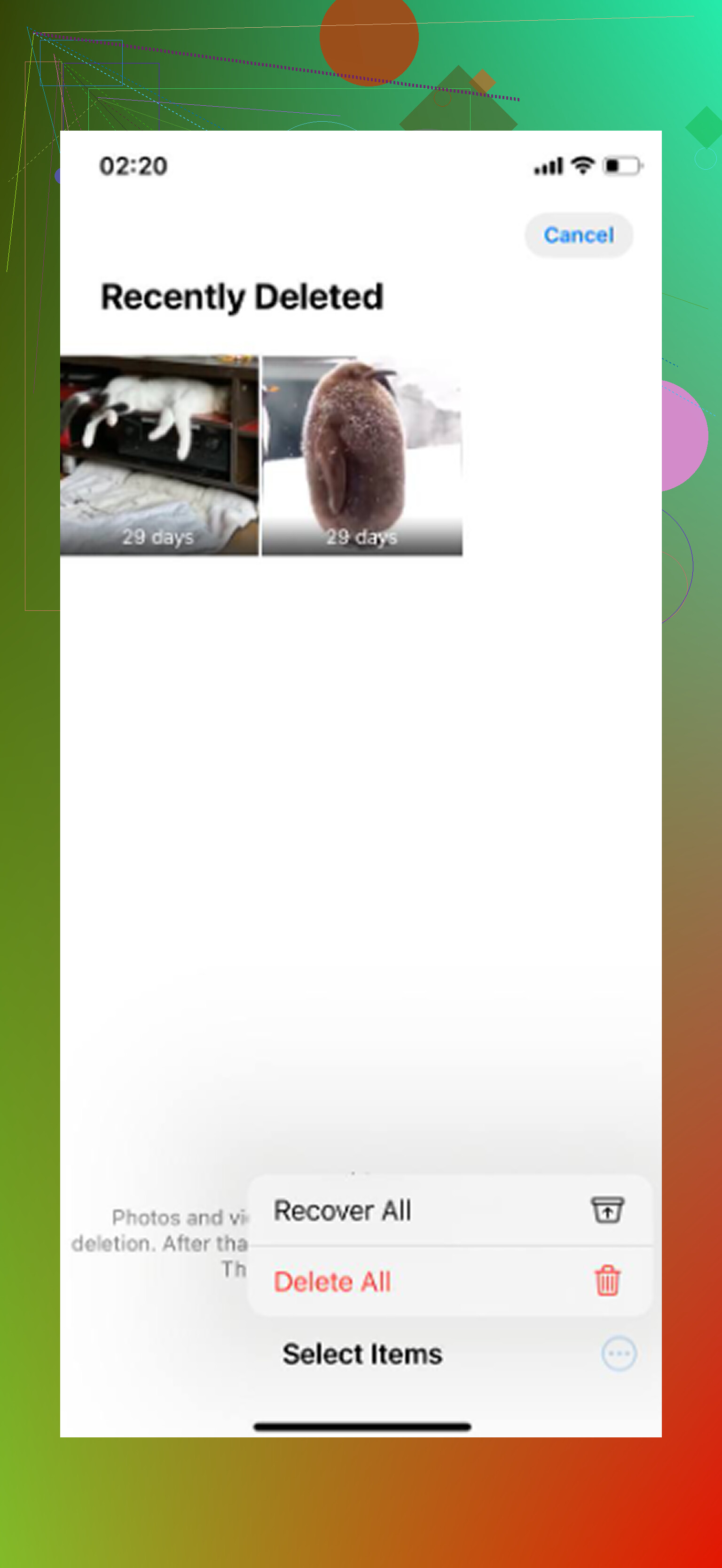
One thing that catches a lot of people: deleting the photos is not the final step. Your iPhone keeps them in Recently Deleted for 30 days, and they still take up storage while they’re sitting there. Go to:
Albums > Recently Deleted > Delete All
That’s usually when the storage number actually drops. You can check it under Settings > General > iPhone Storage. If it still looks wrong, restart the phone and give iOS a minute to recalculate.
Low storage can also make the whole phone feel broken. Keyboard lag, slow camera launches, apps crashing, that kind of thing can happen when there’s almost no free space left. The phone needs room for cache and temporary files, so getting down to a few hundred MB free can make everything stutter.
After clearing imported photos, it’s also worth checking for the stuff that doesn’t stand out right away: huge videos, 4K screen recordings, repeated shots, old screenshots, and near-duplicates. That kind of junk can take up way more space than expected.
For that, Clever Cleaner can help if you don’t want to sort everything manually. The useful parts are the Heavies tab, which sorts media by file size, and the Similars tab, which groups near-identical photos and suggests the best one to keep. It also shows file sizes before you delete, which makes it easier to find the stuff actually eating your storage. It’s free, with no subscriptions or paywalls, and the cleanup runs on the device instead of uploading your photos somewhere else.
So the safe order is: confirm the Mac import, check whether iCloud Photos is on, delete from the phone only when you’re sure what’s synced, then empty Recently Deleted. If the phone still feels slow after that, look for the big hidden clutter like videos, screen recordings, duplicates, and screenshots.
2 Likes
Synced albums are not normal iPhone photos. If they were copied over from the Mac using Finder/iTunes photo sync, the iPhone usually won’t let you delete them from Photos at all, and cleaner apps won’t be able to remove that protected synced set either. The only wireless route is Finder Wi-Fi sync, but that had to be enabled before, while the phone and Mac were connected and trusted. If it was, open Finder on the Mac, select the iPhone when it appears over Wi-Fi, change Photos sync to remove that album/folder, then sync again. If Wi-Fi sync was never set up, there really isn’t a clean no-cable fix besides waiting for a cable or removing the whole phone setup, which is overkill for photos.
Whether the album sits under “From My Mac” matters here. If it does, those photos are not really living in the iPhone library the same way camera roll photos do. They are a synced block, and the delete button being missing or disabled is normal. Turning iCloud Photos off will not magically make that kind of album deletable.
The only wireless fix I’d trust is the one @sognonotturno mentioned: the phone already has to be set up for Wi-Fi syncing with that Mac. If it is, don’t try to delete from the phone. Go to the Mac, change the photo sync selection to no albums, or sync an empty folder, then run sync again. That replaces the synced photo set with nothing. Clunky, but that’s how Apple designed it.
If Wi-Fi sync was never enabled, I’d stop looking for a magic app solution. Clever Cleaner or any similar app can help with normal photos, duplicates, big videos, etc., but it won’t remove Finder/iTunes-synced albums that iOS marks as managed by the computer. In that case the realistic options are borrow a cable, buy a cheap certified one, or leave the photos there until you can connect to the Mac again. Resetting the whole phone just to remove synced photos is technically possible but a pretty bad trade unless you were planning to wipe it anyway.
No, moving the photos into another album on the iPhone will not make them deletable. Albums on iOS are mostly just views of the same items, and if the originals came from Finder/iTunes sync, they are still controlled by the Mac sync settings.
The shortcut people often try is AirDrop, iCloud Drive, Dropbox, a Wi-Fi transfer app, or some cleaner app. That can copy photos off the phone, but it usually cannot remove the “From My Mac” synced set because those photos are not treated like camera roll items. Clever Cleaner is fine for normal library cleanup, but this is the wrong category of photo for it.
The only real wireless case is the one already mentioned: Wi-Fi sync must have been enabled earlier with that exact Mac. If Finder can see the iPhone over Wi-Fi, change the Photos sync option so it syncs nothing, or an empty folder, then apply/sync. If the phone does not appear wirelessly in Finder, there is no hidden button on the iPhone that will do the same job. At that point the cheapest fix is honestly borrowing any working Lightning or USB-C cable that matches your iPhone, syncing once, and removing the photo selection from the Mac side. Hiding the album or turning off iCloud Photos may reduce confusion, but it will not delete that synced block.