My iPhone storage is almost full, but I can’t tell which files are taking up the most space or the best way to delete them safely. I’ve already removed some apps and photos, but the storage is still high. I need help figuring out how to find large files on iPhone and free up space without deleting something important.
I keep ending up here. My iPhone looks fine, then out of nowhere I get the storage warning, apps freeze, stuff takes forever to open, and I’m sitting there trying to figure out what ate 15 or 20GB.
After doing this too many times, here’s the cleanup routine I stick to now.
Start with the storage list
Go to Settings > General > iPhone Storage. Wait a bit. iOS needs a moment to count everything up.
The bar at the top is nice, but the useful part is the app list underneath. It ranks apps by size, so the worst offenders show up first. On my phone it was usually Photos, Messages, downloaded Netflix stuff, podcasts, and random media-heavy apps I forgot about.
If your free space dropped fast, this screen usually tells you why.
Check the Files app, not only Photos
A lot of junk sits in Files. PDFs, ZIP archives, Safari downloads, forms, documents, old attachments, all of it.
- Open Files.
- Tap Browse.
- Open On My iPhone.
- Press and hold a file, then tap Delete.
- If there’s a pile of stuff, tap the three dots at the top right, choose Select, pick what you want gone, then tap the trash icon.
I missed this for a long time. Safari downloads alone had built up way more junk than I expected.
About those gray folders
I ran into this too. Some folders in Files look grayed out and refuse to disappear. In most cases, those belong to apps like Chrome, Keynote, or a VPN. iOS keeps the folder around because the app expects it to exist.
You usually won’t remove the folder itself. What worked for me was opening it and deleting the files inside. If you want the folder gone too, deleting the related app from the Home Screen often does it.
Other apps stash files there too
One thing people miss, I did too, is third-party apps making their own storage spots inside Files. Go into On My iPhone and look for folders with app names or icons. Chrome, Firefox, mail apps, download managers, they all leave leftovers.
If you’re chasing mystery storage, look there.
The fake cleanup problem, Recently Deleted
This part got me more than once. You delete photos or files, but the storage doesn’t come back. Why. Because iPhone moved them to Recently Deleted for 30 days instead of removing them right away.
For Files:
- Go back to the main Browse screen.
- Under Locations, open Recently Deleted.
- Tap the three dots.
- Choose Select, then Delete All.
For Photos:
- Open Photos.
- Go to Albums.
- Scroll to the bottom and open Recently Deleted.
- Tap Select, then Delete All.
If you need storage back today, this step matters. Otherwise the phone hangs onto it.
Photos and videos are usually the real problem
Documents take some space. Sure. But on my phone, giant videos were the main issue every single time. Digging through thousands of photos by hand to find a few 4K clips was miserable, so I stopped doing it manually.
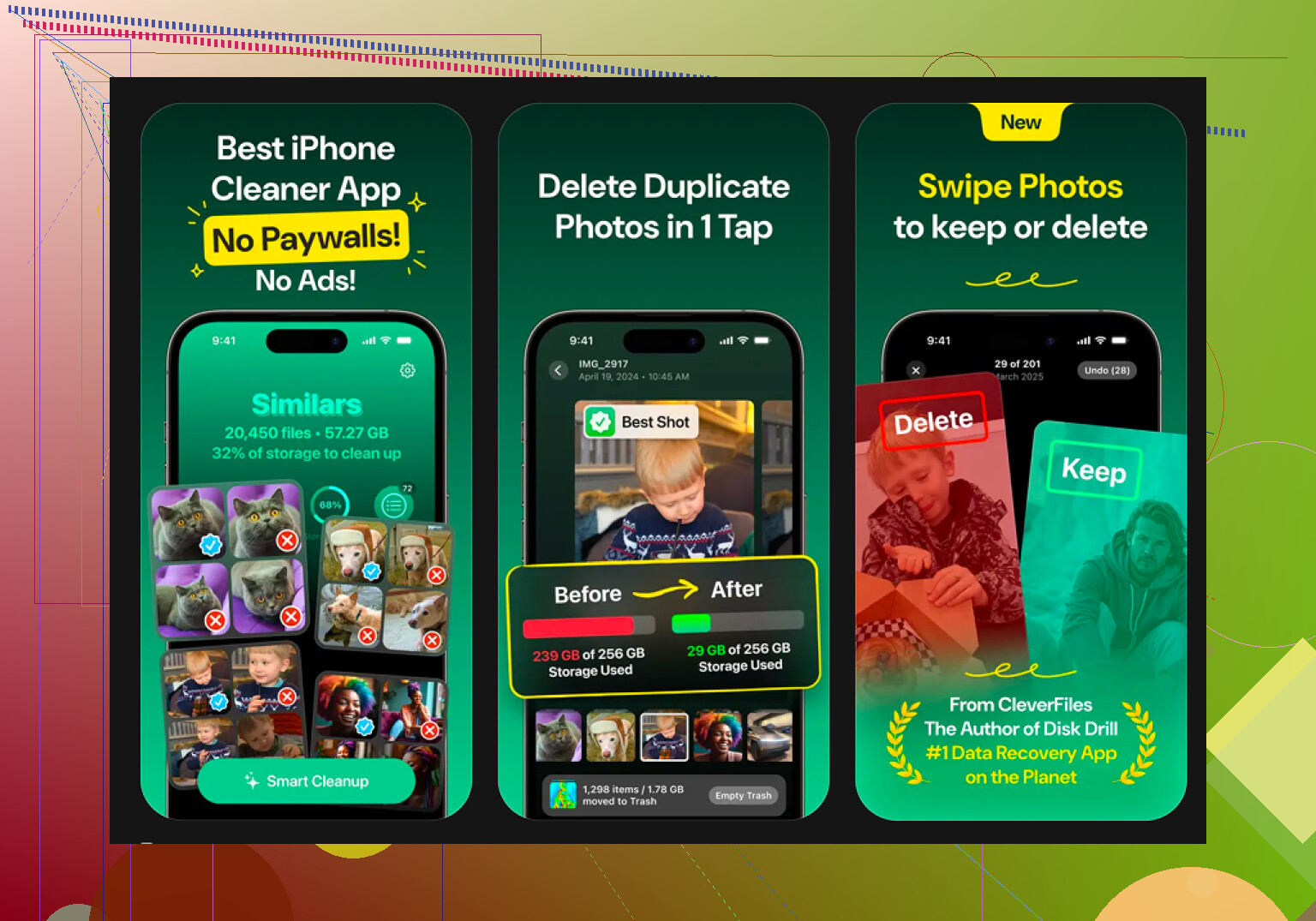
The app I ended up sticking with was Clever Cleaner.
I found it after trying a bunch of cleanup apps that claimed to be free, then blocked deletion behind some fee screen. This one didn’t pull that on me.
The part I kept using was the Heavies section. It sorts photos and videos by exact file size, which saved me a lot of time. I didn’t have to guess which clips were eating space. The worst ones were right there.
The Similars section was useful too. It caught those near-duplicate bursts and repeated shots better than Apple’s built-in duplicate detection did on my phone. I had whole runs of ten or fifteen almost identical pics from one day out.
Two details mattered to me:
- Privacy: It handles the analysis on the device, so my photos weren’t being shipped off somewhere else.
- Swipe mode: I could sort month by month with quick gestures, which made the cleanup less annoying. Kinda dumb, but it helped me keep going instead of quitting halfway.
One more pass, Safari and unused apps
If you still need room after all this, clear Safari’s stored site junk.
Go to Settings > Safari > Clear History and Website Data.
On my phone, this sometimes freed a few hundred MB. Not huge, but when you’re down bad on storage, it helps.
Then go back to Settings > General > iPhone Storage and check Offload Unused Apps. This removes the app itself but keeps its data. I used it for apps I barely touched but didn’t want to set up from scratch later.
First cleanup is the worst one. After you remove the big files and empty the trash folders, the phone usually feels normal agian.
11 Likes
Skip the “Files” app first. I know @mikeappsreviewer mentioned it, and it matters, but in my expereince the bigger clue is hidden in Apple’s own categories.
Go to Settings > General > iPhone Storage and look for this pattern:
Photos high, your media is the issue.
Messages high, old attachments and videos are bloating storage.
System Data high, cached junk or failed updates are often involved.
Apps high, tap each app and compare App Size vs Documents & Data.
That last part matters a lot. If an app is 300 MB but Documents & Data is 8 GB, deleting and reinstalling the app often clears more space than “offloading.” I disagree with people who treat offload as the best fix. Offload keeps the bloated data. Full delete works better when an app cache went nuts.
For Messages, go to Settings > General > iPhone Storage > Messages. You’ll see categories like Photos, Videos, GIFs, Stickers. Delete the largest stuff there first. Fast win.
For Mail, remove big attachments or delete and re-add the account if Mail cache got huge. Same idea for Spotify, Netflix, YouTube, and podcast apps. Downloads pile up fast.
If “System Data” is the mystery chunk, try:
Restart iPhone.
Delete old iOS update file if listed in storage.
Clear Safari website data.
Sync with Finder or iTunes once. Weirdly, this sometiems forces storage to recalculate.
If you want a faster way to spot the largest photos and videos, Clever Cleaner is worth a look. It sorts heavy files better than scrolling forever in Photos. If you want a solid guide on picking an iPhone cleaner app, this helps: top iPhone cleaner apps to free up storage in 2025.
One last thing. Storage numbers lag. After deleting stuff, wait a few mins. iOS is annoyng like that.

Biggest thing nobody tells you: iPhone does a bad job showing individual large files unless they’re inside certain apps. @mikeappsreviewer and @nachtschatten covered the usual places, but I’d add this:
Use the search inside Photos. Search terms like screen recordings, videos, 4K, slow-mo, cinematic, and even specific months. Those categories are often way fatter than people realize. Screen recordings are sneaky little storage vampires.
Also check Voice Memos, GarageBand, CapCut/iMovie, Lightroom, or any editing app. Those apps keep exported copies, drafts, and project files. Deleting the final video from Photos does not always remove the giant project file sitting in the app. That’s where people get confused and think storage is “bugged.” Sometimes it kinda is, but often it’s just hidden app data.
One place I sorta disagree with @nachtschatten on: “System Data” isn’t always some big mystery you need to fight right away. If your media/editing apps are huge, fix those first. Chasing System Data too early can turn into a time sink.
For finding the worst photo/video offenders faster, Clever Cleaner is actually useful because it surfaces the heaviest files without endless scrolling. If you want a quick look at how it works, this Clever Cleaner video review for finding large iPhone files fast is easier to follow than poking around blind.
One more annoying iPhone thing: after deleting stuff, plug in your phone, lock it, leave it charging for a bit, and let iOS finish indexing. Storage totals can lag like crazy. Super annyoing, but normal.
One angle missing from @nachtschatten, @sognonotturno, and @mikeappsreviewer: check what is syncing back after you delete stuff.
A lot of people remove files, see space free up, then iCloud Photos, Messages in iCloud, Dropbox, Google Drive, or OneDrive quietly refill local storage with cached copies. So I’d look at:
- Settings > [your name] > iCloud
- Each cloud app’s download or offline files section
- Music and podcast auto-download settings
- Streaming apps set to “smart downloads”
I also wouldn’t obsess over deleting random files in Files unless you know what they are. The bigger waste is often offline media and app-created project data.
Best hidden check:
- Settings > Accessibility > Spoken Content > Voices
Seriously. Extra Siri voices, language packs, and accessibility voices can eat several GB and almost nobody notices.
Another overlooked area:
- Settings > Camera > Record Video
- Settings > Camera > Record Slo-mo
If you keep shooting 4K/60, the problem comes back fast no matter how much you clean.
For spotting huge photos/videos faster, Clever Cleaner is useful.
Pros:
- surfaces heavy media quickly
- easier than manual scrolling
- good for duplicate-like clutter
Cons:
- mostly helpful for photo/video cleanup, not all system storage
- you still need to review before deleting
- won’t magically fix every “System Data” issue
So my order would be:
- Kill offline downloads
- Remove giant editing/project files
- Check voices/language packs
- Lower future camera recording size
- Then use Clever Cleaner for the heavy media sweep
That tends to stop the storage problem from just coming back next week.