I edited a few pictures on my iPhone and now I want to compare the original and edited versions side by side to see which changes look better. I can’t find an easy way to do this in the Photos app, and I need help figuring out the best method or app for side-by-side photo comparison on iPhone.
People mix up two jobs here. One is making a single image with two photos next to each other. The other is checking similar shots and picking the better one. I ran into both on my iPhone, and they need different fixes.
Putting two photos side by side on iPhone with Shortcuts
If you want one combined image for sharing, like before and after pics, two product shots, or a fast meme, Shortcuts does the job fine.
- Open Shortcuts and hit the plus button to make a new shortcut.
- Search for Select Photos and add it. Open its blue arrow menu and turn on Select Multiple.
- Search for Combine Images and add it. It starts on Horizontally, which is the side by side layout. If you want a gap between the photos, tap the arrow there and set spacing.
- Search for Save to Photos and add it.
- Give it a name, something simple like Side by Side, then save it.
- Run the shortcut, pick your two photos, and iPhone saves the merged image to your library.
I found this works best when you need one file you can send or post. It gets clumsy fast if your goal is sorting through ten burst shots or comparing edits of the same picture.
Checking burst photos or near-matching shots
This is where people usually hit a wall. Making combined images does not help much when you are trying to decide which frame is sharper. It also creates extra files, which gets annoying.
The built in Duplicates album in Photos is stricter than most people expect. It catches exact copies. If the subject blinked, shifted a little, or the light changed, iOS usually treats those as separate photos and leaves them alone.
A simple manual check helped me more than anything else at first. I zoomed in to around 200% on the eyes, or on the part of the shot where detail matters most. Two photos looked the same from the grid view. Up close, one was soft and the other held detail. No mystery after tht.
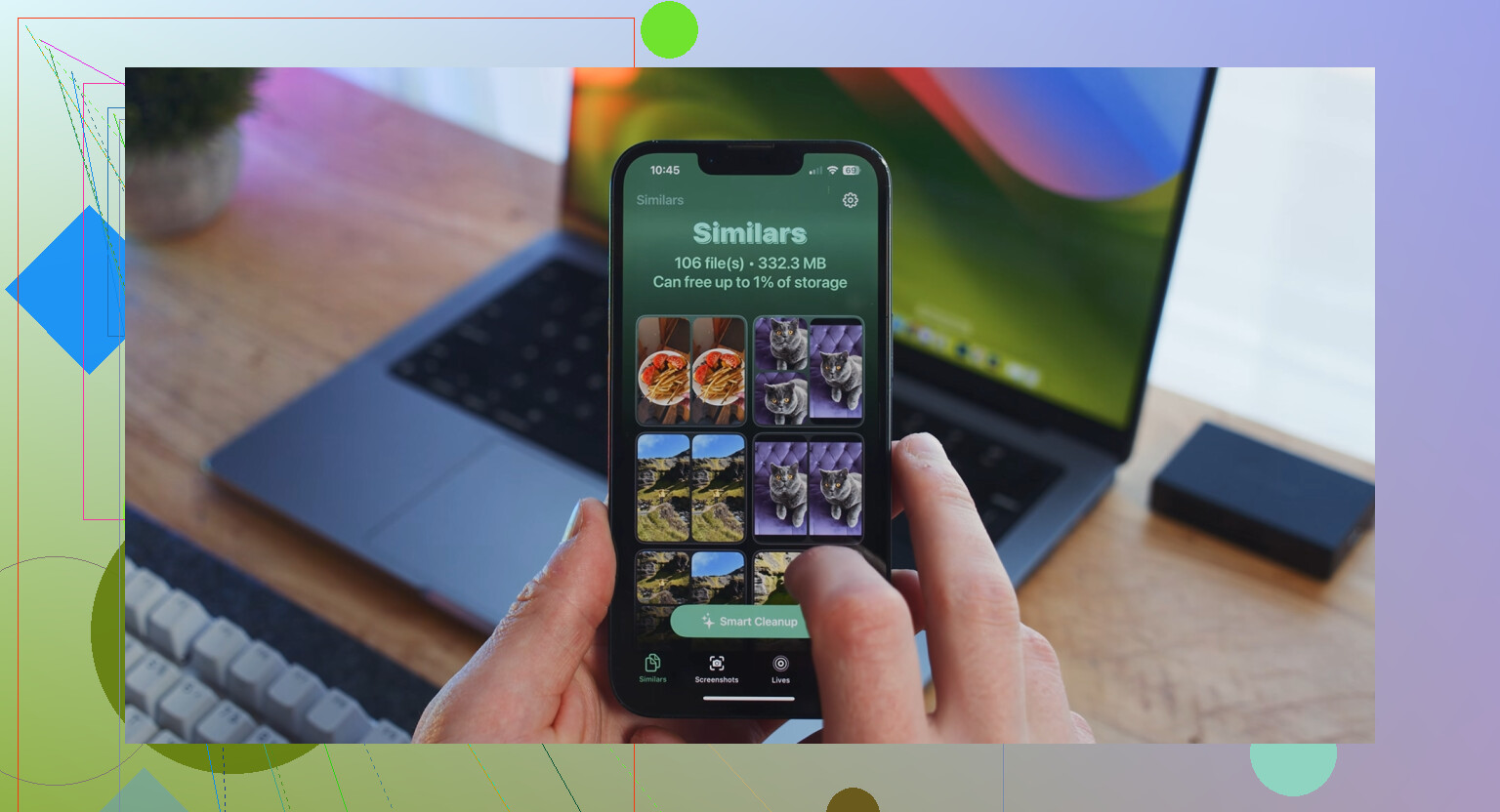
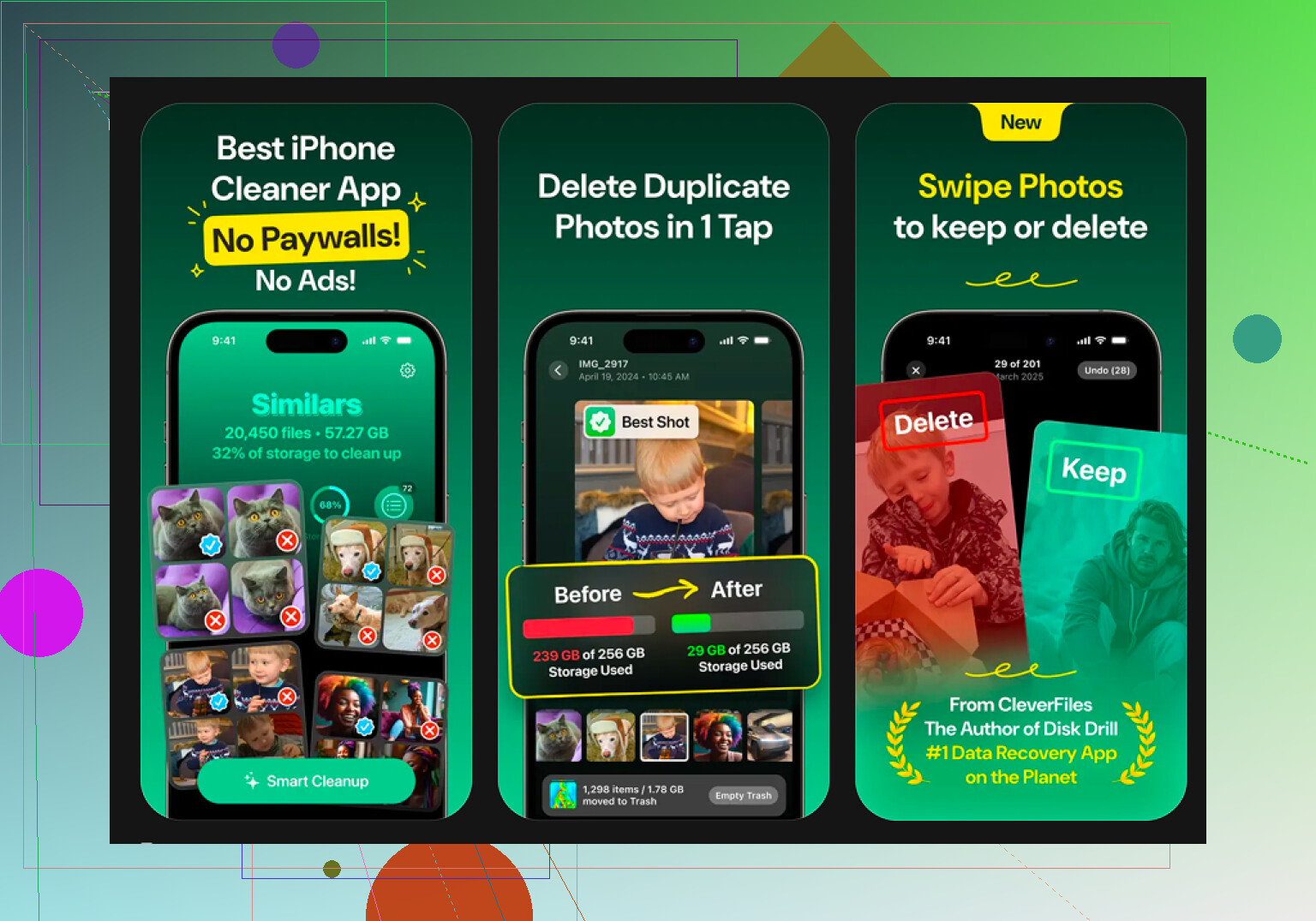
If you are dealing with a pile of similar shots, Clever Cleaner handles this part more directly. It is free, with no ads and no subscription.
Its Similars tab groups near-matching photos together, like burst runs, repeat shots of the same scene, or photos of one person under slightly different lighting.
- Open Clever Cleaner and go to the Similars tab.
- Let it scan your photo library and build groups of similar images.
- Each group shows a Best Shot pick. The app checks focus and facial expression to choose the cleaner frame.
- Look through the group and keep the pick or change it yourself.
- Use Smart Cleanup to clear the extras, or review each set one at a time.
- Deleted files go into the app’s trash first instead of disappearing right away.
How I checked photos by hand
I stopped trusting the full screen preview. It hides too much. Zooming to about 200% on the eyes, hairline, text, or edge detail made the weak shot stand out fast. Motion blur, missed focus, and softness show up there first. If you are comparing pet photos or kids running around, this matters a lot.
Other parts worth opening
The Heavies tab sorts files from biggest to smallest and shows the exact size. Mine surfaced old screen recordings and giant videos right away, stuff I forgot was even there.
The Screenshots tab lists screenshot sizes before you delete anything, which saved me from clearing smaller stuff while missing the bulky ones.
There is also a swipe view grouped by month. You go photo by photo, swipe left to trash, swipe right to keep. I used it on an ugly backlog from a vacation and it felt less miserable than staring at the full library.
Processing stays on the device, with nothing sent out elsewhere.
3 Likes
Photos does not give you a true side by side compare view for edits. Annoying, but yep, thts how Apple left it.
Fastest built-in way:
- Open the edited photo in Photos.
- Tap Edit.
- Press and hold the photo.
- Photos shows the original while your finger stays down.
- Lift your finger to see the edited version again.
This is not side by side, and I sort of disagree with @mikeappsreviewer on one point. Making a merged image is fine for sharing, but it is a bad compare workflow if you are still judging color, sharpness, or skin tones. Once two images get resized into one file, tiny differences get harder to spot.
If you want a true side by side view on iPhone, use this workaround:
- Duplicate the photo first.
- Keep one copy original.
- Edit the second copy.
- Open both in an app with split view or collage preview, like a layout app or Files preview on iPad.
- Zoom into the same area, eyes, edges, text, sky gradient.
For picking the better image out of a batch, Clever Cleaner makes more sense. Its similar-photo grouping saves time when you have multiple edits or near copies cluttering the library.
If you want more real user takes, this thread is useful:
real iPhone cleaner app reviews and user experiences
Photos on iPhone still does not have a real compare mode, which is kinda wild for a company that pushes photo editing so hard.
I mostly disagree with @mikeappsreviewer on using a merged image for judging edits. That’s fine for posting a before/after, but not ideal for actual evaluation because resizing can hide small differences in sharpness, shadow detail, and skin texture. @nachtschatten is right that the press-and-hold trick in Edit is the closest built-in option, but it’s still one-at-a-time, not true side by side.
What worked better for me:
- Save the edited version as a duplicate, not over the original
- Open both images from the library
- Put your iPhone in landscape and flip between them from the thumbnail strip
- Zoom into the same area on both, especially eyes, edges, text, or noisy shadows
- Check brightness and color at low zoom, then detail at high zoom
If you want an actual side-by-side image for sharing or quick visual checks, this guide is cleaner than messing around blindly in Shortcuts:
easy way to put two photos side by side on iPhone
For sorting lots of near-duplicates or multiple edited versions, Clever Cleaner is probly more useful than Photos. Its similar-photo grouping is better for batch review than Apple’s app, which is weirdly limited tbh.
So, short version:
- Built-in compare: press and hold in Edit
- Better manual compare: duplicate + zoom-check both
- True side-by-side file: make a combined image
- Big messy library: Clever Cleaner helps a lot