My iPhone storage keeps getting full and it’s starting to slow everything down. I’m worried about deleting the wrong things or losing important photos, messages, or app data. Can someone explain the safest way to clean up iPhone memory, what’s actually safe to remove, and which settings or tools I should use so I don’t mess anything up?
iOS does a lot of auto cleanup, so your job is mostly to clear big junk without touching personal stuff.
Step 1: Check what eats space
- Go to Settings > General > iPhone Storage.
- Wait a bit for it to load.
- Look at the top bar and the app list.
Photos, Messages, social apps, and “System Data” often take the most.
Step 2: Protect your photos first
- Turn on iCloud Photos if you have space in iCloud.
Settings > [your name] > iCloud > Photos > Sync this iPhone. - Enable Optimize iPhone Storage so full‑res files stay in iCloud and smaller versions stay on device.
- Open Photos > Albums > Recently Deleted and empty it. Those still take space until you remove them there.
If you do not trust iCloud, offload photos to a computer with the Photos app or Image Capture on macOS, or to Google Photos / OneDrive, then remove the local copies.
Step 3: Clean Messages without losing everything
- Settings > Messages > Keep Messages. Set to 1 Year or 30 Days.
- In Messages, go to Settings > General > iPhone Storage > Messages.
Here you see “Photos”, “Videos”, “GIFs and Stickers”, etc.
Tap each, then delete large attachments from group chats you do not care about.
This removes old media but keeps your important threads.
Step 4: Tame social apps and “Other” junk
Apps like WhatsApp, Telegram, Instagram, TikTok and Facebook grow huge from cached data.
For WhatsApp:
- WhatsApp > Settings > Storage and Data > Manage Storage.
- Sort by Largest. Delete media in chats you do not need.
- Use chat export for important chats before clearing.
For Instagram, TikTok, etc, the safest way is:
- Offload the app in Settings > General > iPhone Storage > [App] > Offload App.
This frees the app data but keeps the icon and documents. - If the size is still huge and you are logged into an online account, delete the app, then reinstall from App Store. Your account content lives on their servers.
Step 5: Remove unused apps safely
On the iPhone Storage screen Apple shows “Offload Unused Apps”.
Turn that on. iOS auto removes unused apps when storage gets low, but keeps your app data and documents.
You tap the icon to reinstall whenever you need.
Step 6: Handle “System Data”
System Data in iPhone Storage is cache and logs. It shrinks when:
- You restart your phone.
- You update to the latest iOS version in Settings > General > Software Update.
- You reduce cache‑heavy apps like Safari and streaming apps.
For Safari, go to Settings > Safari > Clear History and Website Data.
This will sign you out of some sites, so decide if that matters.
Step 7: Use a helper app without nuking data
If you want something guided for duplicates and blurry pics, use a cleaner that only touches media and files, not system stuff.
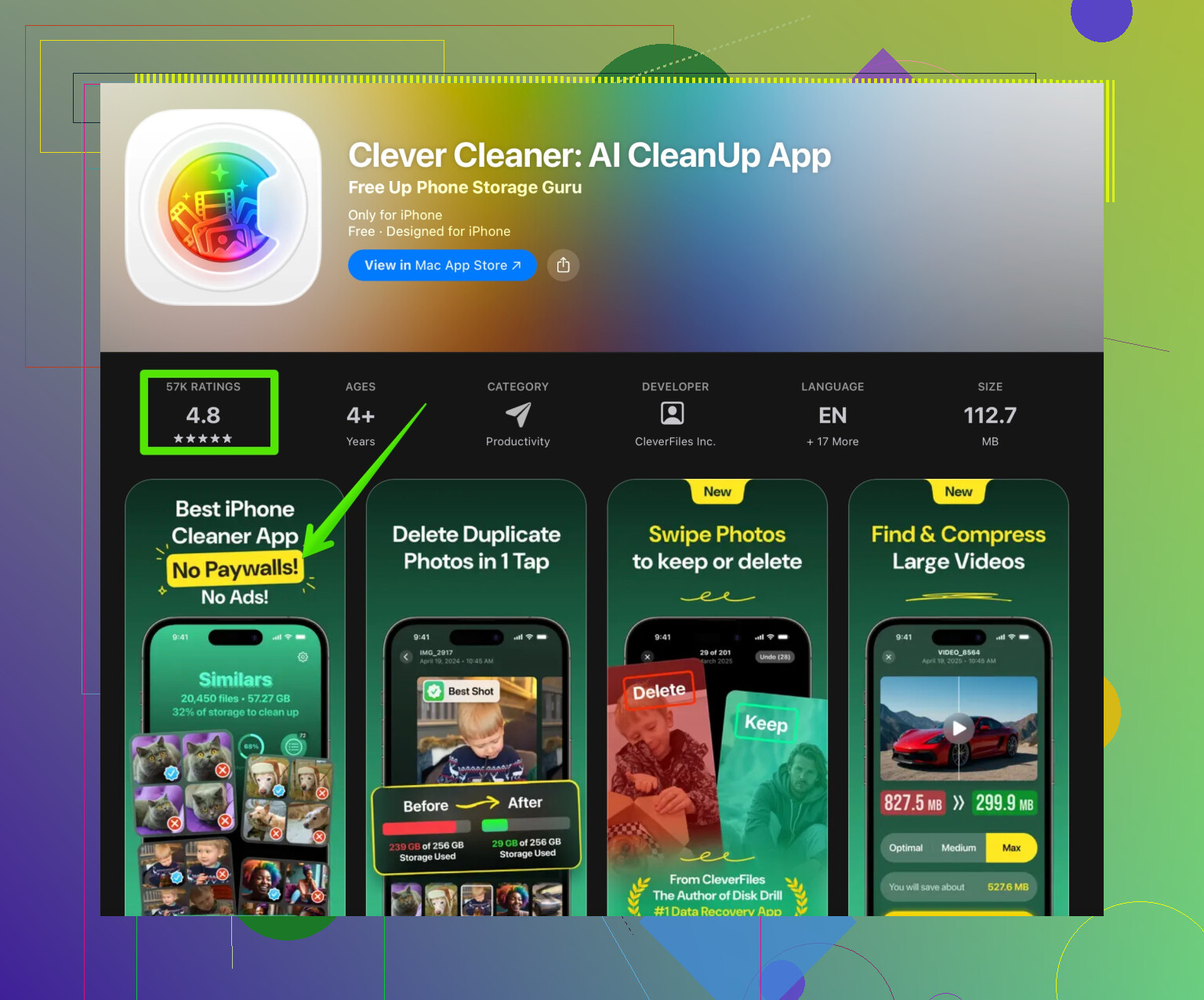
The Clever Cleaner App does that type of thing. It scans for duplicate photos, screenshots, similar shots, big videos and contacts mess. You still confirm before deleting.
Link with anchor text:
Smart iPhone storage cleanup with Clever Cleaner App
Step 8: Safe checklist for each cleanup session
- Back up first, either to iCloud or iTunes/Finder on a computer.
- Remove duplicate and blurry photos.
- Clear Recently Deleted in Photos.
- Trim old message attachments.
- Offload or delete huge apps that you rarely use.
- Restart the phone so iOS reclaims cache.
If you backup and keep apps that sync to cloud accounts, you avoid losing important stuff while still freeing a lot of space.
9 Likes
If your iPhone keeps screaming “Storage Almost Full” and slowing down, you’re not crazy, it really can feel unusable. You’re right to be scared of deleting stuff blindly, because iOS doesn’t always make it obvious what’s safe.
@andarilhonoturno already nailed a lot of the obvious things (Photos, Messages, big apps). I’ll skip repeating their checklist and focus on extra stuff plus a slightly more paranoid-safe approach.
1. Start with a full safety net
Before touching anything:
- iCloud backup: Settings > [your name] > iCloud > iCloud Backup > Back Up Now
- Or computer backup: plug into Mac/PC, open Finder or iTunes, choose “Back up all of the data on your iPhone to this computer”.
If something goes wrong, you can restore. This is the only true safety when you’re stressed about losing pics/messages.
2. Don’t rely only on iCloud Photos if you’re nervous
I mildly disagree with the “just turn on iCloud Photos and relax” approach. It’s fine, but if you disable it wrong or run out of iCloud storage, things get confusing fast.
Safer multi-layer approach:
- Keep iCloud Photos on and
- Also do a one-time export of all photos to:
- A computer (Photos app on Mac or Windows Photos)
- Or an external drive via a computer
That way, even if you mess up iCloud settings later, you still have a full offline copy.
3. Offload vs delete: understand the difference
iOS uses two similar sounding things that people mix up:
-
Offload App
- Removes the app itself, but keeps your documents & data.
- Icon stays with a little cloud symbol. Tap to reinstall.
- Good for big games or apps you rarely open.
-
Delete App
- Nukes the app and its local data.
- Only safe if your info lives in the cloud (Netflix, Spotify, Instagram, etc).
To be extra safe:
- Go to Settings > General > iPhone Storage.
- Sort through largest apps first.
- Offload big apps you rarely open instead of deleting right away. Live with that for a week. If you don’t miss them, then delete.
4. Photos cleanup without heart attacks
Instead of manually scrolling and panicking:
- Make Albums > Screenshots, Duplicates, and similar your first target. iOS now auto-detects duplicates.
- Remove:
- Screenshots you don’t need
- Old screen recordings
- Long videos you’ve already saved elsewhere
If you want help spotting all that junk, a cleaner app that focuses just on media and obvious clutter is the least risky type of “cleaner.” That’s where something like the Clever Cleaner App actually makes sense. It scans for duplicates, similar photos, massive videos, and you still approve every deletion yourself. You’re not messing with system files, just the bloat.
If you want a guided cleanup, try:
free up iPhone storage with Clever Cleaner App
It’s basically a “show me the junk, I’ll choose what dies” approach.
5. Messages: archive mindset instead of full purge
I agree with trimming message attachments, but if you’re anxious about losing chats:
-
First, keep text threads, just target media:
- Settings > General > iPhone Storage > Messages
- Review “Photos”, “Videos”, “GIFs and Stickers”, “Documents”
- Delete only huge media from group chats or spammy threads.
-
For important conversations:
- Screenshot key moments, or
- Use any built-in export / backup options if the app has them.
Try not to switch “Keep Messages” to 30 days unless you’re sure you don’t rely on old info buried in chats. That setting is brutal over time.
6. Big silent storage hogs people miss
A few extra places to look that often get skipped:
-
Voice Memos
- Open Voice Memos app.
- Some 30-minute recordings are massive.
- Offload to a computer / cloud, then delete the local ones.
-
Downloads in other apps
- Netflix / Prime Video / Spotify / YouTube Music:
- Open each app’s settings and clear downloads.
- These can eat multiple GB easily.
- Netflix / Prime Video / Spotify / YouTube Music:
-
Mail attachments
- If you use the Mail app heavily:
- Settings > Mail > Accounts > your account > Advanced
- Or temporarily remove an email account and re-add it to flush cached attachments (only if your mail is IMAP / cloud based like Gmail, iCloud, Outlook).
- If you use the Mail app heavily:
7. “System Data” reality check
That big gray “System Data” bar is annoying. You can’t directly delete it, but you can influence it:
- Restart your iPhone once or twice a week.
- Keep at least a few GB free; iOS frees caches more aggressively when there’s breathing room.
- Streaming apps and Safari build massive caches over time. Clearing Safari history and website data helps, but expect logouts.
I wouldn’t obsess over shrinking System Data to a specific number; it fluctuates.
8. When your phone is still slow
If you free up space and it’s still sluggish:
- Make sure you keep at least 5–10 GB free. iOS runs better with headroom.
- Update to the latest iOS version.
- Disable Background App Refresh for stuff you don’t need:
Settings > General > Background App Refresh.
Storage almost full + no free space is what really tanks performance, more than “old phone” in a lot of cases.
SEO-friendly version of your topic
How to clean iPhone memory safely without losing important photos, messages, or app data
Learn how to safely free up storage on your iPhone when it keeps getting full and slowing down. Find out which files and apps you can remove without risk, how to back up everything first, and which tools help you delete duplicates and junk while keeping your important memories and app data secure.
If you do one thing right now:
- Back up,
- Delete obvious junk (screenshots, downloads, app caches via offloading),
- Use something like Clever Cleaner App just for photos and videos,
you’ll free a ton of space without touching the stuff you actually care about.
Jumping in with a slightly different angle than @andarilhonoturno, focusing on “how do I stay safe long‑term so this doesn’t keep happening every few months?”
1. Treat storage like a budget, not a one‑time cleanup
Instead of a giant purge, set up a “storage routine”:
- Once a month, open Settings > General > iPhone Storage and look at the graph.
- Decide a hard rule: for example, keep at least 10 GB free.
- When you get close, you prune. That habit prevents the “phone unusable” panic.
Why this matters: iOS performance tanks when space is critically low. You’re not just avoiding clutter, you’re protecting speed.
2. Avoid the nuclear options
I slightly disagree with the idea of aggressively trimming Messages or setting “Keep Messages” to 30 days for most people. It is safe technically, but from a human perspective it is easy to regret months later when you need an address, photo, or code buried in old chats.
Safer philosophy:
- Never change a global auto‑delete setting in a panic.
- Prefer targeted deletion: big video threads, meme‑heavy groups, marketing chains.
That way you keep the “archive value” of your phone while still freeing space.
3. Use iCloud and a computer together, not as either/or
A lot of disasters happen when people assume “if it is on iCloud, I’m fine” and then:
- Change Apple IDs
- Run out of iCloud space
- Turn off a sync setting without realizing the consequence
What I recommend:
- Keep iCloud Photos and iCloud backup enabled if you can afford the space.
- Twice a year, plug the phone into a computer and copy the full photo library off to external storage.
- Treat the computer / external drive copy as your “cold storage vault.”
That triple setup is what really lets you relax while cleaning the phone.
4. How the Clever Cleaner App fits in (and where it doesn’t)
You mentioned being worried about deleting the wrong thing. Utility apps can help here, but only in specific areas.
Pros of Clever Cleaner App:
- Good at surfacing “low emotional value” junk such as:
- Near‑duplicate photos
- Bursts where you only need 1 shot
- Screenshots, screen recordings, and huge videos
- You stay in control: it flags candidates, you confirm or reject.
- Interface is usually much faster than scrolling the Photos app manually.
Cons / caveats:
- It cannot understand your memories. A “similar” photo might be the only one with your friend not blinking. You still need to review.
- It only solves media clutter, not weird “System Data” usage, app caches, or poor backup setups.
- If you tap through dialogs too quickly, you can still delete things you wish you kept. The app is not a magic safety net.
So I like Clever Cleaner App as a “smart flashlight” that helps you see where the obvious media junk is hiding, not as a brainless “clean everything” button.
If you try it, use it in short, focused sessions:
- Filter by duplicates / similar shots only.
- Review suggestions slowly, especially older photos.
- Then move on to large videos and screen recordings.
5. Hidden long‑term hogs nobody talks about much
On top of what @andarilhonoturno covered, there are a few sneaky patterns that quietly eat space over years:
1) Offline maps and navigation data
- Google Maps, Waze, and some travel apps let you save regions offline.
- Open each app’s settings and clear old offline areas you do not drive in anymore.
2) “Save originals” toggles inside camera / social apps
- Instagram, WhatsApp, TikTok, Snapchat can all save copies of whatever you send or post.
- If you share a lot, this can double or triple your photo count.
- Turn off “Save to camera roll” in apps where you do not need a local copy.
3) PDF scanners and document apps
- Scanner apps store giant PDFs.
- Periodically export the important ones to cloud storage (Drive, iCloud Drive, OneDrive) and delete the local pile.
Those three areas often free gigabytes without sacrificing anything irreplaceable.
6. “System Data” and caches: when to leave them alone
A lot of people try to fight the gray “System Data” bar like it is an enemy. In reality:
- Part of it is healthy caching that makes your phone faster.
- Constantly trying to shrink it with resets and tricks can be more hassle than it is worth.
What I recommend instead:
- Only care about System Data if you’re under 3–4 GB free total and everything else looks reasonable.
- Reboot the phone and give it a day to rebalance.
- If it is still huge and you are desperate, backup then restore from backup. That is the only truly clean reset of system caches, but it is time consuming, so do it rarely.
7. Minimal “safe list” of what you can delete without much stress
For quick wins that are extremely unlikely to hurt anything important:
- Screenshots older than a week
- Screen recordings you already sent or uploaded
- Offline downloads in streaming apps
- Duplicate or almost identical photos surfaced by something like Clever Cleaner App
- Very old Voice Memos after exporting anything you care about
- Files in the Files app’s “Downloads” folder that you already used
Everything else, especially Messages and Photos, deserves backup first, then thoughtful pruning.
If you set up a solid backup habit, use a media helper like Clever Cleaner App for the obviously low‑value clutter, and stop relying on one time “spring cleaning,” your iPhone will stay fast and usable without that constant fear of erasing something that matters.