My iPhone keeps running out of space even after I delete photos, apps, and old messages. iCloud is almost full too, and I’m constantly getting storage warnings that slow everything down. What are some long-term, practical ways to manage and free up storage so I’m not always micromanaging files or buying a new phone every couple years?
Your iPhone and iCloud filling up on loop is super common. You need a system, not random deleting. Here is a long term setup that works and does not need daily micromanaging.
- Fix photo storage first
Photos and videos usually eat 60 to 80 percent of space.
• Turn on “Optimize iPhone Storage”
Settings > Photos > iCloud Photos ON
Then check “Optimize iPhone Storage”.
Your phone keeps small versions locally and full versions in iCloud. Saves gigabytes over time.
• Auto delete junk photos
Go to Photos > Albums > scroll to Utilities.
Clean these every month:
– Recently Deleted
– Duplicates
– Screenshots
– Screen Recordings
– Bursts
– WhatsApp / Messenger image folders if you see them in Albums.
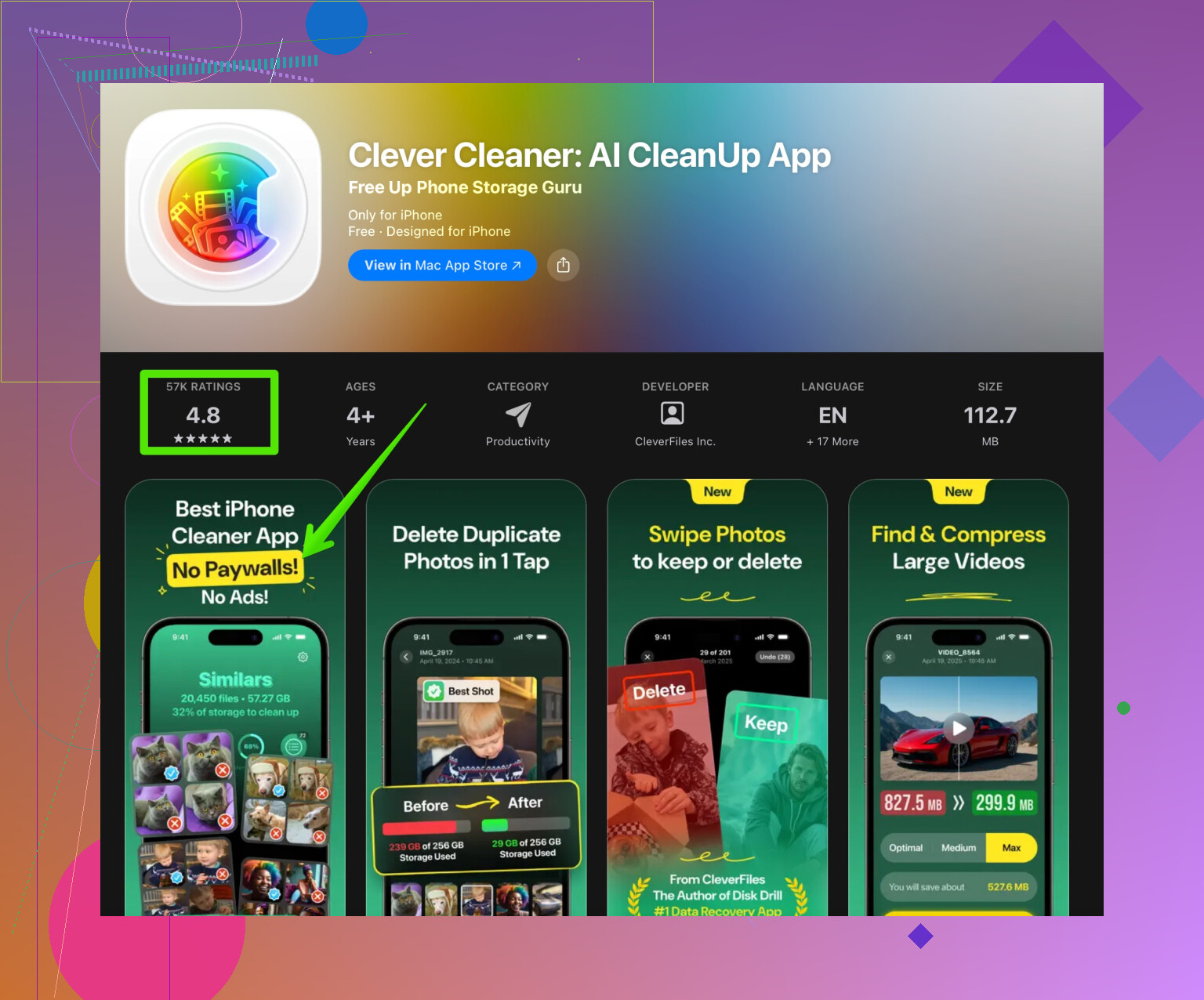
For faster cleanup, use a cleaner tool. For example, the Clever Cleaner App sorts duplicates, similar shots, and large videos for you. It saves time and cuts a lot of manual scrolling. You can check it here:
smart iPhone storage cleaner for photos and files
• Move old videos out of Apple’s world
Recordings longer than a minute add up fast.
Export big videos to:
– An external SSD with a Lightning or USB‑C adapter
– Google Photos, OneDrive, or similar
Then delete the local copies and also delete them from iCloud Photos if they sync.
- Get iCloud under control
If iCloud is almost full, your iPhone will keep nagging you.
• Check what eats iCloud
Settings > Your name > iCloud > Manage Account Storage.
Look at:
– Photos
– Backups
– Messages
– iCloud Drive
• Delete old device backups
In the same menu, tap Backups.
Remove backups from devices you do not use anymore. Some take multiple GB.
• Trim iCloud Drive
Go to Files app > Browse > iCloud Drive.
Sort by size and delete large stuff you do not need on every device, like old ZIPs, installers, or exported videos.
• Messages in iCloud
Settings > Your name > iCloud > Show All > Messages.
Turn off if you do not need every message on every device.
Then go to Settings > Messages > Keep Messages > set to 1 Year or 30 Days.
This stops messages from growing forever.
- Control app storage, not only app icons
Deleting the icon is easy. The real problem is app data.
• See which apps are fat
Settings > General > iPhone Storage.
Wait for it to load.
Check the list by size. Tap each app to see “App Size” vs “Documents & Data”.
• Offload rarely used apps
Turn on “Offload Unused Apps” at the top.
iOS removes the app binary but keeps documents and settings.
Useful for big apps you rarely open.
• Manually reset bloated apps
For apps with huge “Documents & Data” like social or chat apps:
– Clear cache inside the app settings if they offer it.
– If not, delete and reinstall.
Log in again. This often saves multiple GB.
• Messages media
In Settings > General > iPhone Storage > Messages, tap “Review Large Attachments”.
Remove big videos, GIFs, and photos without deleting the whole conversation.
- Keep downloads and offline stuff in check
These grow quietly and stay forever.
• Streaming apps
Open Netflix, Spotify, Apple Music, YouTube, etc.
Delete old offline downloads.
Set download quality to “Standard” or similar. High quality chews storage.
• Files app
Files > On My iPhone.
Sort by size and delete old PDFs, ZIPs, exports from editing apps.
• Mail
Settings > Mail > Accounts.
For IMAP accounts, limit how much email is cached if the app supports it.
Delete old attachments from within the Mail app search filter “Attachments”.
- Tweak iCloud plan or use hybrid storage
If you sit at 4.9 GB / 5 GB iCloud all the time, you have two options.
• Pay for a realistic tier
iCloud+ 50 GB or 200 GB is often enough for photos and backups.
This reduces micromanagement and sync failures.
• Or use external + cheaper cloud
Keep only recent photos in iCloud, export older stuff to:
– External SSD or HDD
– Google Photos / Amazon Photos as archive storage
Then remove those older items from iCloud Photos.
- Create a simple monthly routine
Do this once every 4 weeks. Takes 10 to 15 minutes:
• Photos app
Clean Duplicates, Screenshots, Recently Deleted.
Delete big videos you no longer need.
• iPhone Storage
Settings > General > iPhone Storage.
Review top 5 biggest apps.
Offload or purge data as needed.
• Messages and chat apps
Clear large media threads.
Back up and then clear WhatsApp media for old groups.
• iCloud
Manage storage, check Backups and Messages, and remove what you do not need.
- When nothing helps
If storage is still tight even after all this, you have two structural fixes.
• Move to a higher capacity iPhone on your next upgrade.
128 GB or 256 GB storage fits most users for years.
• Combine a storage cleaner with regular offloading.
An app like Clever Cleaner helps keep junk, duplicates, and old cache under control. That plus manual control over big apps and videos stops the constant warning cycle.
If you set this up once and stick to the monthly routine, those storage popups stop becoming a daily headache instead of a rare annoyance.
Your iPhone keeps running out of space even after you delete photos, apps, and messages? iCloud is almost full, storage warnings keep popping up, and the phone slows down? You’re basically stuck in a loop where clearing space never lasts more than a few days. You need long‑term, practical storage management that actually sticks, not just random deleting.
@vrijheidsvogel already covered the classic stuff (photos, iCloud, backups) really well. I’ll try not to repeat the same checklist and focus on things people usually miss or that I personally do instead of constantly baby‑sitting storage.
1. Stop your phone from creating so much junk
Everyone talks about cleaning, but not about prevention.
Turn down camera bloat:
- Settings > Camera > Formats
If it’s on “Most Compatible,” switch to “High Efficiency.” Saves a lot of space for photos and videos. - Settings > Camera > Record Video
If you’re at 4K 60 fps… yeah, your storage is screaming. Use 1080p 30 fps for everyday stuff.
Stop chat apps from hoarding everything:
- WhatsApp: Settings > Storage and Data > Media Auto‑Download.
Turn off auto download for photos/videos or set it to Wi‑Fi only. - Telegram / Signal / Messenger: similar options.
The trick is: you don’t want every meme ever sent in a group living on your phone forever.
This part I think is more important than monthly cleaning. If you don’t slow the inflow, nothing else fixes it.
2. Use iCloud more strategically, not just “more iCloud”
I disagree a bit with the “just upgrade iCloud and relax” idea. Paying more can help, but it can also hide bad habits until everything explodes again.
Decide what iCloud is for:
Pick one primary use:
- Option A: “Photo library + device backups only”
- Option B: “Documents + essential app data only”
If you try to store everything (full photos, backups from old devices, messages, random files in iCloud Drive), 50 GB / 200 GB will fill faster than you think.
Once you decide:
- Anything that is “archive only” (old trips, old videos, ancient screenshots)
Move it to:- External SSD / HDD
- Google Photos / OneDrive / Amazon Photos
Then delete from iCloud so it stops counting.
Long term, I treat iCloud like “working set” storage, not a lifetime vault.
3. Cut down hidden storage hogs people forget
This is the stuff most guides barely mention.
Safari and other browser caches:
- Settings > Safari > Clear History and Website Data
That can free up quite a bit over time, especially if you browse a lot.
Keyboard and system junk (yes, really):
Over time predictive keyboards and system caches grow. You can periodically:
- Settings > General > Transfer or Reset iPhone > Reset > Reset Keyboard Dictionary
Not huge savings, but if you’re on a small-capacity iPhone every few hundred MB helps.
Third‑party offline maps & note apps:
Apps like Google Maps, Waze, Notion, Evernote, Pocket / read‑later apps:
- They often store offline maps, notebooks, saved articles.
- Go into each app’s storage / download settings and nuke offline data you never use.
4. Use “nuclear clean” for repeat offenders
Some apps just do not respect your storage, no matter what.
Instead of constantly clearing caches inside the app, I do this every few months:
- Settings > General > iPhone Storage
- Find apps with huge “Documents & Data” (socials, Reddit, TikTok, etc.)
- Delete the app.
- Reinstall, log in again.
This is often quicker than fiddling with every in‑app setting. You can easily free gigabytes this way.
5. Use a smarter cleaner instead of manual scrolling forever
Manual cleanup is fine for a while, but if you’ve had your iPhone for years, the junk is deep.
You already got a mention of cleaner tools; I’ll just add that if you go that route, pick one that:
- Finds similar photos, not just exact duplicates
- Flags large videos and files so you can batch‑delete
- Helps organize, not just “delete random stuff”
The Clever Cleaner App is actually decent for this. It can scan your photos, videos, and files, highlight duplicates and big items, and lets you quickly choose what to remove. If you’re tired of scrolling through 30 nearly identical selfies, something like
this smart iPhone cleanup tool for photos and files can save you a lot of time.
I wouldn’t make it your only strategy, but as part of a quarterly deep clean, it’s useful.
6. Change how you use storage, not just how you clean it
Long‑term mindset shift that actually works:
- Treat your iPhone as “current life + recent history,” not your entire digital archive.
- Old trips, old videos, raw footage, years of memes → offload to external drive or another cloud.
- Keep:
- Current year photos
- Essential docs
- A manageable set of apps you actually use
If you’re constantly at 90–95 percent full, the system slows, backups fail, and everything feels laggy. Try to live in the 60–75 percent range. That might mean:
- Not installing every random game “just to try”
- Deleting large apps right after you finish using them for a project / trip
- Exporting media from heavy apps (video editors, audio recorders) when you’re done
7. When your iPhone is just too small
If you’re on a 64 GB iPhone with years of use, all the tricks in the world might only delay the pain.
Real talk:
- If you routinely work with photos, videos, offline media, or big apps, 128 GB or 256 GB makes everything easier.
- You’ll still want a system like @vrijheidsvogel described, but you won’t be living on the edge every week.
TL;DR setup that actually lasts:
- Reduce new junk: camera quality, chat app auto‑downloads, streaming downloads.
- Treat iCloud like “active stuff only,” offload real archives elsewhere.
- Regularly “nuke & reinstall” heavy apps instead of babysitting them.
- Use a helper like the Clever Cleaner App for deep scans of photos / files when things get out of control.
- Aim to keep 20–30 percent of your iPhone free so it doesn’t crawl every time it needs space.
Do that, and you go from constant “Storage Almost Full” popups to maybe a 10–15 minute checkup every month or two instead of this never‑ending whack‑a‑mole.
1 Like
You’re already doing the obvious deletes, and @vrijheidsvogel covered a lot of the standard angles, so here are long‑term strategies that hit the structure of your storage instead of just the symptoms.
1. Build a “tiered storage” system for your life
Think of your data in 3 tiers:
-
Hot stuff (stays on iPhone)
- Last 6–12 months of photos
- Daily apps
- Offline files you actually use this week
-
Warm stuff (stays in cloud, not on device)
- Older photos and videos you still care about
- Scanned docs, work files
- Occasional reference media
-
Cold archive (lives completely off the phone and off iCloud)
- Old trips, events, long videos
- Ancient screenshots, meme collections, project footage
Practical setup:
- Once a month, move “older than 1 year” media to:
- External SSD or USB drive (via Mac or PC)
- Or another cloud like Google Drive, OneDrive, Dropbox
- After confirming backup, delete those from Photos and from iCloud.
- Result: your iPhone and iCloud stop being a museum.
This is the piece most people skip, and it is why they stay stuck in the delete‑refill loop.
2. Radically limit what is allowed to live locally
Instead of “what can I delete,” ask “what is allowed permanent residency.”
A few harsh but effective rules:
- Streaming apps:
- No more than one app with big offline downloads at a time. If Spotify has offline playlists, Netflix should not have half a season cached.
- Files apps:
- Files, Documents, PDF readers: keep them empty by default. Anything important belongs either in your main cloud or your archive, not sitting in “On My iPhone.”
- Games and creative apps:
- Install for the trip or project, delete when done. Mobile games and video editors quietly balloon.
I slightly disagree with leaning too hard on iCloud as a catch‑all. Apple makes it feel seamless, but the “everything syncs everywhere” model is exactly how both device and iCloud creep up to 95 percent again.
3. Once a quarter: Deep structural cleanup instead of daily micromanagement
Pick one day every 2–3 months and do a proper audit:
- Settings > General > iPhone Storage
- Sort apps by size
- For top 10 apps:
- Decide: critical, nice to have, or disposable
- Disposable: delete fully, reinstall only if you actually miss it
- Nice to have: keep, but clear their “offline” or “downloaded” content in‑app
Social apps, video platforms, and navigation apps are the usual villains here.
This is where something like the Clever Cleaner App can help a lot. Instead of you hunting manually:
Pros of Clever Cleaner App:
- Scans for giant videos and photos so you see the worst offenders fast
- Finds similar photos, not just obvious duplicates
- Lets you batch review and delete so you are not tapping one by one
- Helps bring some order if your gallery is a mess from years of random shots
Cons of Clever Cleaner App:
- You still have to make decisions; it will not magically “know” what is sentimental
- If you are not careful, you can over‑delete similar photos you may have wanted to keep
- It does not replace a real archive system; it mostly optimizes what stays on the phone
- Another app installed means a bit of overhead, especially on very low storage iPhones
Used as a quarterly deep‑clean tool instead of a daily crutch, it is actually quite efficient.
4. Turn backups into a tool, not a trap
Old backups often waste more space than old photos.
- On your main computer, open Finder (or iTunes on Windows)
- Check for multiple historical backups of your iPhone and iPad
- Keep one recent backup per device, delete the rest
Also in iCloud settings:
- Check iCloud Backup
- Review each device that still has backups stored
- If you have backups from devices you no longer own, delete them
Here I partially disagree with people who say “just pay for a bigger plan and forget about it.” That postpones the issue. If your backup strategy does not change, you just create larger piles of old junk.
5. Stop Messages from silently turning into a data hoarder
Everyone talks about photos, fewer talk about message threads with years of media.
- Settings > Messages > Keep Messages
- Set to 1 Year or even 30 Days if you can live with that
- In Messages > individual chats > Info
- Review “Photos” and “Documents” and delete large attachments there
This converts Messages from “infinite log” to “recent activity” which matches the long‑term model: hot data only.
6. Decide your non‑negotiables in advance
Long term success is basically a few rules you refuse to break:
Examples:
- “My phone will never go above 80 percent full. If it hits that, I archive older media that same week.”
- “Only current year’s photos stay in iCloud Photos. Everything older lives in external storage or another cloud.”
- “I will not keep more than two social media apps installed at the same time.”
This mindset is where you break the cycle. @vrijheidsvogel already nailed many of the tactical moves. The real payoff is when you combine those tactics with explicit rules about what your iPhone is allowed to be: a current tool, not your entire digital history.
Put all of this together and storage stops being a weekly firefight and turns into a short, predictable routine a few times a year.