I need help recovering photos and video files from a CompactFlash card without writing or changing anything on it. The card was working, then suddenly my camera stopped reading it, and these are important files I haven’t backed up yet. What’s the safest way to recover data from a CF card and avoid making the problem worse?
CF card looks empty? I’d treat it like a recovery job, not a lost cause
Hey OP, sorry you’re in this mess. I’ve had a CF card go blank on me after a shoot, and yeah, your stomach drops fast. Still, an ‘empty’ card does not always mean your photos or clips are gone. A lot of the time, the file list gets messed up first. The data stays on the card until something new lands on top of it.
First thing, stop touching the card
This part matters most.
Do not put it back in the camera.
Do not shoot more photos on it.
Do not copy files onto it.
Do not format it, even if your camera or computer nags you.
What I saw in my own case was simple. The card looked blank, but the raw files were still sitting there. The system had lost track of them. Once new files get written, recovery odds drop hard.
What I’d do next
If you have no backup, I’d go straight to recovery software. For a normal CF card that still shows up on a computer, that’s usuallly the first move worth trying.
I’d start with Disk Drill.
It’s easy to get through without much guesswork. It reads common CF card formats like FAT32 and exFAT, and it tends to find the usual camera file types, JPG, CR2, CR3, NEF, ARW, MOV, MP4. The preview part helps too. If a file opens in preview, your chances are often better.
The steps I’d follow
-
Remove the CF card from the camera
Leave it out until you’re done with recovery. -
Use a dedicated CF card reader
I’d skip the camera-to-USB route. A reader usually gives your computer cleaner access to the card. -
Install the recovery app on your computer
Not on the CF card. Never on the damaged media. -
Scan the CF card
Open Disk Drill, pick the card, run the full scan, then wait. If the card stays connected and readable, let the scan finish. -
Preview what turns up
Check your photos and videos before saving anything. Files that preview cleanly tend to be the safer picks. -
Recover files to a different drive
Save them to your internal drive, an external SSD, or anything else besides the same CF card.
One thing people mess up a lot
If the card starts acting weird, slow reads, random disconnects, read errors, I would not keep hammering it with repeat scans.
At that point, I’d make a full byte-for-byte image first, then scan the image instead of the card itself. Less strain on the original media. Safer if the card is starting to fail.
Also, I would leave CHKDSK, First Aid, and similar repair tools alone until after recovery. Those tools write changes to the file system. If your files matter, get them off first. Fix the card later.
When software stops being the right move
There are cases where I’d stop and hand it off:
- the CF card is not detected anywhere
- the pins look bent or damaged
- the card gets hot
- it drops connection over and over
- the files are too important to risk
If the card still mounts normally, software recovery is usually the practical first shot. If it looks like hardware trouble, I wouldn’t push my luck.
Hope this helps a bit.
If your goal is zero changes to the CF card, work from a read-only image first. I slightly disagree with @mikeappsreviewer on one point. I would not scan the original card first if the files are irreplaceable. I’d clone it first, then do recovery from the clone or image.
Do this.
- Put the CF card in a good USB reader.
- On Windows, use a tool like HDD Raw Copy Tool or USB Image Tool to make a full image file.
- On Mac or Linux, use ddrescue, not Disk Utility repair.
- If the card throws read errors, ddrescue is better than most GUI tools because it logs bad sectors and retries smartly.
- Put the original card away after imaging.
Then run Disk Drill on the image file, not the card. That keeps your card unchanged. It also gives you repeat tries without stressing the media again. Disk Drill is solid for photo and video recovery, esp if the card still identifies with the right size.
A few checks people skip.
- Look at the CF pins in both card and reader
- Try a second reader
- Check if Disk Management shows the card capacity
- If capacity is wrong, stop, that points to controller failure
For search terms, think compact flash photo recovery software, or best software to recover deleted photos and videos from memory cards.
If you want a quick visual explainer, this is decent, see a compact flash recovery walkthrough.
Do not run CHKDSK. Don’t format it. Don’t test stuff on the card. That part ruins recoveries more often than the origial fault.
I’m with @sonhadordobosque on one big thing: if “don’t change the card” is your top rule, imaging it first is the cleanest approach. But I slightly disagree with the idea that you always need to jump straight into heavier tools before doing any sanity checks.
What I’d do before anything else:
- slide the CF card’s write-protect option if your adapter/reader has one
- use a different reader, not the camera
- check whether the OS sees the device even if it can’t read the files
- on Windows, look in Disk Management
- on Mac, look in System Information > USB/Card Reader, not just Finder
Reason: sometimes the card is fine and the reader is the liar. Seen that more than once.
If the card is detected with the correct capacity, then yeah, make an image and work from that. If it’s detected but asks to format, that still doesn’t mean the data is gone. It usually means the filesystem got borked.
One thing I would add that neither @mikeappsreviewer nor @sonhadordobosque really leaned on: check the recovered files by file signature, not just filename/folder structure. With camera media, directory trees often die first. A raw recovery that finds CR2/CR3/NEF/JPG/MOV/MP4 by signature can save stuff even when the card looks totally empty.
Disk Drill is decent here because it can scan memory cards well and preview a lot of photo/video formats, but I’d be picky with videos. Photos often come back intact. Video files are fussier because if the header or final index is damaged, the file may recover but not play right. So don’t assume “found” = “usable.” Preview whatever you can.
Also, tiny but important point: if this is an older true CompactFlash card, inspect the camera and reader pins very carefully. CF pin damage is a classic headache. If a pin is bent, stop messing with it becuase you can turn recoverable into dead real fast.
If the card is showing wrong capacity, disconnecting, or not identifying consistently, software is probably not the real fix anymore. That starts smelling like controller or interface failure.
Related read if you want a similar case on newer media: CFexpress image recovery discussion and troubleshooting tips.
Short version: don’t repair, don’t format, don’t write, verify detection, image first if possible, then scan the image with Disk Drill or another recovery tool. That keeps the original card as untouched as you can realistically get it.
I’m with @sonhadordobosque and @sognonotturno on the big rule: preserve first, recover second. Where I differ a bit from @mikeappsreviewer is this: if the card is flaky, even “just one scan” can be too much stress.
One extra thing I’d add that hasn’t been stressed enough: check whether your reader or OS is silently trying to mount or “fix” the card in the background. On Windows, cancel any format prompt. On macOS, do not click Initialize. Some systems are annoyingly eager.
If the CF card is detected with the right size, the safest workflow is:
- connect through a reliable reader
- make a sector image
- disconnect the original card
- do all recovery work from the image copy
Also, if these are camera videos, recovery success is not all-or-nothing. A recovered MP4 or MOV may exist but still be unplayable until repaired later. Don’t judge the whole attempt by filenames alone.
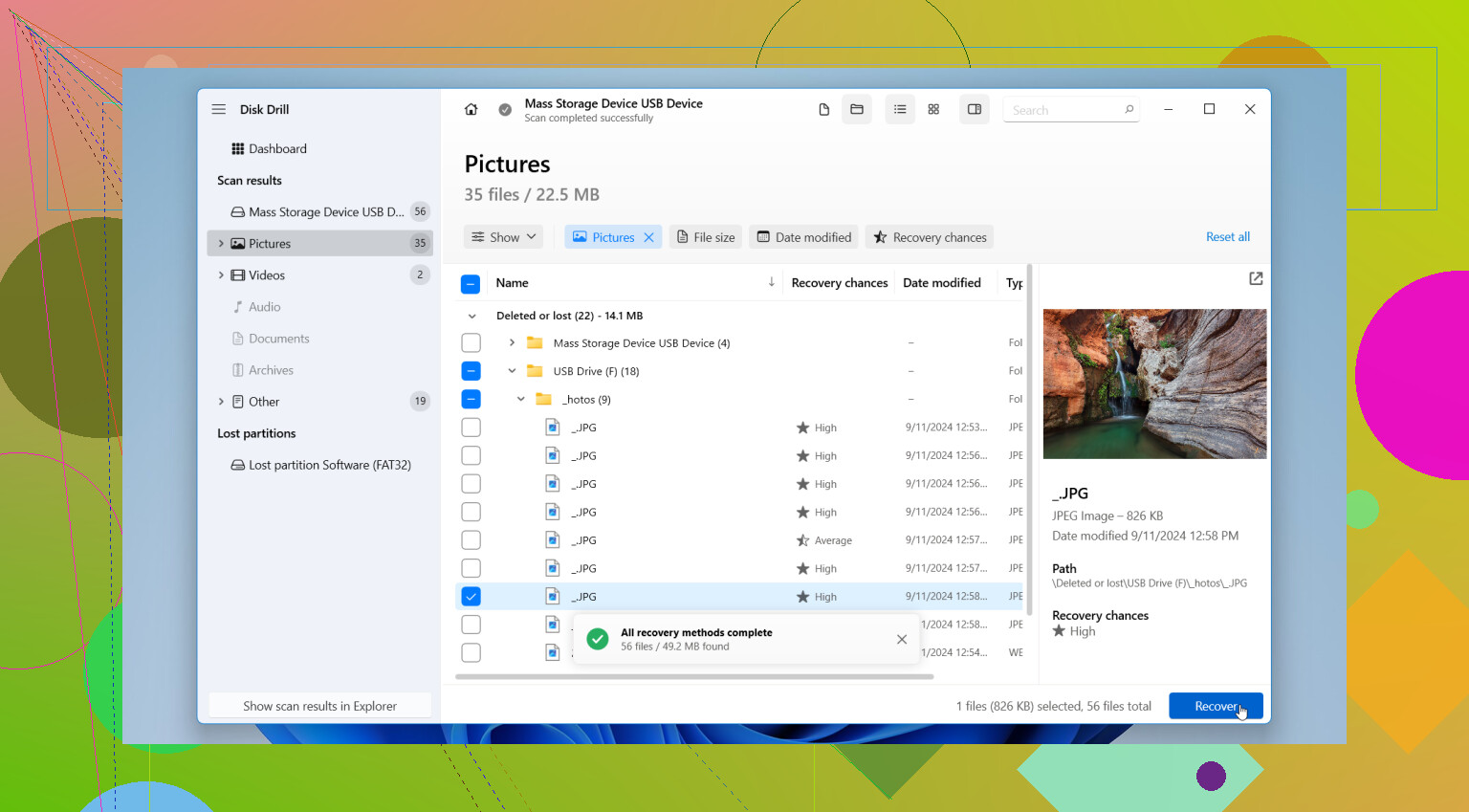
About Disk Drill, it’s a reasonable choice once you have the image.
Pros:
- easy to scan image files
- good preview support for common photo formats
- simple interface, less chance of user error
- decent for memory card recoveries
Cons:
- not my first pick for cards with lots of read errors
- found files can include false positives from signature scans
- video recovery can look successful but still need separate repair
- paid recovery limit can be annoying depending on version/platform
So yes, Disk Drill is fine for the recovery phase, but I would treat imaging as the real first job. If the card shows wrong capacity, vanishes randomly, or gets warm, stop and consider pro recovery before you burn your chances.