My iPhone storage filled up fast, and now I can’t install updates, save photos, or download apps. I’m trying to find ways to free up or expand iPhone storage without deleting anything important. I need simple solutions that work quickly because I use my phone every day for work and personal stuff.
My iPhone hit the wall the same way. Storage full pop-up, camera refusing to save, downloads failing, whole phone dragging like it had sand in it. I started by looking for stuff to delete, and honestly, that got me nowhere fast. If your Recently Deleted folder is already empty, the better move is changing how the phone stores things, not going file by file like a maniac.
The first setting I’d check is Optimize iPhone Storage under Photos. If you use iCloud Photos and this is off, you’re leaving space on the table. I turned it on and my phone kept smaller local versions while the full-resolution files stayed in iCloud. Your library still looks normal. When you open an older photo, the full file gets pulled down as needed. On a big photo library, this frees up a lot. I saw space come back without touching my camera roll.
App data was the other mess. People look at an app size in the App Store and think that’s the whole story. Nope. TikTok, Instagram, browsers, even chat apps keep piles of cached junk. A 200 MB app turns into multiple gigabytes if you let it sit long enough. iOS does not give you one clean button for all cache, which is annoyng, but there are still a few decent ways to trim it.
For Safari, go into Settings and clear history and website data. It won’t solve everything, though it helps. For social apps, the method I trust most is deleting the app and reinstalling it. That clears the temp files and leaves your account alone. If your stuff is tied to the account, you sign back in and keep moving.
If you don’t want to remove apps fully, use Offload Unused Apps in iPhone Storage. I slept on this for too long. It removes the app itself but keeps your documents, settings, and login data. The icon stays there with the little cloud symbol. Tap it later, it downloads again. Good fit for airline apps, random shopping apps, old editors, all the junk you swear you’ll need “someday.”
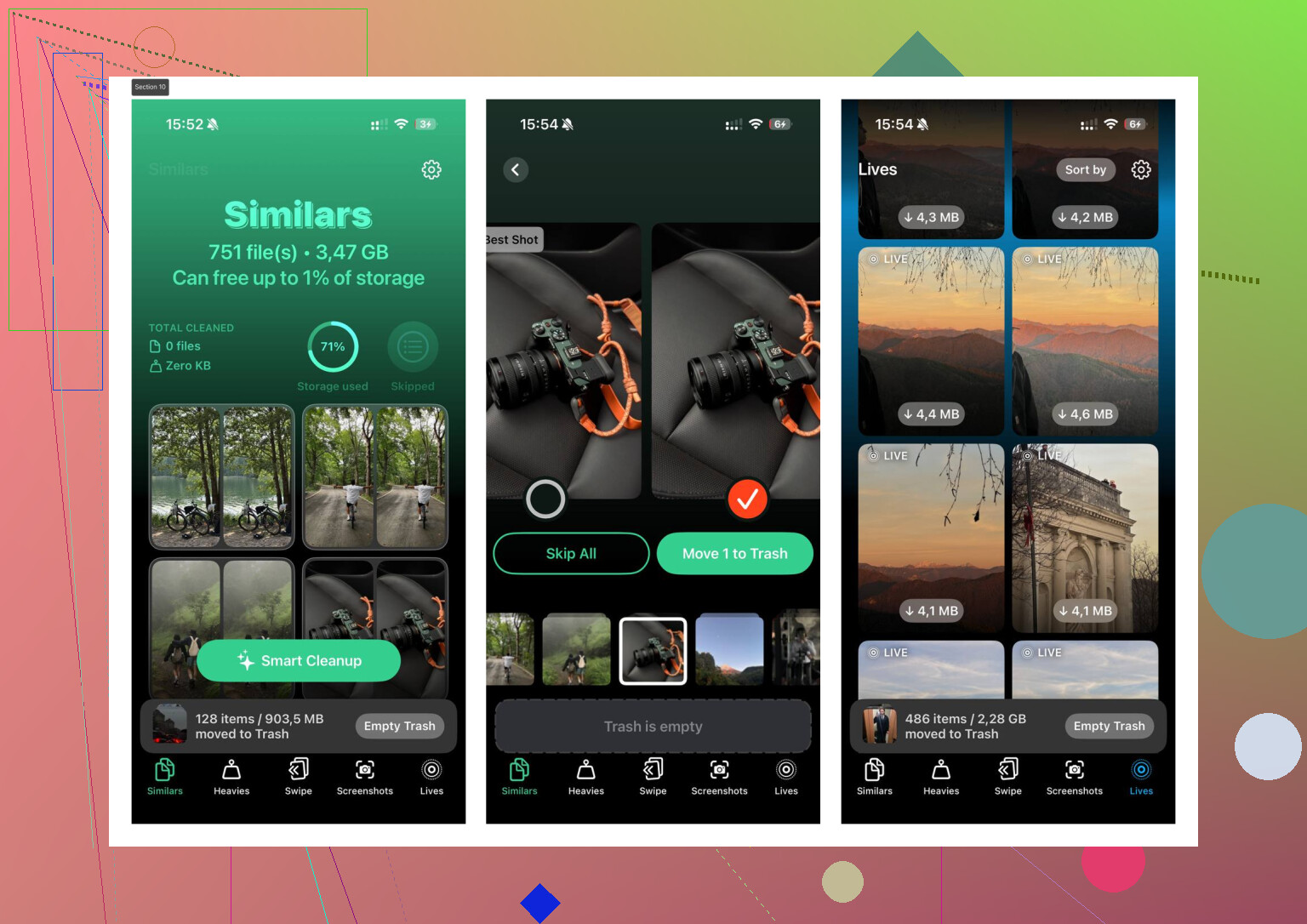
A few weeks ago my phone got so packed it started lagging on simple stuff. Opening Photos felt slow. Swiping between apps felt off. Apple’s built-in storage view showed broad categories, though it didn’t help me spot the exact media causing the mess. I ended up trying Clever Cleaner after seeing it mentioned, and it did one thing I needed badly. It surfaced clutter fast.
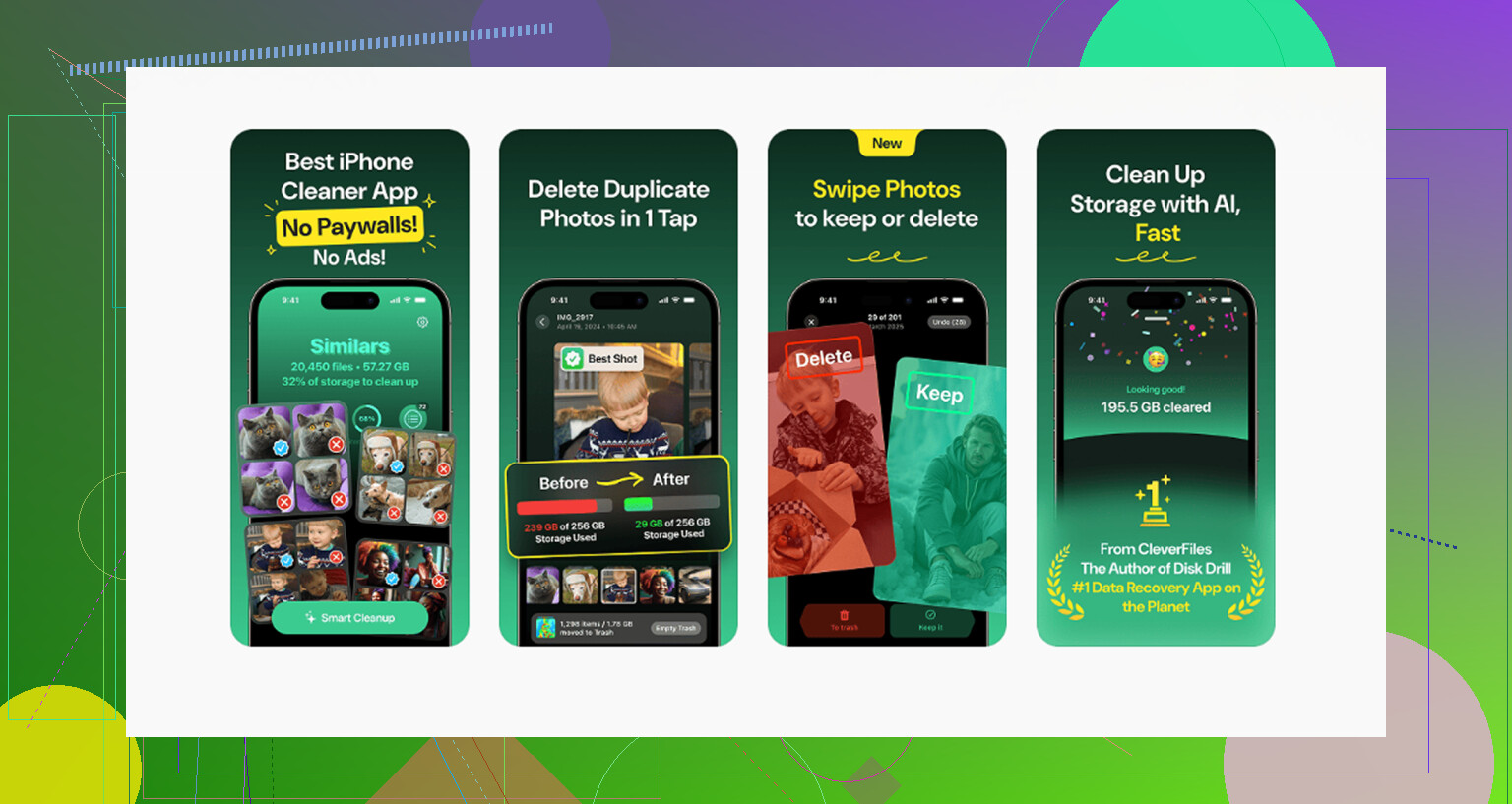
I’m usually suspicious of cleaner apps because a lot of them are subscription bait dressed up as “free.” This one didn’t hit me with ads or a paywall when I used it. The part I found useful was Similars. It grouped near-duplicate shots, which is how I found I had seven almost identical dog photos, twelve blurry screenshots, and way too many takes of the same short video. It marked a best shot and made the cleanup less tedious.
The Heavies section helped more than I expected. iPhone storage charts will tell you videos are eating space, sure, but they don’t point at the exact 2 GB monster sitting in your library. Seeing files sorted by size made the decision easy. I moved a few big clips off the phone and deleted some junk screen recordings I forgot existed. Space came back fast. The on-device processing part mattered to me too. I didn’t want my photo library sent off somewhere I’d never heard of.
One dumb fix that still works, restart the phone. If System Data looks bloated, a reboot sometimes clears old logs and temp cache. Not always, though often enough that I still try it first. I’d also look at Messages. Old threads, especially group chats full of videos, GIFs, and memes, quietly eat storage for months. Setting messages to auto-delete after a year trimmed more than I expected on mine.
What worked for me, in order:
Photos optimization on.
Safari data cleared.
Big social apps deleted and reinstalled.
Unused apps offloaded.
Large videos reviewed first.
Duplicate and near-duplicate media cleaned up.
Phone restarted.
Message retention shortened.
If your phone feels full but you don’t want to wipe memories or pay for more storage right away, start there. I got back around 10 to 15 percent in one pass, and the lag eased up pretty much right after. Not magic. More like finally seeing where the junk was hiding.
18 Likes
Skip the “delete your life” advice. You’ve got a few faster options.
First, use external storage. If your iPhone has USB-C, plug in a flash drive or SSD and move big videos there through Files. If you’ve got Lightning, use a compatible drive. This is the closest thing to “expand iPhone storage” without buying a new phone. It works well for 4K video, Downloads, and Files app folders.
Second, move stuff off the phone without deleting it. AirDrop photos and videos to a Mac. On Windows, import them with Photos or File Explorer. Then keep copies there. If you still want them visible across devices, store them in iCloud Drive, Google Drive, or OneDrive instead of locally on the phone.
Third, check downloaded media inside apps. This is diff from app cache. Spotify, Netflix, YouTube, Podcasts, Audible, and Maps often store gigabytes offline. Remove downloads, not the account data. People forget this one all the time.
I partly disagree with @mikeappsreviewer on reinstalling social apps first. It helps, but offline media and Files app junk usually eat more space faster.
Also check Mail. Big attachments pile up. Removing and re-adding a mail account often trims local mail storage.
If you want a faster view of photo clutter, Clever Cleaner is worth a look for duplicate shots and large files. For user feedback, this page is easy to scan, see what Clever Cleaner users say about freeing up iPhone storage.
One more thing. iOS updates need working room, often 5 GB to 10 GB free. If you’re under 2 GB, focus on big offline downloads first. Thsoe usually free space the fastest.
Fastest non-destructive move that I don’t see stressed enough: delete the iOS update file if it already downloaded and is just sitting there. Go to Settings > General > iPhone Storage, look for iOS update, remove it, then try again later after you clear space. That alone bailed me out once.
Also, @mikeappsreviewer and @sternenwanderer are right about checking the obvious heavy stuff, but I’d put backups and synced data higher on the list. If apps like WhatsApp, Telegram, or Notes are already syncing to cloud, you can often remove local media/downloads without actually losing anything. Same with the Files app. “On My iPhone” gets ignored way too often and can be stuffed with ZIPs, PDFs, screen recordings, and random junk.
Another sneaky one: turn off “Keep Originals” for camera imports if you use Photos on Mac. A lot of people have full-res copies hanging around in multiple places and dont realize it.
If you need a quicker visual scan, Clever Cleaner is decent for spotting oversized media without digging through every album manually. I’d still verify before deleting anything, obviosly. And if you’re comparing tools, this roundup of top free iPhone cleaning apps for freeing up storage fast is easier to read than most.
Short version:
- Remove downloaded iOS update file
- Check Files > On My iPhone
- Clear offline downloads in messaging/cloud apps
- Remove duplicate local copies from sync’d services
- Use external drive or cloud for expansion, not just cleanup
You usually need 5 GB to 10 GB free before iPhone stops acting feral.
A thing I’d add that @sternenwanderer, @sterrenkijker, and @mikeappsreviewer only brushed past is this: sometimes you do not need to free much storage, you just need to stop iOS from reserving so much of it.
Go to streaming apps and lower download quality before removing anything. Netflix, Spotify, Apple Music, YouTube, and podcast apps often keep future downloads set to high quality by default. Switching to Standard can cut the footprint hard without wiping your library. Same idea for Camera settings. If you shoot ProRAW, 4K/60, Cinematic, or keep Live Photo on for everything, your phone will refill instantly no matter how much you clean. I actually disagree a bit with the “clean first” mindset if your capture settings are the real problem.
Another overlooked fix is Message attachments inside specific conversations. Not deleting the whole thread, just the huge videos and files. Open a chat, tap the contact, then review Photos, Links, Docs. You can shave off gigabytes from one family group chat.
For app storage behavior, turn on Offload App in a targeted way, but turn off automatic downloads for apps purchased on other devices. A lot of people unknowingly re-download junk from an iPad or old purchases.
Also check Voice Memos, GarageBand, iMovie projects, CapCut drafts, Lightroom local copies, and podcast creator apps. Those “creator” apps hide massive project files outside the obvious photo library.
If you want a faster scan, Clever Cleaner is useful for spotting duplicates and giant media. Pros: quick visual sorting, less manual digging, easy for photo clutter. Cons: still needs human review, won’t magically shrink system data, and cleaner apps in general can encourage over-deleting if you rush.
Best non-destructive combo in my opinion:
- Reduce future file sizes
- Trim attachments inside Messages
- Remove hidden project files
- Then use Clever Cleaner if your library is chaos
That order sticks better than doing cleanup over and over.