I found a huge number of duplicate photos on my iPhone after syncing and restoring from iCloud, and trying to merge them one by one is taking forever. I need help figuring out the fastest way to merge duplicate photos on iPhone without losing anything important.
I ran into this on my iPhone too, and I’d start with Apple’s own tool before doing anything else.
Open Photos, scroll to Utilities, or on newer iOS builds go through Collections > Utilities. Then open Duplicates, tap Select, then Select All, then Merge. iOS keeps one version, keeps whatever metadata it finds useful, and pushes the extra files into Recently Deleted.
One thing I noticed after a big import, the Duplicates section did not fill in right away. Mine took a while. A few hours, give or take. The scan happens in the background, so if you dumped in a big library and saw nothing, wait a bit.
The catch is simple. Apple only handles exact duplicate files. If you took four shots of the same thing a second apart, or used burst mode, or kept retrying the same framing, those usually do not show up there. They look the same to you, but they are still separate files.
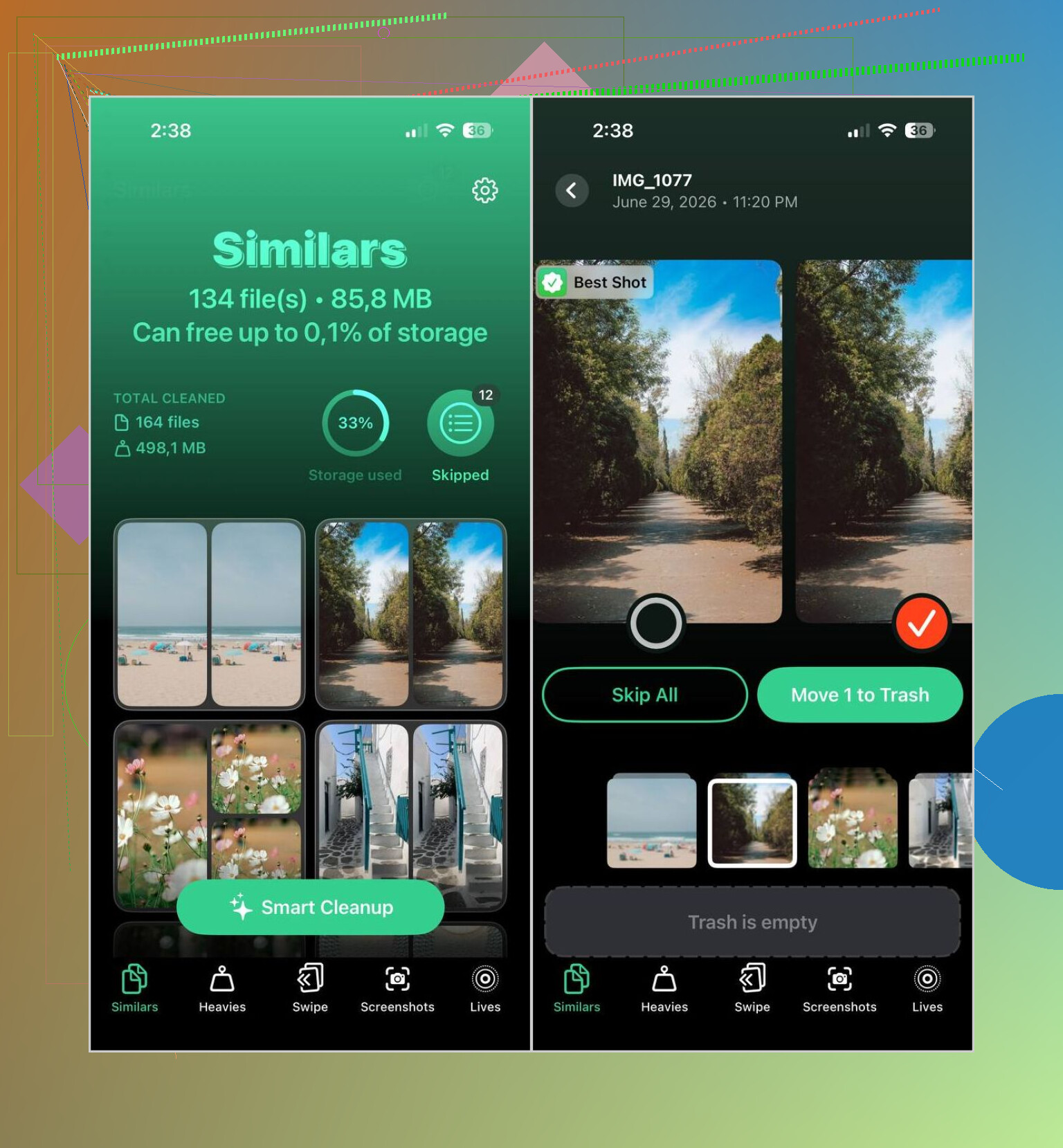
That gap is why I ended up using Clever Cleaner more often. It sorts both duplicate photos and near-matches, which helped way more in normal use. I saw it group similar shots together, pick a likely keeper, and still leave me in control before anything got removed.
My usual flow looked like this:
- Install Clever Cleaner from the App Store.
- Let it scan the photo library.
- Open the Similars tab.
- Run Smart Cleanup, or go group by group yourself.
- Put back anything you want to keep.
- Confirm the cleanup.
- Empty Recently Deleted in Photos if you want the storage back right away.
I used a few of the other sections more than I expected.
- Heavies puts the biggest photos and videos at the top, which made triage faster.
- Video Compression shrank some huge clips without me deleting them.
- Screenshots helped wipe old junk in batches.
- Lives turned Live Photos into stills when I didn’t need the motion part.
- Swipe made review less annoying, left and right, done.
If you want to stay with Apple’s apps only, I had decent results with a manual pass too:
- Use Search in Photos to narrow things down by person, place, event, or object.
- Check Burst albums and keep the best frame.
- On a Mac, Photos Smart Albums made manual cleanup less painful for me.
- Look in Recently Deleted after you finish, or the space will still be tied up.
So, for exact duplicates, Apple’s built-in merge works fine. For the messier pile, near-identical shots, bursts, retries, all the stuff you meant to sort later and didn’t, a tool that spots similar images saves a lot more time. I learned this the annoyng way.
15 Likes
Fastest path for your iPhone is this.
If the duplicates came from an iCloud restore, wait a bit before deleting anything. Photos reindexes in the background. If you start too early, counts shift and you end up doing the same work twice. I’d leave it on Wi-Fi and power overnight. Boring, but it saves time.
I agree with @mikeappsreviewer on using Apple’s duplicate detection first. I disagree on one part though. I would not trust any auto-cleanup pass until your library finishes syncing. Near-match tools are great, but right after a restore they sometimes flag stuff while thumbnails are still settling. That part gets messy fast.
My order would be:
- Confirm Photos sync is done. Settings, Apple ID, iCloud, Photos.
- Check iPhone storage. If Photos is still growing, wait.
- Merge exact duplicates in Photos first.
- Then use Clever Cleaner for the leftovers, mostly similar shots, bursts, screenshots, and old videos.
Why this order works:
- Apple’s merge is safest for true dupes.
- Clever Cleaner is faster for the junk Apple skips.
- You review fewer groups, so cleanup goes quicker.
One more thing people miss. “Merge” does not always free space right away. You need to clear Recently Deleted after. Otherwise your storage numbers look wrong and it feels like nothing happend.
If your storage is full, this is a cleaner way to think about it: free up iPhone storage fast by removing duplicate photos, similar images, large videos, and old screenshots. This guide is useful too if you want a quick visual walkthrough, free up iPhone storage faster without deleting the stuff you need.
Short version. Let sync finish. Merge exact dupes in Photos. Use Clever Cleaner after for the rest. Empty Recently Deleted. Done.
Honestly, I’d tweak what @mikeappsreviewer and @espritlibre said a little. They’re right about waiting for iCloud Photos to settle, but I would also check one thing first: whether these are real duplicates or just Photos re-downloading previews and optimized copies acting weird. After a restore, the library can look totally borked for a bit.
Fastest route for me was:
- Leave the phone charging on Wi-Fi overnight.
- Force close Photos once, then reopen.
- Check duplicate count again the next day.
- If the built-in merge still misses tons of lookalikes, use Clever Cleaner for bulk review.
I would not blindly merge thousands in one go if storage is already super low. Sounds backward, but low storage can make Photos act janky. Clear some space first if you can.
Also, if you want more than exact-match cleanup, this is basically the fastest way to clean duplicate and similar photos on iPhone. Apple’s tool is safe, but kinda limited. Clever Cleaner is better when the mess includes burst shots, resized copies, screenshots, and “same pic but not technically identical” stuff.
One more underrated move: sort your library by date imported, not just date taken. Post-restore dupes often clump together there. Saves a ton of time, tbh. And yeah, empty Recently Deleted or the storage savings are fake lol.
I mostly agree with @espritlibre, @codecrafter, and @mikeappsreviewer on waiting until iCloud Photos finishes settling, but I disagree with doing a giant all-at-once merge if your library is already messy from multiple restores. That can hide what actually happened.
What worked better for me:
- First, filter by Recents and look at the restore/import window only
- Check whether the duplicates are clustered around the same dates
- Merge in chunks instead of the whole library at once
- After each chunk, reopen Photos and let the counts refresh
Reason: post-restore duplicates often come in waves, and the Photos app can mislead you until indexing catches up.
If Apple’s Duplicates album stops finding obvious repeats, that is where Clever Cleaner helps. Not for true file merges only, but for spotting near-identical junk Apple ignores.
Pros of Clever Cleaner:
- Finds similar photos, not just exact duplicates
- Faster for bursts, screenshots, and repeat shots
- Easier bulk review than manual scrolling
Cons:
- You still need to review results carefully
- Similarity detection is not perfect
- Best used after Apple’s own duplicate scan, not before
One extra tip nobody mentions enough: if “Optimize iPhone Storage” is on, temporarily leave your phone plugged in and unlocked for a while before cleanup. Thumbnail mismatches can make review way slower. Also, if you use a Mac, checking the Photos library there can sometimes expose duplicate groups that are less obvious on iPhone. Empty Recently Deleted only after you are sure everything looks right.