I’m trying to remove all photos from my iPhone, but I’m confused about what actually gets deleted from the device, iCloud, and the Recently Deleted folder. I started clearing my library and now I’m worried some pictures may still be stored somewhere or synced back. I need help understanding the correct steps to delete everything and confirm what was really removed.
The part where deleted photos show up again is the thing I see people get stuck on most. It feels broken. Most of the time it isn’t. It’s iCloud sync doing its job, badly timed for what you want.
Why photos you deleted show back up
iCloud Photos works as sync, not cold storage. Your iPhone, your other Apple gear, and the cloud copy keep trying to match. If a delete stalls, or your connection drops in the middle, the server copy often wins and pushes the photos right back onto the phone.
If you want the loop to stop, I’d do this:
- Open Settings and tap your name
- Tap iCloud, then Photos
- Turn off Sync this iPhone
- When iOS asks, pick the option to remove photos from the device
This removes the local copies from the phone only. Your iCloud library stays there. Since sync is off on the phone, those same files stop repopulating the device.
Why Image Capture works better than Photos on Mac
I had better luck with Image Capture by a mile when the library got huge. The Photos app on Mac tries to be smart with its library, and once you throw 20,000 items at it, weird stuff starts. Delays. Database hiccups. Random hanging. Image Capture is simpler. It treats the iPhone more like attached storage and gets out of the way.
- Plug the iPhone into the Mac with a cable
- Open Image Capture from Applications
- Wait until the full photo list appears. On a big library it looks frozen for a while. Mine did too
- Press Command + A
- Hit the delete button and remove everything in one pass
On Windows, the DCIM folder in File Explorer sort of works. Once the file count gets high, “Device Not Responding” shows up a lot. If Windows is your only route, I’d keep it to batches under 500 files. Bigger chunks tend to go sideways.
Closest thing to Select All on the iPhone itself
Apple still doesn’t give you a plain Select All button in the main library. There is a gesture trick, though. It’s awkward, but it saves time.
- Tap Select in the top-right
- Drag across the bottom row to begin selecting
- Keep one finger down, then with your other hand tap near the clock at the top of the screen
- The library jumps upward and selects the range in between
It works better on smaller libraries. Once you get past around 10,000 items, the Photos app starts acting tired. Lag, missed selections, app crashes, half-finished actions. If the phone storage is already packed, it gets worse. I had a few selections fail and had to redo them.
Deleting after backup, safe or not
Safe, yes, after you confirm the backup is usable. A finished progress bar doesn’t prove the files made it over cleanly.
- If you backed up to a Mac or PC, open the destination folder and test random photos and videos. Don’t trust thumbnails alone
- If you used Dropbox or Google Photos, sign in on the web and check the files there before removing anything from the phone
After you verify the backup, deletion is fine. Then clear Recently Deleted too, or your storage number barely moves and you’ll think nothing happened.
Where Clever Cleaner comes in
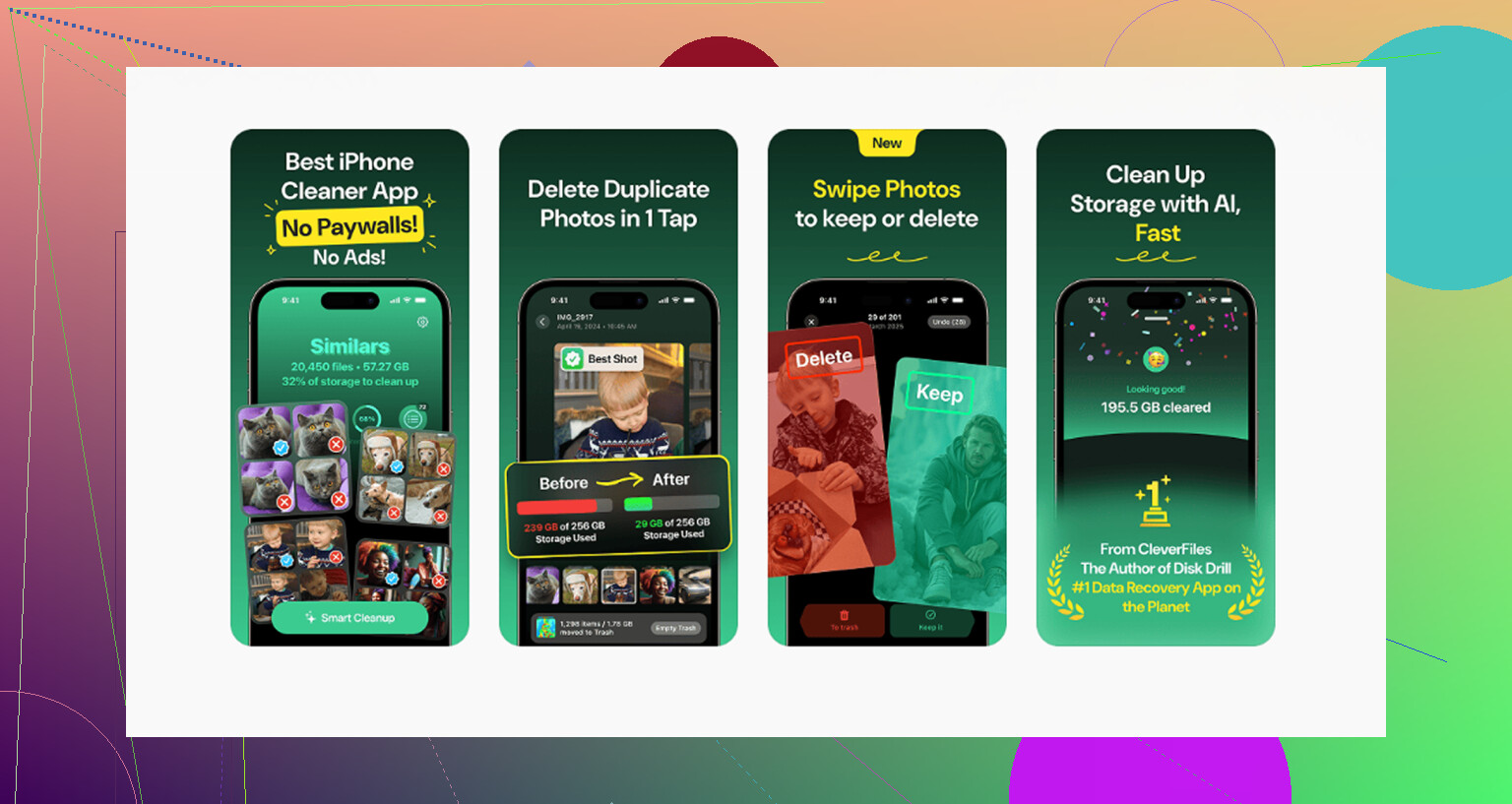
For giant libraries, the stock Photos app feels underpowered. You don’t get file sizes in a useful way. You don’t get a solid way to sort by what eats the most space. Near-duplicate shots are a slog to sort manually. Clever Cleaner fills every one of those gaps.
The fastest routine I found goes like this:
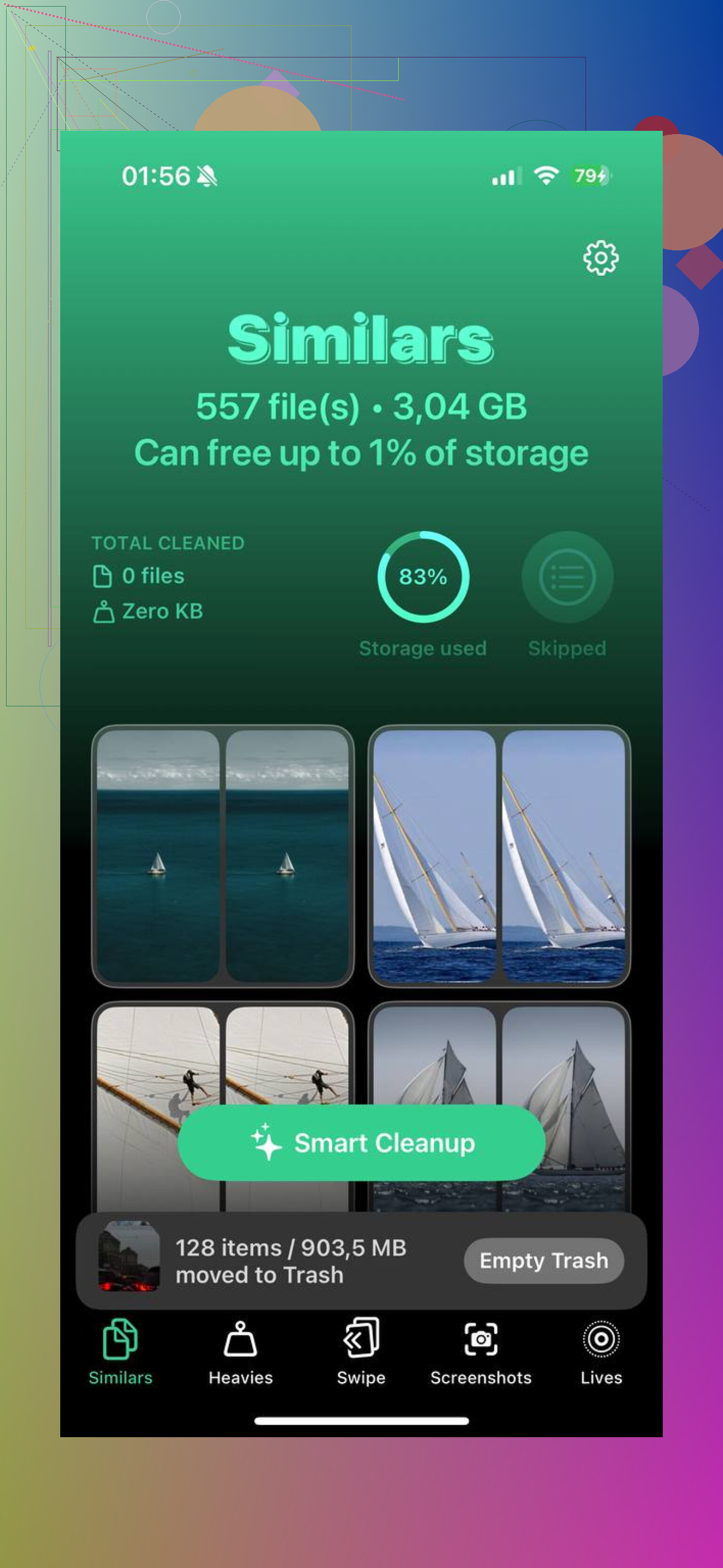
- Open the Heavies tab. It lists the library from biggest files to smallest, so large videos and bloated items show first
- Move to the Similars tab. It groups near-matching shots, which makes it easier to keep one and ditch the clutter fast
- Look at the Screenshots tab. You see file sizes before deleting, which helps more than I expected
- Processing stays on the phone. No uploads, no remote scan, nothing sent off-device
The step people skip, then wonder why storage didn’t change
When you delete from the main library, those files move to Recently Deleted. They sit there for up to 40 days, still using storage the whole time. So the storage bar often stays put until you clear that folder too.
After you finish cleaning up, open Albums, go to Recently Deleted under Utilities, tap Select, then Delete All. That’s the part tht frees the space for real.
2 Likes
What gets deleted depends on where iCloud Photos is turned on.
If iCloud Photos is ON, deleting a photo in Photos deletes it from your iPhone and from iCloud, then from any other Apple device syncing the same library. It then moves to Recently Deleted for about 30 days. During that time, it still exists and still counts toward storage in many cases.
If iCloud Photos is OFF, deleting from the iPhone removes the device copy only. Your iCloud stuff, if any, is separate.
One thing I disagree with a bit from @mikeappsreviewer, turning off sync first is smart if your goal is keep photos in iCloud but wipe the phone. If your goal is total removal everywhere, leave sync on and delete once.
Best way to verify:
- Delete from Library.
- Empty Recently Deleted.
- Check icloud.com/photos from a browser.
- Check Photos app on another synced Apple device.
- Check iPhone Storage after 5 to 15 mins. Big libraries lag a bit.
If you want to sort huge videos and dupes before wiping, Clever Cleaner helps. This Clever Cleaner for iPhone review, free AI photo cleanup and storage-saving tips gives a decent overview. Also, do a spot check first so you dont nuke somthing you needed.
What matters most is deciding which copy you want gone.
I mostly agree with @mikeappsreviewer and @byteguru, but I’d push one extra check that people skip: Photos can be gone from the library and still exist in Messages, Files, third-party apps, or backups. So “all photos deleted” is not always as total as it sounds.
Quick version:
- iCloud Photos ON: delete on iPhone = delete from iCloud and every synced Apple device
- iCloud Photos OFF: delete on iPhone = usually just deletes the copy stored on that iPhone
- Recently Deleted: not really gone until you empty it
- Shared Albums and stuff sent in iMessage are their own weird little universe sometimes
If your goal is wipe the phone but keep iCloud, then yes, disabling sync first makes sense.
If your goal is nuke everything everywhere, leave iCloud Photos on, delete, then empty Recently Deleted.
How I’d verify without doing the exact same steps already posted:
- Go to Settings > General > iPhone Storage > Photos and watch the size drop
- Open icloud.com/photos in a browser and confirm the library count there
- Check Albums, including Hidden and Shared stuff
- Search in Photos for random terms like “dog,” “beach,” or a month/year to see if stragglers remain
- Wait a bit. Big libraries can lag like crazy and look “undeleted” for a while
Also, if your aim is more cleanup than total deletion, Clever Cleaner is honestly more useful before the wipe because it helps surface huge videos, duplicates, and junk screenshots faster. Less chaotic that way, imo.
And if you want a quick video explainer, this is easier to follow than most: see Rich DeMuro explain how Clever Cleaner helps free up iPhone storage
The main trap is thinking the library view is the final truth. It isnt. Check storage, iCloud, and Recently Deleted or you’ll drive yourself nuts.
One nuance I’d add to what @byteguru, @chasseurdetoiles, and @mikeappsreviewer covered: backups are the wildcard.
Deleting photos does not reach backward into:
- old iPhone backups in Finder/iTunes
- Google Photos, OneDrive, Dropbox uploads
- photos saved inside Notes, Files, WhatsApp, Messages attachments, etc.
So if your goal is truly “gone everywhere,” verify those places too. I actually disagree a bit with the “watch iPhone Storage and trust it” approach, because storage numbers can lag or stay inflated from caching for hours.
What I’d check instead:
- Photos app shows 0 items in Library
- Recently Deleted is empty
- Hidden album is empty
- Search in Photos for a few dates or locations and get no results
- Files app and Messages still do not contain saved copies
If you want to trim before deleting, Clever Cleaner is useful.
Pros:
- easy to spot giant videos and duplicates
- faster than manual scrolling
- good for cleanup before a full wipe
Cons:
- still needs you to review things carefully
- not necessary if you already want to delete literally everything
- another step if your only goal is total removal
So, “deleted from Photos” and “erased from the whole Apple life ecosystem” are not always the same thing. That’s the part most people miss.