I’m trying to free up storage on my iPhone, but Twitter is now the X app and I can’t find a clear data option. The app seems to be using a lot of space, and I’m not sure if I should clear cache, offload the app, or delete and reinstall it without losing my account settings.
If X is lagging or crashing, I’d start with the cache inside the app before deleting anything. It’s quick, and it can clear out a surprising amount of junk. Since the Twitter-to-X switch, the settings are a little buried, so it’s easy to miss.
Clear the X cache from inside the app:
- Open X and tap your profile icon in the top-left.
- Go to Settings and Support, then Settings and privacy.
- Tap Accessibility, display, and languages.
- Open Data usage.
- Scroll to the bottom where it says Storage.
- Tap Media storage, then hit Clear media storage and confirm.
- Go back and open Web storage. From there you can choose Clear web page storage or Clear all web storage.
Media storage is just cached photos, videos, and GIFs the app saved so your feed loads faster. Clearing it does not delete your posts, DMs, followers, bookmarks, or anything tied to your account. That stuff is stored on X’s servers, not only on your phone.
Web page storage is for pages you opened inside the X in-app browser. If you only clear web page storage, you should stay logged in. If you choose Clear all web storage, that also removes cookies, so there’s a good chance you’ll have to sign in again. Make sure you know your password before tapping that one.
If X still keeps crashing after that, try offloading the app instead of fully deleting it. On iPhone, go to Settings > General > iPhone Storage > X, then tap Offload App. That removes the app itself, which can fix some broken-app weirdness, but it keeps your documents, data, and login info. When you reinstall it from the App Store, you should usually land back where you were.
One thing worth mentioning: clearing the X cache may help with crashes, but it might not solve your storage problem. I ran into this myself. I kept clearing a couple gigs from Twitter/X, felt like I fixed it, and then the “Storage Full” warning came right back.
The real problem was my photo library. High-res photos, 4K videos, screenshots from years ago, duplicates, all of that adds up way faster than an app cache.
I ended up using Clever Cleaner for that part. It’s completely free, has no ads, and doesn’t shove a subscription or paywall in your face, which is pretty rare for this kind of app.
The useful part is that it shows you what’s actually taking space. The Heavies tab sorts media by file size, so you can spot the huge 4K videos right away. It also shows the exact file size for screenshots, which a lot of cleaner apps don’t make obvious. The Similars tab is good for finding near-duplicate photos, like when you took ten versions of the same shot and never deleted the extras.
Another thing I liked is that it processes everything locally on your iPhone. It doesn’t upload your photos somewhere else just to scan them, which matters if you care about privacy.
So basically: clear the X cache if the app is glitching or crashing. But if your phone is still low on space, check your photos and videos next. That’s usually where the real storage is hiding.
Don’t trust the storage number right after clearing X’s cache, because iOS can keep showing the old size until the app is closed or the phone is restarted.
@mikeappsreviewer’s cache steps are the least risky first move, but if X still shows several GB under iPhone Storage after that, fully deleting and reinstalling X is usually the cleanest reset. Just make sure you know your login first, since deleting is not the same as offloading.

Check Settings > General > iPhone Storage > X and look at whether the space is under App Size or Documents & Data.
That matters more than the button name inside X. If App Size is the big number, offloading can help because it removes the app bundle and leaves your data behind. If Documents & Data is the big number, offloading is usually the wrong tool for freeing space, because that is exactly the part iOS keeps when you offload.
For storage cleanup, the order I’d use is:
- Clear media/web storage inside X like @mikeappsreviewer described.
- Force close X.
- Check iPhone Storage again after a few minutes, or restart the phone if the number looks stuck.
- If Documents & Data is still huge, delete X completely and reinstall it.
The annoying bit is that iOS does not really have an Android-style “clear app data” button for X. Apple gives you Offload App and Delete App, and they do different things. Offload is more like “remove the app but keep its mess in case I come back.” Delete is the actual reset.
Before deleting, make sure your X login is not only saved in the app. Check that you know the password, have access to the email or phone number on the account, and can handle any two-factor authentication prompt. People remember this part only after the app is gone.
I would not spend too much time chasing the in-app cache if your goal is storage. Clear it once, sure. If the number barely moves, stop fighting it and reinstall. X will rebuild some cache again anyway as you scroll through videos and images, so you are mostly buying back temporary space.
For a quick emergency fix, deleting and reinstalling X is usually faster than trying to micromanage every cache category. For a longer-term fix, check iPhone Storage’s list from the top down. If Photos, Messages, or downloaded video apps are above X, those are probably the real storage hogs. X can get bloated, but it is not always the main villain just because it is the app you noticed first.
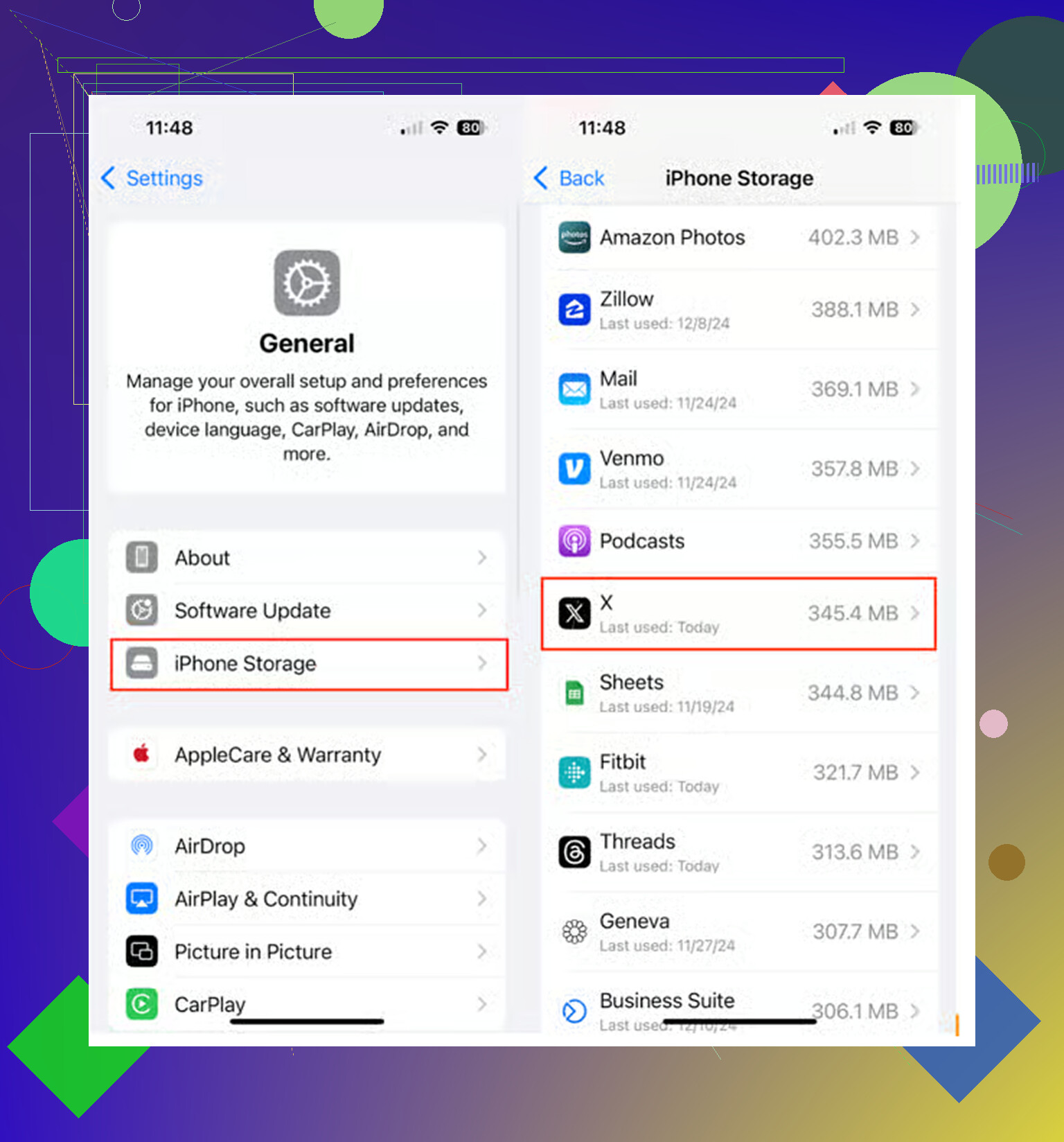
Offloading X is not the same as clearing Twitter data. It removes the app package, but it keeps the saved data that is often causing the storage number to look ugly in the first place. So if Settings shows X has a huge “Documents & Data” number, offloading may make you feel like you did something while barely freeing the space you actually wanted back.
The safer order is: clear media/web storage inside X first, then check iPhone Storage. If it is still bloated, use Delete App, not Offload App, then reinstall from the App Store. Before doing that, check for anything local you care about, especially unsent drafts. Your posts, followers, DMs, bookmarks, etc. are tied to your account, but random local app leftovers and drafts are exactly the kind of thing that can vanish when you remove the app.
Tiny iPhone annoyance: if you delete it from the Home Screen, make sure you choose “Delete App,” not just “Remove from Home Screen.” Removing from the Home Screen only hides the icon in the App Library and frees nothing. After reinstalling, X will start caching images and videos again as you scroll, so treat this as a reset, not a permanent fix.
Don’t offload X if the big number is Documents & Data, like @caminantenocturno said. Offloading there just hides the problem while feeling productive. Delete and reinstall is the only real reset for that part.
I’d recomend switching to X in Safari instead of reinstalling the app. X supports browser access, so try signing in there first.
Open the X website in Safari, tap Share, then Add to Home Screen for easy access.
Once you’ve confirmed your login works and saved any drafts, delete the X app and dont reinstall it. Use the website instead.
This takes a different approach: remove the storage-heavy app from your routine rather than repeatedly clearing its cache.