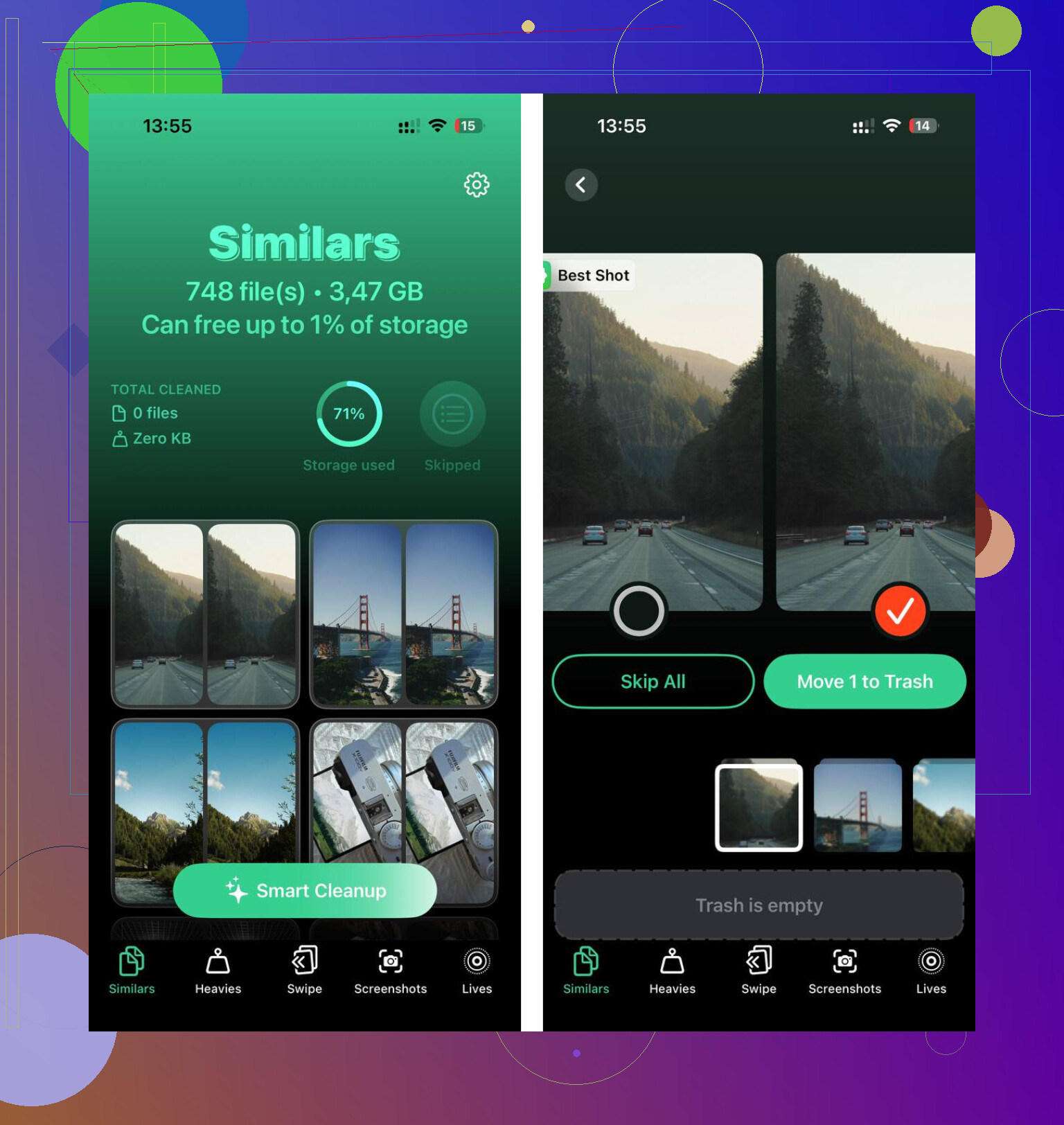
Safari is taking up a lot of storage on my iPhone, and I noticed the documents and data size keeps growing even after I clear history and website data. I need help figuring out how to specifically remove Safari documents and data without affecting anything important, because I’m trying to free up space and nothing I’ve tried has worked.
I ran into this on my iPhone more than once, and yeah, the ‘Documents and Data’ number being bigger than the app itself is normal on iOS. Annoying as hell, but normal.
The app size is only the installed app. ‘Documents and Data’ is all the extra junk built up over time. Logins, cached images, saved sessions, offline files, bits left behind after updates, all of it gets tossed in there. Social apps are usually the worst. Facebook, Instagram, TikTok, stuff like that, they keep a ton of media cached so feeds load faster. After a while, storage gets bloated and iOS starts feeling cramped.
If you want to see what’s eating space, go here:
Settings > General > iPhone Storage
Wait a bit. Mine always takes a few seconds to calculate. Then open the bigger apps one by one. You’ll see two numbers, App Size and Documents and Data. If one of your messaging or social apps is sitting on multiple GB, there’s your answer.
About offloading, this part tripped me up the first time. Offloading does not wipe Documents and Data. It removes the app binary, keeps your files and settings, then puts everything back when you reinstall. Good if you need a little room fast. Bad if your goal is clearing cache. For a real reset, you need to delete the app fully, then install it again from the App Store.
Safari works differently since it’s built into iOS. You can’t remove it, so you have to clear its stored data manually:
Settings > Apps > Safari > Clear History and Website Data
Small warning from experience, this signs you out of a lot of sites and closes tabs. Still, it’s the cleanest way I found to shrink Safari storage.
The bigger issue shows up when free space gets low. My phone started slowing down hard. Typing lagged. Camera took forever to open. Apps crashed for no clear reason. After one iOS update, it got bad enough where I thought the phone itself was dying, but it was storage pressure.
I deleted and reinstalled a couple bloated apps. Cleared Safari. Helped some. Then Photos was still holding a huge chunk of space, around 15 GB on mine, even after I removed a bunch of videos. That part was maddening.
What ended up helping me most was cleaning up the media side, not only the apps. I found this video while looking for options:
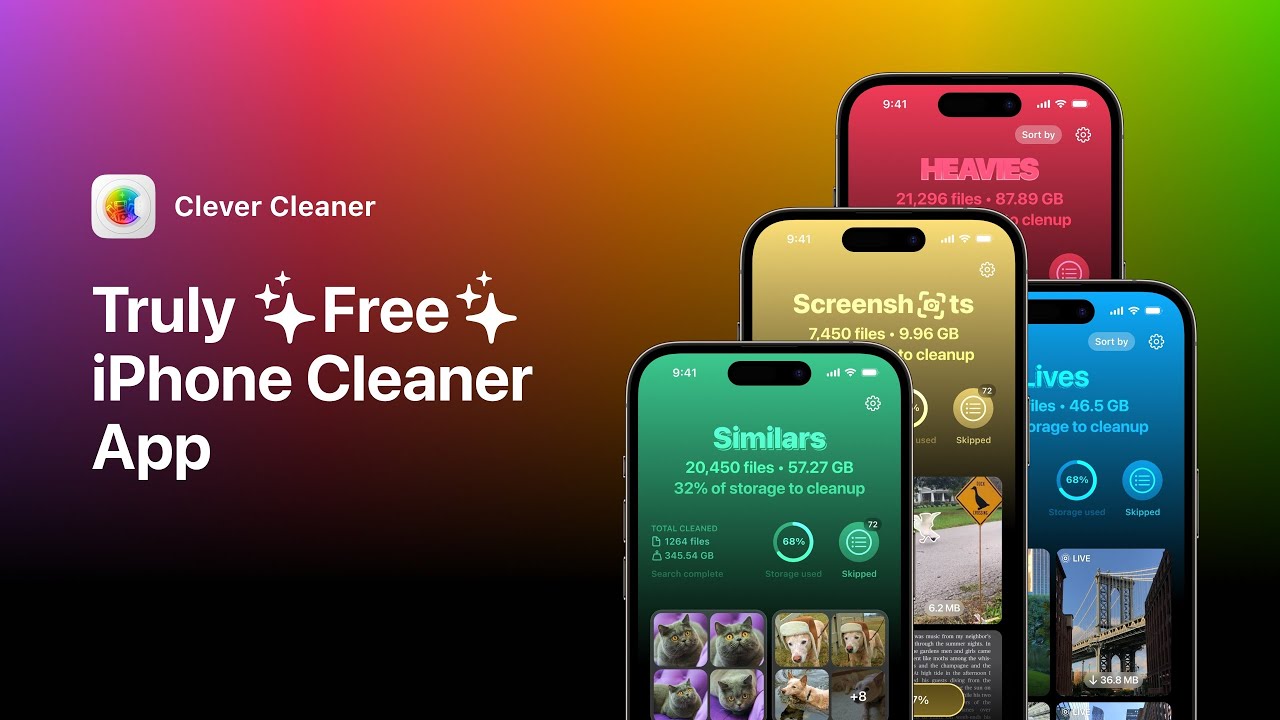
I used Clever Cleaner after that. I expected the usual nonsense, ads every two taps, paywall before deleting anything, but mine didn’t do that. The part I used most was the Heavies section. It sorted photos and videos by size, which made old 4K screen recordings stand out fast. I had a few giant files sitting there that I forgot existed.
The similar photo finder was useful too. It grouped near-duplicates, which helped when I had six versions of the same pic because I kept retaking it. One thing I liked, at least from what I saw, was it processed on-device. I care about that more than I used to.
After I cleared around 10 GB between duplicate media, oversized videos, and leftover junk in Photos, my storage numbers dropped and the lag mostly stopped.
Two spots people miss all the time:
Photos > Recently Deleted
Files app > Downloads
Deleted stuff stays there for weeks, so it still counts against storage until you empty it. I forgot this once and spent twenty minutes wondering why my free space didn’t change. If you clean up manually, always empty Recently Deleted after.
If your iPhone feels slow and Documents and Data looks out of control, I’d do it in this order:
- Check iPhone Storage and find the worst apps.
- Delete and reinstall bloated social or messaging apps.
- Clear Safari history and website data.
- Remove large videos, screen recordings, and duplicate photos.
- Empty Recently Deleted in Photos.
- Check Files > Downloads and clear leftovers.
That fixed it on my side. Not elegant, but it worked.
1 Like
Safari’s storage is split up more than Apple makes obvious. Clearing History and Website Data does not always wipe everything.
Try these Safari-specific spots:
-
Settings > Apps > Safari > Advanced > Website Data
Tap Remove All Website Data.
This sometimes removes leftovers the main clear button misses. -
In Safari, check Downloads.
If Safari saved files locally, they stay in Files.
Open Files > Browse > Downloads.
Delete big PDFs, ZIPs, videos, whatever is sitting there. -
Turn off sync for a minute.
Settings > your name > iCloud > Saved to iCloud > Safari.
Toggle it off, choose Keep on iPhone, then clear Safari data again. After that, restart the iPhone and turn Safari sync back on. If old tab/session data keeps reappearing from iCloud, this helps. -
Remove Reading List offline cache.
Settings > Apps > Safari.
Turn off Automatically Save Offline, if it’s on.
Then open Safari and delete saved Reading List items. -
Force a restart after clearing.
I disagree a bit with @mikeappsreviewer on one point. Safari storage stats do not always update right away. iOS sometiems hangs onto the old number until after a reboot and re-index.
If Safari is still huge, the junk is often elsewhere, not Safari alone. A lot of people blame Safari when Photos and Downloads are the real storage hogs. For broader cleanup, Clever Cleaner is decent for finding large media fast. This page is a solid read on best iPhone cleanup apps and storage tools: best iPhone cleanup apps for freeing storage fast.
If you want the most aggressive reset, backup first, then sign out of iCloud Safari sync, clear all Safari website data, delete downloads, reboot, and sign back in. That’s the closeset thing to wiping Safari docs and data on iPhone.
One thing I’d add to what @mikeappsreviewer and @waldgeist said: sometimes the Safari number is inflated by stuff that is not labeled clearly as Safari at all. iOS storage reporting is kinda messy, and it can lag or bundle related web data in weird ways.
A couple things worth checking that they didn’t really get into:
- Mail app previews opened from Safari links can leave attachments behind in Files or Mail cache.
- If you use Safari for streaming sites, downloaded media licenses and temp files can stick around longer than expected.
- Private browsing tabs can also hang onto session data until they’re fully closed, not just left sitting there.
What I’d try is this:
- Close every Safari tab, including private ones.
- Go to Settings > General > iPhone Storage > Safari and review any site data listed there.
- Clear website data, then wait a few mins. Seriously, iOS storage numbers are slooow sometimes.
- Change Safari download location to iCloud Drive or another folder temporarily, then empty the old Downloads folder manually.
- Remove extensions/content blockers you don’t use. Some keep cached assets too.
- Check if a lot of storage is actually from PDFs, EPUBs, or video files you opened through Safari and saved without noticing.
I slightly disagree with the “just clear history again” idea because that often barely touches the bigger junk pile. The hidden offenders are usually downloads, offline reading content, and saved files opened through Safari.
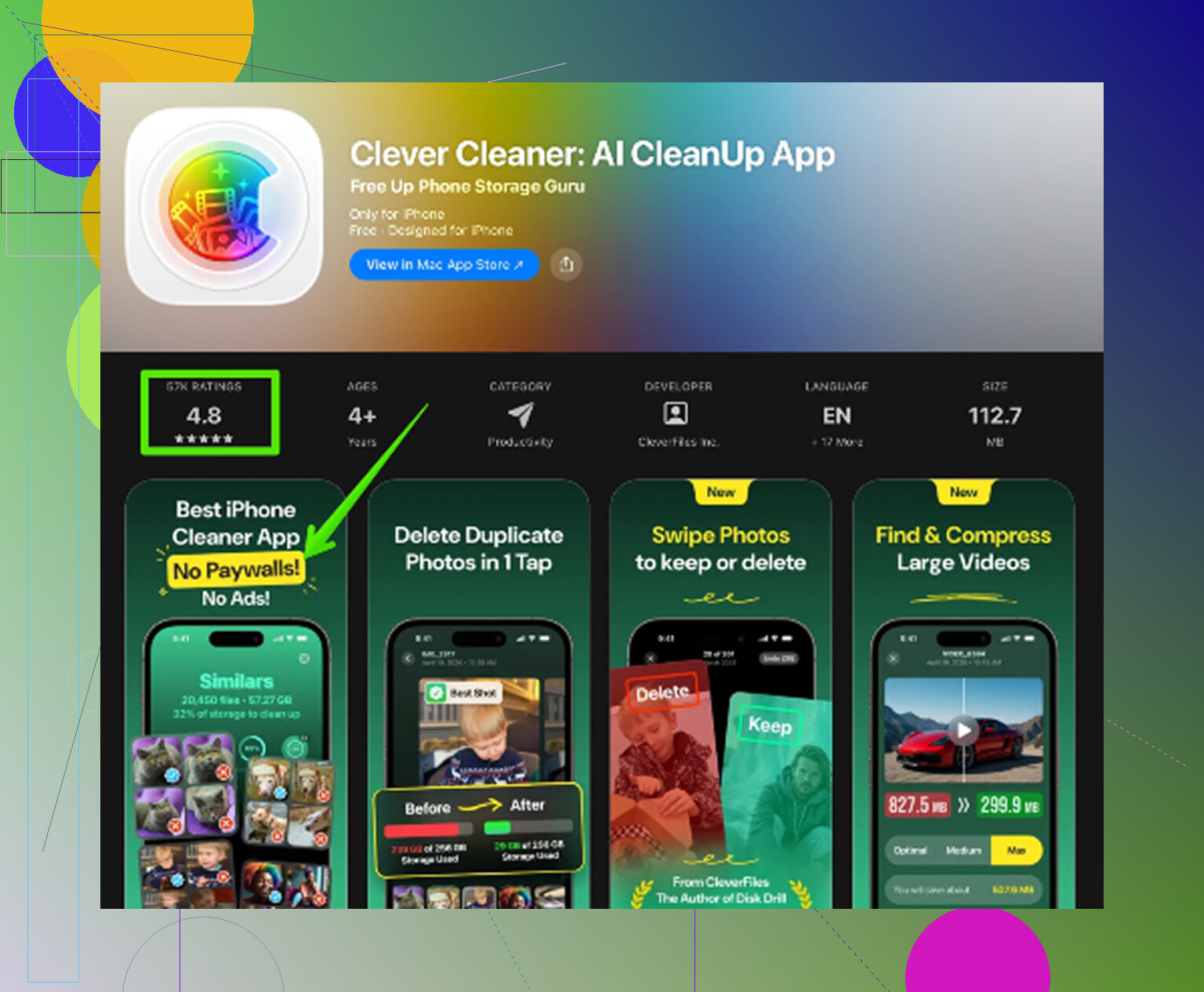
If the phone is generally cramped, not just Safari, I’d also scan your media library. Clever Cleaner for iPhone storage cleanup is actually useful for spotting giant videos, duplicate pics, and other stuff that makes Safari seem like the problem when it isn’t. Also this short is decent: see how to free up iPhone storage fast
Apple really does make this more annoying than it shuld be.