My iPhone storage numbers don’t seem to add up, and I’m not sure how to check what’s actually using space. The total used storage looks much higher than the apps and files I can see, so I need help figuring out what could be causing the mismatch and how to fix it.
iPhone storage math gets weird fast. I saw 54GB used, then the app list below didn’t seem to match, then a few minutes later the number shifted again. It looks broken, but most of the time it’s the phone counting temporary stuff in the background.
How I check iPhone storage without second-guessing it
On the phone, open Settings > General > iPhone Storage. The color bar at the top splits usage into categories. Under it, you’ll see something like 54GB of 256GB Used. Then you get the app-by-app list lower down.
If you want a cleaner reading, plug the iPhone into a Mac and check Finder. On Windows, use the Apple Devices app. I’ve seen those numbers come out less messy because syncing clears some temp cache before the device reports storage. The on-phone screen is trying to count while iOS is busy doing its own housekeepng.
Why the totals look off
I kept running into the same few causes:
Recently Deleted still counts. If you remove photos or videos, they don’t leave right away. They sit in Photos > Albums > Recently Deleted for 30 days, and they still use space the whole time. If you want the storage back now, open it and hit Delete All. This one gets people a lot.
Updates inflate storage for a while. After iOS updates, the phone starts reindexing files. During this stretch, System Data often grows because of logs, install leftovers, and other temp files. I’ve seen it settle down after a few hours. Bigger updates sometimes take closer to a day. Restarting helped on my phone.
The storage screen lags behind. Sometimes the menu shows old info while the phone is still recalculating. A reboot forces a fresh count. Sounds dumb, still works.
Why System Data looks huge for no clear reason
System Data is a pile, not one thing. It includes app caches, Siri files, Safari history, streaming leftovers, and temp files iOS writes while the phone runs. iOS itself also uses around 8GB to 10GB, so your free space was never going to match the box number cleanly.
This category moves around a lot. I’d check it in the morning and again later, and it was different both times. That part is normal.
Why a full iPhone starts feeling slow
When free storage gets tight, iOS has less room for temp files and background work. Then you notice it. Apps hang a bit longer. The camera takes its time. General scrolling feels off. I didn’t think storage level mattered much until my phone started dragging with only a sliver left.
So yeah, free space is not only about fitting more files. It affects how the phone behaves day to day.
What I’d clear first when the phone is nearly full
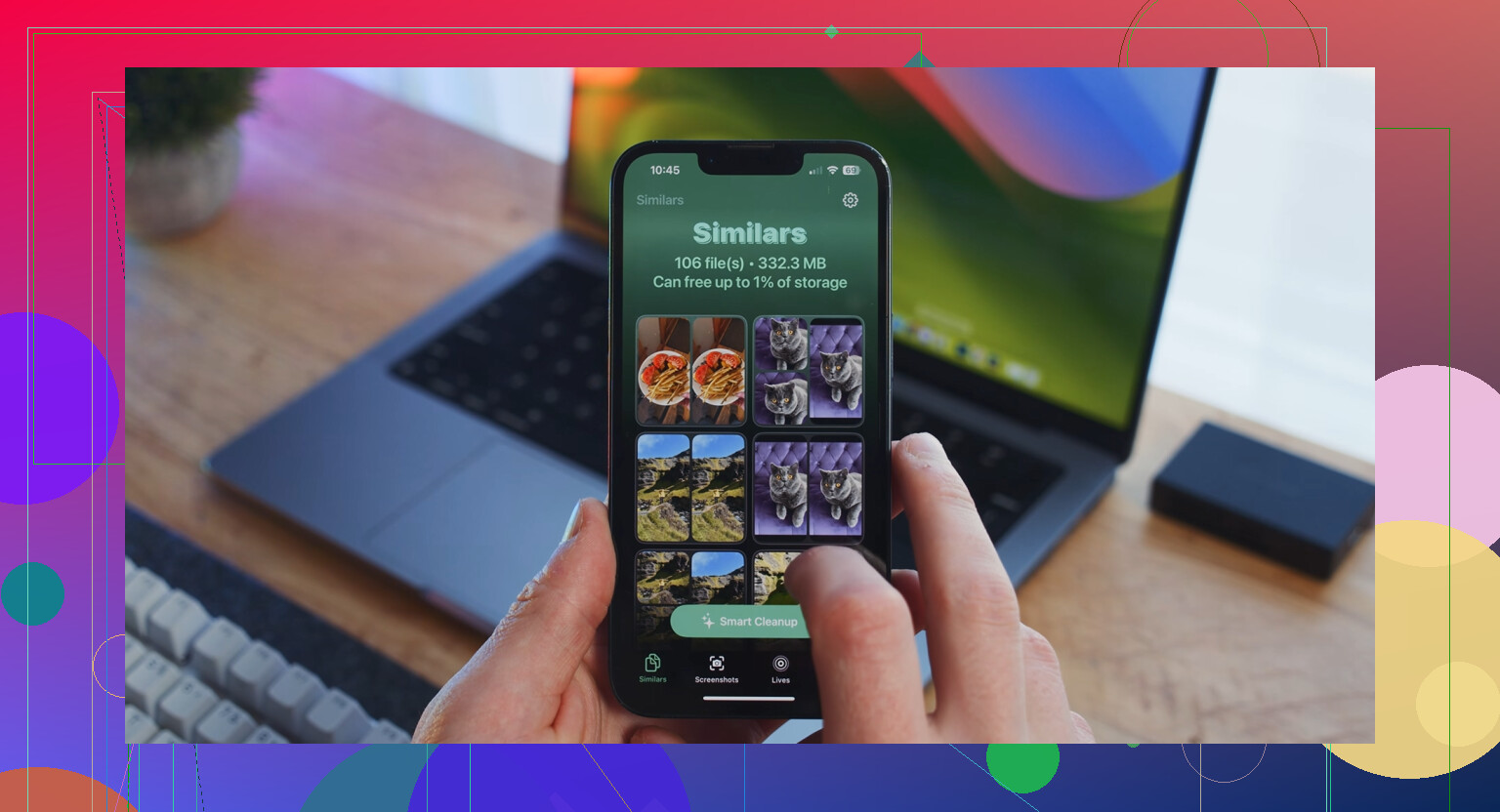
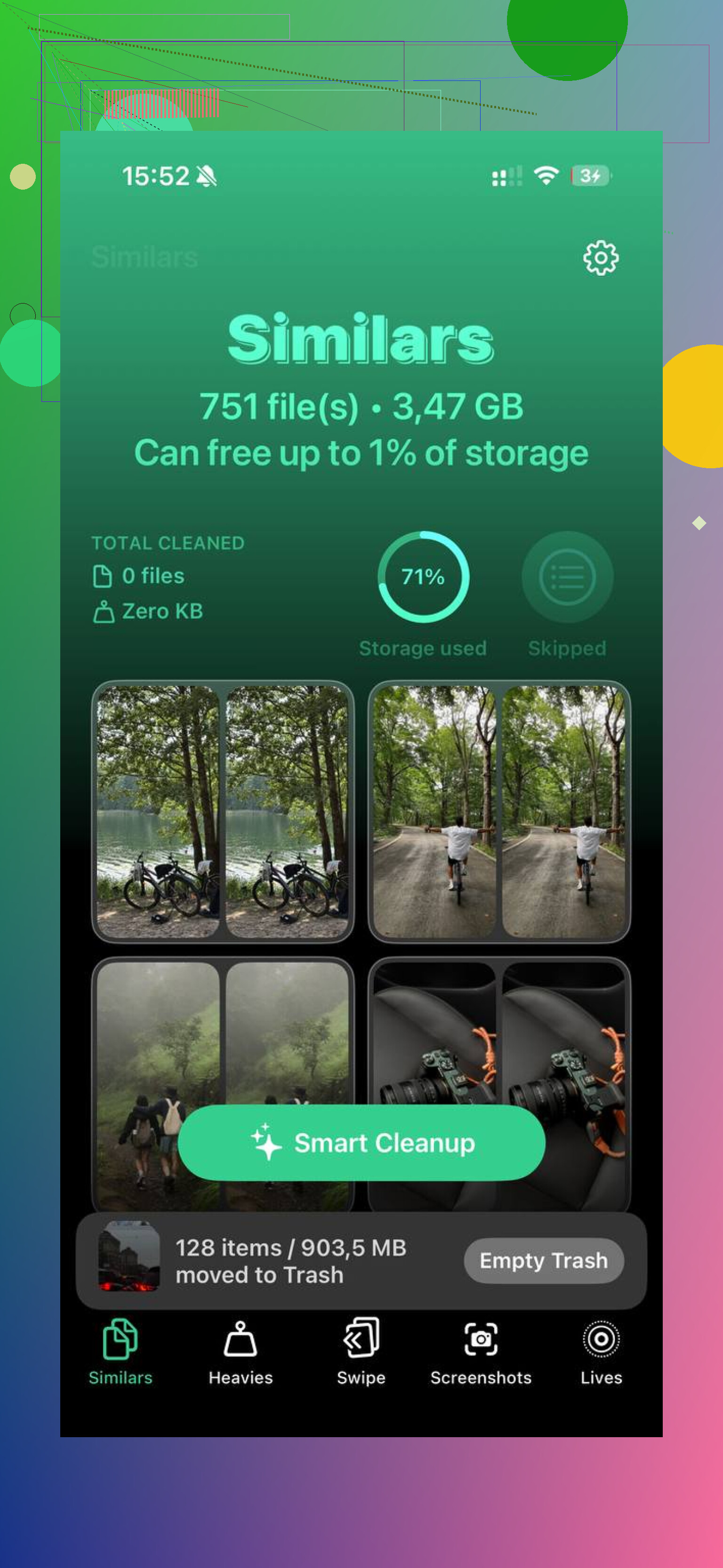
The built-in iPhone Storage page tells you which apps are big, but it does a poor job showing which photos or videos are doing the damage inside your library. Clever Cleaner covers that part and costs nothing. No ads, no subscription.
What stood out for me was how direct it was. The Heavies tab puts the largest files first, with exact sizes, so the giant 4K clips and old screen recordings float right to the top. No digging. The Similars tab groups near-duplicate shots and marks a Best Shot, which makes burst-photo cleanup a lot less annoyng. The Screenshots tab shows the size of each screenshot before deletion, and seeing a pile of random screenshots add up past 1GB made the cleanup choice easy.
It processes on the device, so nothing gets uploaded somewhere else.
After I cleared about 15GB, the storage reading stopped bouncing around so much, and the lag I was dealing with faded out.
11 Likes
What usually throws the numbers off is backups, messages, and media databases, not the app sizes you see in the list.
Try this check order.
-
Look at Messages.
Settings > General > iPhone Storage > Messages.
Photos, videos, GIFs, stickers, voice notes all pile up here. I’ve seen Messages hold 8GB to 20GB on phones where the user thought Photos was the problem. -
Check downloaded media apps.
Netflix, Spotify, YouTube, Podcasts, Audible. Their app size looks small, but “Documents & Data” grows fast. If one app says 500MB but uses 6GB total, there’s your gap. -
Mail is sneaky.
If you use the built-in Mail app with large attachments, storage gets weird. Remove and re-add the mail account if Mail data looks bloated. It’s annoyng, but it works. -
Safari data.
Settings > Safari > Clear History and Website Data.
This won’t fix a 50GB mystery, but I’ve seen it clear 1GB to 3GB. -
Local backups from apps.
Editing apps, camera apps, and offline map apps keep extra files. CapCut, iMovie, Instagram drafts, Google Maps offline areas, Lightroom, all common offenders.
I slightly disagree with @mikeappsreviewer on Finder always being cleaner. Sometimes it reports old numbers too, espeically right after sync.
If your photo library is the mess, Clever Cleaner helps sort the biggest videos and duplicate shots faster. Also worth a read, see why this truly free iPhone cleaner stands out.
Last thing, leave 10GB free if you want iOS to stop acting dumb.
What I’d add to @mikeappsreviewer and @nachtschatten is this: sometimes the numbers look wrong because iPhone Storage groups stuff in ways that are honestly kinda useless.
A few checks that help without repeating their list:
- Compare Settings > General > iPhone Storage with Settings > Apple ID > iCloud > Manage Account Storage. A lot of people mix up local storage and iCloud storage.
- In Photos, check if Optimize iPhone Storage is on. If it is, your library math can look weird because full-res files may be in iCloud while thumbnails stay local.
- Check Files app > On My iPhone. Random downloads, ZIPs, VLC files, PDF dumps, and app folders hide there.
- Look at Voice Memos, GarageBand, and editing apps. These are sneaky space hogs.
I actually disagree a bit with the “just wait and it fixes itself” advice. Sometimes yes, but sometimes bloated caches stay bloated untill you remove/reinstall the app.
If photos/videos are the mystery chunk, Clever Cleaner is useful because it surfaces large videos, duplicates, and screenshots faster than Apple’s storage page. Also, this quick Clever Cleaner demo for finding what’s really eating iPhone storage shows the basic idea pretty fast.
Also check after a restart and after charging for a bit. iOS recalculates storage in the background, and the first number you see is not always the real one. It’s very Apple.