My iPhone storage is full, and I’m trying to find out if I can buy more storage without starting a subscription or signing up for extra services. I ran out of space for photos, apps, and updates, and I need a simple one-time option if that exists. Looking for help understanding what’s possible with iPhone storage and iCloud.
I ran into this same mess a while back. The “Storage Full” alert kept showing up at the worst time, once right when I was trying to save a photo I needed for work. I looked into the one-time purchase thing too, because I did not want another monthly charge.
Here’s the short version. Apple does not sell iCloud space as a permanent add-on. iCloud storage is monthly. The common paid tiers are 50GB for $0.99 and 200GB for $2.99. If you want a one-and-done way to hold more files, you’re looking at hardware instead. A higher-capacity iPhone is one route. An external Lightning or USB-C drive is the cheaper route. Something like a SanDisk iXpand works by plugging into the phone, then you move photos or videos there and erase them from the device after you confirm the copy finished.
The part which confused me at first was iCloud storage versus iPhone storage. They are separate. Your phone’s internal storage is fixed. You do not add more gigabytes into the phone later. What you do instead is clear space from what is already there.
If you want the least painful option, check Photos settings. Turn on Optimize iPhone Storage under Settings > Photos. Mine saved a lot of room because the phone kept smaller versions locally while the full-resolution files stayed online. If your free 5GB of iCloud is already full, moving backups elsewhere worked better for me. Google Photos gives 15GB free. Dropbox gives 2GB free. After backing up there, you can remove originals from the phone and check your storage again.
Another place I found wasted space was cached data. Safari and apps pile up temporary junk over time. On iPhone, go to Settings > Apps > Safari > Advanced > Website Data, then remove it. Mine had built up way more than I expected. Also look at Offload App in the iPhone Storage section. This removes the app itself but keeps its saved data. When you reinstall, your stuff is still there. For apps you rarely open, this helped a lot.
I started taking the problem seriusly when the phone got slow in small annoying ways. Camera lag. Random app crashes. Delays opening Messages. I had assumed the phone was getting old, but low free storage was a big part of it. Once space gets tight, iPhones start feeling rough.
I tried cleaning manually first. Bad idea for me. I had thousands of photos, duplicate screenshots, blurred shots, old videos, all mixed together. It took forever and I still missed things. Then I found this video about Clever Cleaner:

I’m usually suspicious of cleanup apps, so I expected the usual trap, ads everywhere, fake scan, paywall at the end. This one felt different from what I saw. It was free, and I didn’t run into ads or a subscription wall.
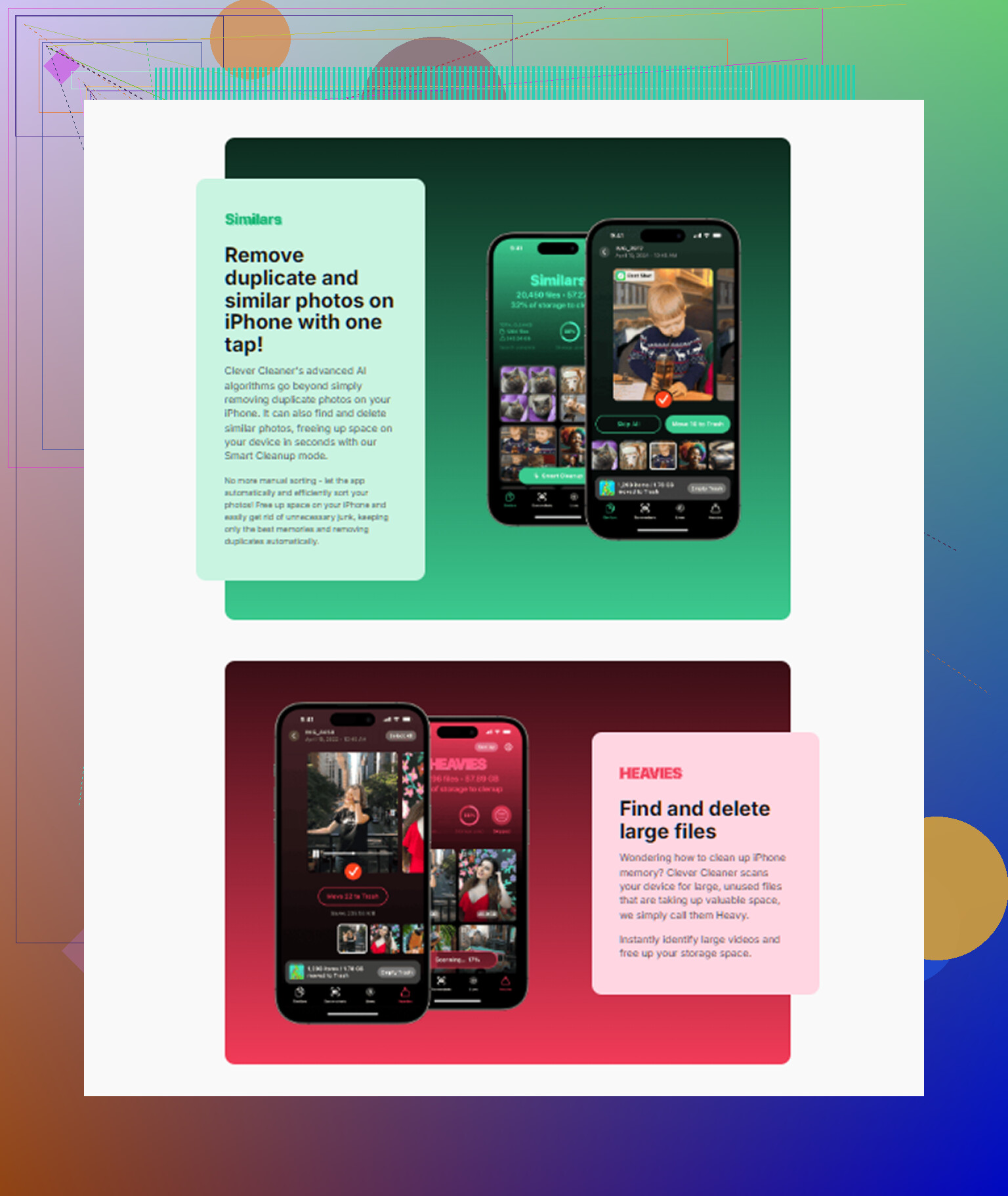
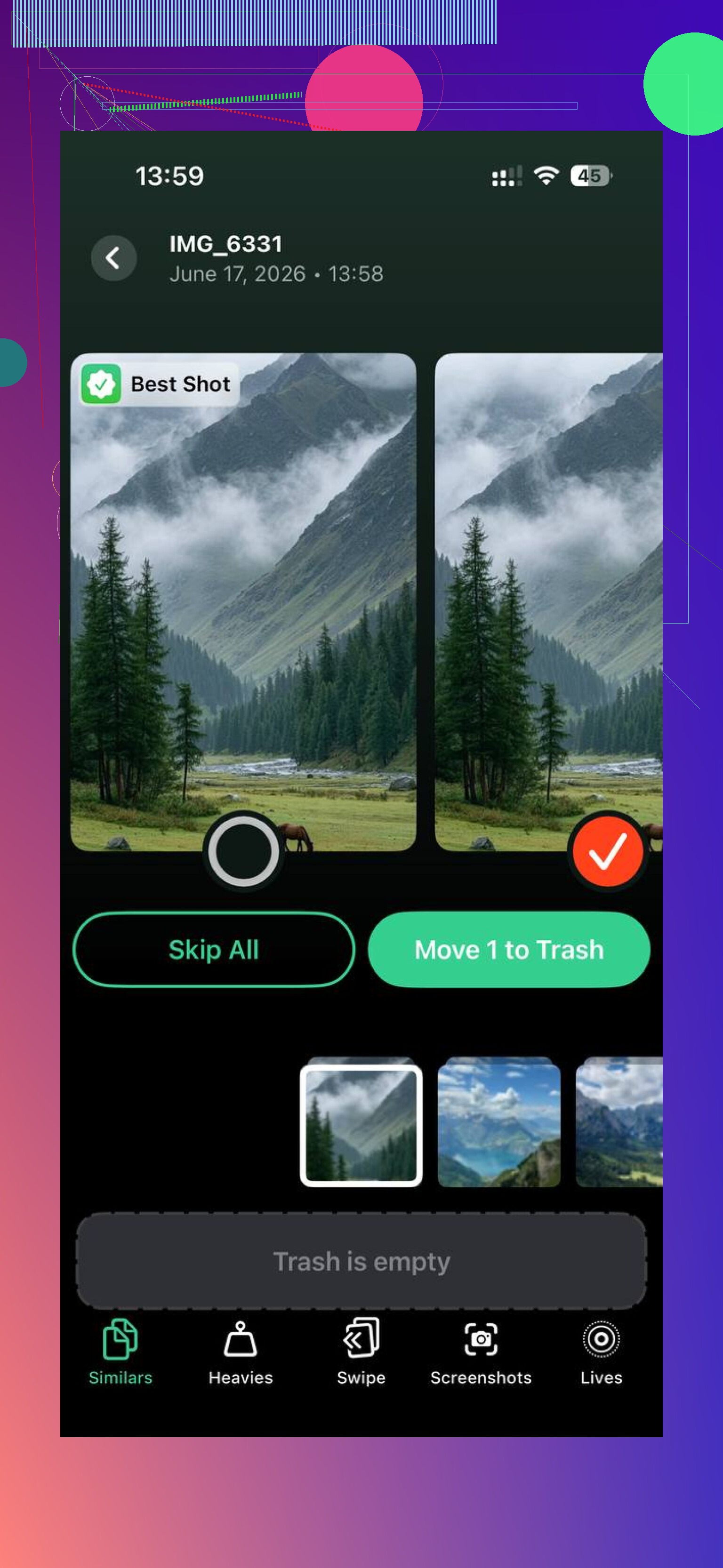
The part I found useful was the media sorting. There’s a Heavies section which puts the biggest files up front, so you see fast which videos are eating 1GB or 2GB by themselves. That helped more than scrolling through the whole library. I found old 4K clips I forgot existed, and deleting a few of those freed more room than removing hundreds of pictures. There’s also a Similars section for near-duplicate photos. I take multiple shots of the same thing all the time, so this cleaned up a pile of clutter.
One detail I cared about was privacy. From what I saw, it processes on the device instead of pushing your photos off to some random server. It also shows file sizes clearly, screenshot by screenshot, video by video, so you know what you’re removing before you tap anything. After I cleared around 15GB, the lag eased up fast. The phone felt normal agian, or close to it.
If your goal is avoiding a subscription, the practical order I’d use is this. First, clear cache and offload unused apps. Next, turn on Optimize iPhone Storage if iCloud still has room. After that, back photos up to another free service or an external drive. If your library is a mess, use a cleanup tool to find giant videos, duplicates, and screenshots faster. That got me out of the red without paying Apple every month.
11 Likes
Nope. You do not buy more internal iPhone storage later. Apple sells bigger storage only when you buy the phone. After that, your choices are monthly iCloud, local cleanup, or external storage.
I agree with @mikeappsreviewer on the main point, but I would skip relying on cloud space first if you want zero signups. Fastest one-time fix is a USB-C or Lightning flash drive. Prices are often around $25 to $60 for 128GB to 256GB. Move big videos and photo batches off the phone, then delete them from Photos and Recently Deleted. That frees space now, no monthly fee.
Another solid option is a one-time phone-to-computer transfer. On a Mac, use Image Capture. On Windows, use the Photos app or File Explorer. Save your media there, then remove it from the iPhone. Boring, but it works.
For cleanup, Clever Cleaner is worth a look if your library is messy. It helps spot large videos, duplicates, and screenshots faster. This short explainer shows what it does in a simple way, see how Clever Cleaner clears iPhone storage fast.
If your phone is full and updates keep failing, aim to free 8GB to 12GB first. iOS updates often need a chunk of temp space. Annoying, but yup, taht’s how it goes.
Nope, not really. You can’t buy more internal iPhone storage as a one-time add-on. That part is soldered in and fixed from day one. Apple only gives you two real paid paths: buy a new phone with more storage, or pay monthly for iCloud. So on the core question, @mikeappsreviewer and @vrijheidsvogel are right.
Where I slightly disagree is the idea that external drives are always the “simple” answer. They work, sure, but for a lot of people they become one more gadget to manage, and if you forget to actually delete the copied files from the phone, you gain nothing. Seen that happen way too many tiemes.
If you want no signup and no subscription, the most practical one-time move is:
- Transfer photos/videos to a computer.
- Delete them from the iPhone.
- Empty Recently Deleted.
- Restart the phone.
Also check Settings > General > iPhone Storage and look at the app list sorted by size. Some apps like Messages, TikTok, Instagram, Spotify, and Podcasts can hoard a stupid amount of local data. In some cases, deleting and reinstalling the app clears cached junk better than offloading.
One more thing people skip: if you shoot in ProRAW, 4K, or keep downloaded Netflix/Spotify files, that storage disappears fast. Changing camera settings going forward can stop the problem from coming back.
If your photo library is a mess, Clever Cleaner is probly the easiest shortcut for finding large videos, duplicate pics, and screenshots without paying for a subscription. And if you want a better breakdown of cleanup tools, this guide on the best AI cleaner app for iPhone is easier to read than most “Clever Cleaner test” pages floating around.
Short version: you cannot buy more built-in iPhone storage one time. You can only free space, move files off, or replace the phone.
One thing I’d add to what @vrijheidsvogel, @cazadordeestrellas, and @mikeappsreviewer said: check whether System Data is the real problem. A lot of people assume photos are the issue, but sometimes iOS logs, Safari offline data, message attachments, and failed update files bloat storage hard.
If you want zero signup and zero subscription, the only “buy once” answer is not more iPhone storage, it’s buy once for somewhere else to put your stuff. But before spending anything, I’d try this:
- Delete old iPhone update files in Settings > General > iPhone Storage
- Remove big message attachments from Messages
- Clear downloaded media in streaming apps
- Delete and reinstall one or two bloated apps instead of only offloading them
- Empty Recently Deleted in Photos and Files
Small disagreement with the external-drive crowd: great backup tool, not always great daily solution. They help, but they do not magically expand the phone itself.
If photo cleanup is the bottleneck, Clever Cleaner is decent for spotting large videos and duplicates fast.
Pros: simple view of heavy files, faster than manual cleanup, useful for messy libraries.
Cons: still requires you to review deletions, won’t increase internal storage, less useful if your storage issue is mostly app data or System Data.
Bottom line: you cannot purchase more built-in iPhone storage later. You can only reclaim it, move files off, or upgrade phones.