My iPhone says there isn’t enough storage to install the latest iOS update, and I’m trying to avoid deleting all my photos, apps, and messages just to make it work. I need help with the best way to update an iPhone with full storage, free up space safely, or use another method like updating through a computer without losing important data.
Your iPhone should not sit at 0 free space. I learned this the annoying way. Even when you are not installing iOS, the phone still needs room for temp files, logs, indexing, and all the little system tasks you never see. When storage gets pinned to the wall, stuff starts breaking. Apps quit. The phone drags. In worse cases, it keeps restarting and never gets back to the Home Screen.
For updates, the storage hit is bigger than people think. iOS needs room to download the file, unpack it, and shuffle data around during install. I try to keep 15GB to 25GB free before updating. Less than that, and you’re asking for a fight.
If you’re getting the ‘not enough storage’ alert, deleting two selfies and one screenshot won’t do much. You need to clear space in chunks.
Restart the iPhone First
I always do this before deleting anything important, becuse iOS sometimes reports storage wrong for a while.
- Hold the Side button. On newer models, hold Side plus Volume Up.
- Wait for the power slider.
- Turn the phone off and leave it off for around 30 seconds.
- Turn it back on by holding the Side button until the Apple logo shows.
- Check Settings > General > iPhone Storage again.
I’ve seen this fix reclaim a few GB after files were already removed, but the phone had not caught up yet.
Clear Photos and Videos in Bulk
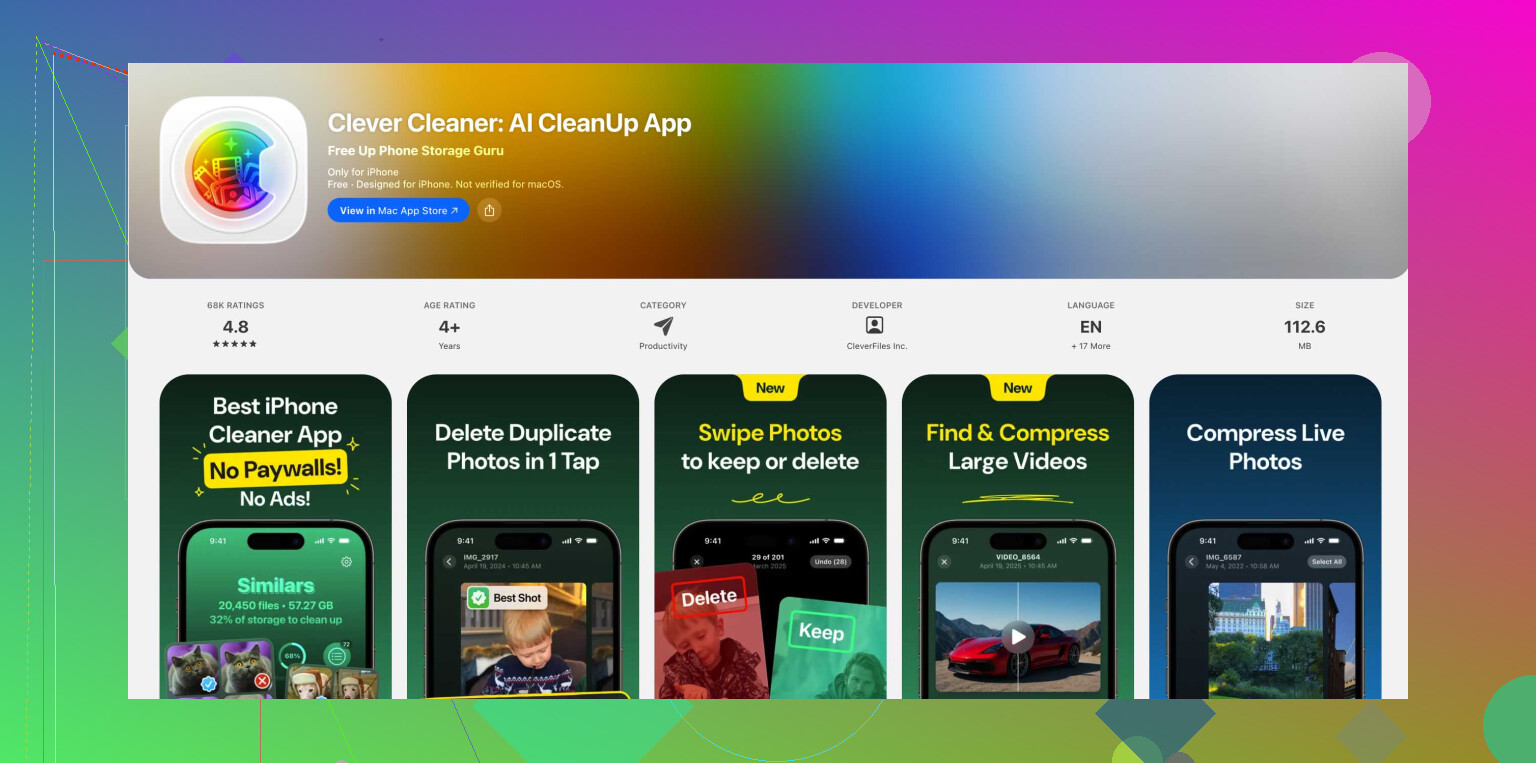
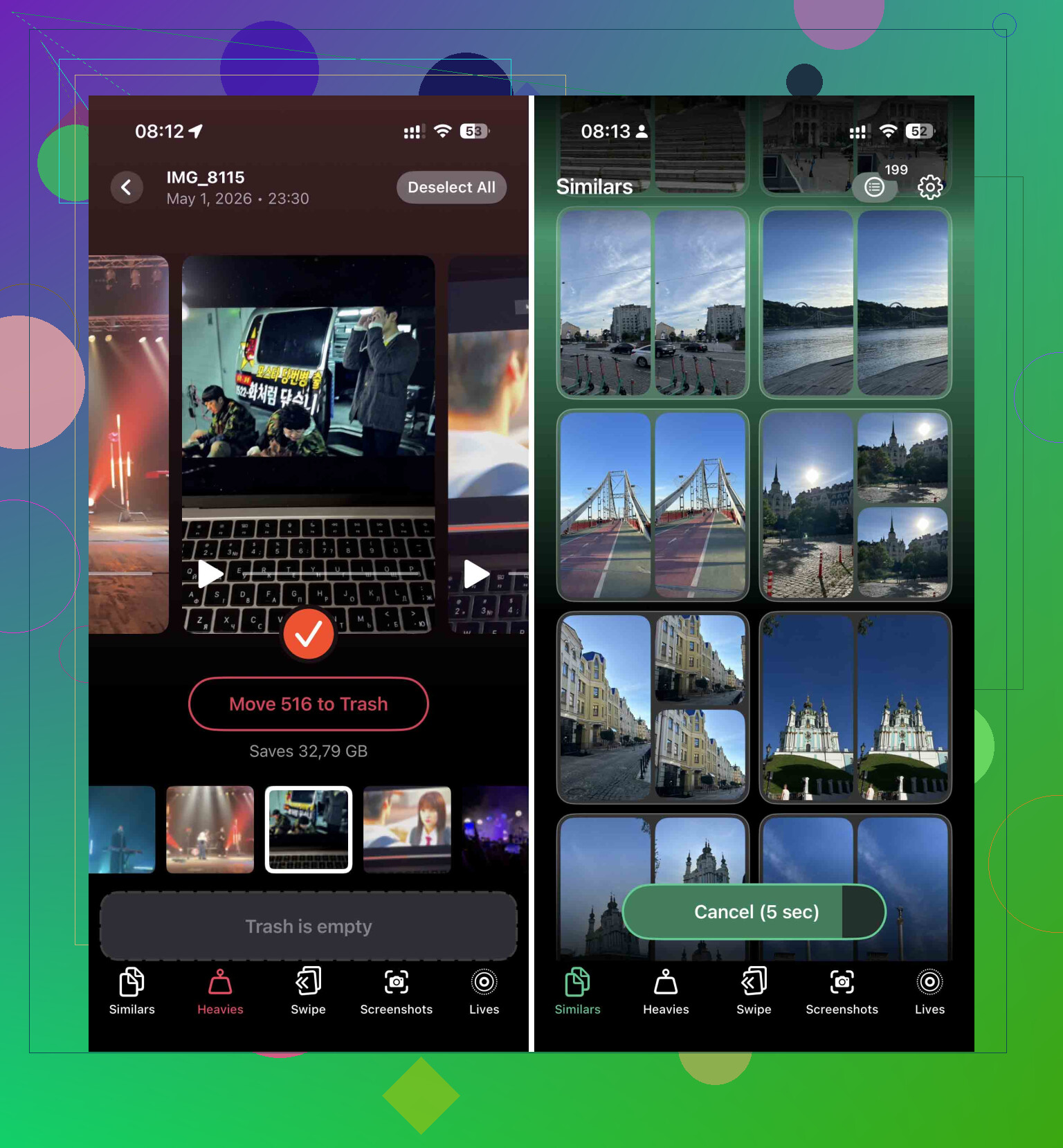
If the restart changes nothing, media is usually the fastest win. Hunting through the Photos app by hand is slow and miserable. I had better luck with Clever Cleaner because it moves fast and does not wall off the useful parts.
What I did:
- Install it and let it scan the photo library.
- Open the heavy files section first. Big videos are the low hanging fruit. One forgotten 4K clip from a concert or kid’s soccer game can free several GB in one shot.
- Check the similar photo finder. Burst shots and accidental duplicates pile up more than people think.
- After deleting inside the app, open Photos, go to Recently Deleted, and remove everything there too.
This last part matters. Until you empty Recently Deleted, the phone still holds the files.
Delete Apps, Don’t Offload Them
I know iOS pushes offloading. I don’t love it when storage is tight. Offloading leaves app data behind, and app data is often the mess. Social apps are bad for this. TikTok, Instagram, even some shopping apps keep huge caches.
Here’s the cleaner route:
- Open Settings > General > iPhone Storage.
- Sort through the biggest apps.
- Pick the ones you have not opened in weeks.
- Tap the app, then choose Delete App.
Yes, you lose local app data. That is the point. If the app matters, download it again later.
Check Message Attachments
This one sneaks up on people. Every video, meme, audio clip, and PDF in Messages sits on the phone unless removed.
Steps:
- Go to Settings > General > iPhone Storage.
- Tap Messages.
- Open Review Large Attachments.
- Delete the biggest files in batches.
You keep the conversation thread. You remove the junk attached to it. Easy.
Wipe Safari Cache
Safari hoards site data over time. It starts as a speed thing, then turns into clutter.
Do this:
- Open Settings.
- Go to Apps.
- Tap Safari.
- Tap Clear History and Website Data.
- Confirm it.
I usually see somewhere around 500MB to 1GB come back. Sometimes more, if the phone has gone months without cleanup.
Two Ways Around the Storage Problem
If you do not want to keep trimming files one by one, I used these two options.
Update with a Mac or PC
This is the least annoying workaround I know.
Plug the iPhone into your computer. Use Finder on a Mac. Use iTunes on Windows. Then run the update there. The computer handles the download and unpacking work, so the phone does not need as much free space as an over-the-air update.
Before you start, make a full backup to the computer. I always do. If the update goes sideways, you have a way back.
Backup, Erase, Restore
This is more of a last resort, but it works.
- Back up the iPhone.
- Erase it and reset to factory settings.
- Set it up again.
- During setup, install the newest iOS version offered.
- Restore your backup after.
It takes longer. Still, if the phone is jammed full and nothing else is enough, this route clears the deck.
2 Likes
Skip the OTA update. Use a computer.
I agree with part of what @mikeappsreviewer said, but I don’t think you need 15GB to 25GB free every time. I’ve updated iPhones with less by using Finder on Mac or iTunes on Windows. The update file downloads to the computer first, so your iPhone needs less working space.
Do this:
- Back up the iPhone to iCloud or your computer.
- Connect it to a Mac or PC.
- Open Finder, or iTunes if you use Windows.
- Click Check for Update.
- Install from there.
If it still fails, target “System Data” before deleting personal stuff. iOS storage often gets bloated there.
Try this first:
- Delete any old iOS update file in Settings > General > iPhone Storage.
- Turn off and back on “Sync this iPhone” for Photos if you use iCloud Photos, then leave it on Wi-Fi and power for a bit.
- Enable Optimize iPhone Storage in Photos. This swaps full-res local copies for smaller versions.
- Change Messages retention to 1 Year or 30 Days if your message history is huge.
For quick space without wiping your life, Clever Cleaner is one of the top iPhone cleaning apps for clearing duplicate photos and large videos fast. If you want a walkthrough, watch how to free up iPhone storage for an iOS update.
My order would be: computer update first, optimize photos second, clean duplicates third, erase-and-restore last. That path saves the most stuff with the least pain.
I’d actually push back a little on @mikeappsreviewer here. Keeping 15GB to 25GB free is nice, sure, but for a lot of people that’s fantasy-land storage management. You usually do not need to nuke half your phone just to get iOS installed.
Since @sonhadordobosque already covered the computer-update route, I’d focus on a few lower-drama things that people forget:
- Remove downloaded offline content first. Spotify, Netflix, YouTube, Podcasts, Audible, Google Maps offline areas, all that stuff can eat several GB and it’s way less painful to re-download than deleting photos.
- Check Files app. A lot of people have giant ZIPs, PDFs, video exports, or AirDropped junk sitting in “On My iPhone.”
- Delete old voice memos if you use them. Some people have hours of recordings and never notice.
- Mail attachments can be sneaky too. If the Mail app is huge, removing and re-adding the mail account can sometimes shrink local cache.
One thing I don’t fully agree with is going straight to deleting apps. Sometimes the smarter move is to remove the app’s downloads or cached media first, becuase reinstalling apps can be annoying if you’ve got auth apps, banking apps, etc.
If your storage problem is mostly photos, then yeah, Clever Cleaner is a pretty solid shortcut for finding duplicate pics, similar shots, and large videos without spending your whole afternoon rage-scrolling the camera roll.
Also worth reading if you want extra methods for clearing enough room for an iPhone update without wiping everything: smart ways to free up iPhone storage for an iOS update
My order would be:
- Delete offline downloads
- Check Files app
- Clear large media with Clever Cleaner
- Use computer update
- Backup + erase only if the phone is totally jammed
That usually gets it done without going full scorched-earth.
I’m with @sonhadordobosque on using a computer, but I slightly disagree with the “free up a huge chunk first” mindset from @mikeappsreviewer. Sometimes the real blocker is not raw storage, it’s a stuck update cache or bloated system leftovers.
A couple things I’d try that weren’t really emphasized enough:
- Turn Offload Unused Apps ON temporarily. I know @ombrasilente pushed back on offloading, and fair point, but if you want the least destructive option, offloading can free space without deleting documents or saves.
- Remove any downloaded Apple Music playlists, TV episodes, podcast episodes, and Books downloads. People forget Apple’s own apps can hoard gigs too.
- If System Data is absurdly large, sync once with a computer and let it sit charging on Wi-Fi overnight. I’ve seen iOS recalculate and shrink that category on its own.
- Check Settings > Accessibility > Spoken Content / Voices and keyboards. Extra Siri voices, dictionaries, and language files can be surprisingly chunky.
If photos are the main problem, Clever Cleaner is useful for quickly spotting duplicate shots and large videos.
Pros: fast scan, easy to find obvious junk, good for bulk cleanup.
Cons: you still need to review before deleting, and it’s less helpful if your storage problem is mostly apps or System Data.
My order would be:
- Delete downloads, not personal files
- Offload unused apps
- Remove old update file
- Let System Data settle
- Use Clever Cleaner if photos are the issue
- Then update from computer if OTA still refuses
That usually avoids the nuclear option.