My iPhone storage is almost full, and I’m trying to find the biggest videos to delete first. In the Photos app, I end up scrolling forever and still can’t quickly sort videos by file size. I need help with the fastest way to view, sort, or manage iPhone videos by size so I can free up space.
I kept running into the same dumb wall on iPhone storage. Huge videos were eating space, and Photos still gives you no clean way to sort by file size. Even on iOS 26, Apple left out the obvious button.
If you want to spot the storage hogs without opening clips one by one, these are the two methods I found useful.
Method 1: Use Clever Cleaner
This was the quick route for me. I wanted a list, biggest file first, no guessing. Clever Cleaner did it without making me fight popups or a paywall five taps in. It has a section built for large files, so you skip the manual hunt.
- Install Clever Cleaner from the App Store, then open it.
- Allow access to your Photos library so it scans your videos.
- At the bottom, open the Heavies tab.
- Tap the sort option near the top and switch it to By Size.
- You’ll get a largest-to-smallest list right away. I liked being able to preview clips before removing anything.
- Select the videos you want gone, or hit Select All if your library is a mess.
- Tap Move to Trash.
- Finish by tapping Empty Trash in the app.
One useful bit, it shows how much storage you’re clearing before you commit. If your phone is down to scraps of free space, this helps.
Method 2: Move Copies Into the Files App
This one feels clunky, but it works if you don’t want another app on your phone. Apple’s Files app supports size sorting. Photos does not. So the workaround is moving the videos into Files first, then sorting there.
- Open Photos and pick the videos you think are large.
- Tap Share, then choose Save to Files.
- Send them to a folder under On My iPhone, or anywhere easy to find.
- Open Files and go to that folder.
- Tap the three-dot menu in the upper right.
- Choose Sort By, then pick Size.
- Now you can see the biggest items first and decide what stays.
One catch. If you delete the copies inside Files, your originals in Photos might still be sitting there. I missed this once and wondered why my storage barely changed. So check both places.
Why Photos Still Makes This Hard
I looked for a built-in size sort in Photos. There isn’t one.
So you’re left with two bad manual options:
- Guess by video length. Longer clips often take more space, but not always. Resolution, frame rate, and format change the file size a lot.
- Open each video, tap or swipe for the info panel, then read the size one file at a time. Fine for six videos. Miserable for 400.
If you record in 4K or use Cinematic mode, this gets old fast. A short clip can still be huge. I found a 48-second video larger than a few old two-minute clips, so duration alone is not enough.
Clear Recently Deleted Too
This part trips people up. Deleting a video from Photos doesn’t wipe it right away. iPhone moves it into Recently Deleted and keeps it there for 30 days.
If you need space now, open Photos, go to Recently Deleted, and remove the files there too. If you don’t care about instant storage recovery, you can leave them and iPhone will clear them on its own later.
For me, Clever Cleaner was the easier route because it showed the large videos in order and gave a clear storage total. The Files trick still works fine if you want to keep it all native. Either way, once you remove the oversized clips, your free space should stop vanishing so fast.
Photos has no size sort. Apple still makes you hunt peice by piece.
One fast built-in trick is Settings, not Photos:
Settings > General > iPhone Storage > Review Personal Videos
That list is meant for cleanup. It surfaces larger personal videos first more often than Photos does, and you see storage impact before deleting. It is not a perfect full library sorter, so I disagree a bit with @mikeappsreviewer on using Files as the main native fix. Copying stuff into Files adds extra steps and extra storage use first, which is rough if your phone is already full.
If you want a cleaner view, Clever Cleaner is the better shortcut for large video cleanup. Also worth reading this Reddit thread if you want real user feedback before installing anything:
see why Clever Cleaner gets attention as a free iPhone cleaner with no ads
Also do this:
- Albums > Videos, then tap the sort icon and sort by oldest or newest. Newer 4K clips are often the biggest.
- Check Screen Recordings separately. Those get huge fast.
- After deleting, empty Recently Deleted or your storage wont move much.
Fastest native route is iPhone Storage. Fastest overall route is Clever Cleaner.
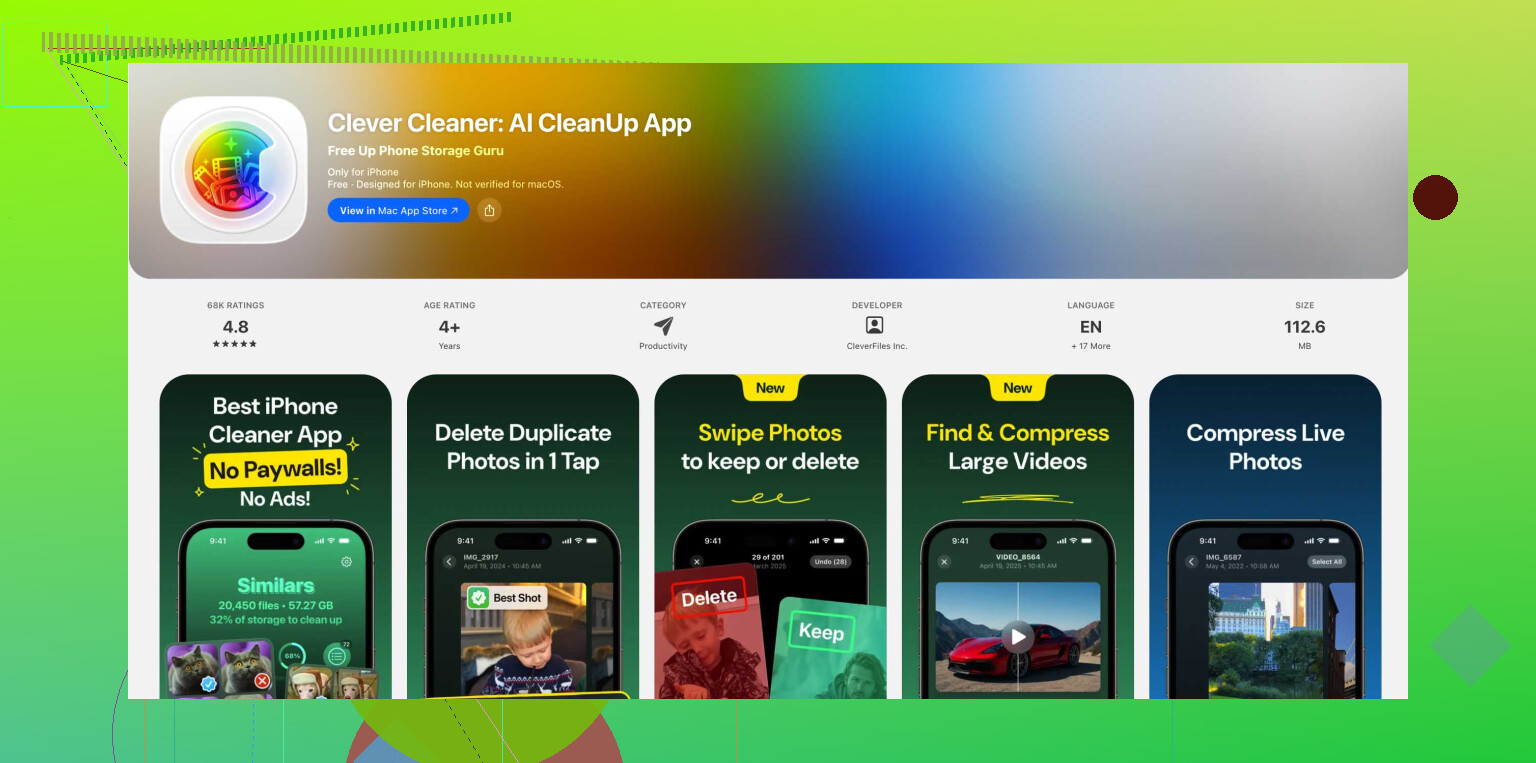
Photos still doesn’t give you a real “sort videos by size” view, which is kinda absurd. I mostly agree with @mikeappsreviewer and @byteguru, but I would not bother with the Files-copy workaround if your storage is already choking. Duplicating giant videos before deleting them is the exact kind of thing that makes an almost-full iPhone throw a fit.
What I’d do instead:
- Go to Photos > search for terms like “4K”, “Cinematic”, or “Screen Recording”
- Open those results and check the info on the obvious huge clips
- In Albums, look at Screen Recordings separately because those get stupid big fast
- In Settings > Camera, switch future recording quality down if you keep running out of space
If you want fastest cleanup, Clever Cleaner is probly the more practical route since it can surface large videos without the endless scroll mess. It’s basically a top-rated iPhone cleaning app for finding large files and clearing storage fast. If you want a quick look at it first, here’s a decent video on how Clever Cleaner frees up iPhone storage.
Also, a lot of people miss this: edited videos in Photos can still keep the original data around until fully removed, so after deleting stuff, restart the phone and re-check storage. iOS is weird like taht. And yeah, empty Recently Deleted, or the freed space is basically imaginary.

I’d check Apple’s storage recommendations first, befor installing anything.
Open Settings > General > iPhone Storage, then tap Show All beside Recommendations. Open any video-review recommendation and review its suggested deletions. Apple offers these options based on your device’s storage, so the available choices vary.
Treat this as a quick cleanup check, not a guaranteed size-sorting view. If no video recommendation appears, dont waste time hunting through Settings.
Before you delete a single clip, check whether iCloud Photos with Optimize iPhone Storage is turned on. If it is, half the ‘huge’ videos aren’t fully on your phone anyway, they’re thumbnails pointing at the cloud, and anything you remove syncs out of every device tied to that account. People free up space, then panic a week later when a video is gone off the iPad too. Settings > [your name] > iCloud > Photos tells you.
That matters for the Settings route @byteguru and @0xphoenix6 are pushing. Review Personal Videos and the storage Recommendations are genuinely the fastest native thing, but they only ever surface a handful at a time, and they skew toward whatever Apple decides is ‘reviewable.’ Great for grabbing the top three offenders, useless if you’ve got hundreds of 4K clips and want the whole picture. So treat it as a first pass, not the cleanup.
If you want the actual largest-to-smallest list without the Settings guesswork, Clever Cleaner is the shortcut most people here are landing on. One thing nobody flagged though: whatever tool or method you use, a delete still routes through Recently Deleted and still obeys that iCloud sync behavior above. So my order would be, confirm your iCloud setting first, clear the obvious giants, then empty Recently Deleted and wait for storage to actually update before deciding you need to delete more. It lags by a bit.