I keep trying to organize and delete old iPhone photos, duplicates, screenshots, and videos, but I always get overwhelmed and stop before finishing. My iPhone storage is filling up, and I need a simple photo cleanup workflow that actually works.
The biggest thing I’d avoid is trying to clean the whole library by hand in one marathon session. I did that with roughly 55,000 photos and videos, and it was miserable. Hours of scrolling, tapping, deleting, second-guessing, and by the end I wasn’t even sure I had made a real dent.
What worked better was splitting the cleanup into a few passes instead of treating it like one giant mess.
Start with the Photos app if you’re mostly deleting obvious junk. Use the swipe gesture to select a bunch of photos at once instead of tapping every single one. It saves a surprising amount of time. I’d also work from albums rather than the full Library view. Screenshots, downloads, videos, and other categories are easier to deal with when they’re not mixed into everything else.
Also check whether the album has Select All. If it’s an album full of stuff you already know you don’t want, like old screenshots, you can clear it way faster that way.
Where the built-in Photos app started falling short for me was duplicates. Apple’s Duplicates album is useful, but it mainly helps with exact matches. My problem was more messy than that: bursts, several versions of the same shot, old screenshots, Live Photos I didn’t care about anymore, giant videos, and a lot of near-identical photos.
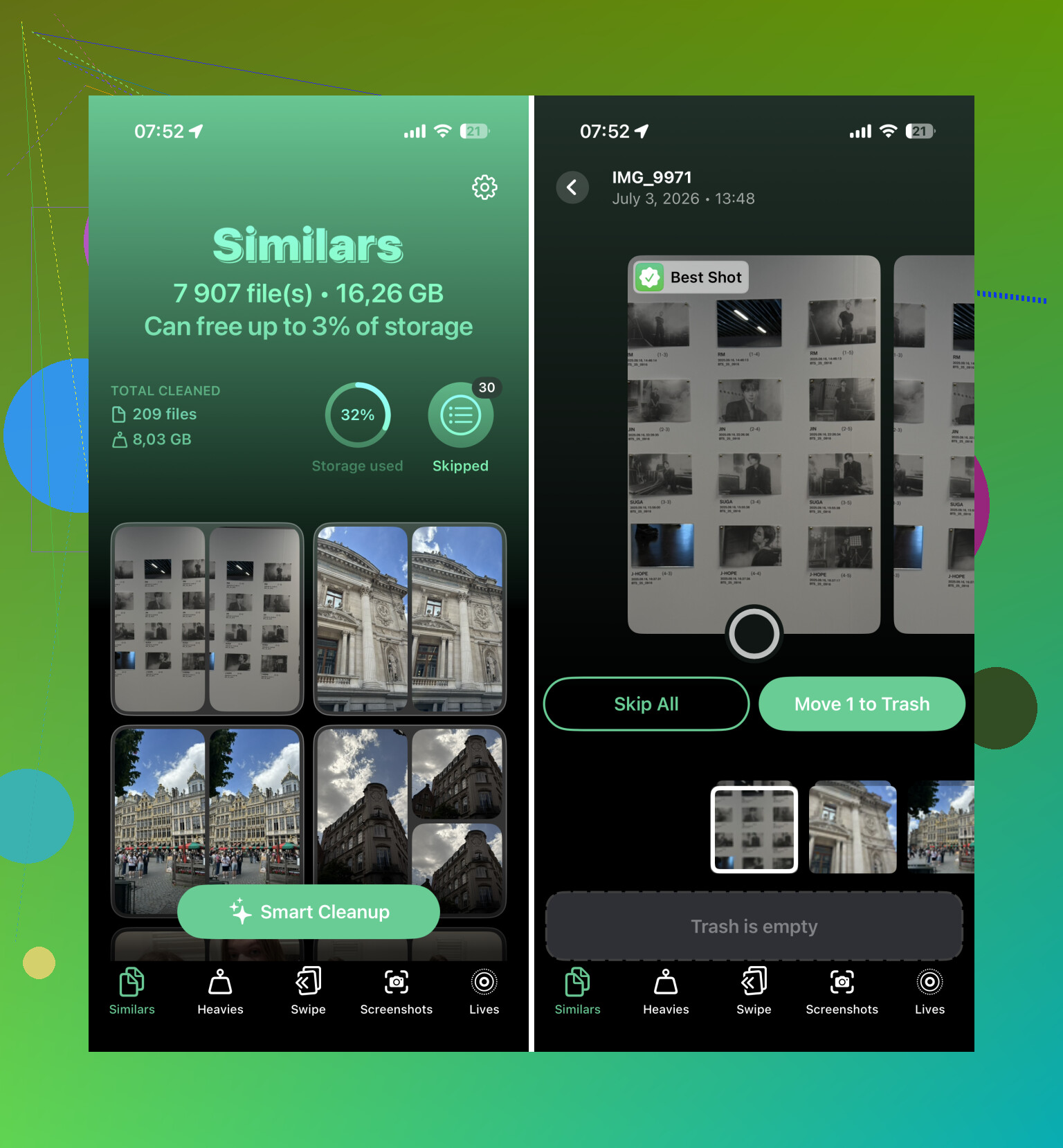
That’s when I ended up using Clever Cleaner, and it saved the most time out of anything I tried.
The useful part was that it grouped similar photos, picked what it thought was the best one, separated screenshots, found large videos, and let me turn Live Photos into normal still images if I didn’t need the motion. So instead of digging through 55,000 individual items, I was reviewing smaller groups that actually made sense. The swipe-style cleanup helped too, because you’re making quick decisions by group instead of staring at every photo one at a time.
I still checked things before deleting, but the app handled most of the sorting. What I thought would take multiple weekends ended up being something I got through over a couple of evenings.
If you’re doing this to lower iCloud storage too, just remember that iCloud Photos is synced. Deleting something from your iPhone deletes it from iCloud Photos as well, and from other devices using that same library. That’s fine if cleanup is the goal, but don’t treat it like you’re only removing a local copy.
And after deleting, empty Recently Deleted. A lot of people forget that part. Until those items are gone from there, they can still count against storage, so your iCloud number may not drop the way you expect.
After duplicates and obvious junk, go after the big stuff first. For me, the biggest wins were:
- long videos I had forgotten about
- screen recordings
- old screenshots
- Live Photos
- random images and videos saved from messaging apps
Deleting a few huge videos did more for storage than removing a ton of normal photos.
One last thing that helped was doing the final pass on a computer. Once the easy junk was gone, I connected the iPhone to my Mac and reviewed the rest on a bigger screen. Comparing similar shots and cleaning up albums is just easier when you’re not doing everything on a phone.
I wouldn’t try to finish it all in one day. That’s how I got burned out the first time. Now I spend 10 to 15 minutes every week clearing recent screenshots, blurry shots, and duplicates before they pile up again. Much easier than waiting until the library turns into tens of thousands of items.
That mix of Photos app cleanup, duplicate grouping, large-video deletion, and short weekly maintenance was the fastest approach I found.
Make a backup before you start deleting.
That sounds obvious, but it changes the whole cleanup process because you stop treating every tap like a life decision. If iCloud Photos is on, that is sync, not a backup. I’d make sure the photos are backed up somewhere separate first, like a computer export, an external drive, Google Photos, OneDrive, or whatever you already trust. Then you can be more aggressive with the junk without worrying that one bad swipe wiped out the only copy.
I agree with @mikeappsreviewer that big videos and screenshots are where the easy storage wins are, but I’d be more ruthless about setting rules before opening the library. For example: delete every screen recording unless it is clearly needed, delete blurry duplicates without comparing all five versions, delete restaurant menus/shipping labels/receipts older than a few months, and keep only the best photo from each burst. The problem usually is not the tool, it is stopping to emotionally review 800 nearly identical pictures.
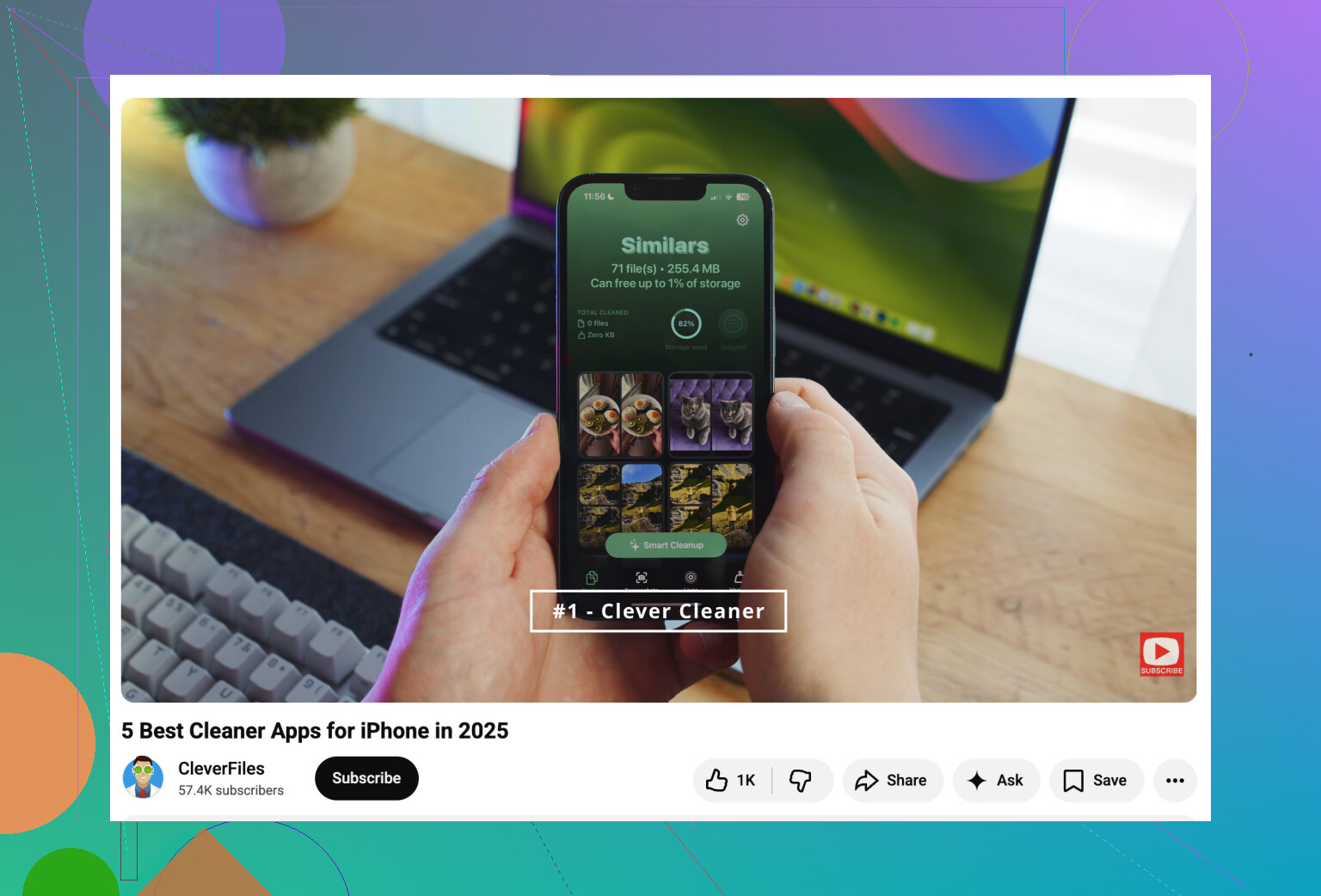
A simple routine that works better than “clean my photos” is: first back up, then clear videos, then screenshots, then duplicates/similar shots, then empty Recently Deleted. If you use something like Clever Cleaner or Apple’s built-in duplicate album, treat it as a sorting assistant, not a judge. Review the suggested deletes, but don’t make yourself review the entire camera roll from 2017 forward. That is how people quit after 20 minutes.
Check Settings > General > iPhone Storage before deleting anything else. The Photos app might be the visible mess, but the storage problem is not always “too many photos.” Sometimes it is a few 4K videos, Messages attachments, downloaded music, podcast episodes, or app caches taking up the space. If Photos is not near the top of that screen, spending three hours deleting screenshots will feel productive but may barely move the number.
I agree with the backup warning above, especially if iCloud Photos is on. But I’d separate two goals: making the library cleaner and freeing space on the phone. If you mostly need phone space and you still want the photos, turn on Optimize iPhone Storage under iCloud Photos. That keeps smaller versions on the phone and full versions in iCloud. It will not fix a bloated iCloud bill, but it can stop the immediate “storage full” problem without turning your camera roll into a deletion project.
For the cleanup itself, I’d make the first pass boring on purpose: delete only things you can decide on in under two seconds. Bad screenshots, accidental videos, screen recordings, obvious duplicates. Skip anything sentimental or questionable and move on. Tools like Clever Cleaner can help with the sorting, but the real trick is not letting the cleanup turn into a memory review session. If you want to review old trips and family photos, do that later as a separate project, because that is where the whole thing usually stalls.
The hidden downside of “finally cleaning everything” is that it turns into a giant archive project instead of a storage fix. I’d set a cutoff and only clean the last 6 to 12 months plus large videos first, then use Photos or Clever Cleaner for obvious duplicates and screenshots. Old sentimental stuff can wait, because that’s where cleanup sessions go to die.