My iPhone storage is almost full and it’s slowing everything down. I’ve deleted a few apps and photos, but it barely made a difference, and I keep getting “storage almost full” warnings. What are the best ways to safely clear space, including hidden files, caches, and large backups, without accidentally losing important photos, messages, or app data?
I had the same “storage almost full” loop a few months ago. Deleting a few photos did nothing. What helped was going through it step by step and hitting the big hidden stuff.
Here is what worked for me on iPhone, without losing important data.
-
Check what is actually using space
• Go to Settings > General > iPhone Storage
• Wait a bit, let it load
• Look at the graph and the list of apps
• Tap each big app and see “Documents & Data”The biggest space hog in my case was Messages and social apps, not photos.
-
Offload unused apps, keep data
• Settings > General > iPhone Storage
• Turn on “Offload Unused Apps”
• Or tap an app and use “Offload App” manuallyThis removes the app, keeps your documents. When you reinstall, your stuff comes back if the dev supports it.
-
Clean up Photos safely
• Turn on iCloud Photos first if you have space in iCloud
Settings > Your Name > iCloud > Photos > Sync this iPhone
• Then turn on “Optimize iPhone Storage”
This keeps smaller versions on the phone and stores full ones in iCloud.After that
• Open Photos > Albums > scroll down to “Utilities”
• Clean “Recently Deleted”
• Clean “Duplicates”
• Check “Screen Recordings”, “Bursts”, “RAW”, “Live Photos”For extra safety, back up photos to a computer or external drive before deleting.
-
Clear Messages without losing everything
• Settings > Messages > Keep Messages > set to 1 Year or 30 Days
That removes old threads automatically over time.
• In Messages, tap a heavy conversation
Tap Contact at top > Info > scroll down
Check Photos, Videos, Documents, and remove only big stuff.I freed over 10 GB from old group chats alone.
-
Clean social and streaming apps
These apps cache a lot: Instagram, TikTok, Facebook, YouTube, Spotify, Netflix, etc.• Open each app
• Look in settings for “Clear cache”, “Offline content”, “Downloads”
• Delete downloaded playlists or shows you do not use
• If an app’s “Documents & Data” is huge and there is no clear button, delete and reinstall it.
Your login and server data stay with your account, but local junk goes away. -
Remove old offline maps and files
• Google Maps, Apple Maps, Waze
Clear old offline maps in each app’s settings.
• Files app
Open Files > On My iPhone
Delete things you do not need, like old PDFs, ZIPs, videos. -
Safari and mail cleanup
• Settings > Safari > Clear History and Website Data
• Settings > Mail
Remove old email accounts you no longer use
Re-add only the ones you need
• In Mail, delete old emails with big attachments, then empty trash. -
System data and “Other”
iOS labels some stuff as “System Data” or “Other”. You cannot clean it fully without a reset, but you can shrink it.• Restart the phone
• Make sure iOS is updated
• If storage is a mess and nothing helps, backup to iCloud or computer, then do:
Settings > General > Transfer or Reset iPhone > Erase All Content and Settings, then restore from backup.
This is more extreme, so only after backup. -
Use a cleaner helper app
If you want something easier, a storage manager app helps you see duplicates, huge videos, and similar photos in one place.
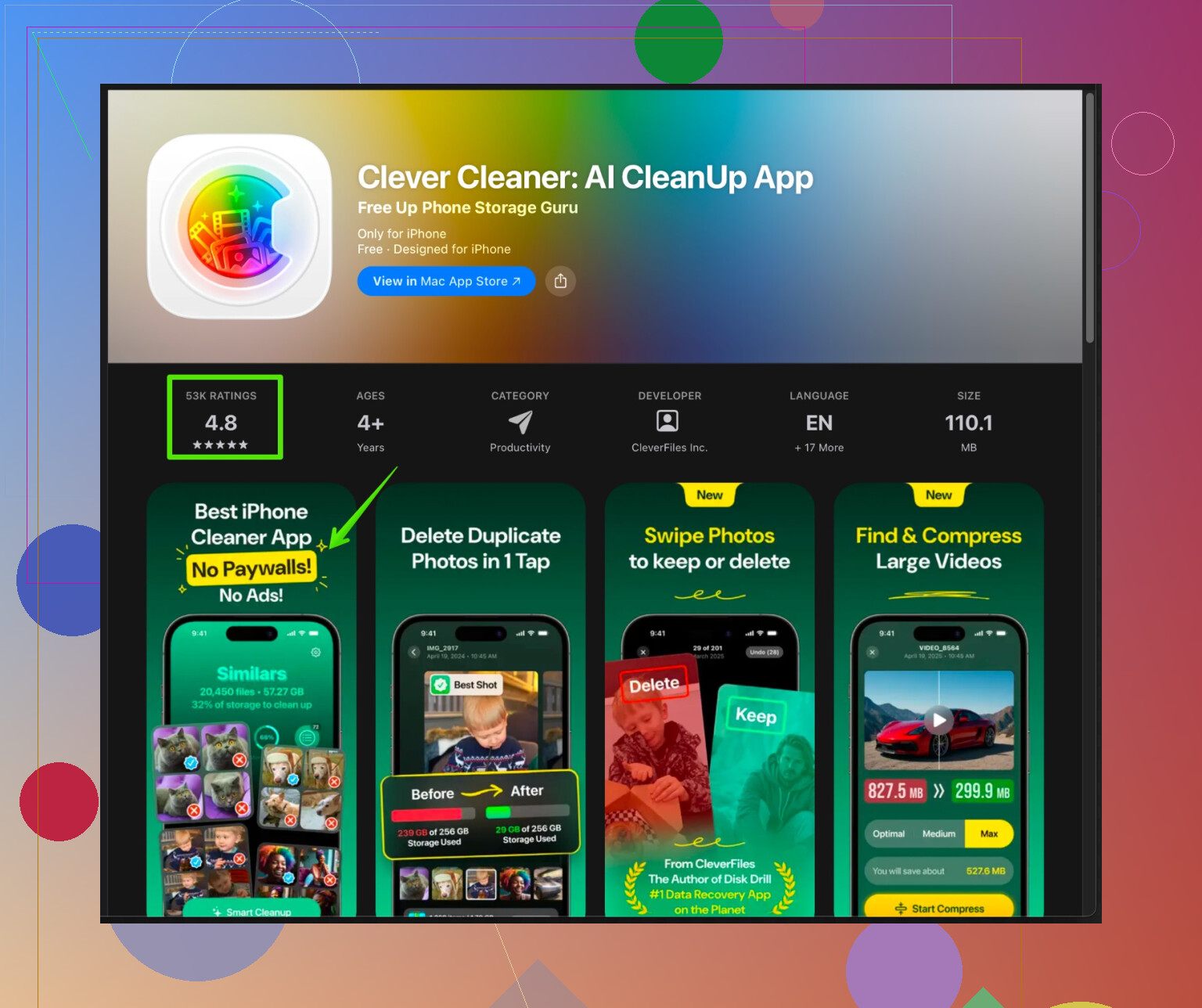
The Clever Cleaner App for iPhone helps sort large files, duplicate photos, similar shots, and old screenshots. It also helps manage contacts and tidy up junk that sits in corners of your storage.If you want to speed this whole thing up, try something like
smart iPhone space cleaning with Clever Cleaner
It gives you a visual overview of what eats space so you do not guess. -
Set things so it does not fill up again
• Turn on Optimize iPhone Storage for Photos
• Set Messages to keep 1 year or 30 days
• Avoid too many offline downloads in Netflix or Spotify
• Do a quick storage check each month in Settings > General > iPhone Storage
This took me about 30 to 40 minutes the first time. After that, storage stopped nagging and the phone felt faster again.
Honestly, once you’ve done the basics that @himmelsjager outlined, the “last few gigs” usually hide in places Apple does a terrible job exposing. You already tried deleting apps and photos, so here are some different angles that helped me when my 64 GB iPhone was basically a potato.
I’ll disagree with one thing: I would not jump to a full erase and restore unless you’ve tried these more targeted fixes first. A reset can shrink “System Data,” sure, but it’s overkill for most people and sometimes the junk creeps back anyway.
1. Attack app data from inside the apps
The iPhone Storage screen is nice, but it doesn’t tell you what specific junk is hiding. Some apps have deep internal caches that only clear from inside the app:
-
WhatsApp / Telegram / Signal
Settings in the app > Storage / Data usage
Sort by size and remove:- Forwarded videos
- Old voice messages
- Giant groups you no longer care about
I freed 6+ GB in WhatsApp alone just by nuking old media, without losing chat history.
-
Note & doc scanners (CamScanner, Adobe Scan, etc.)
Open the app, delete old scans, then empty its internal trash if it has one. Scanner apps are sneaky huge. -
Audio recorders (Voice Memos, call recorders)
Edit > select giant recordings > export the important ones to a computer / cloud, then remove from the phone.
2. Find “invisible” huge files and videos
The Photos app is bad at showing you true monsters unless you dig:
- Go to Photos > Library > All Photos
- Tap the three dots at top right > Filter > choose “Videos” only
- Sort by oldest or just scroll and look for long ones
Delete or export any 4K or long screen recordings.
- Go to Albums > Screenshots and wipe aggressively. Those pile up harder than you think.
- If you do a lot of editing, check Photos > Albums > Recently Edited and remove failed experiments.
If your phone is basically full, move big videos to:
- A computer via USB
- An external drive with a Lightning/USB‑C connector
- A cloud like Google Photos, then delete local copies
Just make sure you verify they’re viewable on the other device before deleting from the iPhone. Paranoid check but worth it.
3. Tame “offline everything” habits
Stuff that quietly downloads in the background is often worse than photos:
-
Podcasts
In Apple Podcasts or Spotify:- Turn off “Download episodes automatically”
- Remove old listened episodes in bulk, not one by one
Some people have 10+ GB in podcasts and never realize it.
-
Language learning / education apps
Duolingo, Babbel, Coursera, etc. often keep offline lessons. Check each app’s download section and wipe old units. -
Games with offline packs
A game might be 1 GB from the App Store but 5 GB after it downloads textures and extra content. Look for “downloaded content” or “resource packs” inside the game settings.
4. iCloud gotchas that still hog local storage
People think “I use iCloud, I’m safe” and then the phone is still bursting.
Things to actually check:
-
iCloud Drive
Open the Files app > Browse > iCloud Drive
Look for folders with big videos, raw photos, zips.
Even with iCloud, recent or frequently used items can stay local.
You can:- Move heavy stuff from iCloud Drive to a computer
- Or create a folder that stays only on the computer and not on the phone
-
Third party clouds (Dropbox, Google Drive, OneDrive)
By default they keep “recent” files locally cached.
In each app’s settings:- Disable “make files available offline” except for a few you really need
- Clear cached files
5. Stop iOS backup from bloating everything
Not talked about enough: if you use iTunes/Finder backups or other cloud services, you might be carrying around junk because it’s tied to backups.
- In Settings > Your Name > iCloud > iCloud Backup > Manage Account Storage
Tap Backups and check:- Old backups for older devices you don’t even own anymore
- Turn off backing up huge apps you don’t care about (games, etc.), then delete and reinstall them fresh on the phone so they aren’t bloated with years of saved data.
This does not directly free local storage instantly, but it lets you be more aggressive deleting stuff because you’re not trying to preserve junk in backups “just in case.”
6. Be picky about “Optimize iPhone Storage”
I’ll push back a bit on the idea that Optimize Photos alone is always safe. If your iCloud is almost full or unstable, you could end up with missing originals when you expect them.
If you use it, do it in this order:
- Make a full copy of photos to a computer or external drive. Test a few random files.
- Only then turn on:
- iCloud Photos
- Optimize iPhone Storage
- After a couple days of syncing, then start deleting obvious trash, duplicates, etc.
If your iCloud storage plan is tiny, I’d actually skip iCloud Photos and instead:
- Offload full-resolution photos/videos to a computer or external drive
- Keep only recent 3–6 months on the phone
It’s less seamless, but safer than relying on a 5 GB free iCloud plan that is constantly full.
7. Use a cleaner tool, but keep your brain on
Where @himmelsjager mentioned a helper app, I’ll add that these are useful but not magic. The trick is to use them as a visual map, not a “delete everything” button.
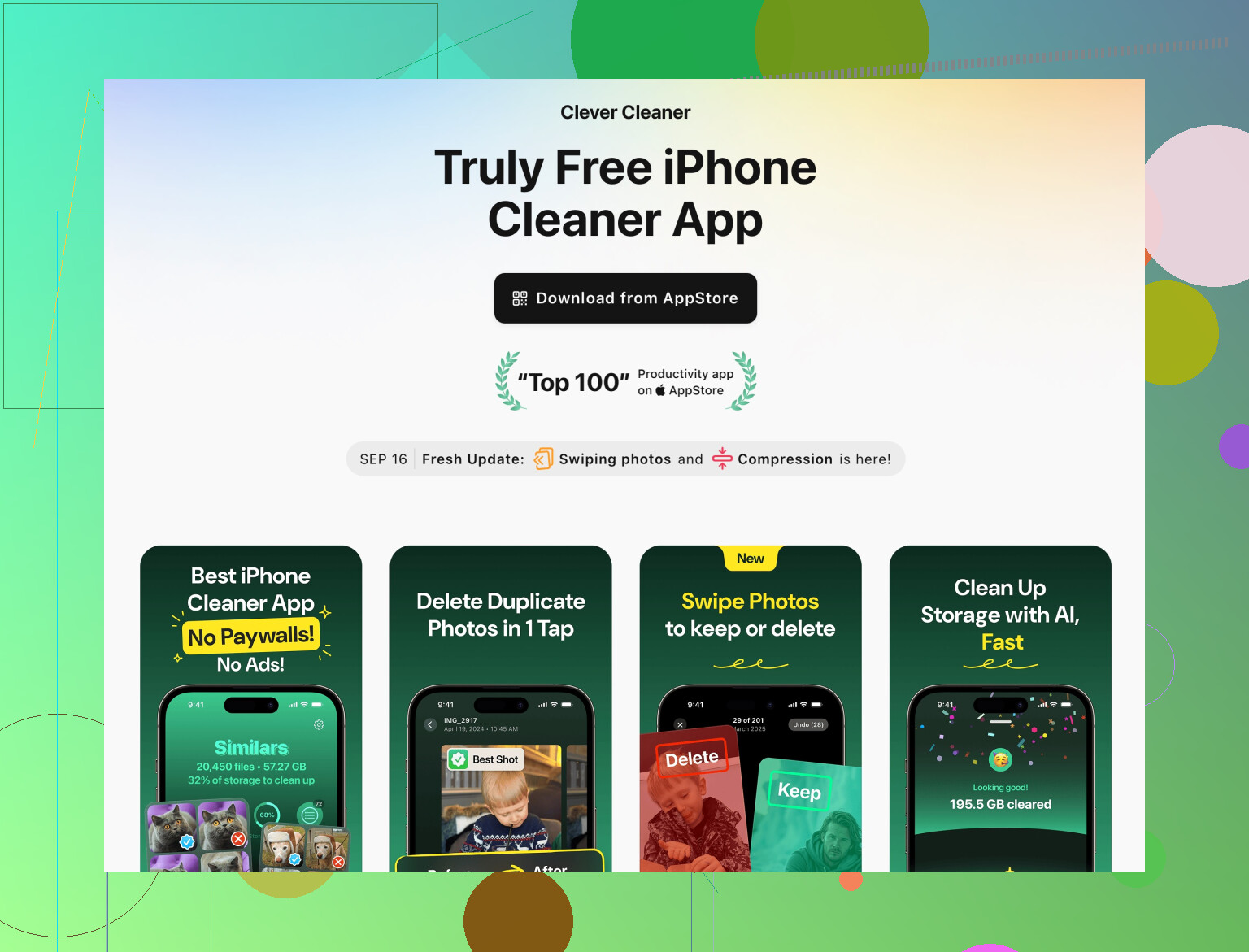
A decent option on iOS is the Clever Cleaner App, especially if your camera roll is chaos:
- It groups:
- Duplicate photos
- Similar shots (bursts, 10 almost identical selfies)
- Oversized videos and files
- Old screenshots
- Lets you bulk-select with previews so you don’t accidentally wipe meaningful stuff.
If you want to speed up the hunt for the really big junk, take a look at
smart iPhone storage cleanup with Clever Cleaner.
It basically turns the “what is eating my storage” guessing game into a clean visual layout where you can surgically kill the worst offenders.
Just don’t blindly accept every suggestion. Always skim the list, especially with similar photos and contacts.
8. After the deep clean, change habits slightly
If you want the “storage almost full” alert to stop coming back every month:
- Set a calendar reminder once a month:
- Open iPhone Storage
- Open Photos > Videos
- Open your top 3 messiest apps and clear downloads/caches
- Disable auto-downloads of:
- Large podcasts
- Netflix / other streaming series you already finished
- When you see a big video or screen recording you know you will never rewatch, delete it right away instead of “later.”
If you methodically hit: big videos, chat media, offline downloads, and hidden app caches, you can usually free 10 to 30 GB without touching your core stuff. It’s a bit of work once, then just minor maintenance after that.
Skip the stuff you already got from @mikeappsreviewer and @himmelsjager for a second and try to measure what is actually happening.
1. Check how close you are to the “red zone”
When iOS storage is over ~90–92%, the system starts behaving badly:
• Spotlight indexing slows
• Temporary files cannot be created
• Apps crash more often
So first, free at least 3–5 GB as a buffer. If you are under 2 GB free, every tiny action feels pointless until you break past that threshold.
2. Target “temporary but sticky” data
They covered visible hogs like messages and photos. What often survives those cleanups is semi-temporary junk:
-
Airdrop / imports that never landed somewhere sane
Open Files > On My iPhone and go through app folders. Many “one time” imports from years ago just sit there. -
Third party photo editors (Lightroom, VSCO, CapCut, InShot, etc.)
These keep:
• Original imports
• Edited exports
• Their own cache
So a single edited video might exist 3 times. Inside each app, specifically look for: “Drafts”, “Projects”, “Cache”, “Exports.” -
Keyboard and translation apps
Not huge individually, but some store offline packs. In each app’s settings, remove languages or packs you do not use.
You do not need to uninstall everything. Just nuke old “projects” and drafts that already exist safely in Photos or somewhere else.
3. Be a bit more aggressive with “hybrid” apps
I disagree slightly with being too gentle on some apps’ data. For social apps that sync everything with their servers:
- If iPhone Storage shows an app is 500 MB but “Documents & Data” is 4 GB
and that app is entirely server based (Instagram, TikTok, X, Reddit, etc.)
then deleting and reinstalling it is very low risk. - You lose: local cache, drafts not uploaded, settings tweaks.
- You keep: your account, followers, DMs that live server side.
Before you delete, quickly check inside the app:
• Upload or save any drafts you actually care about, then clear.
4. Focus on “pointless duplicates” instead of just “biggest files”
Both earlier posts leaned (rightly) on going after big files. One twist that saves future headaches is to kill categories that endlessly multiply:
-
Short screen recordings
They are often tiny but they accumulate and are almost never vital.
Open Photos > Albums > Screen Recordings and just wipe most of it. -
Multiple “versions” of the same photo
The system keeps originals for edits, live photos, etc. You can:
• In Photos, pick a heavy edited image, tap Edit > Revert if you prefer the original. This sometimes shrinks its footprint.
• Or keep the edited export and delete the near-duplicate originals / failed tries.
Here is where a dedicated cleaner actually helps more than the built-in tools.
5. Where a cleaner like Clever Cleaner App actually makes sense
Used carefully, a cleaner is less about magic and more about visualization.
Pros of Clever Cleaner App
• Groups duplicates and “very similar” photos, which exposes the ten near identical selfies or burst shots you forgot about.
• Highlights large videos and photos in one list instead of you hunting through the Photos UI.
• Shows clutter categories like old screenshots or contacts mess, so you can batch delete instead of hand picking.
• Often faster to scan and select than digging through a dozen system menus.
Cons of Clever Cleaner App
• It is still your judgment call; tap-delete too fast and you can lose something meaningful. You must actually look before confirming.
• Some features may require in-app purchases or subscriptions, so it is not a totally cost free solution.
• It cannot break Apple’s sandboxing rules, so it will not magically clear “System Data” or every internal cache. Anyone promising that is lying.
• On very low free space, initial scanning can be a bit slower until you free a little room.
Compared with what @mikeappsreviewer and @himmelsjager suggested, the main value of something like Clever Cleaner App is speeding up the “find duplicates and similar junk” phase that would otherwise be manual and annoying, not replacing the built-in storage tools.
6. Quick strategy that actually sticks
Once you have done their steps and the extra targeting above, keep it minimal:
- Once a month:
• Open iPhone Storage and check the top 3 apps. If any doubled in size, investigate.
• Run a scan with Clever Cleaner App just for large videos and screenshots and clean those categories only. - After any big trip or event:
• Move raw 4K videos to a computer / external drive promptly.
• Curate a small “Best of” album to keep on the phone, toss the rest.
That combination usually prevents the “storage almost full” loop from coming back without you living in the Settings app.