I imported photos from my iPhone to my computer, and now I’m trying to free up space on my phone without losing anything. Before I delete them from my iPhone, I need to know if they will still stay in the imported folder or album on my computer, or if deleting them will remove them there too. I’d really appreciate help հասկing how imported iPhone photos are stored after transfer.
I ran into this mess more than once. You import photos off an iPhone, you think the job is done, then the phone still shows storage packed full. Same red bar, same annoyance.
If you want to fix it on the iPhone first, open Photos, go to Albums, then scroll until you see Imports. That section usually collects the stuff you brought onto the device recently. Deleting photos from there helps, but it does not finish the job by itself. After you trash them, you still need to open Recently Deleted near the bottom of the Albums list and clear it out by hand. iPhone keeps deleted photos around for roughly 30 to 40 days, so space does not come back right away unless you empty that folder too. I missed this the first time and thought my phone was broken. Nope, it was me.
Another thing people trip over, on Mac especially, is the missing delete option after import. If iCloud Photos is enabled, Apple treats iCloud as the main library and removes the usual 'Delete after import' behavior in Photos. So if you are staring at the app wondering where it went, check iCloud Photos first. Turning it off for a bit on the phone often brings the option back.
On a Mac, I had better luck with Image Capture than with Photos. It is built in, old-school, and a lot less fussy. Plug the iPhone in with USB, launch Image Capture, select the shots you already copied, then hit the delete button. It is the red circle icon with the line through it. Crude, sure. Still worked when Photos kept acting weird.
On Windows, the rough method is still there too. Open the iPhone in Windows Explorer, go into the DCIM folder, and remove the files directly like you would from a flash drive. I did this once after import because nothing else cleared the leftovers. It works, but watch what you delete, becuase there is no friendly recovery step built into that process.
If photos keep reappearing after you remove them, I would look at iCloud sync again. This is where things get messy. When syncing is active, the phone and cloud keep trying to agree with each other. If the sync gets stuck, or if you delete from the computer while the phone is still pulling the same items back down, you end up with the same photos returning over and over. I had this happen with screenshots. Deleted them twice. They came back twice.
The part I did not expect was how much leftover media slowed the whole phone down. I thought my battery had aged out or iOS had gone bad. What I found was simpler. Storage stayed too full for too long. Once an iPhone gets cramped, normal stuff starts dragging. Opening apps feels slow. Typing lags. Even scrolling gets choppy. Mine felt off for days before I connected it to storage pressure.
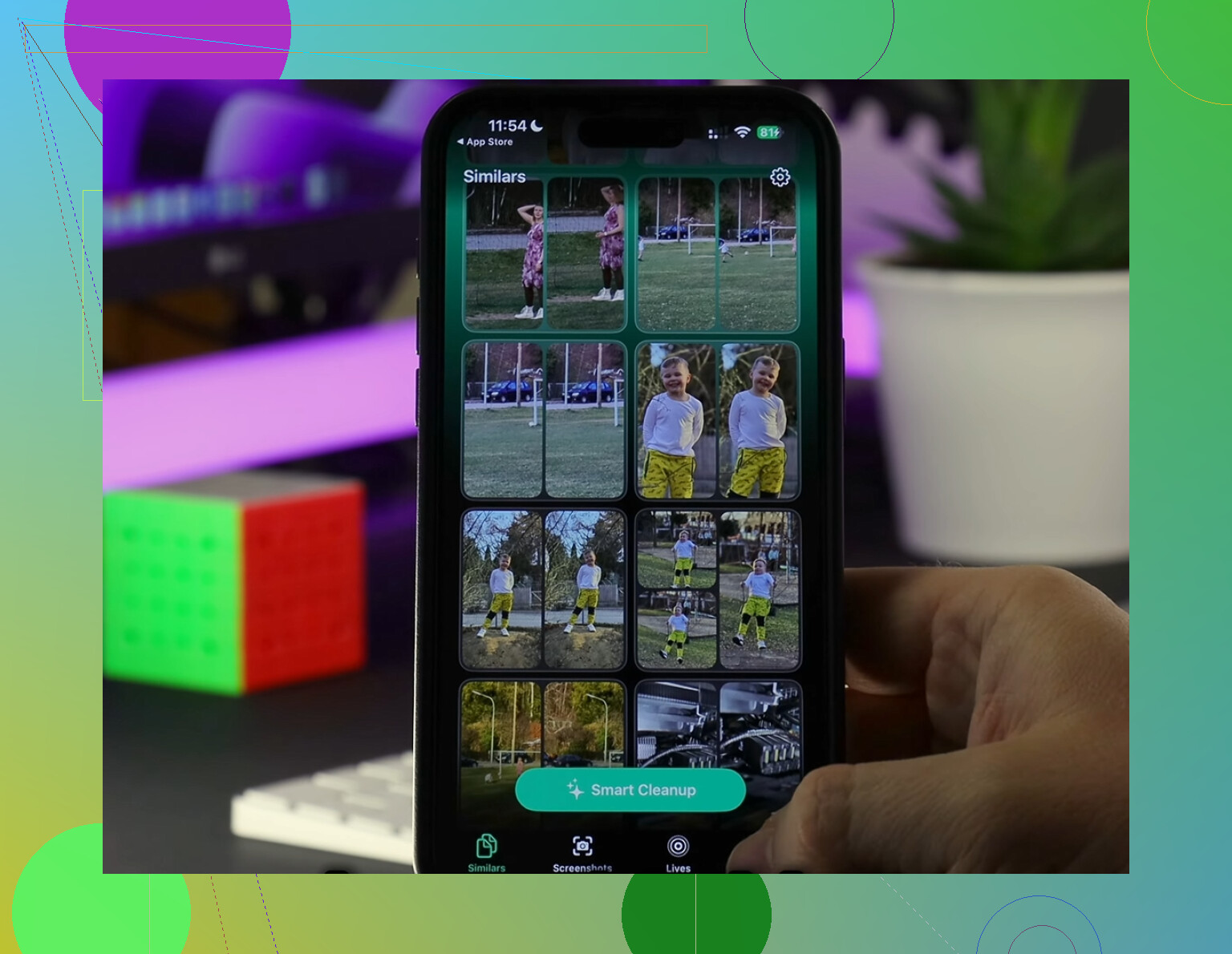
I tried doing a manual cleanup first. Burst photos, duplicate angles, ancient screenshots, all of it. Total pain. I gave up and used Clever Cleaner. I do not trust most cleanup apps, since a lot of them push subscriptions or stuff ads into every tap, but this one did not do any of that when I used it.
The part I liked most was the Heavies tab. It sorts photos and videos by size, so you see fast which huge 4K clips are taking over your storage. The Similars tab helped too. It grouped near-duplicate shots and made it easier to keep one decent version instead of ten almost-identical ones. It also shows file sizes clearly, including screenshots, which made cleanup less random and more deliberate. From what I saw, the scanning happens on-device, so your library is not being pushed off to some unknown server.
After I cleared around 15GB, my iPhone stopped dragging. The slowdown was gone. So if your import is finished but your phone still feels bloated, check Recently Deleted first. After that, look for duplicate junk and oversized videos you forgot about. That was the combo that fixed it for me, and yeah, it made a big difference.
No. The Imports album is not a safe backup spot.
On iPhone, Imports is mostly a view or grouping inside Photos. If you delete those photos from your iPhone, they are gone from the library on the phone. They do not stay sitting in Imports as a second copy. So first make sure the files on your computer open fine, and back them up one more time to an external drive or cloud folder if you care about them.
I differ a bit from @mikeappsreviewer on one point. I would not treat the Imports album as the place to manage storage. It is better to confirm where the photos were imported to on your computer, then verify file count. Example, if your iPhone had 1,200 photos and your computer import folder has 1,200 full size files, you are in better shape.
Also, if you use iCloud Photos, deleting on the iPhone deletes from iCloud too. That trips people up all the time. If your computer import went into the Photos app on Mac while iCloud sync is on, double check those images are stored localy on the Mac and not only syncing through iCloud.
Fast checklist:
- Open imported photos on your computer.
- Confirm file count and random full-size images.
- Make a second backup.
- Then delete from iPhone.
- Empty Recently Deleted to free space.
If the goal is extra cleanup after import, Clever Cleaner helps find duplicates, big videos, and junk screenshots. User reports here are useful too: see what people say about Clever Cleaner for iPhone storage cleanup.
Short version, imported to computer does not mean kept in the iPhone Imports album forever. Delete from phone only after you verify the backup, or you might regret it later.

Nope. The Imports album is not a storage bunker where photos stay after you delete them from the iPhone. It’s just a way Photos groups items that were imported. Delete the photo from your iPhone library, and it disappears from Imports too.
I slightly disagree with @mikeappsreviewer on using Imports itself as the main cleanup target. I’d verify the actual backup first, not trust the album label. @hoshikuzu is closer to the mark there. Open the imported files on your computer, check a handful at full size, and make sure they are really there and not just thumbnails or synced placeholders.
Also worth knowing:
- If you use iCloud Photos, deleting on the iPhone also deletes from iCloud
- If your Mac Photos app is syncing with iCloud, those imported pics may not be as “separate” as you think
- Space usually does not come back fully until Recently Deleted is emptied
My rule: if the photos exist in 2 real places, then delete from phone. If they exist in 1 place and “maybe iCloud,” don’t.
If your goal is freeing up more space after that, Clever Cleaner is actually useful for finding duplicate shots, giant videos, and screenshot clutter. That’s more practical than poking around random albums tbh.
If you want a clear photo cleanup guide, this one is decent: watch this easy iPhone photo cleanup walkthrough.
Short version: imported to computer = probably safe only after you verify it. Imported album on iPhone = not a backup. Easy mistake, super annyoing when it bites you later.
No, they do not stay there.
The Imports album is basically a filter, not a second vault. Once you delete those photos from the iPhone library, they vanish from Imports too. So I agree with the core point from @hoshikuzu and @mikeappsreviewer there. Where I slightly push back on @sonhadordobosque is this: I would avoid deleting anything straight from DCIM unless you really know what you’re looking at. That route can get messy fast.
One extra thing people forget: if you imported to the Windows Photos app or Mac Photos app, that does not always mean you now have simple standalone files sitting in an easy folder. Sometimes they are tucked inside a library package or still tied into sync behavior. I’d confirm the export location, not just assume “imported” means “fully backed up.”
Best sanity check:
- verify a few photos open on the computer
- verify videos actually play
- confirm the files are local
- keep one more backup copy somewhere else
Then delete from iPhone, and clear Recently Deleted.
If your goal is trimming space after that, Clever Cleaner is decent for cleanup, not backup.
Pros: finds duplicates, large videos, screenshot clutter, simple interface.
Cons: it is only useful after your photos are safely backed up, and any cleaner still needs your judgment before mass deletion.
So, short answer: Imports is not permanent storage. Back up first, then delete.