I’m trying to delete Facebook data on my iPhone, but I’m not sure what actually gets removed. I cleared the app data and may uninstall the app, but I want to know if messages, photos, login info, cache, and synced data are permanently deleted or still stored by Facebook or iCloud. Any help understanding what’s really erased would be appreciated.
The quickest real fix is still the annoying one: delete Facebook and reinstall it. On iPhone, that’s usually the only way to clear out the big “Documents & Data” pile that Facebook builds up over time.
iOS doesn’t have the same simple “Clear Cache” button you’d see on Android, so there isn’t a clean built-in cache reset for Facebook. If the app is showing several GB of storage even though the app itself is much smaller, that extra space is mostly cached media, temp files, and other local data. I’ve seen people report Facebook taking up absurd amounts of space, even tens of GB, so it can definitely get out of control.
Best option: delete and reinstall Facebook
- Open Settings.
- Go to General.
- Tap iPhone Storage.
- Wait for the app list to load, then tap Facebook.
- Choose Delete App.
- Reinstall Facebook from the App Store.
This removes the app plus its local data from your phone. It does not delete your Facebook account, posts, photos, messages, friends list, or anything stored on Facebook’s side. You will be logged out, though, so make sure you know your login before doing it.
Offload App usually won’t help much
You may also see Offload App in the same iPhone Storage screen. That sounds useful, but for this problem it’s usually not. Offloading removes the app itself while keeping its documents and data, which is the exact part that tends to be bloated. It may free a little space, but it usually won’t clear the big Facebook cache problem.
You can also clear Facebook’s in-app browser cache
This won’t wipe all of Facebook’s storage, but it can clear cookies and cached data from links you’ve opened inside the app.
- Open Facebook.
- Tap Menu, the three-line icon.
- Tap the gear icon for settings.
- Go to Preferences.
- Tap Browser.
- Next to Cookies and Cache, tap Clear.
The catch is that Facebook will start rebuilding cache as soon as you use it again. That’s just how the app keeps feeds, images, and videos loading quickly. So yes, deleting and reinstalling can give you space back right away, but don’t be shocked if the number creeps up again after a few days or weeks.
Also, if your iPhone storage is still almost full after doing this, Facebook may not be the main problem. In my case, the bigger storage hog ended up being Photos: duplicate shots, random screenshots, screen recordings, and huge 4K videos I forgot were sitting there.
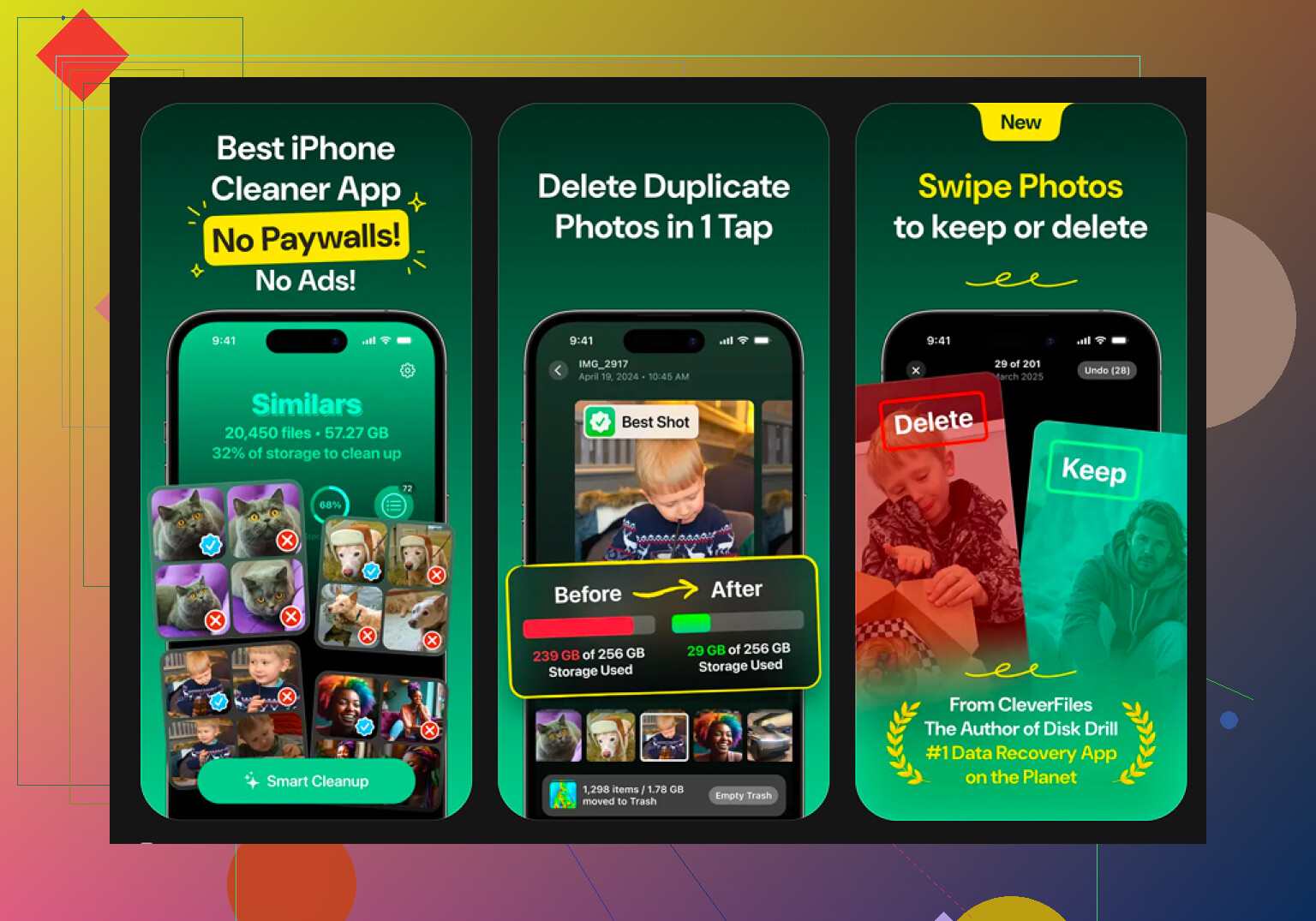
For that, I ended up using Clever Cleaner. I’m usually skeptical of cleaner apps, but this one is free, doesn’t have ads, and doesn’t push a subscription. The useful part is that it shows what’s actually taking space instead of giving you one vague cleanup button.
The Heavies section sorts your media by file size, which makes it easy to spot giant videos and screen recordings. The Similars section helps find near-duplicate photos, like when you took six versions of the same picture and only need one.
It also processes the photo cleanup on the device, so your photos aren’t being uploaded somewhere else for sorting. Just don’t expect it to clean Facebook’s cache, because third-party apps can’t do that on iOS. For Facebook, delete and reinstall is still the real reset. For long-term storage cleanup, check your photo library, because that’s often where the biggest waste is hiding.
2 Likes
Don’t assume “delete data from iPhone” means Facebook forgets anything on its servers. It mostly means your phone stops storing the local copy: cache, downloaded images/videos, temporary files, some app settings, and the active login session. Your messages, profile photos, uploaded photos, posts, comments, friends, Marketplace chats, and Messenger history are tied to your Facebook account, so they come back when you sign in again.
The caveat I think people miss is saved login and synced/contact data. Deleting the app may log you out, but your iPhone might still have the password saved in iCloud Keychain, or Facebook might still show your device/session under account security until you remove it. If you uploaded contacts to Facebook or Messenger, deleting the iPhone app does not undo that either. You’d need to go into Facebook’s settings and clear uploaded contacts there.
So for storage cleanup, @mikeappsreviewer is right: deleting and reinstalling is usually the cleanest iPhone-side reset. For privacy or “permanent removal,” it’s a different job. You’d need to delete specific Facebook content, remove uploaded contacts, log out of active sessions, clear saved passwords if you want, and if you really want everything gone, use Facebook’s account deletion process. Even then, download anything you care about first, because uninstalling the app and deleting the account are very different buttons.

A backup can quietly keep some old app data around even after Facebook is gone from the screen. If your goal is just freeing storage, deleting the app is fine. If your goal is “no Facebook traces on this iPhone,” I’d delete Facebook, run a fresh iCloud/Finder backup afterward, remove any saved Facebook password from Passwords, and check that Messenger is gone too since it has its own cache/login. And if the phone is leaving your hands, don’t rely on app deletion at all: sign out of Facebook sessions from account settings, then erase the iPhone from Settings. Deleting local data is cleanup, not account deletion.
Honestly, if the cache bloat is your main gripe, just ditch the app and use Facebook in Safari. No giant ‘Documents & Data’ pile to babysit, and you clear it whenever you want through Safari settings. @hoshikuzu is right that Messenger is the sneaky one though, it hangs onto its own login and cache separately, so don’t forget to deal with that app too.