I’m trying to clean up duplicate photos on my iPad, but it has turned into a mess. Some duplicates keep showing up, and I’m worried about deleting the wrong pictures or losing iCloud photos. What’s the safest way to find, merge, or remove duplicate photos on an iPad?
Your iPad isn’t going to randomly clean out your photo library on its own. Apple doesn’t automatically delete pictures just because it thinks you have too many copies. You have to start the cleanup yourself, but you don’t have to go through every single photo by hand either.
If most of the clutter is actual duplicates, start with Apple’s built-in tool before downloading anything.
Use the Duplicates album first
On iPadOS 16 or newer, open the Photos app and look for the Duplicates album under Utilities. Depending on your layout, you may find it from the sidebar or by going through the Collections area and scrolling down.
That album groups photos the iPad believes are copies of each other. From there, you can use Merge instead of manually deciding which one to keep. The iPad keeps the best version it can find, including the one with better quality or more complete metadata like location details, then sends the extra copies to Recently Deleted.
So it’s less like deleting everything and more like combining duplicate versions into one cleaner copy.
If the Duplicates album is not showing
That usually means one of a few things is going on:
- The iPad hasn’t finished scanning your library yet. This can take a while, especially after a big import or an iPadOS update. Leave it locked and plugged in for some time. In larger libraries, it can take days.
- You’re on iPadOS 15 or older. The built-in Duplicates feature was not available there, so you’ll need to clean things up manually or use another app.
- The photos are similar, but not true duplicates. Two nearly identical sunset shots or selfies may look the same to you, but the iPad may treat them as separate photos if the angle, lighting, or file data is different.
For “almost the same” photos
The built-in duplicate finder is best for actual copies. It usually won’t help much with the ten photos you took of the same thing while trying to get one decent shot.
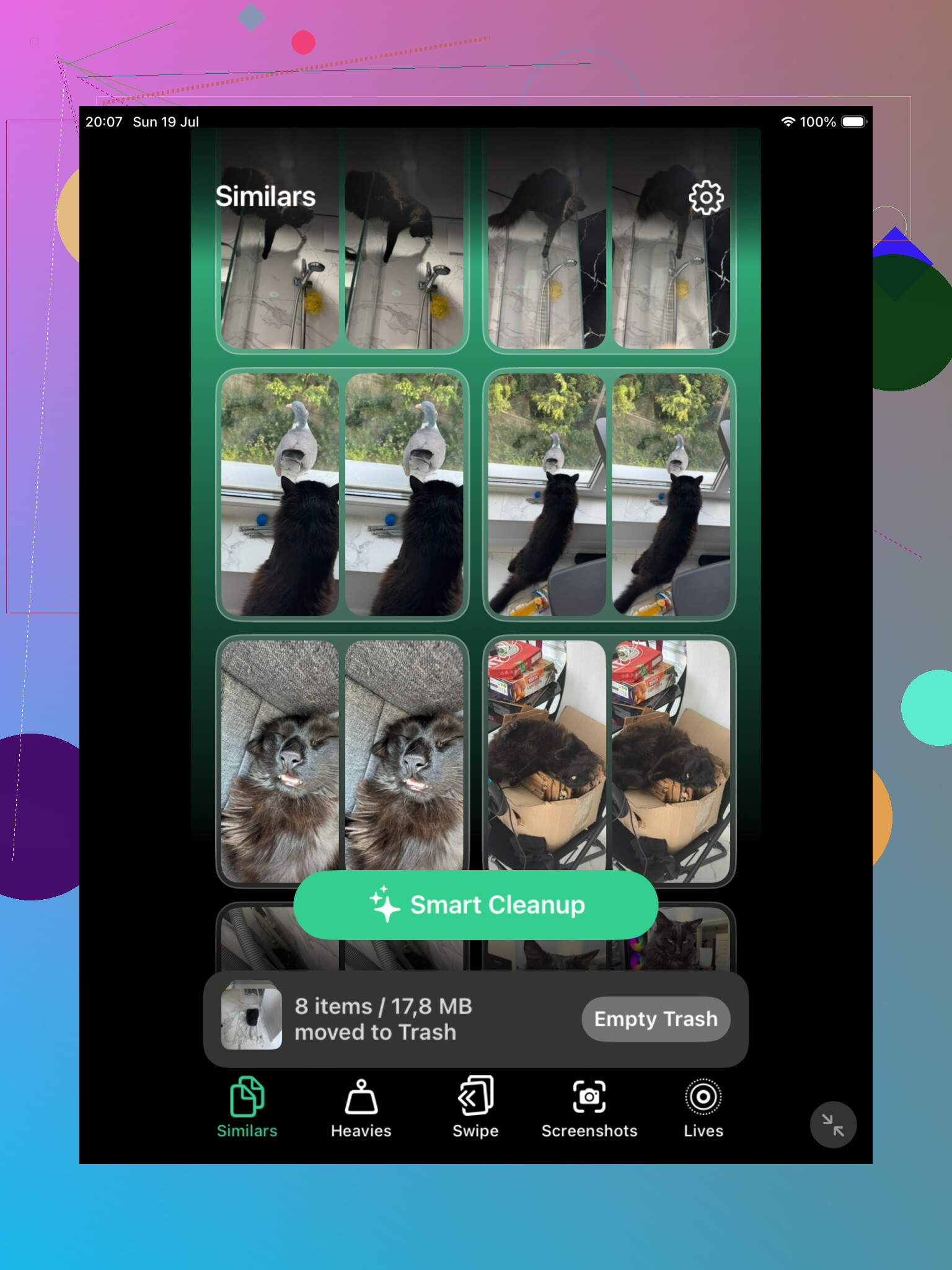
For that kind of cleanup, a third-party cleaner can save a lot of time. Clever Cleaner is one option since it’s free and has a Similars section. It groups photos that look alike and can suggest the best one from each set, so you can remove the extras faster.
A manual trick if you don’t want another app
You can also use Search inside Photos. Tap the magnifying glass and search for things like “beach,” “dog,” “receipt,” or whatever type of photo you know is taking up space. Photos is pretty decent at grouping images by subject, and it makes it easier to spot batches you can clean up.
The Months and Years views help too, especially if you know the mess came from a vacation, event, or one period where you took way too many repeats.
Don’t forget Recently Deleted
Deleting or merging photos does not always free the space right away. The extras usually go to Recently Deleted, where they can sit for 30 days. If you need the storage back now, open Recently Deleted and empty it manually.
Also, if iCloud Photos is turned on, deleting something from your iPad also removes it from your iPhone, Mac, and anywhere else using the same iCloud photo library. That’s useful when you’re cleaning up, but double-check before you permanently delete anything.
Once the first big cleanup is done, it’s a lot easier to stay on top of it. The annoying part is getting through that initial pile.
8 Likes
If iCloud Photos is turned on, the safest cleanup starts before you press Merge or Delete. First check that Photos has finished syncing on the iPad. If it says syncing is paused, waiting for Wi-Fi, or low power mode is involved, I’d leave it plugged in until it catches up. Cleaning while the library is half-synced is where people start seeing “duplicates” come back or disappear on another device.
I agree with using Apple’s Duplicates album first, but I would not hit Select All on a huge library right away. Do a small batch, wait a bit, then check the same photos on your iPhone, Mac, or iCloud.com if you use iCloud Photos. And don’t treat iCloud Backup as your safety net here. If iCloud Photos is enabled, your photo library is synced through iCloud Photos, not safely duplicated inside the regular iPad backup. If the pictures really matter, export the originals to a computer or external drive before doing a big cleanup.
For apps like Clever Cleaner, I’d only use them for the “these look similar but are not exact copies” problem. They can speed up sorting, but I would still review the keep/delete choices, especially with edited photos, screenshots, Live Photos, and burst shots. Leave Recently Deleted alone for a few days if you can. That folder is your undo button while you make sure nothing important vanished from the rest of your Apple devices.

If the duplicates came from repeated imports from a camera, SD card, or old computer folder, I wouldn’t rely only on the iPad’s visual duplicate scan. Those copies can have different filenames, dates, or metadata, so they may not show up neatly in Duplicates even when they look identical. In that case, the safer move is to clean by source or date range: find the bad import batch, review that group, then delete from there instead of hunting through the whole library. I agree with the warning above about iCloud Photos, because deleting on the iPad is deleting from the synced library. The boring but safest test is to delete a tiny batch first, wait for sync, check another device, and only then continue. Don’t empty Recently Deleted until you’re sure the “keeper” versions are still where you expect them.
Don’t delete from an album just because the same photo appears in Recents, Favorites, a trip album, and maybe a shared-looking folder. In Apple Photos, albums are often just pointers to the same library item, not separate copies. Removing a photo from an album is different from deleting it from the library, and using the trash can is the dangerous part if iCloud Photos is on.
The Duplicates album is fine for true duplicate files, like others said, but I’d check the boring stuff first: open one “duplicate,” tap the info button, and compare date, file type, size, and whether one is edited, a Live Photo, or a lower-quality saved version from Messages. Sometimes the one that looks worse in the thumbnail is actually the original, and the nicer-looking one is an edited copy you may still want.
For a safer cleanup rhythm, I’d make a temporary album called something like “Possible deletes” and add suspected extras there first. Review that album over a couple of days, then delete only the obvious junk from inside it. If you use Clever Cleaner or any similar app for lookalikes, treat its suggestions as a sorting shortcut, not a final decision. The real safety net is patience: delete small groups, let iCloud sync, check another device, and leave Recently Deleted alone until you’re certain the right versions survived.