I’m trying to upload and manage files on a web server, and I keep seeing people recommend using an FTP client. I’m not sure what exactly an FTP client does, how it works, or which one I should use for simple website file transfers. Can someone break this down in plain English and suggest a good beginner-friendly FTP client?
FTP just means File Transfer Protocol. It’s one of those old internet standards that’s still around because it does one job well: moving files between your computer and a server somewhere else.
The basic idea is simple. You get a hostname (or IP), a username, and a password from whoever runs the server. You connect, and now you can upload files, download files, rename things, delete stuff, make folders… basically manage that server’s files without being physically near it.
You’ll also see SFTP, which is what most people should be using now. That’s the secure version (it runs over SSH). Plain FTP sends login details in plain text, which isn’t great outside of test setups. These days I pretty much only touch SFTP unless I’m forced to use old infrastructure.

What people actually use FTP clients for
In real life it’s mostly pretty unexciting stuff:
I use it mostly for website work – uploading site files, fixing broken configs, grabbing logs, that kind of thing.
Other common cases I see:
– Web devs pushing files to hosting servers
– Designers sending big asset packages
– Sysadmins managing files on Linux servers
– Companies moving internal documents around
– Fixing broken WordPress installs when the admin panel dies
If you’ve ever used shared hosting with cPanel or fixed a website by manually uploading a plugin folder, you probably used FTP whether you noticed or not.
It’s not flashy like cloud storage but when you need direct access to a server’s file structure, it’s still one of the easiest ways.
What an FTP client does
Technically you can do FTP from a terminal, but most people don’t want to mess with commands.
An FTP client just gives you a visual way to do it. Usually you get two panels:
left side = your computer
right side = the server
You connect, log in, and then drag files back and forth. That’s basically the whole concept.
Most differences between clients come down to things like:
– extra protocols (SFTP, WebDAV, S3, etc.)
– how nice the interface feels
– whether it does anything besides FTP
– how stable big transfers are
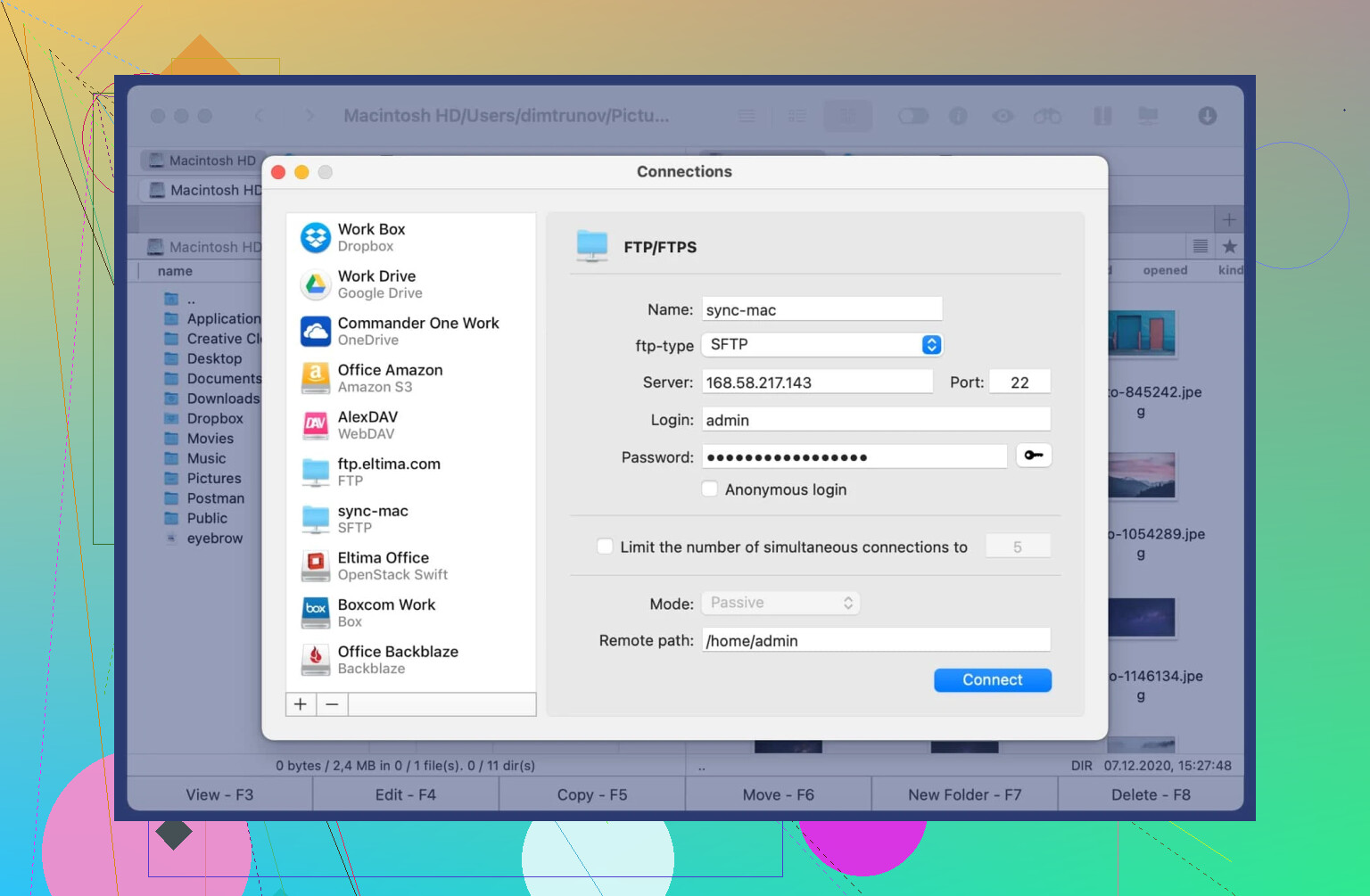
Commander One for Mac
If you’re on Mac and want something that feels more like a full file manager, this one is nice.
It reminds me a lot of old Total Commander on Windows (anyone who knows that will immediately get the idea). Two panels, keyboard shortcuts, lots of control.
It handles FTP and SFTP but also cloud storage connections, which is nice if you don’t want five different apps open. Feels much more like a native Mac app than FileZilla does. I usually recommend it to Mac users who move files around a lot and want one place to manage everything instead of just a basic transfer tool.
CloudMounter for Mac and Windows
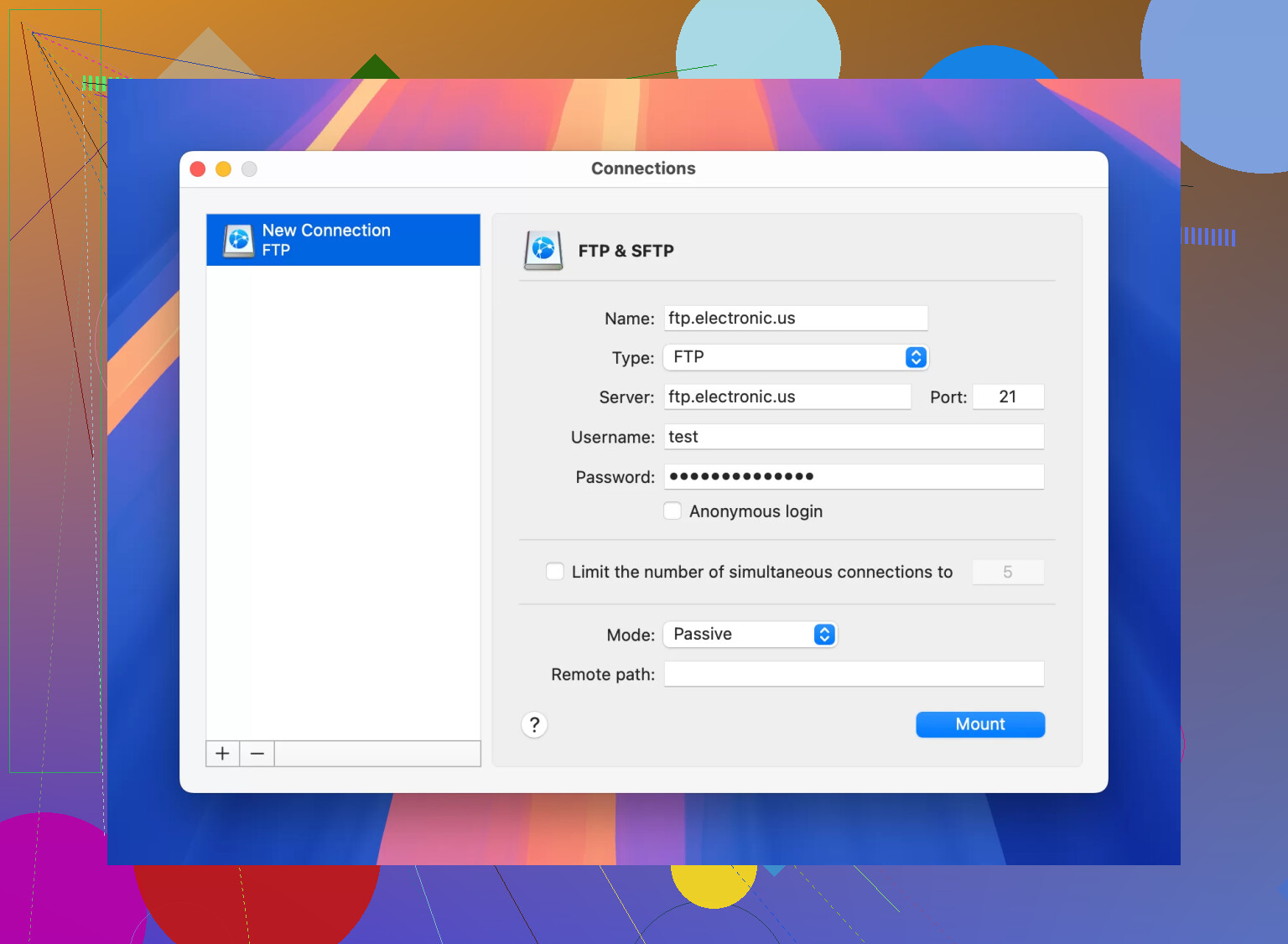
This one works differently from the classic FTP client style. Instead of opening a separate program with panels, it just mounts your FTP or SFTP server like another drive. So it shows up in Finder or File Explorer like it’s just another folder on your machine.
The first time I tried that it actually felt weirdly natural. You just browse the server like any other folder, open files, move stuff around, no special interface to think about. It also connects cloud storage the same way (Google Drive, Dropbox, OneDrive, S3, etc.), which is handy if you deal with both servers and cloud storage like I do.
Another thing I like is that it doesn’t automatically copy everything to your computer. Files stay on the server until you open them. So you can browse huge directories without filling your hard drive.
I usually suggest it to people who find traditional FTP clients clunky or who already work with cloud storage and want everything to behave the same way.
FileZilla
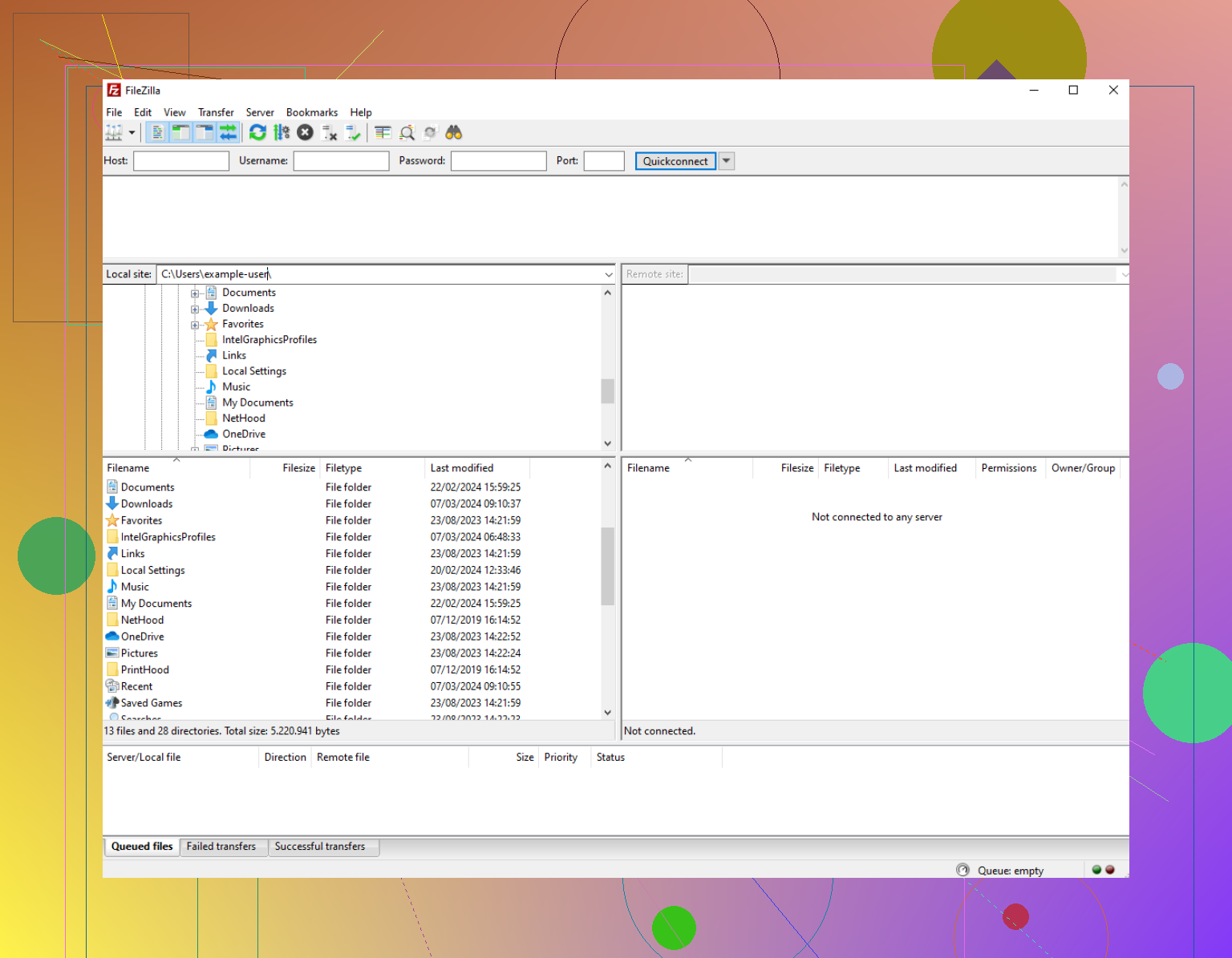
This is the one almost everyone starts with. It’s free, open source, and runs everywhere.
I used it for years and it does the job fine. Handles big uploads, clear two-panel view, and the saved connection manager is useful if you connect to multiple servers.
The interface feels pretty old. It works, but it looks like it time-traveled from the late 2000s. Also you have to be careful downloading it because the installer used to bundle extra junk if you weren’t paying attention (I always grab it from the official site and read the prompts).
Think of an FTP client as a file manager that talks to your web server over the internet instead of to a local disk.
What it does for you
- Connects to your server
You get from your host:
• Hostname (something like ftp.yoursite.com or sftp.yoursite.com)
• Username
• Password
• Protocol and port (FTP, FTPS, or SFTP, often port 21 for FTP, 22 for SFTP)
You enter those in the client, hit Connect, and you see the server’s folders.
- Lets you manage website files
Typical things you will do for a simple site:
• Upload your HTML, CSS, JS, images
Example: upload your local folder “public” to the remote “public_html” or “www” folder.
• Edit or replace a single file
Example: swap out style.css after a change.
• Download a copy as backup
Example: pull wp-content before a risky plugin update.
• Fix broken stuff
Example: rename a plugin folder to disable it when WordPress admin dies.
• Set permissions
Example: set 644 for files, 755 for folders, when your host complains.
You work on files locally, then upload with the FTP client when you want those changes live.
- How it works behind the scenes, short version
• FTP is an old protocol, not encrypted. Avoid if you see “FTP” without TLS.
• SFTP runs over SSH and encrypts login and data. Prefer this.
• FTPS is FTP with TLS. Also encrypted, but more finicky with firewalls.
If your host offers SFTP, pick that in the client every time.
Where I slightly disagree with @mikeappsreviewer
Terminal-only workflows are nice if you are comfortable there, but for simple website work they slow most people down. Seeing local on one side and remote on the other reduces mistakes, especially when you upload whole folders or delete junk. A GUI FTP client helps you avoid “oops wrong path” problems.
What you should use for simple website uploads
Keep it simple and safe:
- CloudMounter
Good if you want it to feel like a normal drive.
• Works on Mac and Windows.
• Mounts SFTP or FTP as a drive in Finder or File Explorer.
• You open and save files as if they sit on a network share.
• Nice if you edit files directly in your code editor without dragging stuff around.
For a “I only upload sometimes, I live in Finder / Explorer” workflow, CloudMounter is very practical. Search for “CloudMounter FTP SFTP” and you will see clear setup docs.
- FileZilla
• Free, cross platform.
• Two panes, local left, remote right.
• Good for bulk uploads like full WordPress or static sites.
• Use SFTP in the Site Manager if your host supports it.
Watch the installer options on Windows so you avoid any extra bundled junk.
Basic step list for your first upload
- Get connection info from your host panel.
Look for “FTP accounts” or “SFTP access”. - Install a client, for example CloudMounter or FileZilla.
- Create a new connection:
• Protocol: SFTP if offered
• Host: from your hosting email or dashboard
• Port: 22 for SFTP, 21 for FTP
• Username and password - Connect.
- Find the web root on the server. Often named:
• public_html
• www
• httpdocs - Upload your site files into that folder, not above it.
- Refresh your browser and check the site.
If nothing shows, you might have uploaded into the wrong folder. That is the most common beginner mistake, not “wrong client”.
For your use case, simple site uploads and edits, I would:
• Ask the host “Do you support SFTP, and what is my SFTP host and port”.
• Use CloudMounter if you like working straight in Finder / Explorer.
• Use FileZilla if you prefer a classic two pane view and visible transfer queue.
Once you have one connection working, the rest turns into routine file shuffling.
Think of an FTP client as “remote File Explorer / Finder that talks to your web server instead of a USB stick.”
@mikeappsreviewer and @ombrasilente already nailed the basics: protocol, SFTP vs FTP, two‑pane layout, typical use cases. I’ll try not to rehash their step‑by‑step stuff and focus on what actually matters for you choosing and using one.
What an FTP client actually does in practice
For a simple website, your FTP/SFTP client is mostly used for:
- Getting files onto the server
Upload your HTML, CSS, JS, images, WordPress files, etc. - Getting files off the server
Grab backups, logs, theme folders, whatever. - Emergency surgery
Delete or rename a plugin/theme that broke your site, fix one bad PHP file. - Permission tweaks
Change file/dir permissions when the host complains.
It is not magical dev tooling. It is a glorified copy/move/delete tool that happens to talk over the network.
How it works, stripped down
- You get from your host:
- Hostname
- Username
- Password
- Protocol (prefer SFTP over FTP)
- The FTP client opens a connection to that host, logs you in, and then:
- Lists folders on the server
- Lets you upload/download/rename/delete
- Handles all the nerdy protocol chatter in the background
From your point of view: it’s just “drag from here to there.”
Where I slightly disagree with some of the advice
- You don’t need to obsess over “the perfect client” if you’re just doing light site work.
Most free ones are fine unless you live in them all day. - Editing files directly on the server is convenient, but risky.
Lots of folks happily save PHP changes straight over SFTP. I’ve done it too. But for anything bigger than a trivial tweak, it is smarter to edit locally and upload. Saves you from killing the live site with a typo you can’t roll back.
Picking an FTP/SFTP client for simple website stuff
For your use case, I’d think in terms of “how do you like to work” rather than “which one is objectively best.”
1. You like everything to feel like normal folders
Use something that mounts the server as a drive.
- This is where CloudMounter shines:
- Works on macOS and Windows
- Mounts your SFTP / FTP server as a drive in Finder or File Explorer
- You open, copy, and save like it’s a regular network drive
- Nice if you want to open files directly in your code editor without dragging them around first
So your workflow becomes:
“Double‑click drive → open /var/www or public_html → treat it like a folder.”
Super low mental load, especially if you only touch it occasionally.
2. You’re fine with a dedicated “FTP app” window
Then classic tools (like the ones @ombrasilente went into) are fine:
- Left side: your computer
- Right side: server
- Drag‑and‑drop between them
- Queue of transfers at the bottom
They are better for big batches of files and for seeing clearly what’s going where. More nerdy, less “it’s just another drive.”
Basic mental model to avoid newbie mistakes
- Your host’s “web root” is where the public site lives
Common names:public_html,www,httpdocs. Upload your site files there, not in your home folder. - One project folder locally → one folder on server
Keep structure similar so you do not confuse yourself. - Prefer SFTP over bare FTP
Encryption aside, hosts that support SFTP are usually less ancient in general.
So for you, specifically
If you:
- Mostly use Finder or File Explorer
- Want something that feels simple and “native”
- Only occasionally upload or fix stuff
Then an SFTP setup with CloudMounter is an easy win: it gives you the benefits @mikeappsreviewer mentioned (secure, direct file access) but without making you learn a clunky old‑school UI.
Once you’ve done it once or twice, using your FTP client becomes as boring as moving files between two folders, which is exactly where you want it to be.
Think of the options like this:
- @ombrasilente leans classic GUI client.
- @sterrenkijker leans “power user file manager.”
- @mikeappsreviewer leans “secure SFTP, minimal fuss.”
I’ll add the “mount-it-like-a-drive” angle, which fits your simple website use case really well.
Instead of juggling a separate FTP window, you can use something like CloudMounter to turn your server into a normal drive inside Finder or File Explorer. That way, your workflow is basically:
- Connect SFTP in CloudMounter.
- Your server shows up as a drive.
- Open your editor, work on files right there.
Pros of CloudMounter:
- Feels like native file browsing, very low learning curve.
- Works with SFTP so your logins and files are encrypted.
- Also handles cloud storage, so one tool for multiple remote sources.
- No need to manage two-pane interfaces or drag between windows.
Cons:
- Not ideal for massive scripted migrations or heavy automation.
- Fewer “power transfer” controls than a dedicated client like what @ombrasilente describes.
- Paid app, while tools like the ones others mentioned can be free.
Where I slightly disagree with the others: for a beginner with a small site, a full-on two-pane FTP client can be overkill and actually more confusing. Mounting the server as a drive keeps the mental model “this is just another folder,” which usually means fewer mistakes like uploading to the wrong directory.
If later you start managing multiple servers, staging vs production, or huge deploys, then the more traditional clients that @sterrenkijker and @mikeappsreviewer talk about start to shine. For now: treat it like a network drive, keep using SFTP, and focus on your actual site rather than the tool.