Photos is taking up most of my iPhone storage, and I’m almost out of space. What’s the safest way to free up photo storage without losing important pictures or videos?
You probably don’t need to delete the photos you actually care about just because the Photos app is taking up most of your iPhone storage. The biggest space wasters are usually things that are easy to forget about: duplicate shots, nearly identical photos, old screenshots, large videos, and Live Photos that don’t need to stay animated.
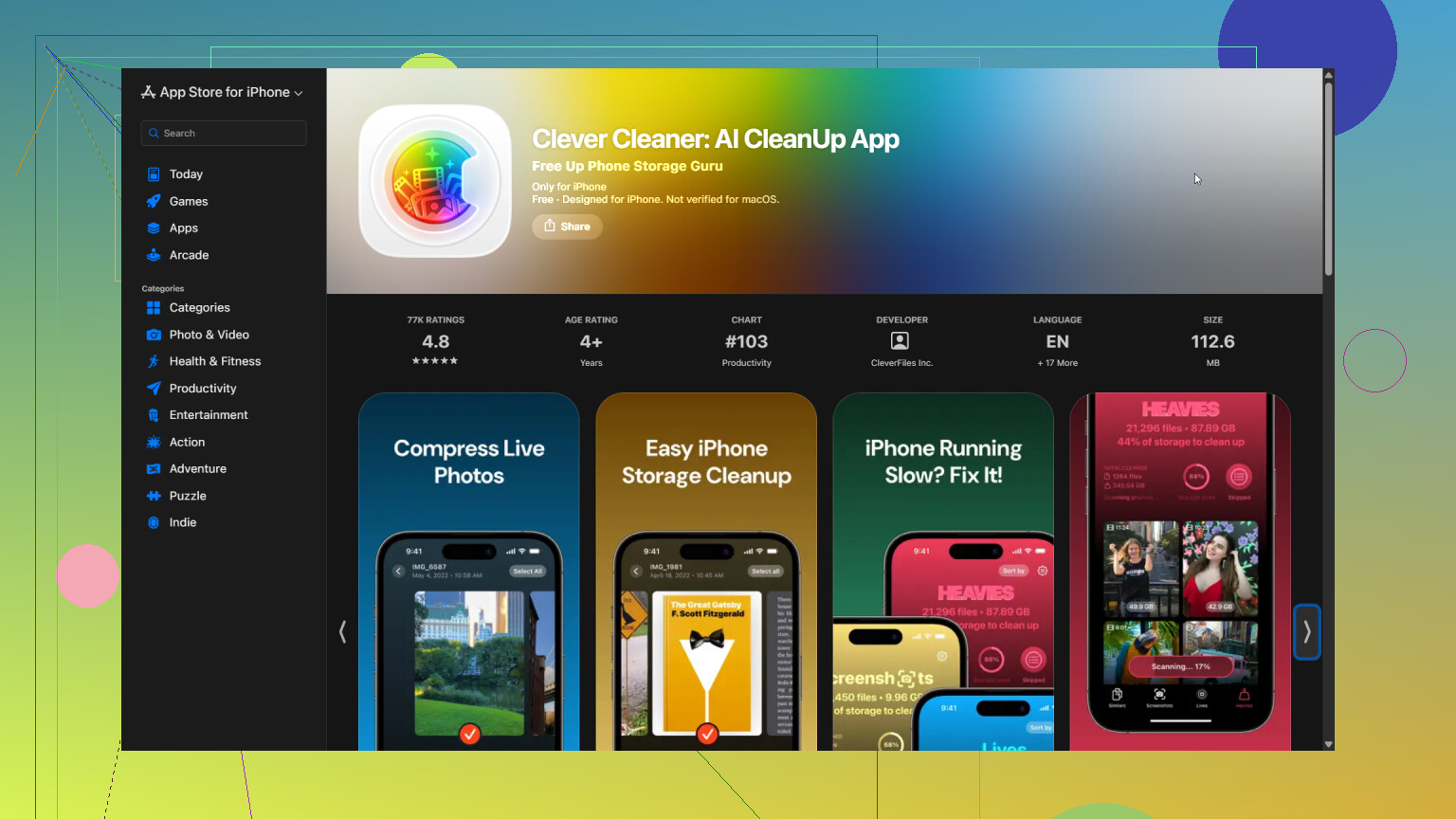
Going through years of photos manually is tedious, so I used Clever Cleaner to organize the library first. It puts similar and duplicate photos, duplicate videos, screenshots, Live Photos, and other large files into separate sections. That made it much easier to review one type of clutter at a time instead of endlessly scrolling through the camera roll.
Smart Cleanup worked well for the initial pass. It finds similar photos and compresses eligible media in the same workflow. I still checked the individual categories afterward since I didn’t want an automatic cleanup deciding everything for me.
The other tools are useful depending on how much time you have. Compress reduces storage use without making you delete the image entirely. Swipe mode is better if you want to sort through photos individually whenever you have a few minutes. The app is free, has no ads, and doesn’t require a subscription to begin cleaning. Some tools do have a fairly generous daily limit for new users.
There are a few other places worth checking too:
- Empty Recently Deleted. Deleted photos and videos stay there for 30 days, so the space isn’t immediately returned unless you remove them from that album.
- Look through attachments in Messages. Old conversations can hold years of photos and videos you no longer need.
- If you use iCloud Photos, turn on Optimize iPhone Storage. Your phone keeps smaller local versions while the full-resolution originals remain in iCloud.
What surprised me most was how much storage had gone to duplicate pictures, forgotten screenshots, and old videos. Removing that stuff freed up plenty of room without touching the photos I wanted to keep.

14 Likes
Don’t start deleting until you have a separate copy of the originals. iCloud Photos is a sync service, so deleting a photo on the iPhone can remove it from your other Apple devices and iCloud too. “It’s in iCloud” does not necessarily mean it is safely backed up somewhere independent.
I’d first export the important library to a computer, external drive, or another cloud service, then open a few files from that backup to confirm they actually copied. After that, tools like Clever Cleaner are fine for sorting the obvious clutter, but review every deletion rather than trusting automatic selections around burst shots or similar family photos.
If you pay for enough iCloud storage, Optimize iPhone Storage is the least destructive fix. Just don’t expect the storage number to drop instantly. The phone may need Wi-Fi, power, and some time before it replaces full-resolution local files with smaller versions.
If your iPhone still has a few gigabytes free, you can sort the photo library normally. If it is down to a few hundred megabytes, clear some non-photo storage first. Remove downloaded Netflix or Spotify content, delete offline podcasts, or offload a large game. Photo cleanup tools and iCloud syncing can behave badly when the phone has almost no working space.
After creating that breathing room, check Settings > General > iPhone Storage before deciding what to do. Large videos usually produce faster results than deleting hundreds of ordinary photos. Screen recordings, downloaded clips, and accidental pocket videos are especially worth checking. Apple’s built-in Duplicates album is another reasonable first stop because it is easier to review than a giant camera roll.
I agree with @maxthewidget about making a separate copy, but make sure it is a real copy rather than another synced view of the same library. Open several transferred photos and play a couple of videos before deleting anything. Pay attention to older images and edited photos, since those are the files most likely to expose a bad or incomplete transfer.
Clever Cleaner can make the sorting stage quicker, particularly for similar shots and screenshots, but I would avoid doing a huge automatic deletion in one pass. Similar does not mean duplicate. Two nearly identical pictures may have different expressions, focus, or framing. Compression deserves the same caution because it trades image quality for space, and changes made to a synced library may appear across your devices.
Once you delete media, empty Recently Deleted only after checking that the backup is usable. That step returns the storage immediately, but it removes your easy recovery option. For anyone already paying for enough iCloud storage, Optimize iPhone Storage is still the lowest-effort choice. For someone trying to avoid another monthly bill, copying originals to a computer or external drive, verifying them, then deleting selected years or large videos from the phone is slower but gives you much more control.

A paused or incomplete iCloud upload changes the safe order here. “Optimize iPhone Storage” cannot safely shrink the local library until the originals are uploaded, and that may stall if your iCloud storage is full. Check the Photos sync status first, then leave the phone charging on Wi-Fi until it finishes.
After that, use Optimize if you have enough iCloud space. Otherwise, follow @maxthewidget’s separate-copy advice and transfer the originals to a computer or drive before removing anything. I’d target 4K videos, slow-motion clips, and RAW photos first. A handful of those can take more room than thousands of normal pictures.
For future storage, switch the Camera format to High Efficiency and avoid recording everything at the highest video resolution. Clever Cleaner can help locate clutter, but it will not fix oversized camera settings or an iCloud account that has stopped syncing.
Don’t sit there manually deleting photos one by one hoping the storage bar moves. That’s the slowest possible way to do this and you’ll give up halfway through. The number barely budges when you nuke individual pictures because the space hogs are almost always video files, and everyone above already pointed that out.
Where I’d push back a little is on how much people are leaning into iCloud as the safe fallback. @silentcraft7782 nailed the real trap: Optimize iPhone Storage only helps once your originals are fully uploaded, and if your iCloud is full that upload is just sitting there stalled. So half the thread’s advice quietly assumes you’re either paying for enough iCloud or willing to start. If you’re trying to avoid that monthly bill, the honest answer is you’re doing a manual export to a computer or drive, and that’s more work than the replies make it sound.
Clever Cleaner is genuinely handy for the boring sorting part, especially screenshots and near-identical bursts, but I’d treat it as a way to see what you’ve got, not a delete button you trust blindly. Similar photos are where automatic selection burns people, since two shots of the same moment can have one good face and one blink. My actual workflow would be simple: dump the biggest videos first, since a few 4K clips clear more room than a thousand photos, back those up and confirm they play from the backup, then use a sorting tool for the leftover clutter and review each batch yourself. Boring, but you won’t lose anything you care about.