I accidentally deleted important files from my USB drive while moving documents, and now I can’t find them anywhere. The drive has work files and personal photos I really need back, so I’m looking for the best USB file recovery method or software that actually works.
USB sticks do not behave like your main Windows drive. A lot of them skip the usual Recycle Bin flow, so when you delete a file, Windows often treats it like an immediate permanent delete.
It sounds worse than it is. I’ve seen plenty of cases where the files were still sitting on the drive, only the directory entry was gone and the space got marked free. The bad part starts when you keep using the stick. New files write over the old spots, and your odds drop fast. Small flash drives are unforgiving. One bad move and you eat the loss.
If the drive still shows up normally, I’d go with data recovery software. I would not do that if the USB has hardware trouble, like this:
- the computer does not detect it at all;
- it reports 0 bytes or some nonsense capacity;
- it drops connection when you bump it;
- the plug is bent, loose, or cracked;
- it gets hot for no good reason;
- the files matter enough where a lab bill hurts less than losing them.
If none of those fit your situation, software recovery is the sane first step.
Before scanning, do the quick checks people skip. I’ve found “lost” files sitting in old desktop folders, cloud sync folders, mail attachments, and random backups more than once. Turn on hidden files in Windows and look at the USB again. Sometimes the files were hidden by a bad attribute change or some junk malware, not deleted. Also peek for folders like $RECYCLE.BIN, RECYCLER, RECYCLED, or .Trashes if the stick touched a Mac at some point. I would not count on it, though I’d still spend the minute checking.
After that, scan the drive. Most recovery apps differ in how they look and how they sort results, but the workflow is close enough:
- Install the recovery app on your PC, not on the USB drive.
- Connect the USB stick.
- Pick the USB inside the recovery program.
- Start a deleted file or lost file scan.
- Let the scan finish. Stopping early often leaves good results unseen.
- Use search, filters, or file type groups to cut down the list.
- Preview files when the software supports it.
- Save recovered files to your computer, an HDD, an SSD, or another USB, never back onto the same USB stick.
That last part matters more than people think. If you restore files onto the same flash drive, you risk overwriting other deleted data before you get to it. I did this once years ago and it was such a dumb own goal. Don’t do what I did.
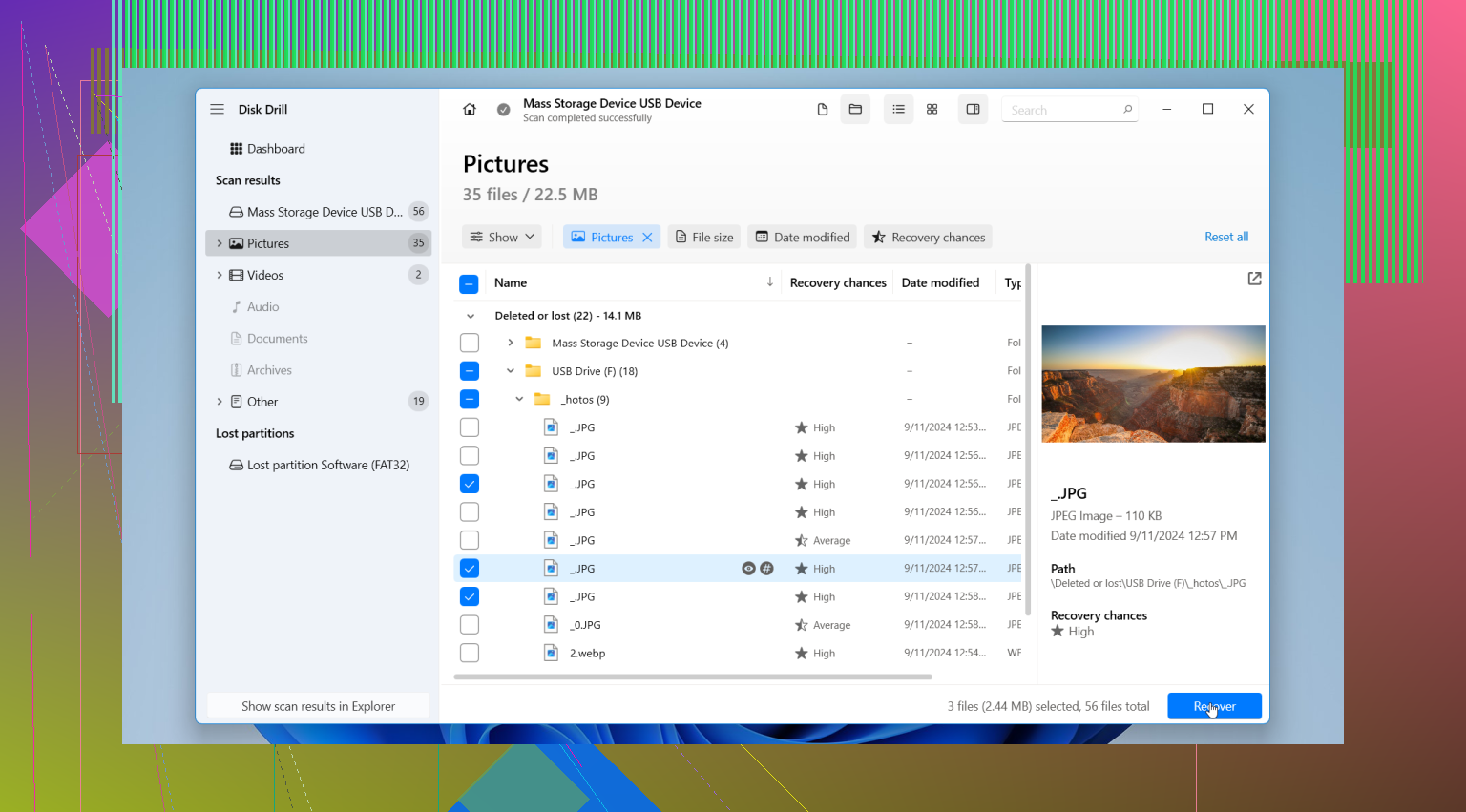
For the software, my first pick here would be Disk Drill. I’ve used a pile of recovery tools over time, and for normal USB deletion cases, it’s the one I reach for first. It handles common USB file systems like FAT32, exFAT, and NTFS, the layout is easy to work through, and the preview feature saves time. If a file previews cleanly, I treat that as a strong sign the recovery result will be usable.
It also helps when the file system is partly damaged or missing records, since it does signature-based recovery too, not only recovery from old folder entries. So even if original names and folder paths are gone, you still might get the file content back. The tradeoff is you may end up with rebuilt files under generic names. Messy, but better than nothing.
The other one worth naming is PhotoRec. It’s free, and yes, it pulls data from ugly situations. I’ve used it when other tools came up short. But the interface is rough and the output is often a giant heap of files with missing names and folder structure. It works. It also turns your evening into manual sorting hell if the scan brings back thousands of items. I had one run dump a mountain of JPGs and docs into one folder. Brutal.
I would skip CHKDSK at this stage. People throw it into every storage thread like it fixes all things. It doesn’t undelete files. It repairs file system issues, and in doing so it changes things you may want left alone until recovery is done. My rule has stayed the same for years, recover first, repair later.
So the short version is this. Stop using the USB. Check hidden files, old backups, cloud copies, and recycle-style folders. If the drive looks healthy, scan it with Disk Drill and save whatever you get back somewhere else. If the stick is unstable or physically damaged, skip the home fix route and hand it off to a recovery service.
Stop writing anything to the USB first. Every new copy, rename, or move cuts recovery odds.
I agree with @mikeappsreviewer on one big point, skip repair tools first. I’d add one more thing people miss. Check File History, OneDrive version history, Google Drive, old email attachments, and Office temp files on your PC. When files were moved, sometimes the source got deleted but a sync app still has a copy. I’ve seen this save people a lot of pain.
If the USB opens fine in Windows, use recovery software. Disk Drill is a solid pick for USB file recovery because it handles exFAT, FAT32, and NTFS well, and previews files before recovery. That matters when you have docs and photos mixed togther. Recover to your computer, not back to the stick.
If you want a quick visual walkthrough, this USB flash drive deleted file recovery video guide is easy to follow.
One place I slightly disagree with @mikeappsreviewer, I would check Windows Security history too. Some AV tools quarantine files and users think they deleted them. Small thing, but worth 30 sec.

One thing I’d add to what @mikeappsreviewer and @shizuka said: if this happened during a move, don’t assume the USB is the only place to look. A move is really copy + delete, and sometimes the copy part half-worked. Check the destination PC with Windows search using file extensions like *.docx, *.xlsx, *.jpg, and sort by date modified. I’ve seen files end up in weird temp or default folders and people think they vanished.
Also, I slightly disagree with the “just scan the whole thing right away” mindset. If the deleted files were very recent and the USB has not been used since, sometimes it’s smarter to make an image backup of the USB first if the data matters a lot. That gives you one frozen snapshot to work from in case the stick starts acting flaky later. Not everybody bothers, but for work docs + personal photos, I probly would.
If the drive is healthy and readable, yeah, Disk Drill is a solid choice for USB file recovery. The main reason is not magic, it just tends to be easier to sort results and preview what is actually recoverable before wasting time. For mixed file types, that helps a lot.
One more thing people forget: check whether the files were encrypted, password-protected archives, or app-specific formats. Recovery software may restore the file itself, but if it was already damaged before deletion, you can get back a file that still won’t open. Previewing helps catch that.
And if you want more opinions from regular users, this USB flash drive file recovery discussion might be worth a quick look.
I’m with @shizuka and @codecrafter on being careful, but I’ll push one extra angle: check the USB’s Properties first. If used space still looks about the same as before, the files may be hidden or the directory is damaged, not fully overwritten. That changes how optimistic I’d be.
I slightly disagree with the “always image first” advice from @mikeappsreviewer in one case. On a totally stable, cheap USB with a small amount of deleted data, imaging can just add time and another read cycle for no huge benefit. If the stick is acting weird, then yes, image it.
For actual recovery, Disk Drill makes sense if the drive mounts normally.
Pros of Disk Drill
- easy preview for photos/docs
- supports FAT32, exFAT, NTFS
- cleaner sorting than many rivals
- decent at both deleted-entry and signature recovery
Cons
- not free for unlimited recovery
- deep scans can return messy generic filenames
- less ideal than a lab if the USB has hardware failure
One more thing nobody stresses enough: after recovery, compare file sizes and open a sample from each type. Recovered does not always mean usable.