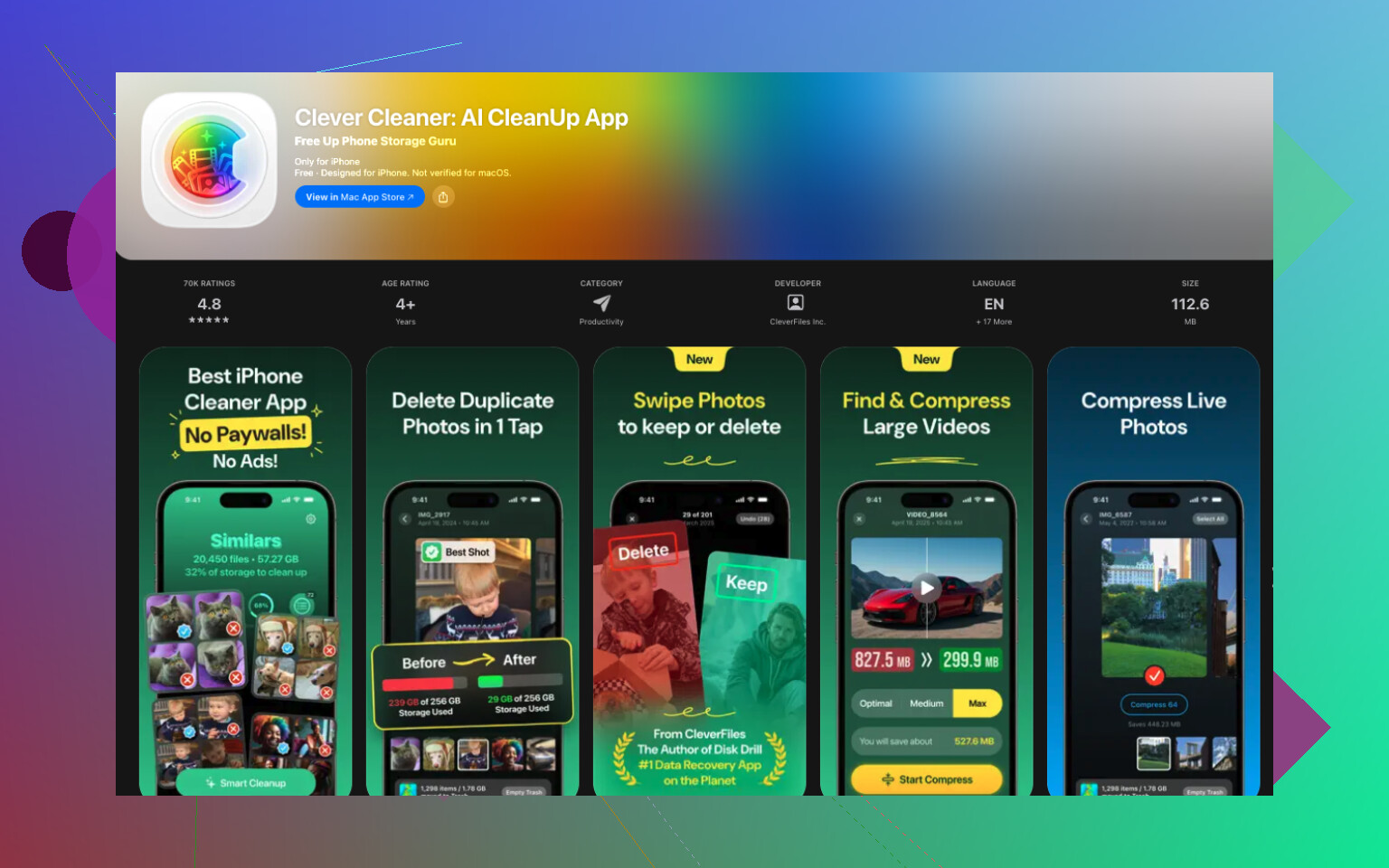
My iPhone storage keeps maxing out even after I delete apps, photos, and old messages. System data and other storage seem to grow back fast, and now I can’t update iOS or save new pictures. I need help figuring out what’s taking up space and how to stop my iPhone storage from filling up again.
I wouldn’t freak out yet. I’ve seen this on a bunch of iPhones, espically the 64 GB ones. Storage starts looking normal, then a day later iOS is throwing low-space warnings like something broke. Usually nothing broke.
What happens is slower than people think. Your phone keeps piling up leftovers. Photos. Videos. Message attachments. Offline music. Cached junk from apps you open every day. Each item looks small when it lands, then six months pass and your storage is cooked.
It Builds Up a Little at a Time
I think of it like a junk drawer, not some sudden disaster. You toss in one cable, one receipt, one random battery, then one day the drawer won’t shut.
Same deal here.
A weekend trip gives you 40 videos. WhatsApp hangs onto years of attachments. Messages saves memes, voice notes, clips. Instagram, TikTok, Spotify, YouTube, all of them keep extra files around. On their own, no big deal. Put together, they eat tens of gigabytes.
I’d Check Photos First
When somebody says, “my iPhone storage keeps filling up by itself,” I usually look at Photos before anything else.
Reason is simple. The photo library hides waste well. You don’t notice it while scrolling. Then you stop and look, and it’s stuff like this:
- six shots of the same sunset because one might be better
- three blurry copies of the same family pic
- a mountain of screenshots you needed for ten minutes
- Live Photos you never meant to save that way
- big video files from concerts, trips, birthdays
That pile gets huge fast. I’ve seen photo libraries take the top spot on storage over and over.
Why I’d Use a Cleanup App Instead of Doing It by Hand
You can sort it all yourself. I did once. It was annoying and took forever.
If your library has thousands of items, I’d look at Clever Cleaner.
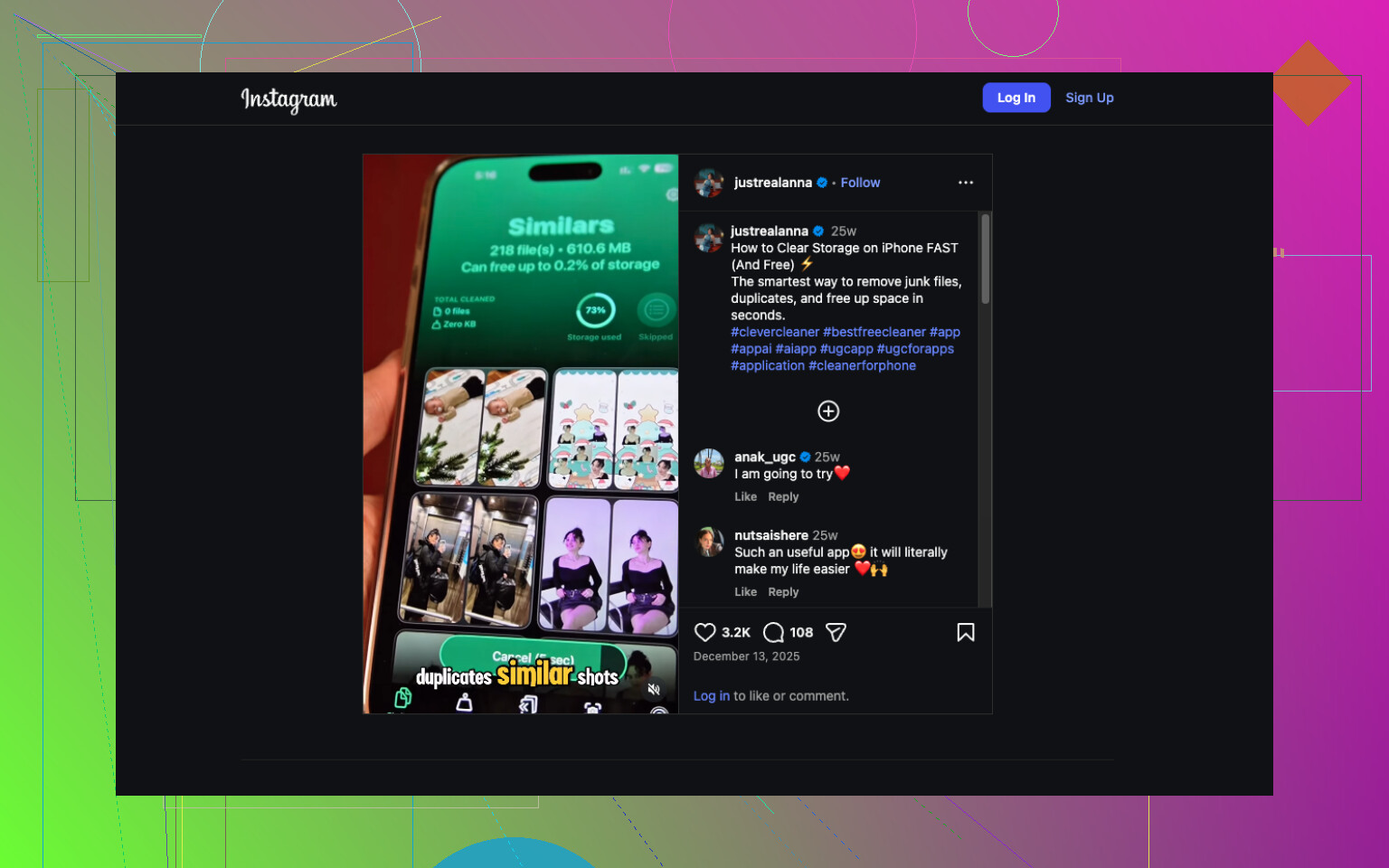
What stood out to me is it doesn’t stop at exact duplicates. It groups similar photos too, which matters more in real life. Most clutter isn’t one perfect duplicate. It’s four near-identical shots where you only need one. It also helps surface screenshots, large media, and Live Photos, which are common space hogs people forget about.
You still choose what gets deleted. It suggests, you decide. I prefer it that way.
I’ve watched people clear a weird amount of storage after one pass through old photo clutter. Stuff they hadn’t noticed at all.
Apps Eat Space Too
Photos are the usual suspect, though not the only one.
Apps swell over time because of cached files, downloads, and temp data. Messaging apps do it. Streaming apps do it. Social apps are bad for this too. I’ve opened storage settings and found one app taking way more room than I expected, for no obvious reason unless you count months of cached junk.
After the photo cleanup, I’d go to Settings > General > iPhone Storage and scan the list from largest to smallest. That screen usually tells the story fast.
What I’d Do First
Don’t bounce between random tips. Check where the storage went.
Open iPhone Storage. Find the biggest category. Start there.
If Photos is the main one, I’d clean that up first, and Clever Cleaner is a fast way to sort through the junk without tossing the photos you care about. Then I’d review bloated apps and old message attachments.
Most times, it’s not an iPhone defect. It’s buildup. Once you see what’s taking space, the fix gets a lot less confusing.
If “System Data” keeps growing back, I’d look at a different bucket than @mikeappsreviewer did.
A lot of iPhones fill up from cached files tied to Safari, Messages, iOS update files, and apps like TikTok, Instagram, Spotify, and WhatsApp. Deleting the app icon does not always fix the mess if sync pulls data right back.
Try this order.
- Settings, Safari, clear History and Website Data.
- Settings, General, iPhone Storage. Look for an old iOS update file and delete it.
- In Messages, remove big attachments from the info screen inside long chats.
- Turn off Keep Messages Forever. Set it to 1 year or 30 days.
- Restart the phone after cleanup. iOS sometimes reports storage wrong until reboot.
- If mail is huge, remove and re-add the account. Mail cache gets dumb fast.
I disagree a bit on starting with photos every time. Photos are common, sure, but runaway System Data is often cache bloat.
If your photo library is still messy, Clever Cleaner is worth a look for free iPhone storage cleanup, esp for screenshots, similar pics, and large files.
For a quick visual guide on how to clear storage on iPhone for free, watch this easy iPhone storage cleanup walkthrough.
If storage still refills after all this, backup, erase, restore. Annoying, but it fixes weird ghost storage a lot.
I’d actually push on one thing from @mikeappsreviewer and @yozora: if storage “comes back” super fast, that’s not always just normal clutter. Sometimes iCloud sync is re-downloading stuff you thought you removed, or an app is rebuilding its cache the second you open it again.
A couple places people miss:
- Voice Memos. Long recordings get huge.
- Podcasts app. Downloaded episodes love to hide.
- Files app. Check Downloads and On My iPhone.
- GarageBand, iMovie, CapCut, Lightroom. Editing apps stash giant project files.
- WhatsApp/Telegram can re-pull media from cloud backups.
Also check if Photos is set to “Download and Keep Originals.” That setting can absolutely wreck a 64 GB phone.
One more weird fix: make sure the phone has at least a few GB free before judging System Data. iOS gets really dumb when it’s nearly full and starts thrashing temp files. Kinda a dumb design, but here we are.
If your photo library is part of the mess, Clever Cleaner is honestly one of the easier ways to sort similar pics, screenshots, and oversized media without spending all night doing it manually. This free iPhone cleaner review with cleanup tips gives a decent breakdown.
If none of that changes it, I’d suspect corrupted local data, not just “too many photos.” At that point an encrypted backup, full erase, and restore is probly the cleanest fix.