My Windows PC suddenly stopped showing a GPT partition after a disk issue, and I’m trying to recover important files without making things worse. I need suggestions for reliable GPT partition data recovery software for Windows that can scan the drive safely and restore lost data.
First thing: stop using that drive for anything. If Windows is showing it as “Unallocated” or “RAW,” don’t format it, don’t initialize it, and don’t run random repair commands just to see what happens. The data may still be there, but the OS can treat that space like it’s empty and overwrite parts of it.
If it’s your boot drive, the safest move is to shut the machine down, remove the drive, and connect it to another computer as a secondary drive. You don’t want Windows running temp files, updates, indexing, or anything else on the disk you’re trying to recover from.
GPT problems can look scary, but they’re not always the end of the road. Unlike old MBR setups, GPT keeps a backup header at the end of the disk, so in some cases the partition layout can be found or rebuilt. The important part is not making things worse before you’ve copied your files somewhere safe.
For most people, I’d start with Disk Drill rather than trying to manually repair the partition table right away. Manual fixes can work, but if you write the wrong thing to the wrong sector, you can turn a recoverable situation into a much harder one.
Disk Drill is useful here because it doesn’t depend only on the broken partition table. It can scan the drive for lost data and file signatures, which helps with those RAW volumes where Windows basically gives up. It also supports common filesystems like NTFS, exFAT, and HFS+, and the preview feature is worth using before you recover anything. If you can preview the files, that’s a good sign they’re still readable.
One rule matters a lot: do not recover files back onto the same drive. Save everything to another healthy disk, preferably an external drive with enough free space.
If you’re comfortable in the command line, TestDisk is another option. It’s been around forever and can search for lost partition signatures, then attempt to rebuild partition entries. The scan itself is non-destructive, but the interface is old-school and it’s easy to get lost if you haven’t used it before.
gdisk is also worth mentioning for GPT-specific work. It has recovery options that can sometimes use the backup GPT header at the end of the disk to restore the primary one. Again, this is more of a power-user route. I wouldn’t start writing changes with it until the important files are already copied off.
Also watch out for the “GPT Protective Partition” message. That can happen when a drive gets moved between older 32-bit systems and newer 64-bit systems, or when a USB dock/enclosure reports sector sizes differently, like with 4K sector emulation. If you see that, do not use Diskpart’s “clean” command. That wipes the partition table. Scan the drive first and recover the files before thinking about repartitioning or formatting.
Basically, treat the drive like evidence: don’t change it until you’ve pulled the data off. If the drive itself is still physically healthy, there’s a decent chance you can recover the files, especially with GPT where that backup header may still be intact.
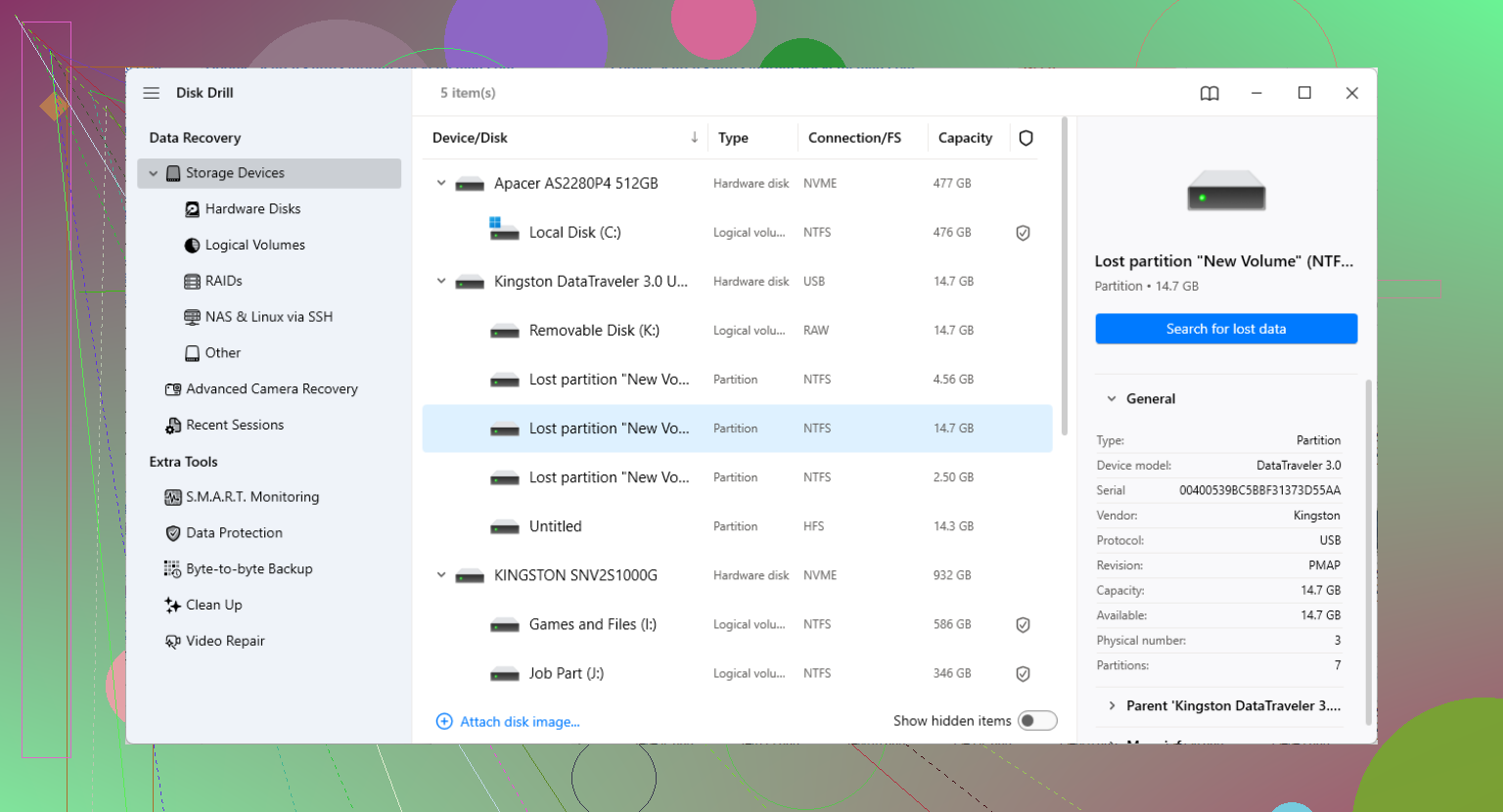
The annoying catch is that many recovery apps make the scan look successful before you know whether the files are actually usable. Before paying for anything, check previews, original folder names, and whether large files like videos or ZIPs open correctly after recovery. I agree with @mikeappsreviewer about not writing fixes to the disk yet, but I’d be a little skeptical of any tool that immediately offers to “repair” the GPT table. For Windows, Disk Drill is a reasonable first pass if you want a GUI and previews, while DMDE or R-Studio are worth looking at if you’re more technical and care less about hand-holding. Whatever you use, scan only, recover to another drive, then worry about rebuilding the partition after your important stuff is copied off.
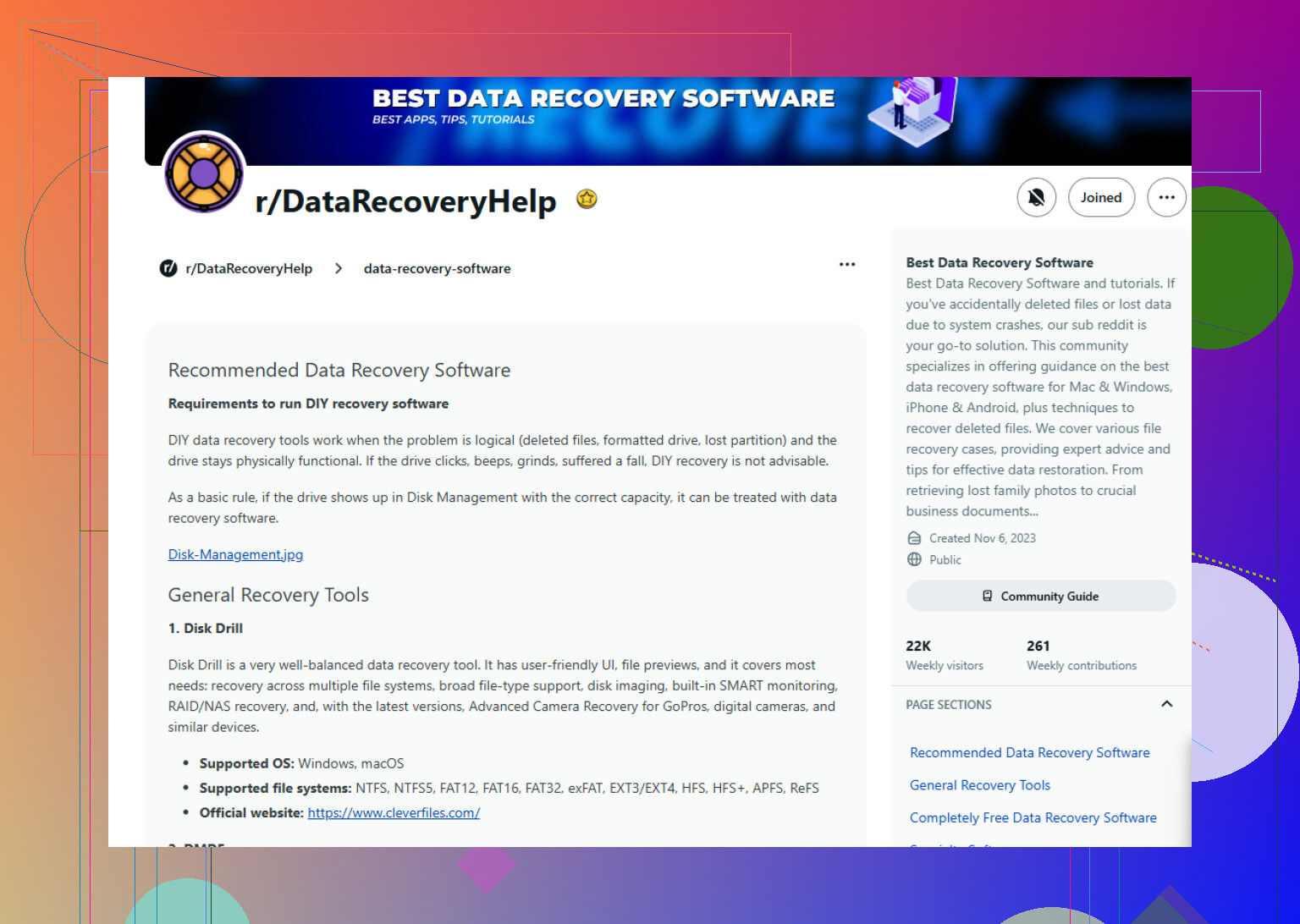
Don’t treat a missing GPT partition as a software-shopping problem yet. If the disk had an actual disk issue, bad sectors, disconnects, SMART warnings, weird noises, or Windows keeps freezing when it touches the drive, the first tool should be a cloning/imaging tool, not Disk Drill, R-Studio, TestDisk, or anything else doing a long scan on the original drive.
A deep scan can hammer a failing drive for hours. That may be fine on a healthy drive with only a damaged partition table, but it’s a bad bet on a drive that is getting worse. Make a sector-by-sector clone or image to another disk first if you can. Then run recovery software against the clone. That way, if Disk Drill finds the files, great. If DMDE finds the partition layout better, great. If TestDisk makes more sense later, you still have the original untouched.
For a normal user, Disk Drill is fine as a first GUI option, especially if you just want to browse found files and copy them out. My caveat is that I would not press any “repair partition” type option until the files are already recovered somewhere else. If the directory tree shows up with real filenames and previews work, recover the files. If everything only shows as random file signatures like file000123.jpg, the partition metadata may be badly damaged and you may get files back without useful names or folders. That’s still recovery, but it’s messier than people expect.
If this is an SSD, the answer changes a bit because TRIM can make “deleted” space unrecoverable much faster than people expect. A missing GPT partition after corruption is one thing. A partition that was deleted, formatted, or re-created on an SSD is a different problem. In that case, don’t keep booting from it and don’t keep reconnecting it just to “check again.”
For software, I’d put Disk Drill in the “reasonable first look” category, especially if you want something with a normal Windows interface and previews. Use it to scan and copy files out, not to fix the partition in place. The preview part matters more than the scan result count. A tool saying it found 600 GB of files does not mean those files are intact.
If you’re more technical, DMDE is often a better value and can be very good at showing damaged partition structures, but it is less friendly. R-Studio is stronger for complicated cases, especially when the file system is damaged but still partly readable. TestDisk is useful when the partition entry is missing and the filesystem is otherwise clean, but I would not make it the first thing a nervous user writes changes with.
Another thing people forget: check whether BitLocker was involved. If the partition was encrypted, most recovery tools will only find encrypted-looking data unless you have the recovery key and the volume metadata is still usable. That is not really a “GPT recovery software” problem, it’s an encryption problem wearing a partition problem costume.
My order would be: clone/image first if the drive might be unhealthy, scan the clone, recover files to a separate disk, then think about repairing the GPT. If the files are business-critical or the drive is making noises, skip the software experiments and use a recovery lab. Software is fine for logical damage. It is not kind to a dying drive.