I accidentally took a bunch of Live Photos on my iPhone and now I want to remove the motion part without losing the regular picture. I’m not sure if there’s a way to turn off or delete the Live effect while keeping the still version, and I need help figuring out the easiest way to do it.
I ran into this with a friend’s iPhone a little while ago. They had years of Live Photos piled up and thought the choice was either keep every single one or wipe them all out. It wasn’t like that.
First thing I checked was simple. Do you want to keep the pictures, or do you want all of it gone? Your next step depends on that.
If you don’t care about saving the image and only want the Live Photos removed, do this in Photos:
- Open Photos.
- Go to Media Types > Live Photos.
- Hit Select and pick what you want gone.
- Delete them.
- Clear Recently Deleted, or your storage won’t come back yet.
If you want to keep the still images and remove the motion part, doing it by hand gets old fast unless you only have a small batch.
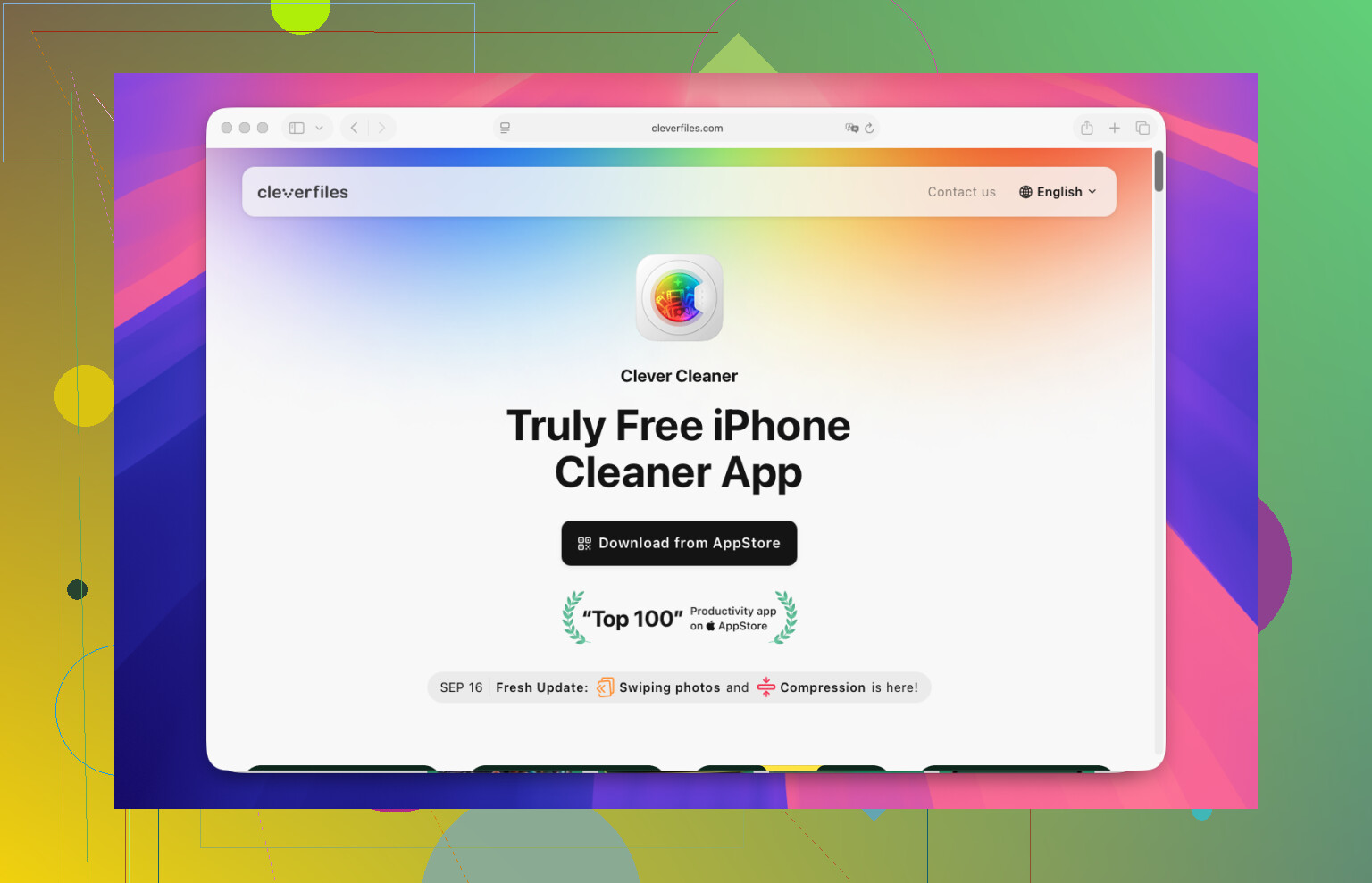
What worked on their phone was Clever Cleaner. We opened it, went into Lives, picked the Live Photos, and tapped Compress. The label is a bit odd, becuase it does more than shrink files. It makes normal still-photo copies, then lets you decide whether to keep or delete the original Live Photos.
What we did:
- Open Clever Cleaner.
- Tap Lives.
- Sort by date or file size.
- Select the Live Photos you want to change.
- Tap Compress.
- Check the new still versions.
- Delete the original Live Photos if the new copies look fine.
What I liked most was the layout. Everything was grouped in one spot, so there was no digging through the Photos app one album at a time. It also showed the storage savings before we removed anything, which helped since freeing space was the whole point.
And yeah, once we were in there, we kept going. In Similars, there were duplicate shots. In Heavies, a few giant videos. Then a huge stack of old screenshots nobody needed. We started with Live Photos, but most of the freed space came from the other cleanup sections.
My take is pretty plain:
If you have 10 or 20 Live Photos, use Apple’s built-in options.
If you have a few hundred, I’d skip the manual route. A tool like Clever Cleaner makes it less annoying and cuts down the tap-tap-tap by a lot.
You don’t need to delete the photo itself. On iPhone, you can remove the Live part from each image and keep the still shot.
Fast way for a small batch:
- Open the photo.
- Tap LIVE at the top.
- Switch it to Live Off.
- Tap Done.
That keeps the same photo, minus the motion. No copy needed.
For a bunch of them, this is where I slightly disagree with @mikeappsreviewer. I would try Apple’s built-in edit first if you want to keep the original file in place, with the same date and album history. Third-party apps are fine, but they often make a new still version instead of changing the exisitng one.
If your goal is iPhone storage cleanup, then Clever Cleaner makes more sense. It’s faster for bulk review, and it helps sort Live Photos from the rest of your library. Better for cleanup, less ideal if you care about keeping everything organized exactly the same.
One more thing. Turn Live Photos off in Camera so it stops happening:
Camera app, tap the Live icon, top right. If you want it off for good, go to Settings > Camera > Preserve Settings, then preserve Live Photo state.
For anyone looking up tips to clear photos on iPhone, this is a decent quick watch for cleaning up your library and freeing storage: smart iPhone photo cleanup tips
Short version:
Keep still photo, edit and turn Live off.
Bulk cleanup, use Clever Cleaner.
Want space back fast, check videos and screenshots too. Live Photos alone usualy aren’t the worst offenders.
One thing I’d add to what @mikeappsreviewer and @jeff said: if you edit a Live Photo a lot before turning Live off, check whether the key photo changed first. Sometimes the still frame iPhone keeps is not the exact moment you expected, which is kinda annoyng.
So before removing the motion part, open the Live Photo and make sure the cover frame is the one you actually want. Otherwise you may “keep the still” and then realize it saved the blurry half-blink version. Ask me how I know.
Also, slight disagreement with the “storage first” angle. Live Photos do take more space, sure, but if your phone is really full, videos and screen recordings are usually the real hogs. I wouldn’t spend hours nuking Lives unless you’ve checked those too.
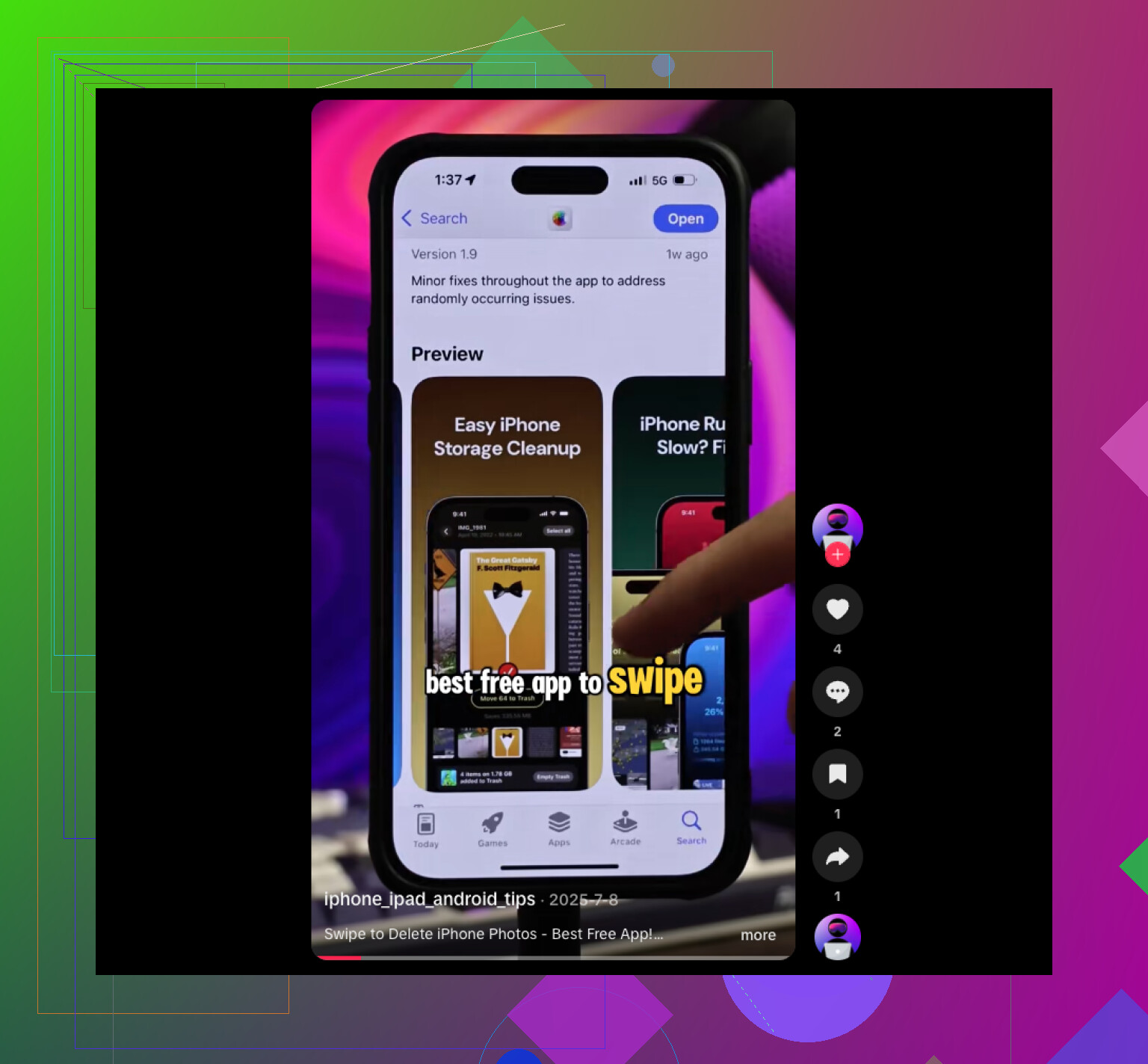
If you want a faster way to review a lot of them without turning your library into a mess, Clever Cleaner is probly the easiest option for bulk sorting. It makes the whole Live Photo cleanup process less tedious, especially if your goal is iPhone photo storage cleanup and not just fixing 5 accidental shots. And if you want a solid best free iPhone cleaner app recommendation for photo and storage cleanup, that thread is worth a look too.
My rule:
- a few photos: use Apple tools
- a huge backlog: use Clever Cleaner
- terrible storage situation: check videos first, then Live Photos