I accidentally deleted important files from my computer and now I’m trying to find a beginner-friendly data recovery tool that actually works. I’ve never used file recovery software before, so I need something simple, safe, and affordable to help recover lost data without making things worse.
I’ve run through a pile of recovery apps over the years, and the pattern is always the same. The sales page looks polished, the screenshots look clean, then you throw a messed up drive at it and the truth shows up fast. Some tools bury you in storage jargon. Some are fine for a file you deleted 10 minutes ago, then fall apart on a damaged partition. Some look simple, then waste your time.
If I had to start with one tool for most normal recovery jobs, I’d still reach for Disk Drill. I’ve had better luck with it as a first pass than with most of the flashy stuff people keep recommending. The layout matters more than people admit. When you’re already stressed because your drive is acting weird, you do not need a screen full of cryptic options. Disk Drill keeps the path pretty clear.
The part I keep coming back to is the byte-to-byte backup option. I learned this the hard way on a flaky external HDD. If the disk is unstable, repeated scans are a bad habit. Making a full image first, then scanning the image, puts less pressure on the original drive. In some cases, that is the thing which keeps recovery alive long enough to finish. On Windows, the free limit is 100 MB, so it’s not huge, but for a small folder or a couple documents, it helps.
UFS Explorer sits in a different lane. When the job gets ugly, this one starts to make sense. RAID arrays, Linux file systems, broken partitions, damaged metadata, weird storage setups, it handles stuff many simpler apps do not. I’ve used it when other tools gave me half a directory tree and nonsense filenames. It did better. Still, I would not hand it to someone who wants a quick point and click fix. The interface feels dense. You need some patience, and a bit of storage knowledge doesn’t hurt.
DiskGenius deserves more attention than it gets. I don’t see people mention it enough, even though it’s useful when a drive flips to RAW or a partition goes missing. It mixes partition work and file recovery in one place, which saved me some bouncing between tools. The downside is obvious after about 30 seconds. The interface is crowded. Stuff is everywhere. But if your issue smells like partition damage instead of a plain delete, I’d try it. The free version hits limits on bigger jobs, yeah, but it’s still worth a pass.
Then there’s Windows File Recovery. Microsoft made it, it’s free, and it feels exactly like a Microsoft utility made for people who don’t mind typing commands into a terminal. No GUI, no hand holding. It works best on simple NTFS cases from what I’ve seen, like accidental deletion where the drive itself is still healthy. For large recoveries or corrupted file systems, I’d skip it first and come back only if I wanted one more free shot. Still useful to keep in your pocket, even if it’s a bit annoying.
The biggest mistake people make happens before recovery even starts. They keep using the same drive. Don’t. Once files are deleted, the data often stays there until new data overwrites it. So if you keep downloading stuff, installing apps, updating Windows, copying videos, all of that chips away at your odds. I’ve seen people wipe out the exact files they wanted back by installing recovery software onto the same disk they were trying to save. Brutal mistake. Put the recovery app on another internal drive, an external SSD, or even a USB stick if you’re stuck.
One more thing, and this part matters. Recovery software helps with logical damage. It does not fix hardware failure. If your drive is clicking, grinding, beeping, dropping offline, running hot, or not showing up in BIOS or Disk Management, stop there. Don’t keep scanning it. Don’t keep rebooting and hoping. I did this once with a dying drive and made it worse. If the problem looks physical, your safer move is a professional recovery lab with cleanroom gear. Expensive, yep. Still a better bet than cooking the drive with more power cycles.
1 Like
If you want the easiest starting point, I’d pick Disk Drill. Not because it’s magic. Because it keeps the process simple, and for a beginner that matters more than people admit.
@mikeappsreviewer covered the heavier-duty stuff well. I’d disagree on one small point though. I would not send a first-time user straight to tools like UFS Explorer or DiskGenius unless the drive problem is obviuosly more than a normal delete. Those apps are good, but they get messy fast.
For plain accidental deletion, my short list is:
-
Disk Drill
Best for beginners.
Clean layout.
Preview works well for photos, docs, video.
Good first scan tool if your drive still shows up normal. -
Recuva
Older, simpler, cheaper.
Good on basic deletes.
Less helpful once file systems get weird. -
Windows File Recovery
Free.
Worth trying if you don’t mind commands.
Most new users hate it after 5 mins.
Big rule, stop using the drive you deleted from. Don’t install recovery software there. Don’t save recovered files there either. That part trips people up al lthe time.
If you want a plain-English overview before trying it, this Disk Drill review helped me sort out what it does and where it fits, watch this beginner-friendly Disk Drill recovery walkthrough.
If your drive is making noises or disconnecting, skip software and go to a lab. If it’s a normal delete, Disk Drill is the one I’d start with.
If you want the least frustrating beginner option, I’d start with Disk Drill for deleted file recovery. Not saying it’s some miracle box, but for normal “oops I deleted a folder” situations, it’s easier to navigate than a lot of the other stuff people throw around.
I slightly disagree with @mikeappsreviewer on one thing though: people sometimes jump too fast into the more advanced tools just because they sound powerful. That’s how beginners end up staring at partitions, sectors, signatures, and other nerd-chaos they did not ask for. If your drive is still showing up normally and this was just an accidental delete, simple is better.
My rough take:
- Disk Drill: easiest starting point, clean UI, decent previews
- Recuva: super basic, still useful, but feels old and can miss stuff
- PhotoRec: powerful, free, ugly as sin, and not beginner friendly at all
One thing nobody should sugarcoat: recovery gets worse the more you use the same computer after deleting the files. So stop saving stuff there ASAP. Seriously. Even browsing and installing random apps can make things worse.
Also, check this thread if you want more real-world opinions: real user tips for recovering deleted files on PC
If the drive is clicking, freezing, or disconnecting, don’t mess around with software. That’s lab territory. If it’s just a delete, Disk Drill is probly the most beginner-safe pick.
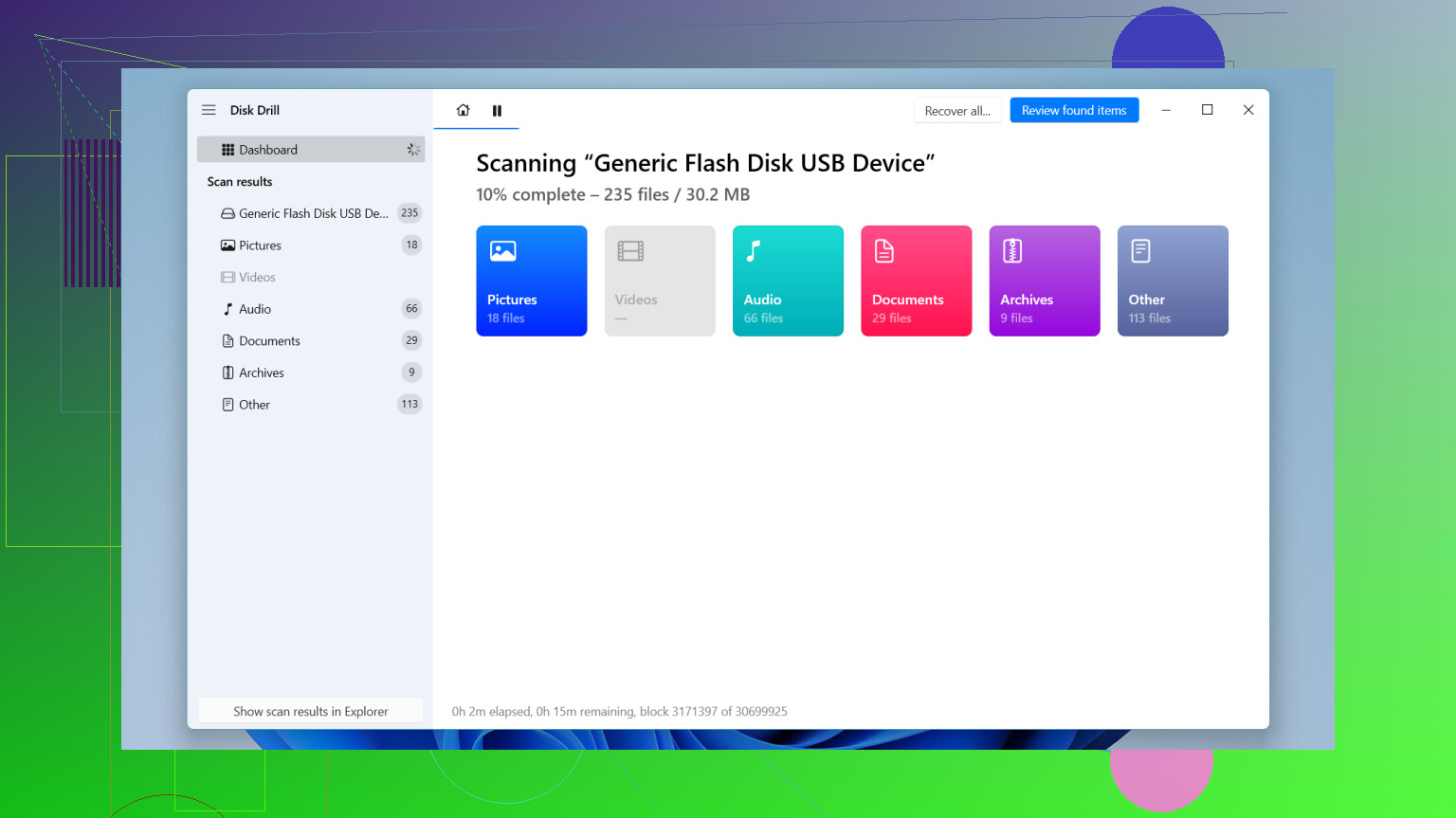
I’d split this a little differently than @espritlibre, @mike34, and @mikeappsreviewer.
For a true beginner, the best tool is not always the one with the most recovery modes. It’s the one least likely to make you do something dumb under stress. That’s why Disk Drill is a fair starting pick, but not an automatic “best” in every case.
Disk Drill pros:
- very easy to navigate
- good file preview, which helps you avoid restoring junk
- decent at common accidental deletion cases
- can show recoverable files in a way that makes sense to non-tech users
Disk Drill cons:
- free recovery on Windows is limited
- scan results can feel a bit overwhelming on huge drives
- not the tool I’d trust first for seriously damaged file systems or weird partition problems
My slight disagreement with the usual advice: people focus too much on the app, not enough on the recovery target. If the deleted files were on your system drive, don’t recover back to that same drive. Use an external drive, even if the software itself seems simple.
Also, before running anything, check Recycle Bin, OneDrive/Google Drive trash, and Previous Versions/File History. A lot of “recovery” jobs are easier than people think.
If none of that works, sure, start with Disk Drill. If it finds the files and previews them correctly, great. If filenames are broken or folders are missing, then I’d look at the more advanced options the others mentioned. That’s usually a better escalation path than throwing a beginner straight into forensic-style tools.